


Best Budget Ultrabooks Under $500: The Smart Shortlist
Finding a genuinely good budget ultrabook under $500 is more complicated than sorting a retailer page from low price to high price. The word “ultrabook” suggests a machine that is easy to carry, quick enough for daily work, pleasant to type on, and efficient enough to survive a useful stretch away from a wall outlet. At this price, however, manufacturers often preserve the slim silhouette while quietly reducing display quality, memory capacity, storage, keyboard comfort, or charging flexibility.
That is why this guide does not treat every thin notebook as an equal. We looked for laptops that make sense as portable daily computers, not merely products that happen to weigh less than a gaming machine. The strongest new options provide at least 8GB of memory, solid-state storage, modern wireless connectivity, and a practical screen. We also included carefully selected open-box and refurbished premium models because a well-supported former flagship can deliver a better keyboard, display, chassis, trackpad, and port selection than a brand-new entry-level laptop.
The result is a ten-model list built for different buyers. A student who lives in Google Docs needs a different machine from an accountant who depends on Windows desktop software. A traveler may happily exchange upgradeability for a two-pound chassis, while a home user may prefer a larger screen and conventional ports. Instead of naming one universal winner and hiding its compromises, every recommendation below has a defined role, a condition requirement, and a realistic buy-below price.
Editorial Definition: In this guide, “ultrabook” is used in the modern shopping sense: a compact, thin-and-light laptop designed for mobile productivity. It does not mean that every model carries Intel Evo verification or an Intel trademark certification.
Readers who want a broader range of compact premium machines should compare our complete ultrabook coverage and best ultrabooks under $1,000 before deciding whether the $500 ceiling is worth the trade-offs.
Quick Summary: Which Affordable Ultrabook Should You Buy?
The Lenovo IdeaPad Slim 3i 15 is the most balanced new Windows choice when its Core i5, 16GB, Full HD configuration reaches $499.99. It is not the smallest laptop here, but the extra memory gives it better multitasking headroom than most new sub-$500 notebooks. Buyers who prefer a compact 14-inch chassis should consider the ASUS Vivobook Go 14, which keeps the weight near three pounds and combines a Ryzen 3 processor with 8GB of LPDDR5 memory and a 256GB SSD.
ChromeOS shoppers receive unusually strong value. The ASUS Chromebook Plus CX34 is quick, simple, and well suited to browser-first work, while the Acer Chromebook Plus 514 adds a taller WUXGA touchscreen, a 1080p webcam, and an excellent collection of ports. Neither Chromebook is appropriate for someone who needs unrestricted Windows applications, specialized engineering software, or traditional PC game support.
The refurbished side of the list is where premium hardware becomes attainable. The MacBook Air M1 remains a compelling fanless portable for buyers comfortable with macOS. The Microsoft Surface Laptop Go 3 offers the smallest footprint and a responsive 3:2 touchscreen. The Lenovo ThinkPad X13 Gen 2 is the strongest business-oriented value, and the LG gram 14 14Z90Q is the standout for travelers who want a high-quality 16:10 display and exceptionally low weight.
At-a-Glance Comparison of the 10 Best Ultrabooks Under $500
| Rank | Product and Recommended Configuration | Best For | Condition to Target | Weight | Buy-Below Price | Editorial Score |
|---|---|---|---|---|---|---|
| 1 | Lenovo IdeaPad Slim 3i 15, Core i5-1335U, 16GB, 256GB | Best overall new Windows value | New | About 3.57 lb | $499.99 | 9.0/10 |
| 2 | ASUS Vivobook Go 14 E1404FA-BB33, Ryzen 3 7320U, 8GB, 256GB | Best compact new value | New | 3.04 lb | $349.99 | 8.7/10 |
| 3 | HP Laptop 14-ep1047nr, Core 5 120U, 8GB, 256GB | Best everyday 14-inch Windows laptop | New | About 3.09 lb | $499.99 | 8.6/10 |
| 4 | Acer Aspire Go 14 AG14-21P-R3FZ, Ryzen 3 7320U, 8GB, 128GB | Best 16:10 Windows option near $350 | New | 3.22 lb | $349.99 | 8.3/10 |
| 5 | ASUS Chromebook Plus CX34, Core i5, 8GB, 128GB | Best Chromebook for performance | New | About 3.17 lb | $399.99 | 8.8/10 |
| 6 | Acer Chromebook Plus 514 CB514, Core 3, 8GB, 512GB | Best touchscreen Chromebook | New | About 3.09 lb | $449.99 | 8.7/10 |
| 7 | Apple MacBook Air M1, 8GB, 256GB | Best refurbished macOS ultrabook | Refurbished | 2.8 lb | $449.99 | 9.1/10 |
| 8 | Microsoft Surface Laptop Go 3, Core i5, 8GB, 256GB | Best refurbished mini ultraportable | Refurbished | 2.49 lb | $399.99 | 8.8/10 |
| 9 | Lenovo ThinkPad X13 Gen 2, Core i5 or i7, 16GB, 256GB+ | Best refurbished business laptop | Refurbished | From about 2.78 lb | $399.99 | 9.0/10 |
| 10 | LG gram 14 14Z90Q, Core i7-1260P, 16GB, 512GB | Lightest premium open-box pick | Open-box or refurbished | About 2.2 lb | $499.99 | 9.2/10 |
Prices can change by color, seller, condition, and ZIP code. The figures above are not permanent market prices; they are the maximum amounts at which we consider each configuration competitive. Taxes, shipping, memberships, accessories, and extended warranties are not included.
Our Three Fastest Recommendations
| If Your Priority Is | Choose | Why |
|---|---|---|
| A new Windows laptop with maximum practical memory | Lenovo IdeaPad Slim 3i 15 | The 16GB configuration provides the best multitasking margin in the new-laptop group |
| The most polished portable experience below $500 | LG gram 14 14Z90Q | Open-box units can combine a 2.2-pound chassis, 16:10 IPS panel, 16GB RAM, and Thunderbolt 4 |
| A compact laptop with a full new-device retail path | ASUS Vivobook Go 14 | It is light, inexpensive, and correctly equipped for routine study and office work |
How We Evaluated Budget Ultrabooks
This guide is based on comparative editorial research rather than an unsupported claim that every retail configuration was laboratory-tested side by side. We reviewed official specifications, configuration sheets, current US retailer listings, manufacturer warranty information, platform-support policies, component capability, and independent performance evidence where appropriate. We then scored each laptop for the jobs a sub-$500 buyer is likely to perform.
Our weighting favors the experience that matters after the excitement of a discount disappears:
| Evaluation Area | Weight | What We Looked For |
|---|---|---|
| Everyday performance | 25% | Responsive browsing, office work, video calls, light multitasking, and sensible thermal behavior |
| Display and input quality | 20% | Readable resolution, useful aspect ratio, viewing angles, keyboard comfort, and trackpad usability |
| Portability and construction | 20% | Weight, thickness, charger burden, hinge stability, materials, and travel practicality |
| Battery and charging | 15% | Battery capacity, efficiency, USB-C charging where available, and realistic mobility |
| Connectivity | 10% | USB-C, USB-A, display output, audio, wireless standard, card readers, and docking potential |
| Value and ownership risk | 10% | Price, memory/storage balance, warranty, return policy, repair exposure, and software support |
We penalized 4GB configurations, low-capacity eMMC-only designs, ambiguous marketplace upgrades, old processors sold at inflated prices, and displays that are unusually poor for the asking price. A model could still qualify with one meaningful weakness, but only when its price and strengths created a clear reason to buy it.
Who This Guide Is For
These thin and light laptops under $500 are intended for web research, Microsoft 365, Google Workspace, email, streaming, remote meetings, basic photo management, light coding, and general school or office work. They are not substitutes for mobile workstations, dedicated gaming laptops, or color-managed creator systems.
Students comparing portable options can also explore our student laptop hub and laptops for college students. Those guides broaden the search to larger machines, Chromebooks, and performance-focused configurations that may not fit a strict ultrabook definition.
Expert Tip: Do not spend the full $500 merely because a listing says “slim.” At this price, 8GB of RAM, an SSD, a readable display, and a trustworthy seller matter more than a decorative metal-look finish.
New Versus Refurbished: The Decision That Changes Everything
A new budget ultrabook usually offers predictable battery health, a straightforward manufacturer warranty, and fewer cosmetic surprises. Its compromises tend to be visible in the specification sheet: modest display brightness, plastic construction, limited color coverage, soldered memory, or smaller storage. For buyers who value low ownership risk, those compromises can be acceptable.
A refurbished premium ultrabook reverses the equation. It may deliver an excellent keyboard, brighter high-resolution display, stronger processor, better trackpad, superior materials, and more versatile ports. The risk moves to battery wear, cosmetic condition, unclear refurbishment standards, and shorter warranty coverage. A strong return window and a written battery policy are therefore part of the product, not optional fine print.
Learn More: Our minimum refurbished-laptop checklist
- The seller identifies the exact processor, memory, storage, display resolution, and model generation.
- The listing includes a functional AC adapter and states whether it is original or compatible.
- The return period is long enough to test battery health, ports, keyboard, camera, speakers, Wi-Fi, and sleep behavior.
- The warranty is written and names the party responsible for service.
- The device is not protected by an unknown BIOS password, activation lock, enterprise enrollment, or mobile-device-management profile.
- Battery condition is stated, or the price leaves enough room for a professional replacement.
- Photos and condition grades distinguish normal wear from dents, pressure marks, cracked hinges, or display defects.
What $500 Cannot Reliably Buy
Even the best model here will have boundaries. New sub-$500 laptops rarely combine a bright 100% sRGB display, 16GB of memory, premium metal construction, all-day measured battery life, high-end speakers, and a modern processor at the same time. Refurbished models can approach that experience, but condition becomes part of the trade-off.
Buyers who need sustained video editing, 3D rendering, high-refresh gaming, professional color work, or large software projects should raise the budget or choose a heavier performance laptop. Our budget laptop buying collection covers more form factors, while the best budget laptops under $500 guide is useful when portability is less important than raw specification value.
Lenovo IdeaPad Slim 3i 15 Review: Best Overall New Ultrabook Under $500
Editorial Score: 9.0/10
Award: 🏆 Best Overall New Windows Value
The Lenovo IdeaPad Slim 3i 15 earns the top new-laptop position for one decisive reason: the right configuration offers 16GB of memory at the $500 ceiling. Memory is one of the most difficult components to compromise on because many slim laptops solder it to the motherboard. A fast processor cannot prevent tab reloads and application slowdowns when the system runs out of working space. Sixteen gigabytes gives this Lenovo a more comfortable foundation for several years of ordinary productivity.
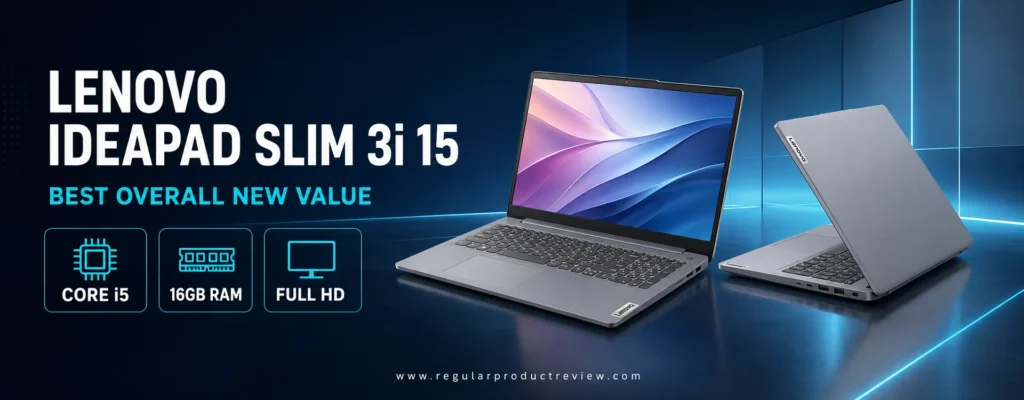
Our recommended retail configuration is model 82X700KEUS with an Intel Core i5-1335U processor, 16GB of memory, a 256GB SSD, and a 15.6-inch Full HD display. Retail listings can reuse the IdeaPad Slim 3i name for slower processors and smaller memory capacities, so the model number matters as much as the family name.
Lenovo IdeaPad Slim 3i 15 Key Specifications
| Specification | Recommended Configuration |
|---|---|
| Processor | Intel Core i5-1335U |
| CPU layout | 10 cores, 12 threads |
| Graphics | Integrated Intel Iris Xe-class graphics, configuration dependent |
| Memory | 16GB |
| Storage | 256GB PCIe SSD |
| Display | 15.6-inch Full HD, 1920 × 1080 |
| Operating system | Windows 11 Home |
| Wireless | Wi-Fi 6 and Bluetooth |
| Weight | Approximately 3.57 pounds |
| Recommended condition | New |
| Buy-below price | $499.99 |
The current US retail configuration and price can be checked through the Best Buy Lenovo IdeaPad Slim 3i listing. Lenovo documents the broader family on its official IdeaPad product pages.
Why the Core i5 and 16GB Combination Matters
The Core i5-1335U uses two performance cores and eight efficiency cores. That hybrid layout is well suited to the uneven rhythm of daily laptop use: short bursts when opening applications or calculating a spreadsheet, followed by lighter background activity while reading, typing, or streaming. It is not a workstation processor, but it provides substantially more headroom than Intel N-series chips and entry-level dual- or quad-core CPUs.
With 16GB of RAM, the laptop can keep a video meeting, office suite, messaging client, music stream, and a sensible collection of browser tabs active more comfortably than the 8GB machines in this guide. Storage is the less generous part of the configuration. A 256GB SSD is fast enough for Windows and applications, but users with a large photo, video, or offline media library should budget for cloud storage or an external drive.
Display and Everyday Comfort
The 15.6-inch Full HD panel offers more working area than the 13- and 14-inch alternatives. That makes side-by-side documents, spreadsheets, and browser windows easier to manage. The 1920 × 1080 resolution is appropriate at this size, though buyers should not expect the color coverage, brightness, or contrast of a premium OLED or high-end IPS display.
The larger body also provides a roomier keyboard deck. Users who write long assignments or work with financial data may appreciate the numeric keypad, depending on the exact regional keyboard layout. The trade-off is footprint: this is a slim mainstream laptop rather than a tiny ultraportable. It fits a normal backpack, but it occupies more tray-table and café space than the Surface Laptop Go 3 or ThinkPad X13.
Portability, Ports, and Ownership Value
At roughly 3.57 pounds, the IdeaPad Slim 3i remains easy enough to commute with, but the charger pushes the travel package closer to four pounds. Its port mix is more practical than the minimalist approach used by many premium ultrabooks. USB-A support reduces adapter dependence, while USB-C and HDMI make it easier to connect displays and accessories. Exact USB-C charging and video capabilities can vary by configuration, so confirm the product specification before assuming one cable will handle every dock.
Construction is primarily value-focused. The chassis can feel less rigid than a ThinkPad or MacBook, and users should open the display from the center instead of twisting one corner. That is a fair compromise at $499.99, especially because the money is going toward the processor and memory rather than decorative materials.
Lenovo IdeaPad Slim 3i Pros and Cons
| Pros | Cons |
|---|---|
| 16GB of memory at the price ceiling | Larger footprint than a 13- or 14-inch ultrabook |
| Capable Core i5-1335U processor | 256GB storage can fill quickly |
| Full HD display | Display quality is functional rather than premium |
| Comfortable size for documents and spreadsheets | Plastic construction can show flex |
| Useful conventional ports | Configuration names are easy to confuse |
| New-device retail availability | Not designed for demanding gaming or color-critical creation |
Who Should Buy It?
Choose this Lenovo if you want a new Windows ultrabook under $500, frequently multitask, work in Microsoft Office, manage larger spreadsheets, or expect to keep the laptop for several years. The 16GB memory configuration is also a sensible entry-level choice for students learning programming, provided their courses do not require a dedicated GPU or unusually heavy virtual machines.
Skip it if the lightest possible travel weight matters more than memory, if you need a high-quality color-accurate screen, or if your bag only accommodates a compact 13-inch device. A refurbished ThinkPad X13 offers a more business-like keyboard and chassis; the LG gram 14 offers dramatically lower weight.
Editorial Price Alert: The 16GB/256GB configuration is compelling at $499.99 or less. Do not substitute an 8GB model at the same price, and do not assume every IdeaPad Slim 3i listing has the same display or USB-C functions.
For more work-oriented alternatives, compare our business laptop recommendations and best business laptops under $1,000. The Lenovo is a consumer model, but its memory capacity makes it unusually practical for budget office work.
Bottom Line on the Lenovo IdeaPad Slim 3i 15
The Lenovo IdeaPad Slim 3i 15 does not win through premium materials or a spectacular screen. It wins by putting the budget into the components that keep everyday work responsive. At the correct price, the Core i5 and 16GB configuration is the safest all-around new Windows recommendation in this guide.
ASUS Vivobook Go 14 Review: Best Compact New Ultrabook Value
Editorial Score: 8.7/10
Award: 🎒 Best Compact New Value
The ASUS Vivobook Go 14 E1404FA-BB33 is the model to choose when portability and price matter more than heavy multitasking. At 3.04 pounds and about 0.70 inch thick, it is noticeably easier to carry than a typical 15.6-inch budget notebook. The recommended configuration combines AMD’s Ryzen 3 7320U, 8GB of LPDDR5 memory, and a 256GB SSD—an appropriate baseline for schoolwork, web-based productivity, streaming, and home administration.
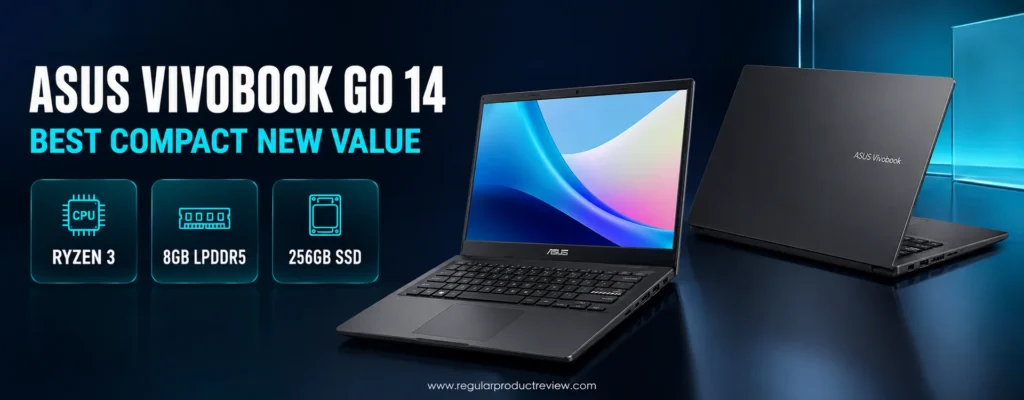
This exact configuration has appeared around $329.97 through US retail channels. That price is crucial. The Vivobook Go 14 is a strong value in the low-to-mid $300 range, but it becomes less attractive near $500, where buyers can find 16GB Windows laptops or refurbished premium ultrabooks.
ASUS Vivobook Go 14 E1404FA-BB33 Specifications
| Specification | Details |
|---|---|
| Processor | AMD Ryzen 3 7320U |
| CPU layout | 4 cores, 8 threads |
| Graphics | AMD Radeon 610M integrated graphics |
| Memory | 8GB LPDDR5, soldered |
| Storage | 256GB PCIe SSD |
| Display | 14-inch Full HD, 1920 × 1080 |
| Hinge | 180-degree lay-flat design |
| Wireless | Wi-Fi and Bluetooth, configuration dependent |
| Weight | 3.04 pounds |
| Thickness | About 0.70 inch |
| Recommended condition | New |
| Buy-below price | $349.99 |
ASUS lists the chassis dimensions, weight, processor range, memory options, and ports in its official Vivobook Go 14 specifications. The recommended BB33 retail configuration is also described in the Walmart Vivobook Go 14 listing.
Performance for Study, Office Work, and Streaming
The Ryzen 3 7320U is an efficient four-core processor designed for affordable mobile systems. It handles document editing, online classes, email, Full HD streaming, cloud applications, and moderate browsing without requiring a large cooling system. Its Radeon 610M graphics support everyday display work and media acceleration, but they are not intended for modern AAA gaming or GPU-heavy creative applications.
Eight gigabytes of soldered memory is the main performance limit. It is enough for a focused workload, but users who routinely keep dozens of complex tabs open while running Teams, Photoshop, and multiple desktop applications will encounter pressure. Because the memory cannot be upgraded, buying habits matter: close unused applications, avoid unnecessary startup utilities, and keep browser extensions under control.
The 256GB PCIe SSD is a better fit than the 128GB storage found in some entry-level models. It provides room for Windows, applications, documents, and a modest offline library. Large game installations and video collections still require external or cloud storage.
Display, Keyboard, and Everyday Usability
The recommended configuration uses a 14-inch Full HD screen. Resolution is only one part of display quality, and regional Vivobook Go panels can differ in viewing angles, brightness, color coverage, and touch support. Buyers should verify that the exact listing says 1920 × 1080 and should not assume it has the same panel as an OLED-branded Vivobook.
For documents and indoor streaming, the screen is serviceable. The matte or anti-glare treatment on many configurations helps under room lighting, while the 180-degree hinge makes it easier to share the display across a table. Limited color gamut and modest brightness make it unsuitable for professional photo editing or regular outdoor work.
The keyboard is comfortably sized for a 14-inch notebook, and the physical webcam privacy shield is a welcome detail at this price. The touchpad provides enough area for normal navigation, though it lacks the glassy precision of a Surface or MacBook trackpad.
Travel Design and Connectivity
At 3.04 pounds, the Vivobook Go 14 reaches the practical portability standard we want from a low-cost ultrabook. The plastic chassis keeps weight down, but it does not feel as dense or rigid as aluminum. Treat the lid carefully in a packed backpack and use a protective sleeve if the laptop will commute daily.
The port selection commonly includes USB-C, USB-A, HDMI, and a 3.5mm audio connection. However, a USB-C connector does not automatically guarantee charging or external-display output. Confirm those capabilities on the exact SKU before purchasing a USB-C dock.
ASUS Vivobook Go 14 Pros and Cons
| Pros | Cons |
|---|---|
| Compact 3.04-pound design | 8GB memory is soldered |
| Ryzen 3 performance suits everyday tasks | Radeon 610M is not a gaming GPU |
| 256GB PCIe SSD | Display quality varies by SKU |
| Full HD resolution on the recommended model | Modest brightness and color coverage |
| Webcam privacy shield and 180-degree hinge | Plastic chassis is less rigid than premium rivals |
| Attractive low-$300 pricing | USB-C capabilities require verification |
Who Should Buy the Vivobook Go 14?
It is ideal for students, commuters, families, and remote workers who want a lightweight laptop under $500 for focused daily tasks. It also makes sense as a secondary travel computer because the replacement cost is lower than that of a premium ultrabook.
Avoid it if you need 16GB of memory, accurate color, strong 3D performance, or a highly upgradeable platform. The Lenovo IdeaPad Slim 3i 15 offers more memory, while a refurbished ThinkPad or MacBook provides a more premium input experience.
Expert Recommendation: Buy the E1404FA-BB33 only after confirming Ryzen 3 7320U, 8GB LPDDR5, 256GB SSD, and 1920 × 1080 resolution. Marketplace titles sometimes merge details from several Vivobook Go configurations.
Students can compare this portable ASUS with our best student laptops under $500 and broader best student laptop guide. Those pages include larger and less portable options that may offer more storage or upgrade flexibility.
Bottom Line on the ASUS Vivobook Go 14
The Vivobook Go 14 succeeds because it understands the assignment: stay light, keep the essentials usable, and leave enough money in the budget for a sleeve or backup drive. At $349.99 or less, it is one of the clearest new-laptop values in the compact category.
HP Laptop 14-ep1047nr Review: Best Everyday 14-Inch Windows Pick
Editorial Score: 8.6/10
Award: 💼 Best Balanced 14-Inch Windows Laptop
The HP Laptop 14-ep1047nr is a conventional laptop in the best sense of the word. It does not rely on a tablet hinge, experimental processor architecture, or cloud-first operating system. Instead, it combines an Intel Core 5 120U processor, 8GB of DDR4 memory, a 256GB NVMe SSD, and a 14-inch Full HD display in a chassis that starts around 3.09 pounds. For buyers who want familiar Windows compatibility in a compact body, that formula is easy to understand.
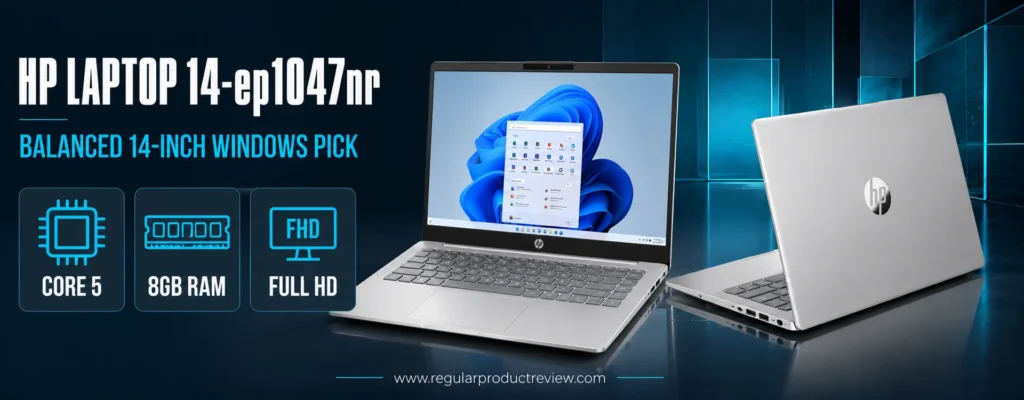
The exact A09C5UA#ABA configuration is essential. HP sells visually similar 14-inch machines with lower-resolution 1366 × 768 screens, different processors, and different webcams. The ep1047nr version in this guide uses a Full HD panel and should not be confused with an HD-only alternative merely because the exterior looks the same.
HP Laptop 14-ep1047nr Specifications
| Specification | Details |
|---|---|
| Processor | Intel Core 5 120U |
| CPU layout | 10 cores, 12 threads |
| Graphics | Integrated Intel Graphics |
| Memory | 8GB DDR4-3200 |
| Storage | 256GB PCIe NVMe SSD |
| Display | 14-inch Full HD, 1920 × 1080, anti-glare |
| Webcam | HP True Vision camera; exact resolution should be verified by SKU |
| Battery | 3-cell, approximately 41Wh family specification |
| Weight | Starting near 3.09 pounds, configuration dependent |
| Recommended condition | New |
| Buy-below price | $499.99 |
HP’s official 14-ep1047nr product page confirms the core configuration, while the HP 14-ep series specifications document the family’s dimensions, weight, battery options, ports, and configuration variability. A current retail reference is available through the Walmart HP 14-ep1047nr listing.
Core 5 120U Performance and Memory Limits
Intel’s Core 5 120U is a modern low-voltage processor with two performance cores and eight efficiency cores. It is well matched to office software, browser-based workflows, video meetings, research, light coding, and media playback. Short tasks feel responsive, and the processor can handle more simultaneous background activity than the Ryzen 3 7320U in the lower-cost ASUS and Acer models.
The limitation is 8GB of memory. That remains workable for an ordinary Windows routine, but it is less future-friendly than the 16GB Lenovo IdeaPad configuration. HP’s 14-ep family can use socketed DDR4 memory in some configurations, yet buyers must not assume that every retail unit exposes the same upgrade path or that opening the chassis will preserve warranty coverage. Check the service documentation and installed module layout before purchasing an upgrade.
The 256GB NVMe SSD provides quick startup and application response. It is enough for Microsoft 365, a browser, communication tools, and a moderate document collection. Users with large Adobe libraries, offline video, or several games should plan for external storage.
Full HD Display and Video-Call Experience
The Full HD panel is the reason to choose the ep1047nr instead of a cheaper HP 14 with an HD screen. Text looks sharper, spreadsheets display more cells, and streaming content avoids the cramped appearance of 1366 × 768. The display remains budget-grade: expect modest color coverage and brightness rather than creator-level accuracy.
HP emphasizes hybrid communication on this family, including camera privacy and noise-reduction features on supported configurations. That makes the laptop appropriate for classes and routine meetings. Good room lighting still matters more than marketing language; a small lamp placed behind the display can improve video quality substantially.
Keyboard feel is familiar and serviceable, with a standard laptop layout and enough spacing for regular writing. The 14-inch deck does not provide a full numeric keypad, which may steer frequent data-entry users toward the 15.6-inch Lenovo.
Battery, Charging, and Ports
The family’s approximately 41Wh battery is not unusually large. The efficient processor can provide useful mobile runtime, but screen brightness, video calls, browser load, background updates, and battery age influence results. Buyers who need an uninterrupted workday should carry the compact adapter and avoid assuming a manufacturer “up to” figure will match a mixed workload.
The port selection typically includes USB-C, two USB-A connections, HDMI, and a headset jack. On many HP budget models, USB-C supports data but not every charging or display feature. The exact specification sheet should govern dock purchases. This is a practical laptop for direct connections, not a guaranteed one-cable workstation.
HP Laptop 14-ep1047nr Pros and Cons
| Pros | Cons |
|---|---|
| Capable Core 5 120U processor | 8GB is less future-proof than 16GB |
| Full HD anti-glare display on the recommended SKU | Budget panel has limited color and brightness |
| 256GB NVMe SSD | Small battery compared with premium ultrabooks |
| Starts near 3.09 pounds | USB-C functions vary by configuration |
| Familiar Windows compatibility | Similar HP model names create buying confusion |
| Useful mix of legacy and modern ports | $499.99 is the maximum sensible price |
Best Buyer and Alternatives
Buy this HP if you want a compact new Windows computer, prefer buying through mainstream US retail channels, and need dependable compatibility for school or office applications. It is particularly appealing to users who want a 14-inch screen without accepting an entry-level N-series processor.
Skip it if you need all-day battery certainty, premium display color, or guaranteed 16GB memory. The Lenovo IdeaPad offers more RAM; the refurbished LG gram offers a larger battery, better screen, and much lower weight when condition is acceptable.
Editorial Price Alert: The HP is correctly positioned only at $499.99 or below. At a higher price, compare 16GB configurations and certified-refurbished premium laptops before buying.
Professionals should review our best business laptops and business laptop category for stronger security, docking, and serviceability. The HP 14 is a home-class productivity laptop, not an enterprise platform.
Bottom Line on the HP Laptop 14
The HP Laptop 14-ep1047nr is a sensible middle path: more processing power than many low-cost ultraportables, a proper Full HD screen, manageable weight, and no operating-system compatibility surprise. It is not spectacular, but it is coherent—and coherence is valuable in the sub-$500 market.
Acer Aspire Go 14 Review: Best 16:10 Windows Ultrabook Near $350
Editorial Score: 8.3/10
Award: 📐 Best Low-Cost 16:10 Windows Display
The Acer Aspire Go 14 AG14-21P-R3FZ brings a taller 1920 × 1200 screen to a price tier that often settles for 1366 × 768. Its 16:10 aspect ratio displays more document lines, spreadsheet rows, and webpage content than a same-size 16:9 panel. Combined with a Ryzen 3 7320U processor, 8GB of LPDDR5 memory, a 128GB PCIe SSD, and a 53Wh battery, it offers a practical foundation for mobile study and office work.
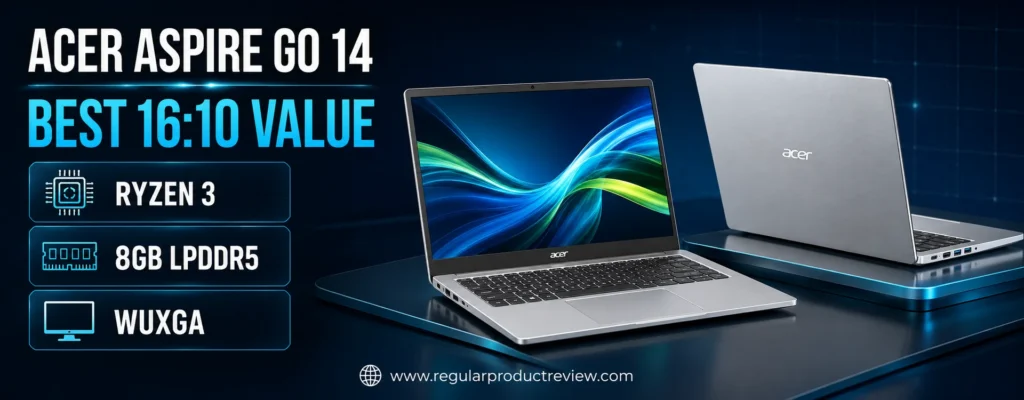
There is an important qualification: Acer’s own specification identifies the recommended R3FZ display technology as TN. The resolution and aspect ratio are useful, but viewing angles and color consistency are not as strong as a good IPS panel. This is a productivity-first screen, not a hidden creator bargain.
Acer Aspire Go 14 AG14-21P-R3FZ Specifications
| Specification | Details |
|---|---|
| Processor | AMD Ryzen 3 7320U |
| CPU layout | 4 cores, 8 threads |
| Graphics | Integrated AMD Radeon graphics |
| Memory | 8GB LPDDR5 |
| Storage | 128GB PCIe NVMe SSD |
| Display | 14-inch WUXGA, 1920 × 1200, 16:10, matte TN |
| Battery | 53Wh lithium-polymer |
| Ports | USB-C, two USB-A, HDMI, audio |
| Wireless | Wi-Fi 6 and Bluetooth 5.1 or later |
| Weight | 3.22 pounds |
| Thickness | About 0.74 inch |
| Recommended condition | New |
| Buy-below price | $349.99 |
Acer publishes unusually detailed information for this SKU on its official Aspire Go 14 store page, including the processor, storage interface, battery capacity, ports, dimensions, weight, and panel technology. Availability is inconsistent, so treat the model as a buy-when-stocked recommendation rather than paying an inflated marketplace premium.
Everyday Speed and Storage Reality
The Ryzen 3 7320U provides enough processing power for web applications, Word documents, presentations, email, streaming, and moderate multitasking. It uses efficient Zen 2 CPU cores and integrated Radeon 610M-class graphics. The platform is designed for affordability and low power consumption, not intensive rendering or modern gaming.
Eight gigabytes of LPDDR5 memory supports routine workloads but is soldered. Users should keep expectations focused and avoid buying the laptop for heavy virtual machines, large creative projects, or long-term use with increasingly demanding professional software.
The 128GB SSD is the most restrictive specification. It is faster than eMMC storage, yet the usable space after Windows, recovery files, updates, and applications is limited. Cloud storage, a portable SSD, or a disciplined file policy is almost mandatory. If a 256GB version costs only modestly more, it is the better purchase.
The 16:10 Display: Useful but Not Premium
WUXGA resolution on a 14-inch screen produces sharp text and a comfortable workspace. The taller ratio is excellent for writing, reading research, and reviewing code because it reduces vertical scrolling. Acer’s matte ComfyView treatment also helps reduce reflections under indoor lighting.
The TN panel is the compromise. Colors and contrast shift more noticeably when the screen is viewed off-center, and sharing the display across a table is less pleasant than on an IPS device. Buyers who prioritize movie quality, photo editing, or wide viewing angles should select the Acer Chromebook Plus 514, LG gram 14, or MacBook Air instead.
Battery Capacity and Practical Connectivity
The 53Wh battery is generous relative to many inexpensive 14-inch laptops. Actual runtime depends on workload and settings, but the capacity gives the Aspire Go a better starting point than rivals using batteries near 40Wh. Acer also lists a 65W power adapter and a full-function USB-C port capable of connecting or charging compatible devices. Confirm whether the included laptop configuration itself accepts USB-C charging before replacing the supplied adapter.
Two USB-A ports, USB-C, HDMI, and audio support common accessories without a hub. Wi-Fi 6 is appropriate for current home, school, and office networks. The 720p webcam is adequate in good light, though it is not the strongest meeting camera in the shortlist.
Acer Aspire Go 14 Pros and Cons
| Pros | Cons |
|---|---|
| Sharp 1920 × 1200 resolution | TN panel has limited viewing angles |
| Productive 16:10 aspect ratio | Only 128GB storage in the R3FZ SKU |
| 53Wh battery | 8GB memory is not upgradeable |
| Good port selection with USB-C and HDMI | Entry-level integrated graphics |
| Wi-Fi 6 | Stock can be inconsistent |
| Transparent official specifications | Plastic construction and basic webcam |
Who Should Buy It?
Choose the Aspire Go 14 if you work primarily with text, spreadsheets, browser tools, and online classes and can manage limited internal storage. Its taller screen and larger battery are meaningful advantages at $349.99. It is also a reasonable travel machine for users who connect an external SSD at home.
Avoid it if display color and viewing angles matter, if you store many files locally, or if you expect to upgrade the memory. The Vivobook Go 14 offers twice the recommended storage in a lighter body, while the Chromebook Plus 514 provides a much better touchscreen for cloud-first buyers.
Expert Tip: Do not read “WUXGA” as proof of premium display quality. Resolution describes pixel count; panel technology, brightness, color coverage, contrast, and viewing angles determine the rest of the experience.
Budget-focused shoppers can compare the Aspire Go with our budget laptop collection and best laptops under $300. Those alternatives may sacrifice the 16:10 display to reach a lower price.
Bottom Line on the Acer Aspire Go 14
The Aspire Go 14 is a specialized value choice. Its WUXGA workspace, 53Wh battery, and useful ports are impressive near $350, while the TN panel and 128GB SSD explain why the price is possible. Buy it for productive screen geometry, not visual luxury.
ASUS Chromebook Plus CX34 Review: Best Fast Chromebook Under $500
Editorial Score: 8.8/10
Award: ⚡ Best Chromebook for Responsive Everyday Work
The ASUS Chromebook Plus CX34 CX3402CVA-I5128GR shows how far a browser-first laptop can stretch a limited budget. The recommended model pairs an Intel Core i5 processor with 8GB of memory and 128GB of storage. ChromeOS has lower background overhead than a typical Windows installation, so this hardware feels quick during web research, Google Workspace, streaming, Android applications, and video meetings.
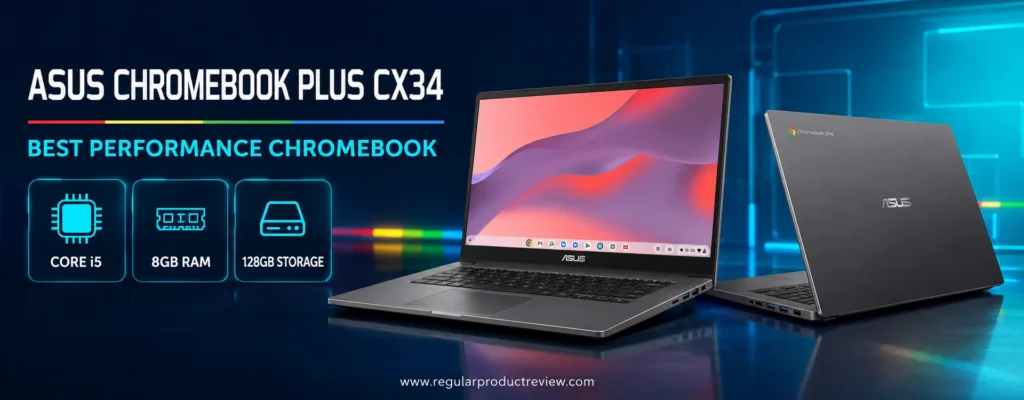
Chromebook Plus is more than a marketing color scheme. Google sets a higher hardware baseline for the category, including at least 8GB of memory, 128GB of storage, a Full HD IPS-class display, and a 1080p webcam. That baseline reduces the risk of accidentally buying a 4GB Chromebook that looks inexpensive but struggles under a modern multitasking load.
ASUS Chromebook Plus CX34 Specifications
| Specification | Recommended Configuration |
|---|---|
| Processor | Intel Core i5, exact generation defined by SKU |
| Graphics | Integrated Intel graphics |
| Memory | 8GB |
| Storage | 128GB |
| Display | 14-inch Full HD, 1920 × 1080 |
| Webcam | 1080p class under Chromebook Plus requirements |
| Operating system | ChromeOS |
| Wireless | Wi-Fi 6-class connectivity, configuration dependent |
| Weight | Approximately 3.17 pounds |
| Recommended condition | New |
| Buy-below price | $399.99 |
The exact Core i5 retail configuration is listed by Best Buy as model CX3402CVA-I5128GR. ASUS provides family-level design and specification information on the official Chromebook Plus CX34 page.
Why ChromeOS Changes the Value Equation
Windows buyers often focus on processor names because the operating system and traditional desktop applications can consume significant resources. ChromeOS is optimized around a browser-centric workflow, automatic updates, sandboxing, and cloud synchronization. On the CX34, 8GB of memory is enough for a substantial number of tabs, Google Docs and Sheets, streaming, communication tools, and supported Android applications.
The Core i5 configuration provides more performance than many Chromebook buyers need, which is useful for large web applications, Linux development environments, and longer ownership. It can also improve responsiveness when driving an external display. The integrated graphics are not a replacement for a gaming GPU, although browser games, Android titles, and cloud gaming are possible.
The central limitation is software compatibility. Full desktop versions of specialized Windows and macOS applications may not exist for ChromeOS. Microsoft 365 web applications are capable, but advanced macros, add-ins, offline workflows, and specialized enterprise tools can require Windows. Check the actual software, not merely the file format, before switching platforms.
Display, Keyboard, Webcam, and Build
The 14-inch Full HD screen is appropriate for documents and streaming, with a compact footprint that works in classrooms and shared workspaces. Some CX34 variants offer touch while others do not, so never infer touch support from the family name. The recommended I5128GR listing should be checked carefully at purchase.
ASUS gives the CX34 a clean, sturdy design that feels more deliberate than a bargain-bin Chromebook. The keyboard supports comfortable everyday typing, the touchpad is adequately sized, and the 1080p-class webcam is a real advantage for remote learning. Chromebook Plus software also includes enhanced call and media features, though performance depends on lighting and internet quality.
Updates, Storage, and Offline Work
Chromebooks receive automatic updates until a model-specific Auto Update Expiration date. Buyers should verify the exact model on Google’s official ChromeOS Auto Update policy page rather than relying on a marketplace description. A long remaining support window is one of the CX34’s strongest ownership benefits.
The 128GB drive is enough for ChromeOS applications and a useful offline file cache. Google Drive integration makes cloud storage natural, but it is not mandatory for every file. Users can download documents, media, and Linux files for offline use. A USB drive or external SSD is still useful for large local archives.
ASUS Chromebook Plus CX34 Pros and Cons
| Pros | Cons |
|---|---|
| Strong Core i5 performance for ChromeOS | Cannot run every Windows or macOS desktop application |
| 8GB Chromebook Plus memory baseline | 128GB local storage is modest |
| Full HD 14-inch display | Touch support varies by SKU |
| 1080p-class webcam | Gaming options are limited or cloud-dependent |
| Automatic security updates | Printer and peripheral compatibility should be checked |
| Excellent value near $399 | Core i5 is unnecessary for very basic browsing |
Ideal User and Reasons to Skip It
The CX34 is ideal for students, writers, web-based professionals, families, and small organizations that live in Google Workspace or browser applications. It boots quickly, updates quietly, and requires less maintenance than a typical low-cost Windows machine.
Skip it if you depend on full Adobe desktop software, advanced Excel add-ins, Windows-only accounting tools, PC game launchers, CAD, or course software that explicitly requires Windows or macOS. A Chromebook can open many common files, but opening a file is not the same as supporting every feature of the originating application.
Editorial Recommendation: At $399.99 or less, the Core i5/8GB/128GB CX34 is a better buy than a 4GB Chromebook at $300. Above $500, compare premium Chromebook displays and 16GB Windows laptops.
Readers considering entertainment as well as study can visit our gaming laptop category and gaming laptops under $1,000. Those machines are heavier, but they support local PC games that a Chromebook cannot reliably replace.
Bottom Line on the ASUS Chromebook Plus CX34
The ASUS CX34 is one of the fastest-feeling new laptops available within this budget when the workload fits ChromeOS. Its value depends less on benchmark numbers than on a simple compatibility question: if your work happens in a browser, it is excellent; if it depends on Windows software, it is the wrong tool.
Acer Chromebook Plus 514 Review: Best Touchscreen Chromebook Under $500
Editorial Score: 8.7/10
Award: ✋ Best Touchscreen Chromebook Value
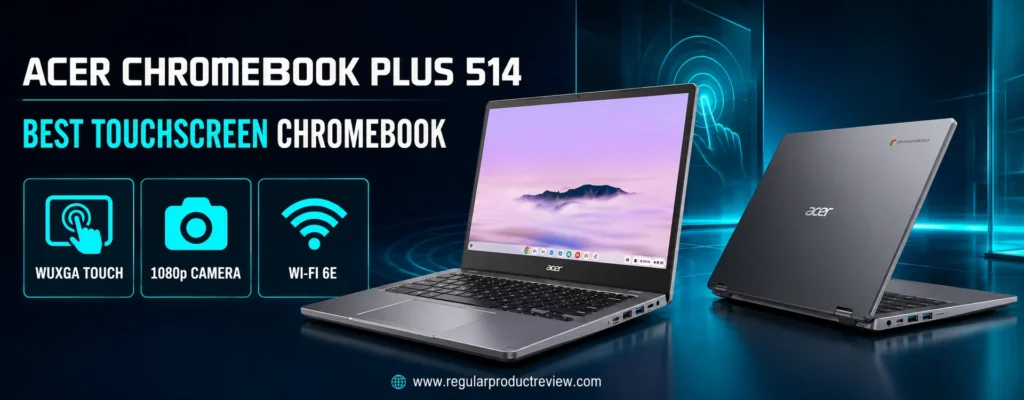
The Acer Chromebook Plus 514 CB514 is the more visual and connectivity-focused Chromebook in this guide. The recommended US configuration combines an Intel Core 3 N355 processor, 8GB of LPDDR5X memory, 512GB of storage, and a 14-inch 1920 × 1200 IPS touchscreen. It also adds a 1080p webcam, backlit keyboard, two USB-C ports, two USB-A ports, HDMI, Wi-Fi 6E, and a quoted weight near 3.09 pounds.
Retailer bundles can add an SD card or USB hub and then describe the combined capacity as if it were internal storage. We recommend judging the laptop itself first. Confirm the native internal drive capacity, exact CB514 submodel, seller warranty, and accessories before comparing prices.
Acer Chromebook Plus 514 Recommended Specifications
| Specification | Details |
|---|---|
| Processor | Intel Core 3 N355 |
| CPU layout | 8 efficient cores |
| Graphics | Integrated Intel Graphics |
| Memory | 8GB LPDDR5X |
| Internal storage | 512GB on the recommended retail listing; verify exact SKU |
| Display | 14-inch WUXGA, 1920 × 1200, IPS touchscreen |
| Brightness | Listed at 300 nits on the recommended configuration |
| Webcam | 1080p with privacy shutter |
| Ports | Two USB-C, two USB-A, HDMI, audio |
| Wireless | Wi-Fi 6E and Bluetooth 5.3 on the recommended configuration |
| Weight | Approximately 3.09 pounds |
| Recommended condition | New |
| Buy-below price | $449.99 |
The current configuration details appear in the Best Buy Acer Chromebook Plus 514 listing. Because seller-added bundles and warranties vary, cross-check the core hardware against Acer’s official Chromebook Plus family information.
Core 3 N355 Performance in ChromeOS
The Core 3 N355 is an efficiency-oriented eight-core processor. It lacks the high-performance cores found in the ASUS CX34’s Core i5, but ChromeOS uses the available resources effectively. Web browsing, document work, streaming, video calls, Android applications, and ordinary multitasking should remain smooth with 8GB of fast memory.
The processor is less suited to sustained code compilation, demanding Linux workloads, or heavy browser-based creative tools. Buyers who regularly push a Chromebook beyond routine productivity should favor the Core i5 CX34. For most students and home users, the Acer’s better display and ports can be more noticeable than the ASUS model’s extra CPU speed.
WUXGA Touchscreen and Media Experience
The 1920 × 1200 IPS touchscreen is the headline feature. A 16:10 ratio creates more vertical room than Full HD, while IPS technology supports wider viewing angles than the TN panel in the Aspire Go 14. Touch input is convenient for scrolling, Android apps, diagrams, and casual interaction. This is a clamshell rather than a 360-degree tablet, so touch is an enhancement rather than the primary mode.
The listed 300-nit brightness is suitable for indoor spaces and some shaded outdoor use, though direct sunlight remains challenging. Color quality is appropriate for entertainment and ordinary visual work, but buyers should not assume professional gamut coverage without model-specific measurements.
The 1080p webcam and privacy shutter make the Acer especially useful for remote classes and meetings. A backlit keyboard improves usability in dim rooms. Together, these features make the laptop feel more complete than basic Chromebooks that cut corners on every input device.
Ports, Wireless, and Local Storage
Two USB-C and two USB-A ports provide unusual flexibility for a thin Chromebook. HDMI supports direct monitor or television connections, while Wi-Fi 6E can take advantage of compatible networks. The combination reduces dependence on adapters and makes the Acer suitable for a desk setup.
The recommended listing’s 512GB capacity is unusually high for a Chromebook. Verify that it is internal storage rather than a bundle total, because marketplace sellers sometimes add removable media. Even a smaller native drive can be adequate for ChromeOS, but the price comparison must remain honest.
Acer Chromebook Plus 514 Pros and Cons
| Pros | Cons |
|---|---|
| Sharp 16:10 IPS touchscreen | ChromeOS software limits remain |
| 1080p webcam with privacy shutter | Core 3 is slower than the CX34’s Core i5 |
| Backlit keyboard | Seller bundles can obscure native storage |
| Two USB-C, two USB-A, and HDMI | Not a 360-degree convertible |
| Wi-Fi 6E | Professional color coverage is not guaranteed |
| Long ChromeOS support potential | $449.99 is near the Windows-laptop ceiling |
Who Should Buy the Chromebook Plus 514?
Choose it if screen quality, touch, meetings, and ports matter more than peak processor speed. It is excellent for web-first students, teachers, remote workers, and families who want a secure, low-maintenance computer with useful local storage.
Avoid it if required software is Windows-only, if you need a true tablet mode, or if the seller cannot identify the exact model and warranty. The HP 14 or Lenovo IdeaPad offers full Windows compatibility, while a dedicated 2-in-1 provides a better tablet experience.
Buying Safeguard: Treat bundled SD cards and hubs as accessories, not as upgrades to the laptop’s internal SSD. Record the exact model number and internal capacity before checkout.
Convertible shoppers can explore our 2-in-1 laptop collection and best 2-in-1 laptops under $1,000. The Acer’s touchscreen is useful, but its hinge does not transform it into a tablet.
Bottom Line on the Acer Chromebook Plus 514
The Acer Chromebook Plus 514 is the best Chromebook here for buyers who interact with the display and connect multiple accessories. Its WUXGA touchscreen, webcam, backlit keyboard, and port selection create a polished everyday package—provided the exact internal storage and seller warranty are verified.
Apple MacBook Air M1 Review: Best Refurbished Mac Under $500
Editorial Score: 9.1/10
Award: 🍎 Best Refurbished macOS Ultrabook
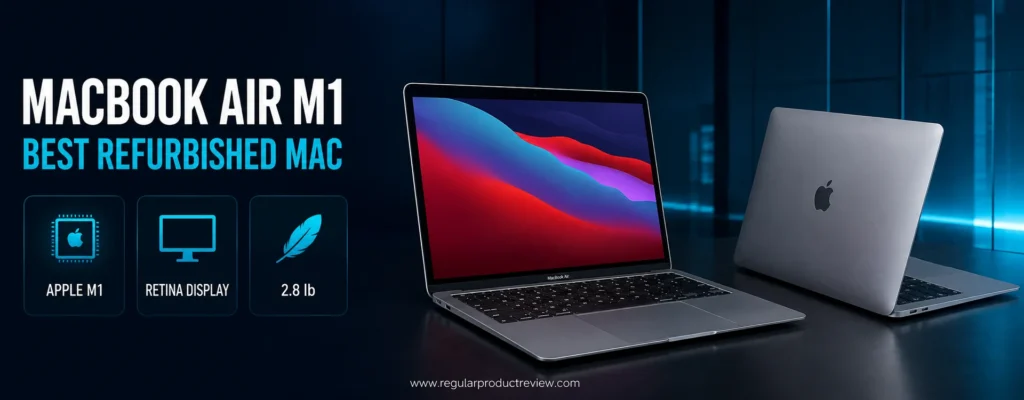
The Apple MacBook Air with the M1 chip remains one of the most complete ultraportables that can cross below $500 in professionally refurbished condition. It weighs 2.8 pounds, uses a silent fanless design, offers a sharp 13.3-inch Retina display, and combines strong everyday performance with excellent power efficiency. The keyboard, Force Touch trackpad, speakers, webcam processing, sleep behavior, and chassis quality are all more polished than those of most brand-new budget notebooks.
That polish does not remove the risks of buying an older refurbished computer. The base configuration has only 8GB of unified memory and a 256GB SSD. Neither can be upgraded after purchase. Battery health, cosmetic condition, charger quality, return terms, and Activation Lock status therefore determine whether a low price represents real value.
MacBook Air M1 Recommended Specifications
| Specification | Details |
|---|---|
| Processor | Apple M1, 8-core CPU |
| Graphics | 7-core GPU on the common base configuration |
| Memory | 8GB unified memory |
| Storage | 256GB SSD |
| Display | 13.3-inch Retina, 2560 × 1600, IPS, 16:10 |
| Camera | 720p FaceTime HD with image signal processing |
| Ports | Two Thunderbolt / USB 4 ports, 3.5mm audio |
| Wireless | Wi-Fi 6 and Bluetooth 5.0 |
| Weight | 2.8 pounds |
| Recommended condition | Professionally refurbished |
| Buy-below price | $449.99 |
Apple’s archived MacBook Air M1 technical specifications provide the authoritative dimensions, display, ports, wireless, battery claims, and configuration details. Current professionally refurbished pricing can be compared through retailers such as Back Market’s MacBook Air M1 listings, but grade definitions and warranty terms should be read carefully.
M1 Performance and Software Longevity
The M1 system-on-chip integrates CPU, graphics, media engines, and unified memory in an efficient package. Everyday tasks such as Safari or Chrome browsing, office work, streaming, photo organization, coding, and video calls feel responsive. The fanless design remains silent because there is no cooling fan to spin up or collect dust.
Eight gigabytes of unified memory performs better than a simplistic cross-platform number comparison may suggest, yet it is still 8GB. Large creative projects, several professional applications, heavy browser sessions, and virtual machines can exceed its comfortable range. Buyers who need 16GB should not rationalize the base model merely because the price is attractive.
Apple Silicon application compatibility is mature for mainstream software, but specialized Windows programs remain a concern. Boot Camp does not provide native x86 Windows dual-booting on the M1. Virtualization can run ARM versions of Windows through compatible software, but not every driver, game, or enterprise application works. Confirm critical tools before switching.
Retina Display, Keyboard, Trackpad, and Speakers
The 2560 × 1600 Retina display is a major upgrade over low-cost Full HD panels. Text is crisp, viewing angles are wide, brightness is useful, and color reproduction supports credible photo and design work. It is not an HDR workstation display, but it is the best panel experience among the lowest-priced options in this article, rivaled by the LG gram’s larger 16:10 IPS screen.
Apple’s scissor-switch Magic Keyboard is comfortable for extended writing, while the large Force Touch trackpad provides precise gestures and uniform clicking. Speakers are unusually clear for a thin laptop. These are quality-of-life features that do not appear in a processor comparison but influence every hour of ownership.
The 720p camera has modest native resolution, although the M1’s image processing improves exposure and color. Buyers who prioritize maximum webcam detail may prefer a modern Chromebook Plus with a 1080p camera.
Battery Health and Port Limitations
When new, the M1 Air was known for strong efficiency. A refurbished unit’s runtime depends on cycle count, maximum capacity, storage conditions, and prior use. macOS exposes battery condition and maximum capacity information. Check those values during the return window and compare them with the seller’s promise.
Two Thunderbolt / USB 4 ports provide fast data, charging, and display connectivity, but both sit on the same side. The base M1 Air officially supports one external display in addition to its built-in screen. Users with multiple monitors or several USB-A accessories will need a compatible dock and should factor that cost into the budget.
MacBook Air M1 Pros and Cons
| Pros | Cons |
|---|---|
| Strong, efficient M1 performance | 8GB memory and 256GB storage cannot be upgraded |
| Sharp, color-capable Retina display | Only two USB-C/Thunderbolt ports |
| Silent fanless design | Officially supports one external display |
| Excellent trackpad, keyboard, and speakers | Battery health varies by unit |
| 2.8-pound aluminum chassis | Some Windows-only software is incompatible |
| Mature macOS ecosystem | Refurbishment quality varies by seller |
Who Should Buy a Refurbished M1 Air?
It is ideal for writers, students, office users, travelers, light creators, and existing iPhone users who want a refined portable computer. At $449.99 or less from a reputable refurbisher, it can deliver a better overall experience than a new Windows laptop with a dim screen and basic trackpad.
Skip it if you require native Windows software, more than 8GB of memory, multiple external displays, internal hardware upgrades, or guaranteed near-new battery life. A ThinkPad X13 is the safer business-software choice, while the Lenovo IdeaPad Slim 3i offers new-device warranty coverage and 16GB of RAM.
Refurbished Mac Checklist: Confirm that Activation Lock is disabled, the device reaches the macOS setup screen, the serial number is recognized, battery condition is acceptable, every USB-C port works, and the seller provides a written return period.
Users who require heavier creative software should compare our creator laptop hub and best creator laptops. The M1 Air is excellent for light creative work, but its 8GB base configuration is not a replacement for a high-memory editing system.
Bottom Line on the MacBook Air M1
The M1 MacBook Air is the most polished refurbished laptop in this price class when the battery and seller are trustworthy. Its screen, trackpad, acoustics, efficiency, and construction still feel premium. Buy it as a verified refurbished Mac, not as an anonymous bargain with unknown locks and battery wear.
Microsoft Surface Laptop Go 3 Review: Best Mini Touchscreen Ultrabook
Editorial Score: 8.8/10
Award: 🪶 Best Refurbished Compact Touchscreen Laptop
The Microsoft Surface Laptop Go 3 is built for buyers who value a small footprint more than a large screen or expansive port selection. Its 12.4-inch PixelSense touchscreen uses a productive 3:2 aspect ratio, the chassis weighs only 2.49 pounds, and the Intel Core i5-1235U processor remains capable of routine Windows work. Professionally refurbished 8GB/256GB configurations can fall well below $500.
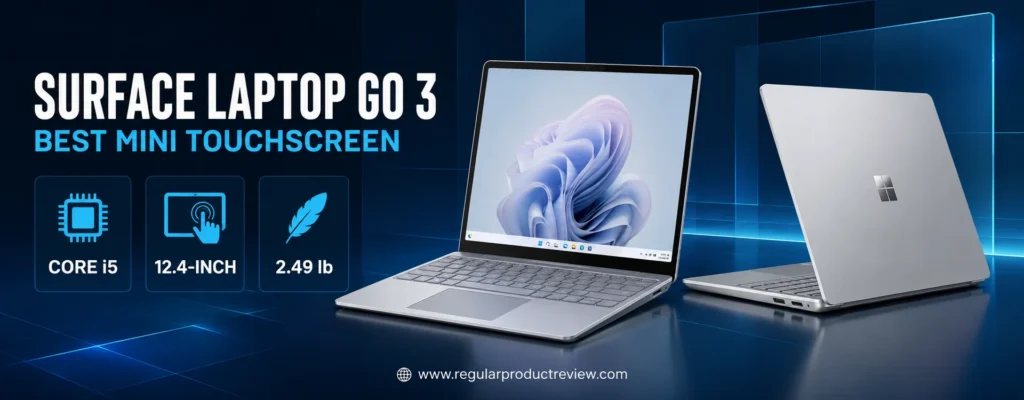
The Surface feels more premium than a typical budget notebook because Microsoft invested in proportions, input quality, and industrial design. The compromise is density: limited ports, soldered memory, a sub-Full-HD pixel count, and a small display mean it is not a miniature workstation.
Surface Laptop Go 3 Recommended Specifications
| Specification | Details |
|---|---|
| Processor | Intel Core i5-1235U |
| CPU layout | 10 cores, 12 threads |
| Graphics | Intel Iris Xe eligible integrated graphics |
| Memory | 8GB LPDDR5 |
| Storage | 256GB removable SSD module, service restrictions apply |
| Display | 12.4-inch PixelSense touchscreen, 1536 × 1024, 3:2 |
| Webcam | 720p HD |
| Ports | USB-C 3.2, USB-A 3.1, 3.5mm audio, Surface Connect |
| Wireless | Wi-Fi 6 and Bluetooth 5.1 |
| Weight | 2.49 pounds |
| Recommended condition | Certified or professionally refurbished |
| Buy-below price | $399.99 |
Microsoft documents the platform on the official Surface Laptop Go 3 specifications page. Refurbished US offers can be compared through sources such as Walmart’s Surface Laptop Go listings, but the seller, condition, and warranty must be evaluated separately from Walmart’s marketplace storefront.
Performance in a Small Chassis
The Core i5-1235U combines two performance cores with eight efficiency cores. It handles office documents, web research, email, video calls, streaming, and light development work without feeling like an entry-level processor. The compact cooling system can limit sustained performance compared with larger laptops, but that matters more during long exports or heavy compilation than during ordinary productivity.
Eight gigabytes of soldered memory is adequate for a disciplined workflow and limiting for a chaotic one. Teams, several office documents, and a moderate browser session can coexist, but demanding multitasking will push the system toward storage-based memory compression and paging. The 256GB configuration is preferable to 128GB because Windows updates and applications consume a meaningful portion of the drive.
The 3:2 Touchscreen Advantage
The 12.4-inch screen is small, yet its 3:2 shape shows more vertical content than a wide 16:9 panel. Documents, webpages, and note-taking applications feel less cramped than the diagonal measurement suggests. Touch response is useful for scrolling, signing, and quick navigation, although the laptop does not convert into a tablet.
The 1536 × 1024 resolution is below Full HD in total pixel count. Text remains reasonably crisp at this size, but users expecting a Retina-class image should compare the MacBook Air. The display’s compact dimensions can also strain users who keep several windows visible or work with wide spreadsheets.
Microsoft’s keyboard and Precision touchpad are pleasant for the size. The deck is not spacious, but key placement is coherent. Some configurations include a fingerprint reader in the power button; verify the exact SKU because entry variants can differ.
Ports, Charging, and Repair Considerations
One USB-C, one USB-A, a headphone jack, and Surface Connect cover the basics. The proprietary charging port keeps USB-C free, but it adds another charger type to a travel bag. A dock becomes useful for Ethernet, HDMI, card readers, or multiple peripherals.
Microsoft describes the SSD as removable by authorized technicians rather than casually user-upgradeable. Opening a Surface without the correct service process can damage the device. Treat 256GB as the purchased capacity and use external or cloud storage if needed.
Surface Laptop Go 3 Pros and Cons
| Pros | Cons |
|---|---|
| Very light 2.49-pound chassis | Small 12.4-inch workspace |
| Useful 3:2 touchscreen | Resolution is below Full HD |
| Capable Core i5-1235U | 8GB memory is soldered |
| Excellent compact keyboard and touchpad | Only one USB-C and one USB-A port |
| Premium look and feel | 720p webcam is modest |
| Strong refurbished pricing | Battery and cosmetic condition vary |
Who Should Buy It?
Choose the Surface Laptop Go 3 if you commute daily, work in tight spaces, or want the smallest practical Windows notebook with a real keyboard. It is particularly good for writers, teachers, sales staff, and students who value portability over screen area.
Skip it if you use wide spreadsheets, need 16GB memory, connect multiple monitors, or prefer user-upgradeable hardware. The ThinkPad X13 is only slightly heavier but offers more business-oriented connectivity and configuration options.
Expert Tip: A very small laptop can reduce productivity if you immediately add a portable monitor, dock, and external keyboard. Choose the Surface because you genuinely value its compact workspace, not because 2.49 pounds looks impressive in a table.
For other flexible portable designs, see our best 2-in-1 laptops and 2-in-1 laptop category. The Surface Laptop Go 3 supports touch, but it is not a fold-back convertible.
Bottom Line on the Surface Laptop Go 3
The Surface Laptop Go 3 turns refurbished pricing into a genuine mobility advantage. Its display is small and its ports are limited, but the 3:2 touchscreen, 2.49-pound chassis, and capable Core i5 create an ultraportable that is enjoyable to carry and pleasant to use.
Lenovo ThinkPad X13 Gen 2 Review: Best Refurbished Business Ultrabook
Editorial Score: 9.0/10
Award: 🔐 Best Refurbished Business Value
The Lenovo ThinkPad X13 Gen 2 is the pragmatic professional’s choice. Refurbished configurations with an 11th-generation Intel Core i5 or Core i7 processor, 16GB of memory, a 256GB or 512GB NVMe SSD, and a 13.3-inch WUXGA display regularly fit below $400. Unlike many new budget notebooks, the X13 was designed for corporate fleets, so its keyboard, docking support, security options, port selection, and service documentation reflect business priorities.
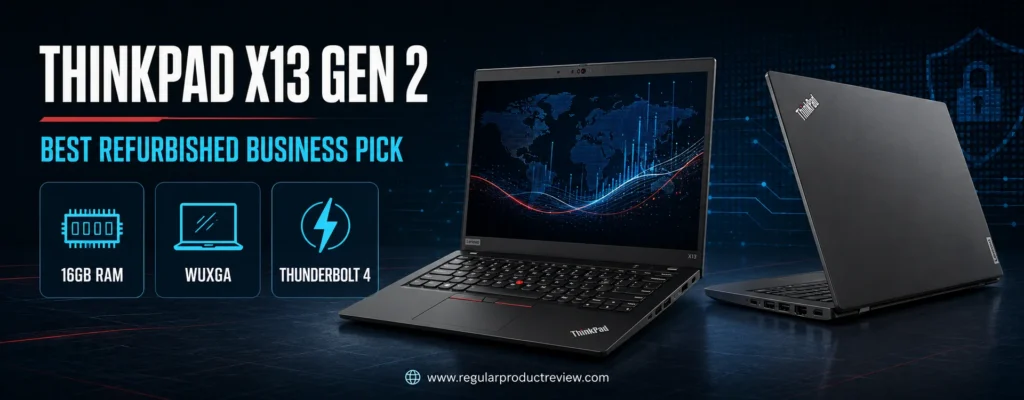
Enterprise origins also create complexity. There are Intel and AMD versions, several screen types, optional touch, optional mobile broadband, different batteries, and region-specific keyboards. Some units may have spent years in daily fleet use. The exact machine must be evaluated, not the reputation of the ThinkPad name.
ThinkPad X13 Gen 2 Recommended Configuration
| Specification | Target Details |
|---|---|
| Processor | Intel Core i5-1145G7 or Core i7-1185G7 |
| Graphics | Intel Iris Xe integrated graphics |
| Memory | 16GB soldered LPDDR4x |
| Storage | 256GB or 512GB PCIe NVMe SSD |
| Display | 13.3-inch WUXGA IPS, 1920 × 1200 |
| Operating system | Windows 11 Pro on eligible refurbished listings |
| Ports | Two Thunderbolt 4, two USB-A, HDMI, audio; options vary |
| Wireless | Wi-Fi 6 and Bluetooth |
| Weight | Starting around 2.78 pounds, configuration dependent |
| Recommended condition | Professionally refurbished |
| Buy-below price | $399.99 |
Lenovo’s detailed configuration matrix is available through the ThinkPad X13 Gen 2 PSREF platform. Current refurbished examples include Best Buy’s 16GB ThinkPad X13 Gen 2 listing, though third-party seller terms must be reviewed.
Business Performance and 16GB Advantage
The four-core Core i5-1145G7 and Core i7-1185G7 are older than the processors in some new budget laptops, yet they remain competent for office work, browser multitasking, remote meetings, light development, and administrative tools. Intel Iris Xe graphics can handle media, multiple displays, and light creative acceleration, but not current high-end games.
Sixteen gigabytes of soldered memory is the target. It gives the X13 better multitasking flexibility than most new 8GB ultraportables. Do not buy an 8GB unit at the same price simply because it carries an i7 label; additional memory usually matters more than the modest difference between two processors in the same generation.
The M.2 SSD is replaceable with the correct service procedure, creating a path beyond 256GB. Corporate refurbishment listings sometimes install a generic drive. Check health, encryption status, firmware, and actual capacity during the return window.
WUXGA Display and ThinkPad Input Quality
The second-generation X13 moved to a taller 16:10 display. The 1920 × 1200 IPS option is ideal for documents and code, but Lenovo also offered higher-resolution, touch, privacy-filter, and different-brightness panels. A privacy display can have narrower viewing characteristics by design, so buyers should not assume that the most expensive original option is automatically best for normal use.
ThinkPad keyboards are known for clear feedback and a logical business layout. The X13’s smaller deck reduces key travel compared with larger classic models, yet it remains excellent for long-form typing. The red TrackPoint provides an alternative pointing method, and dedicated buttons help users who prefer it. The touchpad is smaller than Apple’s but supports Windows Precision gestures.
Ports, Security, and Fleet History
Two Thunderbolt 4 ports, two USB-A ports, HDMI, and audio make the Intel X13 unusually dock-friendly for its size. Optional fingerprint readers, infrared cameras, smart-card readers, and WWAN modules vary by unit. Confirm installed hardware physically or through the serial-number configuration record.
Fleet history is the main risk. A laptop may show polished keycaps, worn trackpad coating, pressure marks, missing rubber feet, or a battery that has spent years at full charge. It may also retain a BIOS supervisor password or enterprise management enrollment. A professional refurbisher should remove management controls, update firmware, test ports, and install a legitimate operating system.
ThinkPad X13 Gen 2 Pros and Cons
| Pros | Cons |
|---|---|
| 16GB configurations are affordable | Battery wear varies significantly |
| Excellent keyboard and business layout | Memory is soldered |
| Sharp 16:10 WUXGA IPS options | Many display and port configurations exist |
| Thunderbolt 4, USB-A, and HDMI | Older four-core processor generation |
| Strong security and docking potential | Corporate units may have heavy prior use |
| Replaceable SSD with proper service | Marketplace sellers may omit BIOS-lock details |
Who Should Buy It?
Choose the X13 if you need Windows Pro, 16GB of memory, a great keyboard, several ports, and a portable chassis. It is particularly well suited to office workers, consultants, writers, IT students, and anyone who values service documentation over decorative styling.
Avoid it if you are uncomfortable evaluating refurbished hardware, want guaranteed new battery capacity, or need strong integrated graphics. New buyers can choose the Lenovo IdeaPad Slim 3i; macOS users may prefer the quieter, more efficient M1 Air.
Corporate Refurbishment Warning: Enter the BIOS, check for a supervisor password, inspect Windows activation, review battery cycle data, and verify that the laptop is not enrolled in an organization before the return window closes.
Compare the X13 with our business laptops under $1,000 and best business laptop guide. Spending more can secure a newer processor, longer manufacturer warranty, and fresher battery.
Bottom Line on the ThinkPad X13 Gen 2
The ThinkPad X13 Gen 2 is the strongest professional tool in this guide when purchased from a competent refurbisher. It is not the newest machine, but 16GB memory, a 16:10 display, excellent inputs, and real business connectivity make it far more capable than its sub-$400 price suggests.
LG gram 14 14Z90Q Review: Lightest Premium Ultrabook Under $500
Editorial Score: 9.2/10
Award: ✈️ Best Open-Box Travel Ultrabook
The LG gram 14 14Z90Q is the most dramatic example of the open-box value strategy. A configuration with an Intel Core i7-1260P, 16GB of LPDDR5 memory, a 512GB NVMe SSD, and a 14-inch 1920 × 1200 IPS display can appear below $500, even though the machine was designed as a premium ultraportable. At roughly 2.2 pounds, it is lighter than many smaller laptops and carries a large 72Wh battery.
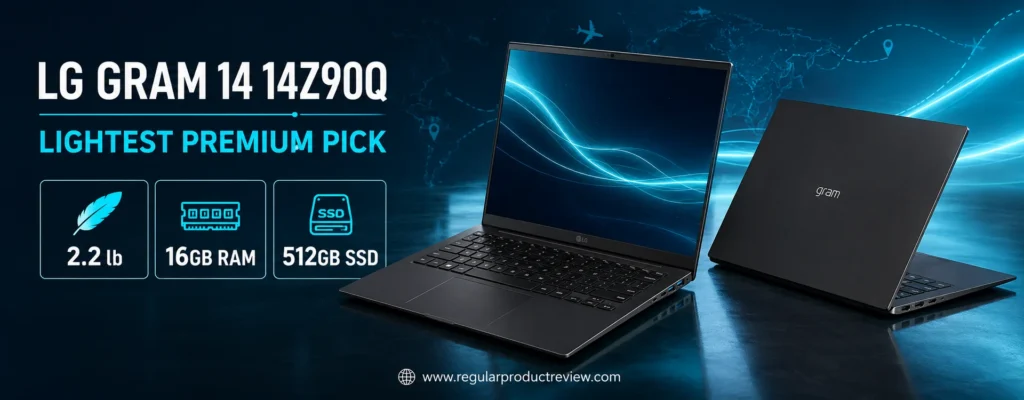
Open-box pricing is highly variable and often tied to local inventory. The recommendation applies only when the laptop is complete, the display is free of pressure damage, the battery is healthy, the charger is included, and the seller offers a meaningful return period. A suspiciously low unit with “white spots,” hinge damage, or a missing adapter is not the same product experience.
LG gram 14 14Z90Q Recommended Specifications
| Specification | Details |
|---|---|
| Processor | Intel Core i7-1260P |
| CPU layout | 12 cores, 16 threads |
| Graphics | Intel Iris Xe integrated graphics |
| Memory | 16GB LPDDR5 |
| Storage | 512GB NVMe SSD |
| Display | 14-inch WUXGA IPS, 1920 × 1200, 16:10 |
| Battery | 72Wh |
| Webcam | Full HD class on the recommended family configuration |
| Ports | Two Thunderbolt 4, two USB-A, HDMI, microSD, audio |
| Wireless | Wi-Fi 6E and Bluetooth |
| Weight | Approximately 2.2 pounds |
| Recommended condition | Open-box or professionally refurbished |
| Buy-below price | $499.99 |
LG documents this platform on its official gram 14 14Z90Q product page. A recent open-box price example is available through the Walmart LG gram 14 listing. Prices and sellers can change quickly, so use the listing as a configuration reference rather than a permanent promise.
Performance: Powerful, but Thermally Constrained
The Core i7-1260P combines four performance cores and eight efficiency cores. It is considerably stronger in bursty multi-core work than entry-level processors, making the gram suitable for heavy office multitasking, light content creation, coding, and data work. Sixteen gigabytes of memory and a 512GB SSD complete a balanced configuration.
The extremely light chassis has limited thermal mass. During long rendering, compilation, or sustained processor loads, fan noise can rise and performance can settle below that of a heavier laptop using the same chip. That is not a defect; it is the engineering trade-off behind a 2.2-pound system. For mobile productivity, the balance is excellent. For sustained workstation use, choose a larger cooling system.
Intel Iris Xe graphics support multiple displays, media acceleration, light photo editing, and older or undemanding games. They are not a substitute for dedicated graphics. The gram’s premium screen and processor can invite creative ambitions that its integrated GPU cannot fully support.
16:10 IPS Display and Ultralight Construction
The 14-inch WUXGA panel offers a productive 16:10 workspace, wide viewing angles, and better color capability than typical budget screens. Text is sharp, the matte treatment helps with reflections, and the taller canvas is useful for documents, browsing, and editing timelines. Buyers should inspect open-box units for pressure spots, stuck pixels, uneven backlight, or keyboard marks.
LG uses a magnesium-alloy construction strategy to minimize weight. The chassis can feel flexible compared with a dense aluminum MacBook, even though the material is engineered for strength. Flex does not automatically mean fragility, but users should carry the gram in a rigid or well-padded compartment and avoid loading heavy objects on the lid.
At approximately 2.2 pounds, the laptop changes travel math. Even with the charger, the package can weigh less than some laptops alone. Frequent flyers, consultants, and students crossing a large campus will notice the difference every day.
Battery, Ports, and Desk Versatility
The 72Wh battery is large for a 14-inch ultralight. Actual runtime depends on panel brightness, power mode, browser activity, calls, and battery condition, but the capacity provides an excellent foundation. Open-box units are often younger than traditional refurbished corporate laptops, yet battery health still requires verification.
Connectivity is outstanding for the weight. Two Thunderbolt 4 ports support charging, fast storage, and docks; two USB-A ports accommodate legacy accessories; HDMI connects a display without an adapter; microSD helps photographers and mobile users; and the audio jack remains available. This is the easiest premium laptop in the guide to use both on the road and at a full desk.
LG gram 14 Pros and Cons
| Pros | Cons |
|---|---|
| Exceptional 2.2-pound weight | Open-box inventory is unpredictable |
| Strong Core i7-1260P, 16GB, 512GB configuration | Thin chassis limits sustained performance |
| Sharp 16:10 IPS display | Magnesium body can feel flexible |
| Large 72Wh battery | Battery and display condition require inspection |
| Two Thunderbolt 4, two USB-A, HDMI, and microSD | Integrated graphics are not for demanding gaming |
| Excellent desk-and-travel versatility | Replacement parts and service may cost more than budget models |
Who Should Buy It?
Choose the gram if travel weight is a daily concern and you are willing to evaluate an open-box unit carefully. It is ideal for consultants, writers, researchers, remote workers, and students who want premium screen space without carrying a heavy laptop.
Skip it if you prefer the certainty of a sealed new device, need a rigid aluminum feel, or run sustained CPU/GPU workloads. The M1 MacBook Air offers silent efficiency; the ThinkPad X13 offers a firmer business-oriented feel; the Lenovo IdeaPad provides a simpler new-device purchase.
Expert Recommendation: At checkout, photograph the condition description and warranty terms. During the return period, test every port, inspect the display on white and dark backgrounds, run a battery report, and confirm that the original or correctly rated USB-C charger is included.
Travel-focused buyers should compare the gram with our best ultrabooks and ultrabooks under $1,000. A higher budget can secure a newer gram or another premium ultraportable with full manufacturer warranty.
Bottom Line on the LG gram 14
The LG gram 14 14Z90Q is the most capable pure ultraportable in the guide when an honest open-box unit reaches $499.99. Its combination of 2.2-pound weight, 16GB memory, 512GB storage, 16:10 IPS display, large battery, and excellent ports is exceptional. Condition—not capability—is the deciding variable.
Complete Buying Guide: How to Choose a Budget Ultrabook Under $500
The best specification sheet is not automatically the best purchase. A thin laptop is a system of compromises: processor performance affects speed and battery draw; memory controls multitasking; display choices influence comfort; chassis design changes cooling; and seller policy determines how much risk accompanies a low price. This section turns those connected decisions into a practical buying process.
Before opening ten retailer tabs, write down the applications you must run, the maximum travel weight you will tolerate, the screen size you can work on, and whether refurbished hardware is acceptable. Those four answers eliminate more bad options than chasing a processor benchmark.
Readers building a broader shortlist can use our budget laptops guide and ultrabook category alongside the decision rules below.
1. Decide Whether You Need Windows, ChromeOS, or macOS
Operating-system compatibility is the first filter because it can invalidate an otherwise perfect laptop.
Windows offers the broadest compatibility with traditional desktop software, business tools, peripherals, games, and school applications. It is the safest default when requirements are unclear. Windows also creates more background load than ChromeOS, making 16GB memory desirable for buyers who multitask heavily.
ChromeOS is excellent for browser-first workflows, Google Workspace, streaming, video meetings, Android applications, and low-maintenance family use. Automatic updates and security isolation reduce administrative work. The compromise is application compatibility. A web version of an application may lack advanced macros, plug-ins, offline features, or hardware integration found in the desktop version.
macOS on the M1 MacBook Air provides a refined ecosystem, efficient performance, high-quality creative applications, and strong integration with Apple devices. It is unsuitable when a required Windows program, driver, game, or institutional exam tool lacks a macOS version. Platform switching should follow a software audit, not an aesthetic preference.
| Requirement | Safest Platform | Important Exception |
|---|---|---|
| Traditional office and business software | Windows | Basic Microsoft 365 work is possible on all three |
| Google Workspace and browser tools | ChromeOS | Windows and macOS also handle them well |
| Final Cut Pro, Logic Pro, Apple ecosystem | macOS | Requires a Mac |
| Specialized Windows accounting, CAD, or exam software | Windows | Confirm vendor support and version requirements |
| Lowest-maintenance shared family laptop | ChromeOS | Printer and peripheral support should be checked |
| Broad local game compatibility | Windows | A sub-$500 ultrabook still lacks gaming-class graphics |
Editorial Insight: File compatibility and application compatibility are different. A Chromebook may open an Excel file while still failing to support the macro, add-in, or automation workflow that created it.
2. Set a Realistic Processor Floor
Processor names are designed to encourage simple ranking, but architecture, generation, core type, power limit, and cooling influence actual performance. Within this guide, three broad tiers are useful.
Everyday entry tier: Ryzen 3 7320U and Intel Core 3 N355. These processors handle web work, documents, classes, streaming, and light multitasking. They are efficient and affordable but provide limited graphics and less headroom for demanding applications.
Mainstream productivity tier: Core i5-1335U, Core 5 120U, Core i5-1235U, and Apple M1. These chips respond better under mixed workloads and offer more room for office multitasking, light code work, and creative tools.
Older premium performance tier: Core i7-1260P and 11th-generation Core i5/i7 business processors. The i7-1260P has strong multi-core potential but depends heavily on cooling. Older ThinkPad processors are less efficient than newer designs but remain useful when paired with 16GB memory and good connectivity.
Avoid comparing only boost-clock numbers. A “4.7GHz” label does not mean the processor sustains that speed on all cores, and it does not reveal graphics capability or power consumption. Also avoid paying extra for an i7 when the laptop has only 8GB of soldered memory and a poor screen. System balance produces a better daily experience than one impressive badge.
3. Treat 8GB as the Minimum and 16GB as the Target
For Windows and macOS, 8GB is the workable floor for ordinary productivity. It supports a browser, office tools, communication applications, and streaming when the workload is managed. It is not generous. Browser tabs, background sync, video meetings, security software, and modern websites can consume memory quickly.
Sixteen gigabytes is the preferred target for keeping a laptop several years, running multiple applications, learning development tools, or working with large documents. This is why the Lenovo IdeaPad Slim 3i and refurbished ThinkPad X13 are so competitive.
ChromeOS uses resources efficiently, and 8GB is a healthy mainstream capacity. A 4GB Chromebook can still perform simple single-task use, but it does not belong in a premium under-$500 shortlist when 8GB Chromebook Plus models are available.
Soldered memory is common in thin laptops because it reduces space and can improve power efficiency. It also makes the purchase irreversible. When memory is soldered, buy for future needs rather than present minimums.
4. Prefer a 256GB SSD, but Understand the Exceptions
A 256GB PCIe NVMe SSD is the practical starting point for Windows. After the operating system, recovery data, updates, and applications, a nominal 128GB drive can feel tight. Storage pressure can interrupt updates and reduce convenience even when processor performance is adequate.
ChromeOS can work comfortably with 128GB because files often live in the cloud and the operating system has a smaller footprint. The Acer Chromebook Plus 514’s larger capacity is useful for offline media and Linux applications, but buyers must distinguish internal storage from a bundled SD card.
The type of storage matters as well as capacity:
| Storage Type | General Character | Buying Guidance |
|---|---|---|
| PCIe NVMe SSD | Fast, responsive, often replaceable | Preferred for Windows and professional use |
| SATA SSD | Slower than NVMe but still responsive | Acceptable in older refurbished machines |
| UFS | Compact solid-state storage, often soldered | Suitable for Chromebook and light use |
| eMMC | Basic embedded flash, usually slower | Avoid at $500 unless the device is far cheaper |
| SD or microSD card | Removable expansion | Useful for media, not equivalent to an internal SSD |
Do not pay for a marketplace “1TB storage” package until the listing identifies how much is internal. A laptop with 128GB internal storage plus an 896GB external drive is not the same as a 1TB NVMe configuration.
5. Evaluate the Display Beyond Resolution
Resolution determines pixel count, not overall quality. A Full HD display can be dim, narrow-gamut, and poor off-axis. A 1920 × 1200 TN panel can show more content than a 1920 × 1080 IPS panel while still producing worse viewing angles.
Check five characteristics:
- Panel technology: IPS or OLED usually provides better viewing angles than TN.
- Brightness: Around 300 nits is a useful indoor target; 250 nits is workable but less flexible.
- Color gamut: Around 100% sRGB is preferable for serious visual work; many budget screens cover much less.
- Aspect ratio: 16:10 and 3:2 show more vertical content than 16:9.
- Surface: Matte reduces reflections; glossy touchscreens can look vivid but reflect lights.
Touch is useful for scrolling, signatures, and Android applications, but it can add glare, weight, cost, and battery draw. A touch clamshell is not automatically a 2-in-1. If tablet use matters, choose a 360-degree hinge designed for that purpose.
6. Define “Portable” by Total Carry Weight
Laptop weight alone is incomplete. Add the charger, protective sleeve, USB hub, external SSD, and any adapter required for daily work. A two-port laptop can become less portable when every trip requires a dock.
For this budget, the following categories are practical:
| Laptop Weight | Portability Class | Typical Experience |
|---|---|---|
| Under 2.5 lb | Exceptional | Ideal for frequent travel; often premium or refurbished |
| 2.5–3.1 lb | Excellent | Comfortable daily commute and classroom use |
| 3.1–3.6 lb | Good | Still portable; screen size and ports may improve |
| Above 3.6 lb | Mainstream | Acceptable for occasional travel, less “ultrabook-like” |
The LG gram 14 and Surface Laptop Go 3 excel by minimizing carry weight. The Lenovo IdeaPad Slim 3i accepts extra weight in exchange for a 15.6-inch screen and 16GB memory. Neither choice is universally correct.
7. Read USB-C Specifications Literally
USB-C describes a connector shape, not a guaranteed feature set. A USB-C port may support only data, or it may also support charging, DisplayPort video, Thunderbolt, USB4, or high-speed peripherals. Product listings often display the USB-C icon without explaining those differences.
Before buying a dock, confirm:
- Whether the laptop accepts power through USB-C
- The required charger wattage and Power Delivery profile
- Whether DisplayPort Alt Mode or Thunderbolt video is supported
- Maximum data speed
- Number and resolution of supported external displays
- Whether the port shares bandwidth with another device
The ThinkPad X13 and LG gram provide the strongest docking paths through Thunderbolt 4. The M1 MacBook Air has fast Thunderbolt / USB 4 ports but officially supports one external display. Budget Windows models require closer SKU-level checking.
8. Estimate Battery Life Without Believing a Single Number
Manufacturer battery figures are measured under defined conditions that may not match your routine. Screen brightness, display type, video calls, browser advertisements, Wi-Fi strength, background synchronization, power mode, and battery health can change runtime significantly.
Battery capacity in watt-hours offers useful context but not a direct runtime promise. A 72Wh battery generally has more energy than a 41Wh battery, yet a power-hungry processor or bright display can consume it faster. Efficiency is a system property.
For refurbished laptops, battery health matters as much as original capacity. On Windows, generate a battery report with the built-in power configuration tool. On macOS, review Battery Health and System Information. Compare current full-charge capacity with design capacity and test sleep drain during the return period.
Windows battery report command:
powercfg /batteryreport
This is the only code-style element in the article because it is an actual command. Run it in Windows Terminal or Command Prompt, then open the generated HTML report.
9. Examine Keyboard, Trackpad, Webcam, and Speakers
These components are difficult to upgrade and easy to overlook. A slightly faster processor does not compensate for a keyboard that causes fatigue or a trackpad that misses gestures.
Writers should look for consistent key resistance, a logical layout, a stable deck, and a usable backlight. Spreadsheet users may prefer a 15-inch model with a numeric keypad. The ThinkPad X13 offers the strongest business typing experience, while the MacBook Air provides the most precise trackpad.
A 1080p webcam is preferable for meetings, but lighting and processing matter. Chromebook Plus models enforce a higher camera baseline than many older premium laptops. A privacy shutter is a useful physical control. Speakers on the MacBook Air are the best in this group; budget Windows laptops are generally adequate for speech and casual media rather than room-filling music.
10. Understand New, Open-Box, Used, and Refurbished Labels
Condition words are not standardized across all sellers.
New should mean unused hardware with a full applicable manufacturer warranty, but marketplace sellers may use imported inventory or begin the warranty before delivery.
Open-box commonly means returned or display inventory. It may be nearly new, or it may have missing accessories and cosmetic wear. The retailer’s grading rules matter.
Used describes prior ownership without promising professional inspection or repair. It can provide excellent value when sold transparently, but it carries more buyer responsibility.
Refurbished should mean inspected, tested, cleaned, and repaired as necessary. The word alone does not identify who performed the work, which parts were used, or what battery standard applies. “Manufacturer refurbished” and “certified refurbished” are meaningful only when the certifying party and warranty are named.
Pullquote: The refurbisher, return policy, and battery standard are part of the laptop’s specification. A low price cannot compensate for an untestable device with no recourse.
11. Check Windows and ChromeOS Support
An older Windows laptop should meet the operating system’s supported processor and security requirements. Windows activation must be legitimate, and enterprise devices should be free of organizational enrollment. Microsoft’s Windows 11 specifications provide the platform baseline.
For Chromebooks, verify the model’s Auto Update Expiration date. A long support window improves security and value. The date is tied to the platform model, not the day you purchase it. Do not assume a sealed Chromebook automatically has many years of updates remaining.
12. Plan for Repair and Replacement Costs
Thin laptops often use soldered memory, glued batteries, unusual screws, and compact cooling assemblies. Review service manuals or credible teardown information before assuming a component can be replaced. Even when an SSD is technically removable, firmware, form factor, thermal pads, and warranty rules can complicate service.
Budget for realistic ownership items:
- A protective sleeve for flexible or lightweight lids
- A correctly rated USB-C charger if one is missing
- A hub when ports are limited
- External storage for 128GB or 256GB systems
- A battery replacement for older refurbished devices
- Accidental-damage coverage only when its exclusions and deductible make sense
13. Avoid the Most Common Marketplace Traps
Marketplace laptop listings frequently combine a base laptop with seller-added memory, storage, SD cards, docking stations, or generic accessories. The title can become long enough to hide what the manufacturer actually built.
Watch for these warning signs:
- The processor generation is omitted while a large clock speed is highlighted.
- “Up to” specifications are presented as the included configuration.
- External storage is added to the internal capacity.
- A stock photo shows a backlit keyboard or fingerprint reader not listed in the SKU.
- The warranty is called “seller warranty” without a clear process.
- Windows 11 is installed on hardware whose support status is unclear.
- The charger is described only as “compatible.”
- The return policy charges a large restocking fee for defects.
14. Use a Simple Final-Decision Scorecard
Before ordering, score the exact listing—not the product family—from zero to two in each category.
| Category | 0 Points | 1 Point | 2 Points |
|---|---|---|---|
| Memory | 4GB or unclear | 8GB | 16GB or more |
| Storage | eMMC or under 128GB | 128GB SSD/UFS | 256GB+ SSD |
| Display | HD or unclear panel | Full HD with compromise | Quality IPS/OLED, 16:10 or 3:2 |
| Weight | Above 4 lb | 3.1–4 lb | 3.1 lb or less |
| Ports | Adapter-dependent | Adequate basics | USB-C charging/video plus useful legacy ports |
| Condition protection | No clear returns | Basic returns | Strong return policy and written warranty |
| Battery confidence | Unknown/poor | Unverified new or acceptable used | New or documented healthy |
| Software fit | Critical uncertainty | Minor workaround | Fully compatible |
A score of 13–16 suggests a strong match. A score of 9–12 can be acceptable if the price is low and the compromise is deliberate. Eight or less means the listing is probably cheap for a reason that will remain visible after purchase.
Recommended Configuration by Buyer Type
| Buyer | Best Match | Reason |
|---|---|---|
| College student using Windows | Lenovo IdeaPad Slim 3i 15 | 16GB memory and roomy Full HD screen |
| High-school student using web tools | ASUS Chromebook Plus CX34 | Fast ChromeOS experience and simple maintenance |
| Frequent traveler | LG gram 14 14Z90Q | Exceptional weight, large battery, and strong ports |
| Writer or consultant | ThinkPad X13 Gen 2 | Excellent keyboard, 16:10 screen, business connectivity |
| Apple ecosystem user | MacBook Air M1 | Refined macOS experience and efficient fanless design |
| Family shared computer | HP Laptop 14-ep1047nr | Familiar Windows compatibility and manageable size |
| Lowest-cost new portable | ASUS Vivobook Go 14 | Balanced 8GB/256GB configuration near the low $300s |
| Touch-first commuter | Surface Laptop Go 3 | Compact 3:2 touchscreen and 2.49-pound weight |
Creators who discover that these trade-offs are too restrictive should compare our creator laptops under $1,500 and creator laptop category. More budget buys better displays, memory, cooling, and graphics—not merely a faster model name.
Buying Guide Verdict
The safest sub-$500 purchase is not always the laptop with the highest score. It is the exact configuration that supports your software, fits your carry routine, includes enough memory and storage, and comes with a return policy strong enough for its condition. New models minimize uncertainty. Refurbished premium models maximize experience. Choose which risk you prefer before choosing a brand.
Frequently Asked Questions About Ultrabooks Under $500
This FAQ addresses the compatibility, performance, condition, and ownership questions that product tables cannot answer alone. For additional price-focused options, browse our best laptops under $500 and best budget laptops under $300.
1. Can a real ultrabook cost less than $500?
Yes, if “ultrabook” means a thin-and-light productivity laptop rather than a current premium certification. New models under $500 usually use plastic construction, modest displays, 8GB memory, or smaller SSDs. Open-box and refurbished premium laptops can provide a more traditional ultrabook experience, but battery health and seller quality become part of the decision.
2. What is the best budget ultrabook under $500 overall?
For a new Windows purchase, the Lenovo IdeaPad Slim 3i 15 with Core i5, 16GB memory, and a 256GB SSD is the most balanced choice at $499.99. For a carefully inspected open-box purchase, the LG gram 14 14Z90Q offers the strongest premium specification and portability. The best answer depends on whether new-device certainty or premium refurbished value matters more.
3. Is 8GB of RAM enough for an affordable ultrabook?
Eight gigabytes is enough for focused browsing, office documents, streaming, email, and video calls. It becomes restrictive with dozens of complex tabs, large creative files, virtual machines, or several demanding applications. Choose 16GB when possible, especially if the memory is soldered and the laptop will be used for several years.
4. Should I buy a Chromebook or a Windows laptop under $500?
Choose a Chromebook when most work happens in a browser, Google Workspace, streaming services, and supported Android applications. Choose Windows when you need traditional desktop software, advanced Microsoft Office features, specialized school or business applications, broad peripheral support, or local PC games. Verify required software before choosing the hardware.
5. Is a refurbished MacBook Air M1 still worth buying?
It can be excellent below $450 when sold by a reputable refurbisher with a clear return policy and acceptable battery standard. Its display, trackpad, efficiency, speakers, and build remain stronger than most new budget laptops. Avoid units with Activation Lock, unclear battery condition, no warranty, or prices close to newer 16GB MacBook offers.
6. Are refurbished business laptops safer than used consumer laptops?
Not automatically. Business laptops often have better service documentation, ports, keyboards, and replacement-part availability, but fleet units may have heavy prior use. A professional refurbishment process, BIOS-password check, battery report, legitimate operating-system license, and written return policy matter more than the business badge alone.
7. Is 128GB of storage enough?
It is workable for ChromeOS and very disciplined Windows use. On Windows, updates, recovery data, applications, and temporary files can make 128GB feel cramped. A 256GB SSD is the preferred minimum. If the laptop has 128GB, plan for cloud storage or an external SSD and keep free space available for updates.
8. Can these laptops run games?
They can run browser games, cloud gaming, older PC titles, esports games at reduced settings, and some lightweight indie games. They are not gaming laptops. Integrated graphics, shared memory, limited cooling, and 60Hz displays constrain modern AAA performance. Buyers who prioritize gaming should choose a heavier laptop with a dedicated GPU and a larger budget.
9. Can a budget ultrabook edit photos or video?
Basic photo correction and short Full HD video projects are possible on the Core i5, Core 5, M1, ThinkPad, and LG gram configurations. Professional color work requires a known color-accurate display, while complex 4K editing benefits from more memory, stronger graphics, faster storage, and sustained cooling. The M1 Air and LG gram have the best displays in this shortlist, but configuration limits still apply.
10. What screen resolution should I accept?
Full HD at 1920 × 1080 is the sensible minimum for a 14- or 15-inch productivity laptop near $500. A 1920 × 1200 16:10 display is even better for documents. The Surface’s 1536 × 1024 panel remains usable because its screen is only 12.4 inches. Avoid 1366 × 768 at the top of this budget unless another feature creates an exceptional reason.
11. Is a touchscreen necessary?
No. Touch is convenient for scrolling, signatures, diagrams, and Android apps, but a good keyboard and trackpad are more important for traditional laptop work. Touchscreens can add glare and cost. If tablet use is essential, buy a 360-degree convertible rather than a clamshell that merely accepts touch input.
12. How much should a portable laptop weigh?
Around three pounds is a strong target for daily travel. Under 2.5 pounds is exceptional, while 3.1 to 3.6 pounds remains manageable. Consider the charger and adapters as well as the laptop. The 2.2-pound LG gram offers the best weight-to-screen ratio; the 3.57-pound Lenovo provides a larger display and more memory.
13. Do all USB-C ports charge the laptop?
No. USB-C may support data only, data plus video, charging, Thunderbolt, or USB4. Confirm Power Delivery input, required wattage, and DisplayPort support on the exact SKU. Do not buy a dock or replace the supplied charger based only on the connector’s shape.
14. Can I upgrade RAM or storage later?
It depends on the model. Memory is soldered on many ultraportables, including the MacBook Air, Surface Laptop Go, LG gram, and many ThinkPad configurations. Some Windows budget models use socketed DDR4, but SKU details vary. NVMe SSDs are more commonly replaceable, though access, supported sizes, warranty rules, and service procedures differ.
15. How do I check a refurbished laptop battery?
Compare full-charge capacity with design capacity, review cycle count where available, test charging and unplugged use, and observe sleep drain. Windows can generate a battery report with
powercfg /batteryreport; macOS exposes Battery Health and cycle information. Complete these checks before the return period expires.
16. What refurbished condition grade should I choose?
Choose the grade that is clearly defined by the seller. “Excellent” usually costs more and should limit visible wear; “good” may allow scratches or polished keys; “fair” can show significant cosmetic use. Functional standards, battery policy, warranty, and returns matter more than the adjective. Save screenshots of the grade definition at purchase.
17. Is an older Core i7 better than a newer Core i3 or Core 3?
Not always. Generation, architecture, power limit, cooling, and core design matter. An older i7 may provide strong burst performance but consume more power or run hotter. A newer entry chip may be more efficient. Compare the complete laptop—including memory, display, battery, and cooling—instead of ranking the badge alone.
18. Which laptop in this guide has the best keyboard?
The ThinkPad X13 Gen 2 is the strongest choice for long-form business typing, followed by the MacBook Air M1 for its consistent keyboard and outstanding trackpad. Preferences are personal, so try a display unit when possible. Layout, key travel, deck stability, and backlighting are more important than brand reputation alone.
19. Which option is best for college?
The Lenovo IdeaPad Slim 3i is best for students who need Windows and multitasking headroom. The ASUS Chromebook Plus CX34 is excellent for browser-based courses. The MacBook Air M1 suits students whose required applications support macOS. Engineering, design, and media programs should publish hardware requirements; follow those requirements before a general recommendation.
20. When should I spend more than $500?
Increase the budget when you need a bright color-accurate screen, 16GB memory in a new 13- or 14-inch chassis, stronger integrated or dedicated graphics, longer warranty, premium webcam, larger SSD, better repairability, or dependable all-day battery life. Spending more is justified when it removes a compromise that directly affects your daily work.
FAQ Takeaway
The most important questions are not “Which brand is best?” or “Which processor number is highest?” Ask whether the operating system runs your software, whether the memory is sufficient and upgradeable, whether the screen is comfortable, and whether the condition policy protects the purchase. Those answers identify the right ultrabook more reliably than a popularity ranking.
Final Verdict: The Best Affordable Ultrabook for Every Buyer
The best budget ultrabook under $500 is not a single chassis. It is a carefully matched combination of software compatibility, portable design, usable memory, sensible storage, trustworthy condition, and the right price. This guide’s top new and refurbished options succeed in different ways.
The Lenovo IdeaPad Slim 3i 15 is our best overall new Windows value because 16GB of memory creates room for real multitasking. It is the safest recommendation for a buyer who wants standard retail availability, familiar software compatibility, and no refurbishment inspection. Its compromises—ordinary display quality, plastic construction, and a larger footprint—are visible and manageable.
The ASUS Vivobook Go 14 is the best lower-cost compact Windows choice. It gives students and travelers the correct essentials at roughly the low $300s: 8GB memory, 256GB SSD storage, Full HD resolution, and a 3.04-pound chassis. It should remain a focused productivity machine rather than being mistaken for a gaming or creator laptop.
The HP Laptop 14-ep1047nr is the balanced 14-inch alternative for buyers who want more processor headroom and a mainstream retail route. The Acer Aspire Go 14 is the specialist pick for users who prioritize a taller 16:10 workspace and larger battery while accepting a TN panel and 128GB SSD.
ChromeOS buyers should choose between speed and screen experience. The ASUS Chromebook Plus CX34 offers stronger Core i5 performance and a simple, responsive workflow. The Acer Chromebook Plus 514 emphasizes its WUXGA touchscreen, 1080p webcam, backlit keyboard, and excellent ports. Both are smart only when required applications work on ChromeOS.
The refurbished recommendations unlock the most premium experiences. The MacBook Air M1 is the best macOS choice and the most polished all-round design. The Surface Laptop Go 3 is the easiest Windows laptop to carry in tight spaces. The ThinkPad X13 Gen 2 provides the strongest business keyboard, ports, and 16GB value. The LG gram 14 14Z90Q is the ultimate travel bargain when an accurately graded open-box unit reaches the price ceiling.
Final Award Table
| Award | Winner | Final Buying Rule |
|---|---|---|
| 🏆 Best Overall New Windows Value | Lenovo IdeaPad Slim 3i 15 | Buy the Core i5/16GB/256GB model at $499.99 or less |
| 🎒 Best Compact New Windows Value | ASUS Vivobook Go 14 | Confirm Ryzen 3/8GB/256GB/FHD and stay below $349.99 |
| 💼 Best Balanced 14-Inch Windows Pick | HP Laptop 14-ep1047nr | Confirm the FHD A09C5UA configuration at $499.99 or less |
| 📐 Best Low-Cost 16:10 Windows Pick | Acer Aspire Go 14 | Accept the TN panel and 128GB limit only near $349.99 |
| ⚡ Best Performance Chromebook | ASUS Chromebook Plus CX34 | Buy the Core i5/8GB/128GB SKU below $400 |
| ✋ Best Touchscreen Chromebook | Acer Chromebook Plus 514 | Verify internal storage, seller warranty, and exact submodel |
| 🍎 Best Refurbished Mac | Apple MacBook Air M1 | Require no Activation Lock, acceptable battery health, and returns |
| 🪶 Best Mini Windows Ultraportable | Microsoft Surface Laptop Go 3 | Target 8GB/256GB refurbished units below $400 |
| 🔐 Best Refurbished Business Laptop | Lenovo ThinkPad X13 Gen 2 | Choose 16GB and check BIOS, battery, and enrollment status |
| ✈️ Best Open-Box Travel Ultrabook | LG gram 14 14Z90Q | Buy only a complete, damage-free unit below $500 |
Our Final Expert Recommendation
If you do not want to inspect used hardware, buy the Lenovo IdeaPad Slim 3i 15. Its 16GB memory is the most valuable long-term specification among the new models. If portability matters more than screen size, choose the ASUS Vivobook Go 14 and keep the savings.
If you are comfortable testing an open-box laptop during a strong return window, the LG gram 14 14Z90Q delivers the highest ceiling: premium display geometry, very low weight, 16GB memory, 512GB storage, Thunderbolt 4, and excellent ports. The MacBook Air M1 is the more polished alternative for macOS users, while the ThinkPad X13 Gen 2 is the safer professional Windows tool.
Final Editorial Insight: Spend the budget on the compromise you cannot fix later. Memory, display quality, chassis weight, and operating-system compatibility are difficult or impossible to change; external storage and adapters are easier to add.
Before ordering, compare current prices with our best ultrabook guide and best budget laptops under $500. A temporary sale can move a higher-tier model into this price range, while an inflated marketplace listing can make today’s winner tomorrow’s poor value.
Final Purchase Checklist
- Confirm the full model number and exact processor.
- Verify installed memory and whether it is upgradeable.
- Distinguish internal SSD capacity from bundled removable storage.
- Confirm display resolution, panel type, touch support, and brightness.
- Check USB-C charging and display-output functions.
- Review warranty, return period, restocking fees, and seller identity.
- For refurbished units, test battery health, locks, ports, keyboard, camera, speakers, and screen condition.
- Keep the final pre-tax hardware price at or below $500.