

🎨 Best Creator Laptops Under $1000: Serious Creative Power on a Smarter Budget
Shopping for the best creator laptops under $1000 requires a different mindset from buying a basic productivity notebook. Creative work can stress several parts of a laptop at once: the processor has to keep exports and effects moving, memory has to accommodate large project files and multiple applications, storage has to handle media libraries and caches, and the display needs enough quality to make visual decisions with confidence. For some workflows, GPU acceleration becomes equally important.
The encouraging part is that a $1,000 ceiling no longer means settling for an entry-level machine. Current and discounted US configurations can deliver 16GB of memory, fast NVMe storage, modern Intel or AMD processors, higher-quality displays, and—in selected performance-oriented models—dedicated NVIDIA graphics. The challenge is deciding which combination actually fits what you create.
Video editors, for example, may benefit more from a discrete GPU than someone primarily working in Photoshop, Lightroom, Canva, or Illustrator. Creators who routinely edit demanding video projects should also compare performance-oriented options in our best gaming laptops under $1000, because gaming-class hardware can sometimes provide better GPU acceleration per dollar than a thin productivity laptop.
Photographers, designers, writers, YouTube creators, and social-media professionals often have different priorities. A bright, color-capable screen, 16GB or more of memory, a useful selection of ports, and a lightweight chassis may improve their everyday workflow more than chasing the fastest GPU available. If mobility is especially important, our best ultrabooks under $1000 explores systems that place greater emphasis on portability, efficiency, and premium everyday usability.
This guide therefore does not rank laptops by one benchmark or specification. Each recommendation has a defined creator persona. We consider video production, photography, graphic design, GPU-assisted creation, 3D work, general digital content, and mobile workflows while accounting for the compromises that inevitably appear below four figures.
Price also needs context. US laptop pricing can move substantially with manufacturer promotions, clearance discounts, and configuration changes. A $1,300 machine may temporarily become an outstanding $900 purchase, while a normally affordable configuration can move above the target budget when a promotion expires. That is why the exact configuration—not simply the model name—matters throughout this guide.
💡 Editorial Insight: For most creators spending under $1,000, balance wins. Prioritize 16GB+ memory, sufficient SSD storage, a display appropriate for your work, and enough CPU/GPU performance for your heaviest recurring application before paying extra for features that rarely affect your workflow.
⚡ Quick Summary: Match the Laptop to What You Create
There is no single hardware formula for every content creator. Our selections are intentionally diverse so that a photographer is not forced into the same recommendation as a Blender user or video editor.
The HP OmniBook X 17 leads as our Best Overall choice because its large workspace and balanced creator-oriented configuration suit a broad range of mainstream visual and productivity workloads. The Dell Inspiron 16 Plus 7620 takes a more performance-focused approach: qualifying US clearance configurations combine a 16-inch 3K display with NVIDIA RTX graphics, making it particularly interesting for video editing and GPU-assisted applications.
Creators who prioritize long-term ownership should pay close attention to the Framework Laptop 13, while the Gigabyte G6X and MSI Cyborg 15 target users who value discrete-GPU capability for effects, rendering, and more demanding creative workloads.
Not everyone needs that much graphics horsepower. The Samsung Galaxy Book4, MSI Modern 15 H AI, and LG gram 15 target lighter creative and mobile workflows where portability and everyday productivity can matter more than maximum rendering speed. If you need even more performance headroom, our guide to the best creator laptops under $1500 covers the next price tier.
For a broader look at machines built around photography, design, editing, and digital production, visit our creator laptops hub before deciding which performance class best fits your work.
Quick Recommendation: Identify the most demanding application you use every week. Build your purchase around that workload first, then balance display quality, memory, storage, portability, and connectivity around it.
📊 Smart Comparison Table: 10 Creator Laptops at a Glance
| Laptop | Our Award | Graphics Focus | Creator Strength | Best-Fit Workflow | Key Trade-Off |
|---|---|---|---|---|---|
| HP OmniBook X 17 | Best Overall | Integrated graphics | Large creative workspace and balanced hardware | Photography, design, YouTube, general creation | Not intended for heavy GPU rendering |
| Dell Inspiron 16 Plus 7620 | Best for Video Editing | NVIDIA GeForce RTX options | 3K workspace plus discrete graphics | Premiere Pro, video production, GPU acceleration | Older platform sold through clearance inventory |
| Framework Laptop 13 | Best Upgradeable | Intel integrated graphics | Modular, repairable architecture | Mobile creation and long-term ownership | DIY configuration cost requires careful calculation |
| Gigabyte G6X | Best for GPU-Accelerated Workflows | NVIDIA GeForce RTX | Performance-first hardware | Video effects, rendering, mixed creative workloads | Heavier than productivity-focused laptops |
| MSI Cyborg 15 | Best for 3D & Rendering | NVIDIA GeForce RTX | Dedicated-GPU acceleration | Blender, 3D, GPU-assisted creation | Display should be checked by exact configuration |
| Samsung Galaxy Book4 | Best Thin-and-Light Choice | Integrated graphics | Mobility and everyday usability | Social content, photography, productivity | Not designed for sustained GPU-heavy workloads |
| Dell 16 Plus | Best Large-Screen Workflow | Configuration dependent | Spacious 16:10 working area | Multitasking, design, timeline work | Current configurations may exceed $1,000 |
| HP OmniBook 5 16 | Best for Everyday Content Creation | Integrated graphics | Modern platform with strong display options | Photo editing, design, everyday creation | Panel quality varies by SKU |
| MSI Modern 15 H AI | Best for Photo Editing & Productivity | Integrated graphics | CPU-focused everyday performance | Lightroom, Photoshop, office + creative work | Limited appeal for demanding GPU rendering |
| LG gram 15 | Best for Mobile Creators | Integrated graphics | Large-screen portability | Travel, photography, writing, mobile creation | Value depends strongly on current configuration |
⚠️ US Pricing Note: “Under $1,000” refers to qualifying configurations or legitimate US promotional/clearance pricing. Always confirm the processor, GPU, RAM, SSD, display, and current selling price before purchasing.
🛡️ Why Trust Us: Recommendations Built Around Creator Workflows
A creator laptop cannot be evaluated fairly by asking only, “Which one is fastest?” Performance matters, but so do the characteristics that determine whether that performance is useful.
Our editorial approach considers how CPU capability, GPU acceleration, memory, SSD capacity, display quality, connectivity, portability, upgradeability, and price interact with the intended workload. A photographer may benefit more from a quality display and sufficient memory than an entry-level discrete GPU. A Blender user can have exactly the opposite priorities.
We also distinguish between a product family and a specific configuration. This is particularly important below $1,000, where two laptops carrying the same model name may use different displays, processors, graphics, RAM, or storage.
Creators balancing professional tasks with office work can also compare our business laptops under $1000, where priorities such as connectivity, productivity, build quality, and workplace usability receive more emphasis.
Similarly, students studying photography, film, design, media, or other creative disciplines may have different portability and budget requirements. Our best laptops for college students provides a useful companion guide for buyers who need one laptop to handle both coursework and creative applications.
We do not pretend every laptop is equally strong. Each recommendation must have an identifiable advantage and an equally clear limitation. That means a machine can earn a place because of its GPU performance while losing points for portability, or rank highly for its display and mobility while remaining unsuitable for serious 3D rendering.
🧠 Editorial Principle: A trustworthy recommendation explains why a laptop fits a specific creator, where it compromises, and who should avoid it. A list where every product sounds perfect does not help anyone make a better purchase.
🧪 Testing Methodology: How We Evaluate Creator Laptop Performance
Our evaluation framework is workload-driven. We do not claim hands-on testing for products we have not personally tested. Instead, we combine verified manufacturer specifications, configuration analysis, platform capabilities, software requirements, pricing context, and creator-focused editorial assessment.
⚙️ Creator Performance Evaluation Framework
| Evaluation Area | What We Examine | Why Creators Should Care |
|---|---|---|
| CPU Performance | Architecture, core resources, processor class, sustained workload potential | Affects encoding, exports, RAW processing, multitasking, and many effects |
| GPU Capability | Integrated vs. discrete GPU, graphics class, acceleration support | Important for rendering, effects, 3D, AI tools, and supported video workloads |
| Memory | Installed capacity, speed, configuration, upgradeability | Large projects and simultaneous creative apps can consume significant RAM |
| Storage | SSD capacity, interface, expansion potential | Footage, RAW files, caches, previews, and exports require substantial space |
| Display Quality | Resolution, gamut, brightness, panel technology, aspect ratio | Influences visual accuracy, workspace, and editing comfort |
| Sustained Performance | Cooling approach and chassis performance priorities | Long exports and renders stress hardware differently from short bursts |
| Connectivity | USB-C, Thunderbolt/USB4 where available, HDMI, card-reader options | Matters for external SSDs, monitors, docks, cameras, and accessories |
| Portability | Weight, footprint, charging, practical mobility | Critical for photographers, students, freelancers, and traveling creators |
| Upgradeability | RAM, SSD, modularity, repair options | Can extend useful ownership and reduce future replacement costs |
| Value | Overall hardware balance against actual US price | Determines whether compromises make sense within a $1,000 budget |
🎬 Different Creators, Different Priorities
Video Editing: CPU performance, GPU acceleration, memory, storage, cooling, and timeline workspace receive additional weight.
Photography: Display characteristics, memory, SSD capacity, CPU responsiveness, and portability become more important.
Graphic Design: We prioritize display quality, usable workspace, memory, input experience, and external-display support.
3D & Rendering: Dedicated GPU capability, cooling, sustained performance, and system memory carry considerably more weight.
YouTube & Social Content: A balanced combination of editing speed, portability, storage, connectivity, camera features, and value becomes more useful than maximum performance alone.
Performance-focused creators should also examine our gaming laptop category. Gaming systems frequently provide dedicated NVIDIA graphics and stronger cooling at aggressive prices, which can translate well to supported creator applications even when the machines were not marketed specifically to designers or editors.
Creators who prioritize portability can instead explore our ultrabook category, where weight, efficiency, battery behavior, and mobile usability play a larger role in the buying decision.
💡 Expert Tip: Benchmark results are useful evidence, but a benchmark should never make the entire buying decision. A fast laptop with inadequate RAM, a poor display, or the wrong ports can slow down a real creative workflow despite posting an impressive score.
🔍 Selection Methodology: How We Chose the Best Creator Laptops Under $1000
The sub-$1,000 laptop market contains everything from inexpensive productivity systems to discounted premium notebooks and gaming-derived performance machines. Simply sorting those products by price would produce a weak creator guide.
Instead, each finalist had to solve a specific creative problem.
📌 Selection Criteria and Editorial Weight
| Selection Factor | Priority | What We Look For |
|---|---|---|
| Creative Performance | Very High | CPU/GPU capability appropriate for the recommended workload |
| Display Suitability | Very High | Useful resolution, color capability, brightness, or workspace |
| Memory Capacity | High | 16GB as a practical target for serious modern creative multitasking |
| SSD Storage | High | Enough working storage plus expansion potential where available |
| US Price & Availability | Very High | A credible path to buying the recommended configuration at or below $1,000 |
| Creator-Specific Advantage | Very High | A clear reason the model deserves its position |
| Connectivity | Medium–High | Practical support for displays, storage, docks, and creator peripherals |
| Portability | Workload Dependent | Judged relative to performance rather than rewarded automatically |
| Upgradeability | Medium–High | Extra value for repairability and long-term ownership |
| Compromise Severity | Very High | Weaknesses must remain reasonable for the intended creator |
| Product Diversity | High | Different buyer personas rather than ten nearly identical laptops |
| Long-Term Value | High | Hardware that remains useful beyond the first year of ownership |
We also deliberately look beyond traditional “creator laptop” branding. A discounted gaming machine can sometimes be the smarter option for GPU-heavy production, while a lightweight productivity notebook may serve a photographer better than a bulky RTX laptop.
Budget-conscious buyers who do not need demanding creator performance can compare our broader budget laptops coverage. It can make little sense to spend the full $1,000 if your workflow consists primarily of Canva, browser-based publishing, writing, light photo adjustments, and social-media management.
At the other end, buyers considering a convertible for drawing, annotation, presentations, or touch-driven creation should explore our 2-in-1 laptops under $1000. A flexible form factor can be more valuable to some creators than another incremental performance upgrade.
🎯 What It Takes to Earn a Recommendation
Every laptop must answer three questions:
- What type of creator benefits from it?
- What does it do meaningfully better than competing options?
- What compromise should the buyer understand before purchasing?
If those questions cannot be answered clearly, the laptop does not deserve a recommendation simply because it is popular.
We also check whether the configuration itself makes sense. For example, a strong processor paired with only 8GB of non-upgradeable memory can undermine long-term creative value. Likewise, a high-resolution display does not automatically make a laptop suitable for visual work if its color capability is poor.
Finally, we account for promotional pricing carefully. Clearance machines can deliver exceptional performance per dollar, but their availability may be limited. Current models may offer longer market life and newer platforms but sometimes provide less raw GPU performance for the same money.
Editorial Recommendation: Start with your most demanding recurring creative workload, decide whether it genuinely benefits from dedicated graphics, and then allocate the rest of your budget toward memory, display quality, storage, and connectivity. That approach is more reliable than buying the laptop with the longest specification sheet.
HP OmniBook X 17 🏆 Best Overall Creator Laptop Under $1000
Best For: Photography, graphic design, YouTube, mainstream video editing, freelance creation, and large-screen multitasking
Primary Strength: Balanced creator hardware with an unusually spacious 17.3-inch 100% sRGB workspace
Main Compromise: Integrated graphics in the reviewed configuration
Editorial Rating: 9.0/10
The HP OmniBook X 17 earns our Best Overall Creator Laptop Under $1000 award by focusing on the things that make a creative laptop genuinely pleasant to use every day: a huge working canvas, a modern processor, 16GB of fast memory, 1TB of internal storage, creator-friendly color coverage, and an unusually versatile selection of ports.
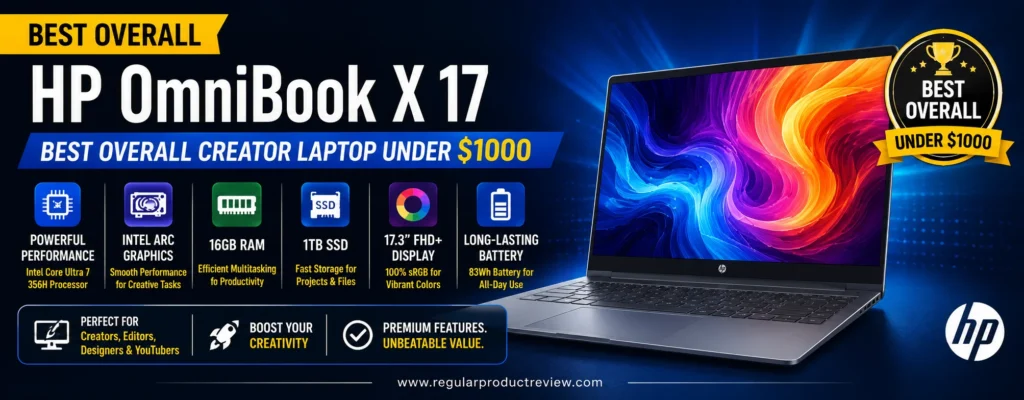
For photographers, graphic designers, YouTube creators, social-media professionals, and freelancers, that balance can be more valuable than buying a performance-first machine with a faster GPU but a weaker screen, smaller workspace, or less practical everyday design. The 17.3-inch display is particularly useful when Photoshop palettes, Lightroom panels, browser references, editing timelines, and communication apps need to coexist on one screen.
The configuration evaluated here is the HP OmniBook X 17-dd1000nr (D0BV0UA#ABA). It pairs an Intel Core Ultra 7 356H with 16GB LPDDR5x memory, a 1TB PCIe Gen4 NVMe SSD, and integrated Intel Graphics. That means this is primarily a balanced content-creation laptop, rather than a mobile GPU workstation.
Creators who need significantly more graphics performance should compare the performance-oriented machines in our best gaming laptops under $1000. Gaming hardware can be surprisingly effective for Premiere Pro, DaVinci Resolve, Blender, and other applications that benefit from a dedicated NVIDIA GPU.
For creators who want to compare this HP against a wider range of purpose-built options, our best creator laptops guide explores alternatives across different performance classes and creative workflows.
Editorial Insight: The OmniBook X 17 wins this category through balance rather than brute-force GPU performance. It is most compelling for creators whose daily workflow combines visual creation, multitasking, communication, and productivity.
📋 HP OmniBook X 17 Key Specifications
| Feature | HP OmniBook X 17-dd1000nr |
|---|---|
| Processor | Intel Core Ultra 7 356H |
| CPU | 16 cores / 16 threads, up to 4.7GHz |
| NPU | Intel AI Boost, up to 50 NPU TOPS |
| Graphics | Integrated Intel Graphics |
| Memory | 16GB LPDDR5x-8533 MT/s, onboard |
| Storage | 1TB PCIe Gen4 NVMe M.2 SSD |
| Display | 17.3-inch FHD IPS multitouch |
| Resolution | 1920 × 1080 |
| Color Gamut | 100% sRGB |
| Brightness | 400 nits |
| Camera | 5MP IR camera with temporal noise reduction |
| Wireless | Wi-Fi 7 + Bluetooth 6.0 |
| Thunderbolt | 1 × Thunderbolt 4 / USB-C 40Gbps |
| USB-A | 3 × USB-A 10Gbps |
| Video Output | HDMI 2.1 |
| Battery | 83Wh, 6-cell Li-ion polymer |
| Charging | 65W USB-C GaN adapter |
| Operating System | Windows 11 Home |
| Best For | Photography, design, YouTube, mainstream video editing, multitasking |
⚠️ Configuration Matters: The OmniBook X 17 family includes multiple configurations. HP lists higher-end variants with up to 32GB LPDDR5x memory and optional NVIDIA GeForce RTX 5050 graphics, but those specifications should not be assumed for the 16GB 17-dd1000nr reviewed here.
🎨 A 17.3-Inch Canvas That Changes the Creative Workflow
The 17.3-inch FHD IPS touchscreen is arguably the defining feature of the OmniBook X 17.
Creative applications consume screen space quickly. Photoshop needs room for layers, properties, tools, and the image itself. Lightroom combines the photo preview with navigation and adjustment panels. Video editors have preview windows, media bins, effects controls, audio tracks, and timelines competing for space.
A 17.3-inch panel makes those interfaces easier to manage without immediately connecting an external monitor.
The evaluated panel is rated for 400 nits and 100% sRGB, two specifications that matter more to creators than the simple “FHD touchscreen” label might suggest. Full sRGB coverage makes it a more sensible choice for web graphics, social-media assets, thumbnails, mainstream photography, and other work primarily delivered through sRGB-oriented digital channels.
Its limitation is resolution.
1920 × 1080 across 17.3 inches provides plenty of physical workspace, but not the pixel density of a 2.5K, 2.8K, or 4K creator panel. Photographers performing fine retouching and designers who value exceptionally sharp typography may prefer a higher-resolution display.
Creators for whom premium display technology matters more than sheer screen size can also explore our ultrabooks coverage, where higher-resolution OLED and premium mobile panels appear more frequently.
💡 Expert Tip: Don’t evaluate a creator display by resolution alone. Color gamut, brightness, usable screen size, contrast, and your delivery format can have a greater practical impact than simply maximizing pixel count.
⚡ Core Ultra 7 356H: Modern CPU Power for Creative Multitasking
At the center of this configuration is the Intel Core Ultra 7 356H, a Series 3 processor with 16 cores, 16 threads, an 18MB cache, and a maximum turbo frequency of 4.7GHz.
That architecture gives the OmniBook X 17 a strong CPU foundation for the type of mixed workload many creators actually perform.
A photographer might have Lightroom processing images while Photoshop, cloud storage, a browser, Spotify, and email remain open. A YouTube creator could be editing a project while researching the next video and managing uploads. A freelance designer may jump repeatedly among Illustrator, Photoshop, presentation software, browser-based tools, and client communication.
These scenarios depend as much on responsive multitasking as headline benchmark performance.
Intel also specifies an integrated NPU on the 356H platform, while HP positions the machine as a Copilot+ PC. Supported AI-assisted tools can increasingly use dedicated local AI resources rather than relying entirely on CPU or cloud processing.
AI capability is a useful addition, but it should not overshadow the fundamentals. For today’s creator, the more important strengths remain the processor’s modern architecture, fast memory subsystem, and overall responsiveness.
🎬 Integrated Graphics: Understand the Boundary Before You Buy
Graphics are where prospective buyers need to make the most deliberate decision.
This particular OmniBook X 17 uses integrated Intel Graphics. It does not contain the RTX 5050 available in selected higher-spec members of the OmniBook X 17 family.
That distinction changes which workloads we recommend.
Photoshop, Lightroom, Illustrator, Canva, web publishing, social-media production, lighter video editing, and general creative multitasking do not automatically require a discrete GPU. For these jobs, the combination of a capable modern processor, 16GB memory, and integrated graphics can provide a balanced experience.
More demanding GPU workflows are another story.
Heavy DaVinci Resolve effects, complex 4K timelines, GPU-intensive Premiere Pro projects, Blender rendering, 3D animation, and CUDA-dependent workflows can benefit substantially from dedicated NVIDIA hardware.
| Creative Workload | Editorial Fit | Why |
|---|---|---|
| Adobe Photoshop | ★★★★★ | Strong CPU, 16GB RAM, and 100% sRGB display suit mainstream image work |
| Adobe Lightroom | ★★★★☆ | Large workspace and balanced hardware work well for photo workflows |
| Illustrator / Canva | ★★★★★ | Excellent fit for design and browser-assisted creation |
| 1080p Video Editing | ★★★★☆ | Appropriate for mainstream projects and moderate effects |
| 4K Video Editing | ★★★☆☆ | Practical for lighter projects; GPU-heavy timelines favor discrete graphics |
| DaVinci Resolve Effects | ★★☆☆☆ | Dedicated NVIDIA graphics are preferable for demanding work |
| Blender / 3D Rendering | ★★☆☆☆ | Not the primary use case for this integrated-GPU configuration |
| YouTube Production | ★★★★☆ | Strong fit for editing, thumbnails, scripts, research, and publishing |
| Social Content Creation | ★★★★★ | Excellent balance for mixed graphics, video, browser, and productivity tools |
If dedicated graphics are central to your workflow, our best gaming laptops under $1500 provides additional options with substantially greater GPU headroom.
🧠 16GB LPDDR5x: The Right Starting Point, With One Caveat
HP equips the reviewed configuration with 16GB of LPDDR5x-8533 memory.
For mainstream creation, 16GB remains a sensible practical baseline. It provides considerably more breathing room than an 8GB system when working with layered image files, multiple browser tabs, creative software, cloud-sync applications, and communication tools simultaneously.
Fast LPDDR5x memory also complements the integrated graphics architecture because system memory is shared with the GPU.
The caveat is important: HP lists the memory as onboard.
That means buyers should choose the capacity they expect to need rather than planning around a simple RAM upgrade later. Creators expecting large After Effects projects, heavier 4K production, professional 3D applications, or extremely large RAW workflows may benefit from a higher-memory configuration.
Editorial Insight: If your workflow already approaches 16GB today, buying soldered 16GB memory with the expectation that it will somehow become 32GB later is poor long-term planning. Choose the configuration around your future workload, not just today’s project.
💾 1TB SSD Gives Creators Useful Breathing Room
The 1TB PCIe Gen4 NVMe SSD is one of the configuration’s strongest practical advantages.
Creative storage disappears quickly.
RAW photographs, source video, proxy files, preview renders, application caches, downloaded assets, project backups, and finished exports can consume hundreds of gigabytes faster than many first-time creators expect.
A 512GB drive can work when paired with disciplined external storage, but 1TB gives the operating system, applications, active projects, and cache files much more room to coexist.
That does not mean video professionals can abandon external storage. Large 4K libraries can overwhelm even a 1TB drive. Fortunately, the OmniBook’s Thunderbolt 4 connection makes fast external SSDs and docking solutions practical.
🔌 Thunderbolt 4 and HDMI 2.1 Strengthen the Creator Desk Setup
Connectivity is another area where the OmniBook X 17 distinguishes itself from minimalist ultraportables.
The evaluated configuration provides Thunderbolt 4 with 40Gbps USB-C, three 10Gbps USB-A ports, HDMI 2.1, and a headphone/microphone combination jack.
For creators, those ports translate into real workflow flexibility.
A Thunderbolt connection can support fast external storage, docks, and compatible displays. HDMI simplifies connection to an external monitor or presentation display. Multiple USB-A ports accommodate existing peripherals without turning the laptop into an adapter collection.
There is no integrated SD card reader listed for this configuration, which is a meaningful omission for photographers and videographers transferring media directly from cameras.
An inexpensive external reader solves the problem, but creators who transfer cards several times a day should factor that extra accessory into their setup.
🎥 5MP IR Camera Adds Value Beyond Content Editing
Modern creator work rarely ends when an export finishes.
Freelancers attend client meetings. YouTubers collaborate remotely. Designers present concepts. Students join online classes. Small-business creators may spend almost as much time communicating as editing.
The OmniBook X 17 includes a 5MP IR camera with temporal noise reduction and integrated dual-array digital microphones.
The IR capability also supports biometric authentication, while the higher-resolution webcam provides a more useful starting point for calls than the basic low-resolution cameras still found in many budget laptops.
It will not replace a dedicated creator camera or professional streaming setup, but that is not its purpose. Its value is making everyday communication less dependent on another peripheral.
🔋 83Wh Battery Is Generous for a Large-Screen Creator Laptop
HP lists an 83Wh six-cell battery for the reviewed SKU, paired with a compact 65W USB-C GaN adapter.
That is substantial capacity for a productivity-oriented notebook and more encouraging than the smaller battery specification sometimes associated with large-screen budget laptops.
Battery life still needs to be interpreted realistically.
Creative applications can dramatically increase power consumption. Video encoding, photo exports, AI processing, maximum display brightness, and sustained CPU activity will reduce runtime compared with lightweight browsing or document editing.
The advantage of the large battery is therefore not a promise of unlimited unplugged rendering. It is additional flexibility when moving between a desk, classroom, meeting, studio, or temporary workspace.
HP also specifies fast charging of approximately 50% in 45 minutes under the company’s stated charging conditions, which can be useful for mobile professionals.
🪑 Desktop-Replacement Comfort Without Becoming a Desktop
The 17.3-inch form factor makes the OmniBook X 17 feel closer to a portable workstation than an ultraportable.
That can be excellent for home-based creators who want one primary screen without permanently occupying desk space with an external monitor. The full-size backlit keyboard and numeric keypad also make the machine practical for creators who handle spreadsheets, analytics, invoices, metadata, or business administration alongside production work.
The trade-off is obvious: 17-inch laptops are not designed around minimum footprint.
Frequent flyers, commuters, and creators who work from small café tables may prefer something more compact. If mobility takes priority over screen size, compare our best ultrabooks under $1000 for alternatives built around portability.
📊 HP OmniBook X 17 Creator Performance Snapshot
| Category | Editorial Score | What It Means for Creators |
|---|---|---|
| CPU Capability | 9.0/10 | Strong modern processor for mainstream creative production and multitasking |
| GPU Capability | 7.4/10 | Suitable for lighter acceleration, but RTX laptops offer much more rendering headroom |
| Display Workspace | 9.4/10 | 17.3 inches provides excellent room for complex creative interfaces |
| Display Quality | 8.7/10 | 400 nits and 100% sRGB are useful; FHD resolution limits sharpness |
| Memory | 8.4/10 | 16GB is appropriate for mainstream creators, but onboard design limits future flexibility |
| Storage | 9.2/10 | 1TB is a practical capacity for active creative projects |
| Connectivity | 9.3/10 | Thunderbolt 4, HDMI 2.1, and three USB-A ports offer strong desk flexibility |
| Mobile Usability | 7.7/10 | Large footprint is the unavoidable compromise |
| Creator Versatility | 9.2/10 | Handles a broad spectrum of mainstream creative and professional tasks |
| Overall Rating | 9.0/10 | A particularly balanced choice when the qualifying configuration is available under $1,000 |
⚠️ About Our Scores: These are editorial decision scores, not laboratory benchmark results. They summarize how the verified hardware and feature set fit the intended creator workflow.
👤 Who Should Buy the HP OmniBook X 17?
The HP OmniBook X 17 makes the most sense for creators who spend much of their working day inside visual applications but do not require workstation-class discrete graphics.
It is particularly well suited to:
- Photographers working in Photoshop and Lightroom
- Graphic designers producing digital and web-focused assets
- YouTube creators balancing editing, thumbnails, research, scripts, and publishing
- Social-media creators moving among graphics, short-form video, browser tools, and analytics
- Freelancers who need creative applications and business software on one machine
- Creative students who prefer a large workspace
- Home creators who want desktop-like screen space without purchasing a desktop
Creative students who need to balance media work with lectures, research, and portability can also compare our best laptops for college students before committing to a 17-inch chassis.
⚠️ Who Should Skip It?
Consider another laptop if your main workload involves:
- Intensive Blender rendering
- Complex professional 3D animation
- Heavy GPU effects in DaVinci Resolve
- CUDA-dependent production workflows
- Sustained high-end 4K/6K video editing
- Frequent travel where minimum size and weight matter
- Color-critical cinema or print workflows requiring a wider-gamut built-in display
- Daily camera-media transfers where an integrated SD card reader is essential
Those are not minor differences in preference; they represent workloads where a different hardware balance can materially improve productivity.
✅ HP OmniBook X 17 Pros & Cons
| ✅ Pros | ❌ Cons |
|---|---|
| 17.3-inch display creates a spacious editing environment | FHD resolution is modest for such a large screen |
| 100% sRGB coverage is useful for mainstream visual content | Not a wide-gamut professional creator panel |
| 400-nit touchscreen adds flexibility | Integrated graphics limit heavy GPU workloads |
| Modern Core Ultra 7 356H processor | 16GB onboard memory is not ideal for heavy future workloads |
| Fast LPDDR5x-8533 memory | Large chassis is less travel-friendly |
| 1TB Gen4 NVMe SSD offers useful working capacity | No integrated SD card reader listed |
| Thunderbolt 4 supports high-speed creator peripherals | RTX 5050 belongs to different higher-spec configurations |
| HDMI 2.1 plus three USB-A ports | Exact pricing can change with HP promotions |
| Large 83Wh battery | 65W adapter reflects its balanced rather than workstation-class positioning |
| 5MP IR webcam suits hybrid creator workflows | Buyers must verify the exact SKU before purchasing |
🏆 Why the HP OmniBook X 17 Is Our Best Overall Pick
The OmniBook X 17 does not earn first place by pretending every creator needs the same hardware.
Its advantage is that the compromises make sense for a broad audience.
The Core Ultra 7 platform provides modern CPU capability. 16GB of fast memory gives mainstream creative applications enough room to work. The 1TB SSD is large enough to be genuinely useful rather than merely adequate. The 17.3-inch 100% sRGB panel provides a spacious environment for photography, design, editing, and multitasking, while Thunderbolt 4 and HDMI 2.1 make it easy to expand into a more capable desk setup.
Creators who know they need significantly stronger graphics should not force this configuration into that role. Moving to a dedicated-GPU machine—or increasing the budget—can be the better investment. Our best creator laptops under $1500 guide covers that higher-performance territory.
For mainstream creators trying to stay closer to four figures, however, the OmniBook X 17 offers something more useful than one standout specification: a coherent creator setup with relatively few weak links.
Our Recommendation: Choose the HP OmniBook X 17 if you want a large-screen Windows creator laptop for photography, design, YouTube production, mainstream editing, and professional multitasking. Choose an RTX-equipped alternative instead if rendering, complex GPU effects, or 3D production defines most of your working day.
Dell Inspiron 16 Plus 7620 🎬 Best Creator Laptop Under $1000 for Video Editing
Best For: Video editing, YouTube production, Premiere Pro, photography + video, and GPU-assisted creative work
Primary Strength: Core i7 + RTX 3050 Ti + 3K 16:10 display at clearance pricing
Main Compromise: Older GPU with only 4GB VRAM and unpredictable remaining inventory
Editorial Rating: 9.0/10
The Dell Inspiron 16 Plus 7620 is one of the more unusual values in this roundup. It is not a new-generation creator laptop trying to squeeze modern components into a four-figure budget. Instead, it is an older premium-performance model whose remaining US clearance configurations can deliver hardware that is still highly relevant to video creators at a substantially reduced price.
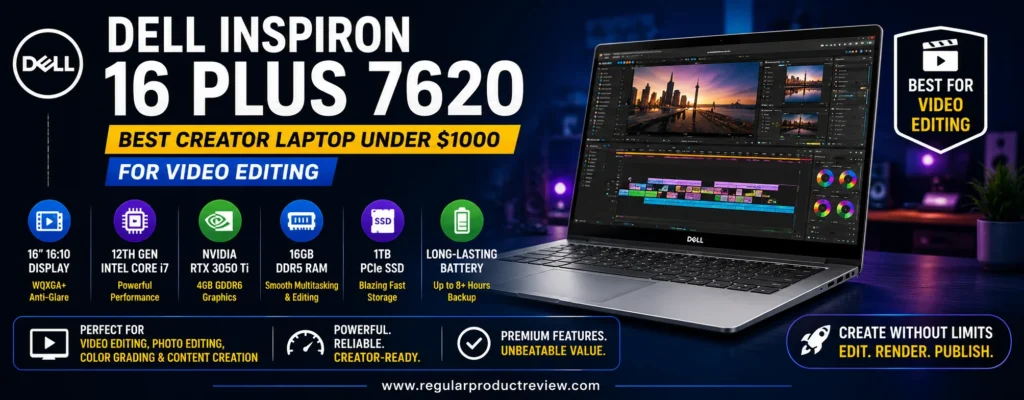
The configuration we recommend combines a 12th Gen Intel Core i7-12700H, NVIDIA GeForce RTX 3050 Ti 4GB, 16GB of DDR5 memory, a 512GB NVMe SSD, and a 16-inch 3K display. That combination gives video editors something many general-purpose laptops below $1,000 cannot offer: a high-performance H-series processor and a dedicated NVIDIA GPU in the same machine.
That dedicated graphics hardware is the main reason the Inspiron earns our Best Creator Laptop Under $1000 for Video Editing award. GPU acceleration matters in modern editing applications, particularly when working with supported effects, rendering, playback, and export workflows. Adobe’s professional video hardware guidance specifically identifies the processor, memory, GPU, and storage as four key components of a video-production system.
Creators who want to compare this approach with newer GPU-focused machines should also explore our best gaming laptops under $1000. Gaming laptops frequently provide strong GPU performance per dollar and can make excellent editing systems when display quality and portability are acceptable.
The Inspiron takes a more restrained approach than a typical gaming notebook. Its aluminum exterior, 16:10 display, Thunderbolt 4 connectivity, full-size SD card reader on the RTX 3050 Ti configuration, and understated design make it easier to use as both a creative workstation and an everyday professional laptop.
If your budget can stretch beyond four figures, our best creator laptops under $1500 covers newer machines with more powerful GPUs, larger VRAM pools, and additional performance headroom.
Editorial Insight: The Inspiron 16 Plus 7620 is attractive because clearance pricing changes the value equation. You’re accepting an older CPU/GPU generation in exchange for dedicated RTX graphics, a 3K creator-friendly workspace, and strong connectivity at a sub-$1,000 price.
📋 Dell Inspiron 16 Plus 7620 Key Specifications
| Feature | Recommended Clearance Configuration |
|---|---|
| Processor | 12th Gen Intel Core i7-12700H |
| CPU | 14 cores / 20 threads, up to 4.70GHz Turbo |
| Graphics | NVIDIA GeForce RTX 3050 Ti |
| GPU Memory | 4GB GDDR6 |
| Memory | 16GB DDR5-4800 |
| Memory Layout | 8GB onboard + 1 × 8GB SODIMM |
| Storage | 512GB PCIe NVMe SSD |
| Display | 16-inch 3K WVA, anti-glare |
| Resolution | 3072 × 1920 |
| Aspect Ratio | 16:10 |
| Refresh Rate | 60Hz |
| Brightness | 300 nits |
| Color Coverage | 100% sRGB |
| High-Speed Port | Thunderbolt 4 with DisplayPort and Power Delivery |
| USB-A | 2 × USB 3.2 Gen 1 |
| Video Output | HDMI 2.0 |
| Card Reader | Full-size SD card slot on RTX 3050/3050 Ti configurations |
| Camera | 1080p FHD webcam |
| Wireless | Up to Wi-Fi 6E + Bluetooth 5.2 |
| Starting Weight | 4.51 lb / 2.05 kg |
| Battery Options | 56Wh or 86Wh, configuration dependent |
| Best For | Premiere Pro, video production, photo editing, GPU-assisted creator workflows |
⚠️ Availability Note: The Inspiron 16 Plus 7620 is an older model being sold through remaining inventory rather than a current mainstream Dell generation. A qualifying RTX 3050 Ti configuration may appear below $1,000 while stock lasts, but availability and pricing can change quickly. Verify the exact US SKU before buying.
⚡ Core i7-12700H: Older, but Still a Serious Editing CPU
The Core i7-12700H is no longer a current-generation processor, but age alone does not make it unsuitable for creative work.
Its 14-core, 20-thread design was built for performance-oriented laptops rather than ultra-low-power systems. That distinction remains relevant for video editing, where decoding, encoding, effects processing, background tasks, and exports can place sustained demands on the processor.
For an editor working in Premiere Pro, the CPU provides enough multi-core resources to make the Inspiron considerably more compelling than an inexpensive productivity laptop built around a lower-power processor.
The practical advantage becomes clearer during mixed workflows. An editor rarely runs only the editing application. Browser tabs, cloud storage, music, messaging, graphics applications, scripts, project documents, and media-management tools often remain open simultaneously.
That is where an H-series CPU and 16GB of dual-channel DDR5 create a more credible production environment.
The obvious drawback is efficiency. Newer processor generations have improved performance-per-watt, integrated graphics, and AI capabilities. If your workload is relatively light, a modern thin-and-light may provide a better balance of speed and battery life.
But if video editing performance per dollar is the priority, this older high-performance platform still deserves attention at clearance pricing.
🎮 RTX 3050 Ti: The Feature That Changes the Recommendation
The GeForce RTX 3050 Ti with 4GB of GDDR6 VRAM is the defining component of the recommended configuration.
Dedicated graphics give supported creative software access to resources that integrated-GPU laptops in this price class may not provide at the same level. Adobe’s hardware guidance notes that Premiere Pro uses the GPU for areas including on-screen rendering and export, while GPU optimization also plays a role in After Effects.
That does not make an RTX 3050 Ti equivalent to a modern RTX 4060, RTX 5060, or professional workstation GPU.
The 4GB VRAM ceiling is the most important limitation. It is sufficient to make the GPU genuinely useful, but demanding effects, complex high-resolution projects, heavy AI workflows, and advanced 3D scenes can exceed what this class of graphics hardware handles comfortably.
For mainstream HD and moderate 4K creation, however, the dedicated GPU gives this Inspiron a meaningful advantage over productivity-focused laptops relying entirely on integrated graphics.
| Video / Creative Workload | Editorial Fit | What to Expect |
|---|---|---|
| 1080p Premiere Pro Editing | ★★★★★ | Strong fit for mainstream timelines and GPU-assisted effects |
| 1440p Video Editing | ★★★★☆ | Good balance for more demanding creator projects |
| Moderate 4K Editing | ★★★★☆ | Practical with sensible codecs, effects, proxies, and workflow management |
| Heavy 4K Effects | ★★★☆☆ | 4GB VRAM and 16GB system memory become limiting |
| After Effects | ★★★★☆ | Useful CPU/GPU combination, but heavier compositions benefit from more RAM |
| DaVinci Resolve | ★★★★☆ | Dedicated GPU is valuable; complex effects expose VRAM limitations |
| Photoshop / Lightroom | ★★★★★ | More performance than most photographers require |
| Blender / Entry 3D | ★★★★☆ | CUDA-capable GPU is useful, but modern RTX options are substantially faster |
| YouTube Production | ★★★★★ | Excellent fit for editing, thumbnails, exports, and publishing workflows |
💡 Expert Tip: Don’t interpret “RTX” as unlimited GPU performance. For creator work, VRAM capacity matters alongside the GPU name. The RTX 3050 Ti’s 4GB is useful at this budget, but demanding professional projects can justify moving to a newer GPU with more VRAM.
🖥️ 16-Inch 3K Display: More Than Just a High Resolution
Video editors need workspace almost as much as they need processing power.
The recommended Inspiron configuration uses a 16-inch 3072 × 1920 WVA panel with a 16:10 aspect ratio, 60Hz refresh rate, 300-nit rated brightness, anti-glare finish, and ComfortView Plus.
The extra vertical space of 16:10 is particularly valuable inside editing software. Timelines, preview windows, effect controls, bins, and application menus compete for space, so the taller canvas makes better use of a 16-inch chassis than a traditional 16:9 layout.
Dell’s specifications for the 3K panel also list 100% sRGB coverage. That makes it a more credible display for mainstream digital content creation than inexpensive gaming panels that may prioritize refresh rate while compromising color gamut.
The 3K resolution is another practical advantage. Text, interface elements, high-resolution images, and preview content appear substantially sharper than on a basic FHD-class display.
There is one clear weakness: 300-nit brightness is adequate indoors but not exceptional. Creators regularly working beside bright windows or outdoors may want something brighter.
For broader comparisons focused on large, high-quality mobile displays, our best ultrabooks of 2026 covers newer premium display technologies and more portable designs.
🎨 Is 100% sRGB Enough for Professional Creators?
For web-oriented video, YouTube, social media, digital graphics, and general photography, 100% sRGB coverage is a useful baseline.
It is especially relevant because much online content is ultimately consumed in environments where sRGB remains highly important.
That does not automatically make this panel a reference-grade display.
Professional cinema color grading, wide-gamut HDR mastering, and print workflows may require broader gamut coverage, higher brightness, better contrast, hardware calibration, or a dedicated external monitor.
The Inspiron’s display is therefore best viewed as a strong built-in creator screen for mainstream digital production, rather than a replacement for a calibrated professional reference display.
Creators whose work centers more on photography, graphic design, and general creative production can compare other approaches in our creator laptops hub.
Editorial Insight: The 3K panel is valuable because it combines high resolution, 16:10 workspace, and full sRGB coverage. For a sub-$1,000 clearance laptop, that is a much more creator-relevant combination than resolution alone.
🧠 16GB DDR5 Works—But Video Editors Should Think Ahead
The recommended clearance configuration includes 16GB of DDR5-4800 memory, arranged as 8GB onboard plus one 8GB SODIMM.
For HD video editing, Photoshop, Lightroom, YouTube production, and moderate multitasking, 16GB provides a workable foundation.
More demanding editors should pay attention to Dell’s unusual memory architecture.
On RTX 3050 and RTX 3050 Ti configurations, 8GB is integrated onto the motherboard while one SODIMM slot remains available. Dell officially supports configurations up to 40GB on these variants by combining the onboard 8GB with a 32GB module.
That is genuinely useful for long-term ownership.
Adobe’s professional video hardware guidance recommends substantially more memory for demanding production systems, so the ability to move beyond 16GB is important if your projects become more complex.
💡 Upgrade Tip: If you routinely work with 4K media, After Effects, large Photoshop projects, or several creative applications simultaneously, memory is one of the first upgrades worth considering.
💾 512GB SSD Is Fast Enough, but Capacity Is the Weak Point
The included 512GB PCIe NVMe SSD is appropriate for Windows, creative applications, project files, and a limited amount of active media.
Capacity is another matter.
Video consumes storage at an extraordinary rate. Source footage, proxies, optimized media, audio libraries, preview renders, application caches, exports, and project backups can make a 512GB drive feel small very quickly.
This is not a reason to reject the laptop, but it does affect how it should be used.
A sensible creator setup would keep Windows, applications, cache files, and current projects on the internal SSD while storing larger media libraries and completed projects on external SSDs or network storage.
Thunderbolt 4 makes that strategy much easier.
⚡ Thunderbolt 4 Gives External Storage Room to Grow
The Inspiron includes one Thunderbolt 4 port with DisplayPort and Power Delivery, two USB 3.2 Gen 1 ports, HDMI 2.0, and a universal headset jack.
Thunderbolt 4 is particularly useful for video creators because a laptop workflow often expands over time.
An editor may begin with the laptop alone, then add a high-speed external SSD, dock, calibrated monitor, audio interface, additional storage, and other production hardware. A high-bandwidth connection makes that transition far cleaner.
HDMI 2.0 also allows straightforward connection to an external monitor without requiring a USB-C adapter.
The two USB-A ports are useful for existing drives and accessories, although the overall port count is not exceptionally large.
💾 Full-Size SD Card Reader Is a Small Feature With Big Workflow Value
The RTX 3050/3050 Ti versions of the Inspiron 16 Plus 7620 include a full-size SD card slot.
For a video creator, photographer, or hybrid shooter, this can be more valuable than another benchmark advantage.
Camera media frequently lives on SD cards. Having a reader integrated into the laptop eliminates one adapter from the workflow and makes quick transfers easier when working away from a desk.
Interestingly, Dell specifies a microSD slot instead for RTX 3060 variants, so buyers should not assume every Inspiron 16 Plus 7620 has the same card reader.
This is another example of why checking the exact configuration matters.
🔧 Memory Upgradeability Gives the Inspiron a Longer Useful Life
Many modern thin laptops solder all system memory to the motherboard. The Inspiron takes a more flexible approach.
On the RTX 3050 Ti configuration, Dell uses 8GB of integrated memory plus a replaceable SODIMM. That creates an upgrade path to 24GB or 40GB supported configurations.
For creators, this can extend the laptop’s useful life considerably.
Storage configurations also use M.2 NVMe drives, making the platform more ownership-friendly than machines where both memory and storage choices are effectively locked at purchase.
If long-term repairability and modularity are major priorities, however, our business laptops coverage includes additional systems where serviceability and professional ownership considerations receive greater emphasis.
🌡️ Sustained Performance Matters More Than Short Bursts
Video editing differs from ordinary productivity because workloads can remain demanding for minutes or hours.
A browser may briefly push a processor during page loading. A video export can keep the CPU and GPU working continuously.
The Inspiron 16 Plus chassis was designed around H-series processors and optional discrete graphics, giving it a more performance-oriented thermal target than an ultra-thin notebook.
That does not mean it will behave like a thick gaming workstation. Long exports can still increase fan noise and surface temperatures, and performance is best evaluated with the laptop plugged into its full-power adapter.
For sustained editing sessions, a solid desk surface and unrestricted airflow are preferable to using the machine on a bed, sofa, or other soft surface.
🔋 Battery Life: Performance Comes With a Cost
Dell offered the Inspiron 16 Plus 7620 with 56Wh and 86Wh battery configurations, depending on SKU.
The discrete RTX GPU, H-series processor, and high-resolution 3K display make this a performance-oriented machine rather than a battery-life specialist.
Light productivity can naturally last much longer than editing or exporting video. Once CPU and GPU utilization rises, power consumption rises with it.
Video editors should therefore treat battery life as useful mobility between workspaces rather than expecting sustained rendering performance away from an outlet.
If all-day mobility matters more than GPU acceleration, our best business laptops under $1000 explores machines that place greater emphasis on efficiency and portable professional use.
🎥 1080p Webcam and Professional-Friendly Design
The Inspiron uses a 1080p FHD webcam with dual-array microphones, making it practical for remote collaboration, client meetings, online classes, and production discussions.
Its aluminum exterior also gives it a more restrained appearance than many inexpensive performance laptops.
That matters for creators who use one computer in multiple environments. The same machine may need to edit a project at home, present work to a client, attend a meeting, and travel to a shoot.
At a starting weight of about 4.51 pounds, it is portable enough to move regularly but not especially light. The 16-inch footprint and performance hardware make this more of a transportable workstation than an ultraportable.
📊 Dell Inspiron 16 Plus 7620 Creator Performance Snapshot
| Category | Editorial Score | Video-Creator Perspective |
|---|---|---|
| CPU Performance | 9.0/10 | Older Core i7 remains capable for editing and exports |
| GPU Acceleration | 8.5/10 | RTX 3050 Ti is a major advantage at clearance pricing |
| Video Editing | 9.1/10 | Strong balance for 1080p and moderate 4K projects |
| Display Workspace | 9.4/10 | 3K 16:10 panel provides excellent editing room |
| Display Quality | 8.8/10 | 100% sRGB is useful; 300-nit brightness is merely adequate |
| Memory | 8.6/10 | 16GB baseline plus useful expansion up to 40GB |
| Storage | 7.8/10 | 512GB is fast but restrictive for video libraries |
| Connectivity | 9.2/10 | Thunderbolt 4, HDMI, USB-A, and full-size SD are creator-friendly |
| Portability | 7.8/10 | Reasonable for its performance, but not lightweight |
| Value Under $1000 | 9.4/10 | Clearance pricing dramatically improves the proposition |
| Overall Rating | 9.0/10 | One of the strongest video-editing combinations if available below $1,000 |
⚠️ About Our Scores: These are editorial suitability scores based on verified specifications, configuration, workload fit, and value—not fabricated laboratory benchmark results.
👤 Who Should Buy the Dell Inspiron 16 Plus 7620?
This configuration is especially compelling for:
- YouTube video editors working primarily with 1080p and moderate 4K projects
- Premiere Pro users who want NVIDIA GPU acceleration without exceeding $1,000
- DaVinci Resolve beginners and intermediate editors
- Photographers who also produce video
- Content creators who need an SD card reader built into the laptop
- Students studying film, media, photography, or design
- Freelancers who want performance without a gaming-laptop aesthetic
- Creators using external SSDs and monitors through Thunderbolt 4
Students combining creative applications with coursework can also compare our student laptops coverage before deciding whether the Inspiron’s performance advantage justifies its additional size and weight.
⚠️ Who Should Skip It?
Look elsewhere if you need:
- A current-generation CPU and GPU platform
- More than 4GB of GPU VRAM for demanding effects
- Heavy professional 4K, 6K, or 8K production
- Advanced Blender or complex 3D rendering
- A wide-gamut HDR display for professional color grading
- Maximum battery endurance
- An ultra-light travel laptop
- Guaranteed long-term retail availability rather than clearance stock
The final point is especially important. This is an older model, and remaining US inventory can disappear.
✅ Dell Inspiron 16 Plus 7620 Pros & Cons
| ✅ Pros | ❌ Cons |
|---|---|
| RTX 3050 Ti dedicated graphics provide useful creator acceleration | RTX 3050 Ti is now several GPU generations old |
| Powerful Core i7-12700H H-series processor | Older processor is less efficient than newer platforms |
| Sharp 16-inch 3K 16:10 display | 300-nit brightness is only average |
| 100% sRGB coverage suits mainstream digital creation | Not a wide-gamut HDR reference display |
| 16GB DDR5 in recommended configuration | 16GB can become restrictive for heavier 4K/After Effects work |
| Memory can scale up to 40GB on RTX 3050 Ti models | 8GB of RAM is permanently onboard |
| Thunderbolt 4 supports fast external creator hardware | Only one Thunderbolt port |
| Full-size SD card reader is excellent for camera workflows | 512GB SSD fills quickly with video footage |
| HDMI 2.0 simplifies external-monitor use | At 4.51 lb, it is not an ultraportable |
| Aluminum exterior looks more professional than many gaming laptops | Clearance availability is unpredictable |
| Strong value when discounted below $1,000 | Buying an older platform involves long-term trade-offs |
🏆 Why It Earns Our Best Video Editing Award
The Dell Inspiron 16 Plus 7620 earns its position because video editing rewards a different hardware balance than general content creation.
The Core i7-12700H provides substantial CPU resources. The RTX 3050 Ti adds dedicated graphics acceleration. Sixteen gigabytes of DDR5 gives mainstream projects a workable starting point, while the expandable memory architecture provides a path toward heavier workflows.
The 3K 16:10 display is equally important. It creates a spacious, sharp editing environment without forcing users to immediately purchase an external monitor. Thunderbolt 4 supports fast external storage, and the full-size SD card reader streamlines footage ingestion from compatible cameras.
None of those strengths erase its age.
Newer GPUs offer substantially more performance and often more VRAM. Newer CPUs improve efficiency. Professional 4K editors should ideally consider 32GB or more memory, and 512GB of internal storage is restrictive for serious video libraries.
But price changes the conclusion.
When this configuration appears around the current sub-$900 US clearance level, its combination of an H-series Core i7, RTX graphics, 16GB DDR5, and a 3K display is difficult to dismiss simply because newer hardware exists.
Our Recommendation: Buy the Dell Inspiron 16 Plus 7620 when you can find the Core i7-12700H, RTX 3050 Ti, 16GB DDR5, and 3K-display configuration comfortably below $1,000. It is particularly attractive for YouTube, Premiere Pro, photography-plus-video, and moderate 4K workflows. Skip it at inflated prices—once its cost approaches newer RTX-equipped laptops, the clearance-value advantage disappears.
Framework Laptop 13 — Intel Core Ultra DIY Edition 🔧 Best Upgradeable Creator Laptop Under $1000
Best For: Photography, graphic design, mobile creation, freelancers, students, developers, and long-term ownership
Primary Strength: Exceptional RAM, storage, port, battery, display, and mainboard upgradeability
Main Compromise: Integrated graphics are not designed for demanding GPU-heavy production
Editorial Rating: 9.1/10
The Framework Laptop 13 — Intel Core Ultra DIY Edition stands apart from nearly every other creator laptop in this price class because its value is not defined only by the hardware you buy on day one. It is built around the idea that the machine should be repairable, configurable, and upgradeable over time, giving creators a way to replace memory, storage, ports, the display, battery, webcam module, and even the mainboard instead of treating the entire laptop as disposable.
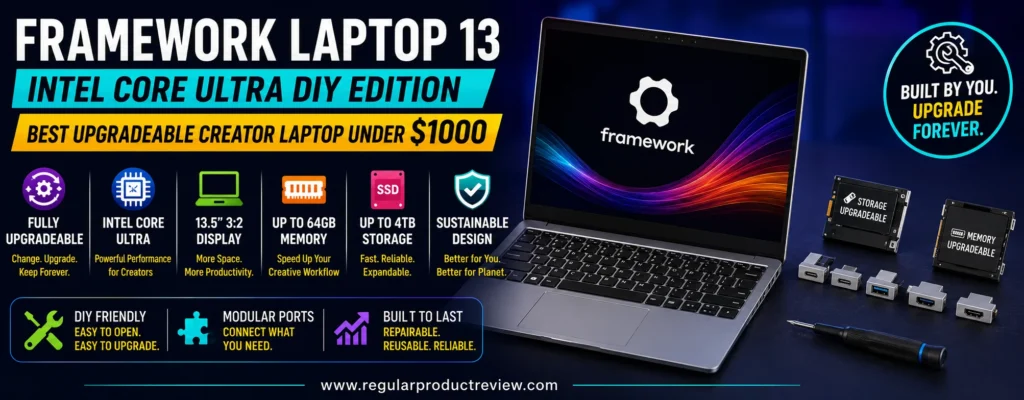
That approach matters for creative professionals because workloads rarely stay static. A photographer who begins with 16GB of memory may eventually manage larger RAW libraries. A designer may need substantially more local storage. A content creator may later require different ports, a higher-resolution screen, or a newer processor platform. Framework’s architecture gives those buyers considerably more flexibility than notebooks with soldered memory, fixed I/O, and difficult-to-source replacement parts.
The Intel Core Ultra Series 1 DIY version is especially interesting when configured around the Core Ultra 5 125H or Core Ultra 7 155H, Intel Arc integrated graphics, 16GB or more of DDR5-5600 memory, and an NVMe SSD. Framework officially supports up to 96GB of DDR5 memory and high-capacity M.2 NVMe storage, so the platform can grow well beyond the modest configuration many sub-$1,000 buyers start with. See the official Framework Laptop 13 specifications for current component and configuration options.
For creators comparing portability with repairability, our best ultrabooks under $1000 guide covers more conventional thin-and-light alternatives. Those systems may provide a simpler out-of-box purchase, but few offer Framework’s unusually modular ownership model.
If your priority is broader creative performance rather than modularity alone, our best creator laptops roundup explores machines designed around different combinations of display quality, dedicated graphics, CPU power, portability, and creator-focused value.
Editorial Insight: Framework’s biggest advantage is not that it delivers the fastest hardware under $1,000. It is that you are far less likely to replace the entire laptop simply because RAM, storage, ports, battery, display, or processor requirements change.
📋 Framework Laptop 13 Intel Core Ultra Key Specifications
| Feature | Details |
|---|---|
| Product | Framework Laptop 13 DIY Edition — Intel Core Ultra Series 1 |
| Processor Options | Intel Core Ultra 5 125H, Core Ultra 7 155H, Core Ultra 7 165H |
| CPU Capability | Up to 6 Performance cores + 8 Efficient cores on Core Ultra 7 configurations |
| Graphics | Integrated Intel Arc graphics |
| Memory Support | Up to 96GB DDR5-5600 |
| Memory Design | User-replaceable DDR5 SODIMM |
| Storage | User-selectable / replaceable M.2 NVMe SSD |
| Maximum Supported Storage Option | Up to 8TB through available Framework configurations |
| Standard Display | 13.5-inch, 2256 × 1504, 3:2, matte |
| Standard Display Brightness | More than 400 nits |
| Standard Display Color | 100% sRGB |
| Optional Display | 13.5-inch, 2880 × 1920, 120Hz, matte |
| Optional Display Brightness | More than 500 nits |
| Optional Display Color | 100% sRGB |
| Expansion Slots | 4 user-selectable Expansion Card positions |
| Available Expansion Cards | USB-C, USB-A, HDMI, DisplayPort, Ethernet, MicroSD, SD, storage cards and others |
| Wireless | Intel Wi-Fi 6E AX210 |
| Battery | 61Wh |
| Camera | 1080p video from a 9.2MP sensor |
| Weight | Approximately 1.3 kg |
| Charging | USB-C Power Delivery; optional 60W GaN adapter |
| Best For | Photography, design, coding, mobile creation, long-term ownership, upgrade-focused creators |
⚠️ DIY Pricing Note: The advertised DIY starting price does not necessarily represent a complete ready-to-use creator configuration. Memory, storage, operating system, power adapter, and Expansion Cards may need to be added separately. Always calculate the complete configuration before deciding whether your build remains below $1,000.
🧩 Why Framework’s Modular Design Matters for Creators
Most thin laptops are designed around the opposite philosophy.
Memory is often soldered. Port selection cannot be changed. A damaged connector may require replacing a motherboard. An aging battery can be difficult to source or service. When the processor eventually becomes insufficient, the practical upgrade path is usually a completely new computer.
Framework deliberately challenges that model.
The company’s Framework Marketplace and upgrade system provides replacement and upgrade components for the Laptop 13, including mainboards, displays, batteries, webcams, top covers, storage-related components, and other parts.
That architecture can be particularly valuable for independent creators.
A freelancer may not want to replace a $1,000 computer simply because more RAM becomes necessary. A photographer might eventually need a larger SSD. A creator who begins with HDMI and USB-A may later switch to DisplayPort, Ethernet, or an SD card reader as the workflow changes.
The modular approach allows those changes without redesigning the entire workstation.
Creators who want similarly practical long-term ownership considerations alongside workplace features can also compare our business laptops under $1000, where serviceability, connectivity, durability, and professional usability carry greater weight.
💡 Expert Tip: Upgradeability becomes most valuable after the first year, not on purchase day. Think about what is likely to become limiting first—RAM, storage, battery health, ports, or processing power—and configure the laptop so those areas remain easy to improve.
⚡ Intel Core Ultra Performance for Everyday Creative Work
Framework offers three Intel Core Ultra Series 1 processor choices in this generation.
The Core Ultra 5 125H provides a practical starting point, while the Core Ultra 7 155H offers additional CPU and graphics resources for heavier multitasking and creative applications. The higher-end Core Ultra 7 165H is also supported, though adding premium CPU options can quickly push a complete DIY configuration above a strict $1,000 budget.
For most budget-conscious creators, the Ultra 5 125H or Ultra 7 155H represents the more rational balance.
Framework lists the Ultra 5 125H with four Performance cores and eight Efficient cores, while the Ultra 7 155H and 165H configurations increase the Performance-core count to six. That hybrid architecture helps with the combination of foreground creative tasks and background activity common in real workflows.
A photographer may export images while browser tabs, cloud sync, music, messaging, and Photoshop remain open. A designer can move between Illustrator, Photoshop, Figma, and client communications. A creator may edit short-form video while simultaneously managing assets and publishing tools.
Those are precisely the types of mixed workloads where a modern H-series processor helps.
🎨 Intel Arc Integrated Graphics: Stronger Than Basic iGPU, but Not an RTX Substitute
The Core Ultra configurations include Intel Arc integrated graphics, with the Core Ultra 7 versions offering eight Xe cores according to Framework’s official specifications.
For an ultraportable without a discrete GPU, that is a useful graphics foundation.
Photoshop, Lightroom, Illustrator, Canva, browser-based design tools, digital illustration, light video production, and mainstream content creation can all benefit from GPU acceleration without requiring an NVIDIA gaming-class graphics processor.
The key is understanding where integrated graphics stop making sense.
Adobe’s current Premiere technical requirements place meaningful emphasis on GPU resources, particularly as project complexity rises. Modern integrated graphics can support editing, but demanding 4K effects, intensive rendering, advanced AI workflows, and 3D production remain stronger use cases for dedicated GPUs.
| Creative Workload | Editorial Fit | Practical Expectation |
|---|---|---|
| Photoshop | ★★★★★ | Strong fit for general and advanced photo-editing workflows |
| Lightroom | ★★★★☆ | Capable for photo libraries and routine AI-assisted features |
| Illustrator / Figma / Canva | ★★★★★ | Excellent match for mobile design work |
| 1080p Video Editing | ★★★★☆ | Suitable for mainstream editing and content production |
| Light 4K Editing | ★★★☆☆ | Usable with efficient workflows and reasonable effects |
| Heavy 4K Effects | ★★☆☆☆ | Dedicated graphics are preferable |
| After Effects | ★★★☆☆ | Fine for lighter compositions; memory and GPU demands scale quickly |
| Blender / 3D Rendering | ★★☆☆☆ | Not the primary strength of this configuration |
| Photography | ★★★★★ | Strong balance of CPU, memory flexibility, and display quality |
| Mobile Content Creation | ★★★★★ | Portability and modularity make it particularly compelling |
Creators whose projects require much stronger graphics acceleration should compare our best gaming laptops under $1500 for systems with discrete NVIDIA GPUs and substantially greater rendering headroom.
🧠 Up to 96GB DDR5 Is the Real Long-Term Advantage
Memory is where the Framework Laptop 13 becomes especially interesting.
Framework supports up to 96GB of DDR5-5600 memory, and unlike many modern ultraportables, the RAM is not permanently soldered to the motherboard.
That changes how a creator can approach the initial purchase.
A buyer trying to stay below $1,000 can start with 16GB and upgrade later. A heavier Photoshop user can move to 32GB. Someone running demanding creative applications, virtual machines, development environments, or unusually large project files can eventually move far beyond that.
This flexibility is increasingly unusual in compact laptops.
Adobe’s current After Effects guidance recommends 16GB for HD workflows and 32GB or more for 4K and higher-resolution media, illustrating why memory headroom becomes important as creative projects become more complex.
For many creators, upgradeable RAM therefore provides more long-term value than paying for a specification that looks impressive but cannot change.
Editorial Recommendation: Start with 16GB if your work is primarily photography, design, and lighter video, but consider 32GB if After Effects, larger Lightroom catalogs, intensive multitasking, or 4K editing already form part of your workflow.
💾 Standard M.2 Storage Means You Control Capacity and Cost
Framework also avoids proprietary storage.
The Laptop 13 uses standard M.2 NVMe storage, allowing users to select an SSD during configuration or supply their own compatible drive.
Framework currently offers configurations reaching up to 8TB, although purchasing a very high-capacity drive would obviously push the system far beyond our under-$1,000 target.
The more important advantage is choice.
A budget build can start with 512GB. Photographers may prefer 1TB. Video creators can choose larger internal storage or prioritize fast external SSDs.
And unlike machines with permanently fixed storage, the drive can be replaced later.
That is particularly important because creator data grows much faster than office documents. RAW libraries, video files, caches, previews, project backups, sound libraries, and exported assets can turn a seemingly generous SSD into a constraint within months.
🖥️ 3:2 Display Is Excellent for Photography and Design
The Framework Laptop 13 uses a 13.5-inch 3:2 display, a shape that feels noticeably different from a traditional 16:9 laptop.
The standard 2256 × 1504 matte panel provides more than 400 nits of rated brightness and 100% sRGB color coverage.
For photography, graphic design, document work, web production, coding, and vertical content management, the taller aspect ratio provides extra vertical room for toolbars, layers, browser content, palettes, and timelines.
The optional 2880 × 1920 120Hz display raises brightness to more than 500 nits while retaining the same 3:2 aspect ratio and 100% sRGB coverage.
That option provides much greater pixel density and smoother motion, but it also adds cost.
For a strict under-$1,000 creator build, the standard 2.2K display is often the smarter value unless the higher-resolution panel is central to your workflow.
Creators particularly focused on lightweight premium displays can also explore our ultrabook category to compare Framework’s modular approach against more conventional OLED and high-resolution thin-and-light designs.
🎨 Is 100% sRGB Enough for Creator Work?
For many digital creators, yes.
A display covering 100% sRGB is well aligned with mainstream web graphics, online photography, YouTube assets, social-media content, UI design, and general creative production.
It is not the same as full DCI-P3 or Adobe RGB coverage.
That distinction matters for professional print production, wide-gamut photography, HDR content mastering, and cinema-focused grading.
Creators working in those environments should either choose an external calibrated wide-gamut display or select a laptop specifically designed around broader color-space support.
Framework’s display therefore fits its broader identity: practical, sharp, bright, and creator-friendly, but not marketed as a reference-grade color-grading panel.
🔌 Expansion Cards Let You Build the Port Layout Around Your Workflow
One of Framework’s most distinctive features is its Expansion Card system.
Instead of deciding permanently which ports live on the sides of the laptop, users get four Expansion Card positions and choose the connections that fit their workflow.
Options include USB-C, USB-A, HDMI, DisplayPort, Ethernet, MicroSD, full-size SD, and even storage-oriented Expansion Cards.
This is particularly useful for creators because different jobs require very different I/O.
A photographer can choose an SD card reader. A videographer may prioritize USB-C and external display connectivity. A designer working at a desk can add HDMI or DisplayPort. A traveling creator can swap modules depending on the equipment packed for a specific job.
The modular port strategy also reduces dependence on large external dongles.
💡 Expert Tip: Don’t automatically order four identical ports. A creator-friendly combination might include two USB-C cards, one USB-A card, and either SD, HDMI, or DisplayPort, depending on how you transfer media and connect displays.
📷 Full-Size SD and MicroSD Options Are Especially Useful for Creators
Many modern ultrabooks remove card readers entirely.
Framework allows users to add either an SD or MicroSD Expansion Card, which can be particularly helpful for photographers, drone operators, video creators, and camera users.
The advantage is not merely having a reader.
It is being able to replace or remove that reader later if your camera system changes.
A photographer using full-size SD cards today may move to a camera workflow centered around external readers or another media format later. With Framework, that does not leave a permanently unused slot built into the chassis.
That flexibility is a small example of the broader ownership philosophy.
🔋 61Wh Battery and Replaceable Long-Term Ownership
The Intel Core Ultra Laptop 13 includes a 61Wh battery.
Framework states that its higher-capacity battery is designed to retain approximately 80% capacity after 1,000 cycles under its stated conditions.
Battery longevity matters particularly in an upgradeable laptop because a degrading battery is one of the most common reasons an otherwise functional portable computer begins to feel old.
Framework’s battery can be replaced rather than treated as a reason to discard the machine.
This does not guarantee category-leading runtime.
Display selection, processor mode, brightness, Wi-Fi activity, creative workloads, and external devices all affect endurance.
What matters here is ownership flexibility: when the battery eventually loses capacity, replacing it is part of the intended design.
🪶 1.3kg Weight Makes It a Genuine Mobile Creator Machine
At approximately 1.3 kg, the Framework Laptop 13 is far easier to carry than performance-first creator laptops built around large displays and dedicated GPUs.
That makes it particularly relevant for photographers working on location, freelancers moving between clients, students studying design or media, writers, developers, and creators who spend much of their week away from a permanent desk.
Portability naturally comes with compromises.
The 13.5-inch screen offers less physical workspace than a 16- or 17-inch creator notebook, and the absence of a dedicated GPU limits high-end rendering.
But pairing the laptop with an external monitor at home can provide an effective hybrid setup: compact when traveling, larger when docked.
Students who need that balance of portability, creative capability, and long-term ownership can also compare our best laptops for college students.
🛠️ DIY Edition: What “Build It Yourself” Actually Means
The DIY Edition is not a conventional laptop that arrives completely configured.
Framework describes setup as a roughly 10–20 minute process. Buyers may install their chosen memory, SSD, operating system, and Expansion Cards before completing software setup.
The process is intentionally accessible, but buyers should understand what they are purchasing.
A DIY configuration can exclude:
- Memory
- SSD storage
- Operating system license
- Power adapter
- Expansion Cards
depending on the choices made during ordering.
That flexibility allows knowledgeable users to bring their own components and potentially save money, but it also means the lowest advertised price should never be compared directly with a fully configured competitor without adding the missing pieces.
⚠️ Budget Reality: A Framework Laptop 13 can begin below $1,000, but a creator-ready configuration with 16GB RAM, 1TB SSD, Windows, charger, and several Expansion Cards may cross the target budget depending on current component pricing. The strongest value is often achieved when you already own compatible storage, can install your own operating system, or deliberately select lower-cost components.
📊 Framework Laptop 13 Creator Performance Snapshot
| Category | Editorial Score | Creator Perspective |
|---|---|---|
| CPU Performance | 8.8/10 | Core Ultra H-series options provide strong everyday creative capability |
| Integrated Graphics | 8.1/10 | Intel Arc is capable for mainstream creation but cannot replace a dedicated RTX GPU |
| Display Quality | 9.0/10 | 100% sRGB, 3:2 aspect ratio, and strong brightness suit mobile creative work |
| Memory Flexibility | 10/10 | Up to 96GB DDR5 and user-replaceable modules are exceptional in this size class |
| Storage Flexibility | 10/10 | Standard replaceable M.2 NVMe storage is highly creator-friendly |
| Port Flexibility | 10/10 | Expansion Cards allow the I/O layout to change with the workflow |
| Repairability | 10/10 | Replacement parts and detailed upgrade paths are core parts of the platform |
| Portability | 9.4/10 | 1.3kg chassis is well suited to mobile creators |
| GPU-Heavy Creation | 6.9/10 | Integrated graphics remain the biggest performance limitation |
| Long-Term Value | 9.8/10 | Mainboard, memory, storage, display, ports, and battery can evolve over time |
| Overall Rating | 9.1/10 | The strongest ownership-focused choice for creators who value upgradeability |
⚠️ About Our Scores: These are editorial suitability ratings based on verified specifications, creator workflow fit, upgrade paths, and long-term ownership—not fabricated laboratory measurements.
👤 Who Should Buy the Framework Laptop 13?
The Framework Laptop 13 Intel Core Ultra DIY Edition is particularly well suited to:
- Photographers who value portability and expandable storage
- Graphic designers working primarily in sRGB-oriented digital workflows
- Freelancers who want a laptop they can maintain for years
- Students who may upgrade hardware as coursework becomes more demanding
- Developers and creators who regularly use large amounts of RAM
- Mobile content creators who want configurable ports
- DIY enthusiasts comfortable installing memory and storage
- Long-term owners who dislike replacing entire laptops for one outdated component
⚠️ Who Should Choose Something Else?
Framework is less compelling if you primarily need:
- Dedicated NVIDIA graphics
- Heavy Blender rendering
- Complex professional 3D workloads
- Intensive 4K/6K video effects
- Wide-gamut built-in display coverage beyond sRGB
- A completely configured laptop at the lowest possible purchase price
- Maximum performance per dollar today rather than upgradeability tomorrow
- A large 16- or 17-inch editing workspace
Creators who prioritize raw GPU performance over modular ownership should look at our gaming laptops section, where dedicated graphics are much more common.
✅ Framework Laptop 13 Pros & Cons
| ✅ Pros | ❌ Cons |
|---|---|
| Up to 96GB of replaceable DDR5 memory | DIY creator-ready configuration can exceed $1,000 |
| Standard replaceable M.2 NVMe SSD | No dedicated NVIDIA GPU |
| Mainboard can be upgraded in the future | Integrated graphics limit heavy rendering |
| Replaceable battery extends ownership potential | 13.5-inch display is small for complex editing timelines |
| Four configurable Expansion Card slots | Expansion Cards add to total purchase cost |
| USB-C, USB-A, HDMI, DisplayPort, SD and other module choices | Lowest advertised price may exclude essential components |
| 100% sRGB standard and optional displays | No native wide-gamut creator panel |
| Optional 2.8K 120Hz display | Higher-resolution screen increases build cost |
| Lightweight 1.3kg design | DIY setup is less convenient than buying preconfigured |
| 61Wh replaceable battery | Battery life varies considerably with configuration and workload |
| Detailed repair and replacement ecosystem | Fewer retail buying options than mainstream laptop brands |
| Unusually strong long-term ownership model | Value depends on whether you actually use its upgradeability |
🏆 Why It Earns Our Best Upgradeable Creator Laptop Award
The Framework Laptop 13 earns this award because upgradeability affects creative value long after the original benchmark numbers stop looking impressive.
A creator can increase memory rather than replace the system. Storage can grow alongside a media library. Port selection can change with cameras and monitors. The display can be replaced. The battery can be renewed. Most significantly, Framework’s platform is designed so that a newer mainboard can replace the old one while much of the original laptop remains in service.
That fundamentally changes the ownership equation.
The Intel Core Ultra Series 1 platform itself is capable enough for photography, design, coding, digital illustration, mainstream video work, and general content creation. Intel Arc graphics also give it more visual capability than older basic integrated solutions.
Its limitations remain clear.
Creators whose livelihood depends on heavy GPU rendering will obtain much more performance from a dedicated RTX laptop. The 13.5-inch screen is excellent for mobility but less comfortable than a 16-inch panel for complex timelines. And DIY pricing needs careful calculation because the headline starting price can exclude components a normal buyer considers essential.
Those compromises do not undermine its purpose.
They define the audience.
Our Recommendation: Choose the Framework Laptop 13 Intel Core Ultra DIY Edition if you want a creator laptop you can repair, expand, reconfigure, and potentially upgrade across processor generations instead of replacing every few years. Start with at least 16GB of RAM and enough SSD capacity for your current projects, then use Framework’s modular architecture to expand the machine as your creative work grows.
Gigabyte G6X ⚡ Best Creator Laptop Under $1000 for GPU-Accelerated Workflows
Best For: Video editing, DaVinci Resolve, Blender, rendering, VFX, 3D, and GPU-accelerated creation
Primary Strength: RTX 4060 8GB graphics with up to 105W power plus an HX-series Core i7
Main Compromise: Weak built-in color gamut and heavier gaming-class chassis
Editorial Rating: 9.0/10
The Gigabyte G6X earns this award because it prioritizes the hardware that matters most for creators who regularly rely on GPU acceleration. Instead of focusing on premium materials, ultra-light weight, or all-day battery life, the G6X puts a high-performance Intel HX-series processor and NVIDIA GeForce RTX graphics at the center of the experience.
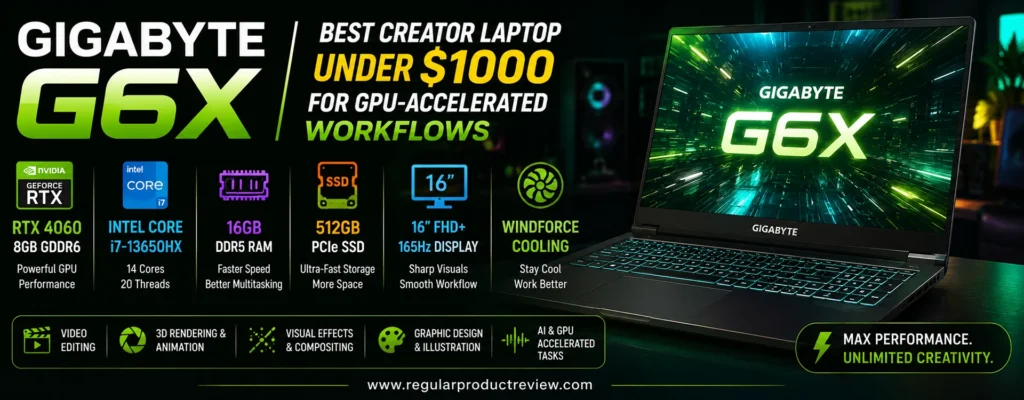
For video editors, 3D artists, motion-graphics users, AI-assisted creators, and anyone working in software that can take advantage of CUDA or dedicated GPU resources, that trade-off can make a lot of sense. The G6X 2024 platform is available with up to a GeForce RTX 4060 Laptop GPU with 8GB GDDR6 and a maximum graphics power of 105W, paired with an Intel Core i7-13650HX. Gigabyte also lists RTX 4050 variants, so the exact GPU is one of the first specifications buyers should verify.
That performance-first design makes the G6X particularly attractive to creators who are willing to accept a heavier chassis and a more gaming-oriented visual profile in exchange for faster rendering, stronger GPU effects, and better acceleration than most integrated-graphics laptops at a similar price.
If that sounds like your workflow, it is also worth comparing the G6X against other RTX-equipped systems in our best gaming laptops under $1000, where performance-per-dollar is often stronger than in traditional thin creator notebooks.
Creators who need something easier to carry every day should instead compare our best ultrabooks under $1000, where portability, battery efficiency, and lighter chassis design receive much more emphasis.
Editorial Insight: The Gigabyte G6X is compelling because it gives creators access to a real RTX-class GPU and an HX-series CPU without forcing them into premium workstation pricing. Its value comes from acceleration—not refinement.
📋 Gigabyte G6X Key Specifications
| Feature | Details |
|---|---|
| Platform | Gigabyte G6X (2024) |
| Processor | Intel Core i7-13650HX |
| CPU | 14 cores: 6 Performance + 8 Efficient cores |
| Maximum Turbo Frequency | Up to 4.9GHz |
| Graphics Options | NVIDIA GeForce RTX 4050 or RTX 4060 Laptop GPU |
| Recommended GPU for Creators | RTX 4060 8GB GDDR6 when available under budget |
| Maximum Graphics Power | Up to 105W |
| Display | 16-inch WUXGA IPS-level |
| Resolution | 1920 × 1200 |
| Aspect Ratio | 16:10 |
| Refresh Rate | 165Hz |
| Color Coverage | 45% NTSC |
| Memory Slots | 2 × DDR5 SODIMM |
| Maximum Memory | Up to 64GB DDR5-4800 |
| Storage Expansion | 2 × PCIe Gen4 x4 M.2 SSD slots |
| Maximum Listed Storage Support | Up to 4TB |
| Battery | 73Wh |
| Power Adapter | 180W AC adapter |
| USB-C Charging | Up to 100W PD support |
| Approximate Weight | Around 2.5kg |
| Best For | Premiere Pro, DaVinci Resolve, Blender, GPU effects, rendering, AI-assisted workflows |
⚠️ Configuration Note: Gigabyte sells the G6X with both RTX 4050 and RTX 4060 graphics. For this award, the RTX 4060 8GB configuration is the preferred creator choice because the larger VRAM pool and stronger GPU resources make a more meaningful difference in rendering, effects, and GPU-accelerated applications.
🎮 RTX 4060 8GB: The Main Reason Creators Should Care
The GeForce RTX 4060 Laptop GPU is what transforms the G6X from a gaming notebook into a serious budget option for creators.
Gigabyte’s official specifications list the RTX 4060 version with 8GB of GDDR6 VRAM, a boost clock up to 2370MHz, and maximum graphics power of 105W. That is a substantially more useful creator configuration than entry-level GPUs limited to smaller memory pools.
VRAM becomes increasingly important as projects become more complex. Large textures, GPU effects, 3D scenes, AI-assisted tools, high-resolution footage, and rendering workloads can consume dedicated graphics memory quickly.
That is where the G6X gains an advantage over integrated-graphics creator laptops and older 4GB RTX configurations.
For Premiere Pro users, the GPU can help accelerate supported effects and exports. DaVinci Resolve places even greater importance on GPU resources in many workflows. Blender users can take advantage of NVIDIA CUDA and OptiX acceleration, while AI-oriented creator applications can also benefit from NVIDIA’s dedicated hardware ecosystem.
The RTX 4060 is not a professional workstation GPU, but at the right sub-$1,000 price it offers a compelling balance for creators who care more about render speed and GPU capability than chassis elegance.
⚡ Core i7-13650HX Adds Serious CPU Headroom
The Intel Core i7-13650HX is another reason the G6X works well for creative production.
Gigabyte lists this processor with 14 cores—six Performance cores and eight Efficient cores—and a maximum turbo frequency of 4.9GHz.
HX-class processors are designed for higher-performance laptops, and that matters when creative work stresses the CPU for sustained periods.
Video encoding, large image exports, background transcoding, decompression, effects processing, multitasking, and 3D workflows can all benefit from additional CPU resources.
The combination of an HX processor and RTX graphics is especially valuable because many creative applications do not rely on only one component. Premiere Pro, for example, can depend on CPU, GPU, memory, and storage simultaneously depending on the codec, effects, and project structure.
That makes the G6X a much more balanced performance machine than a laptop that pairs a fast GPU with a low-power CPU.
🎬 GPU-Accelerated Creator Performance
The G6X is best understood through workload fit.
| Creative Workload | Editorial Fit | Why |
|---|---|---|
| 1080p Premiere Pro Editing | ★★★★★ | Strong CPU and RTX acceleration provide ample headroom |
| 4K Video Editing | ★★★★☆ | RTX 4060 8GB is well suited to moderate-to-heavy creator projects |
| DaVinci Resolve | ★★★★★ | GPU-heavy workflows benefit substantially from dedicated RTX hardware |
| After Effects | ★★★★☆ | Strong CPU/GPU combination; additional RAM can improve heavier compositions |
| Blender | ★★★★★ | CUDA/OptiX acceleration makes the RTX 4060 especially useful |
| 3D Rendering | ★★★★☆ | Strong for the price, though higher-end GPUs remain faster |
| Photoshop | ★★★★★ | More GPU power than most photo editors need |
| Lightroom | ★★★★★ | Excellent performance for large libraries and AI-assisted tools |
| AI Creator Tools | ★★★★☆ | NVIDIA RTX ecosystem provides useful local acceleration |
| YouTube Production | ★★★★★ | Strong all-around fit for editing, rendering, thumbnails, and publishing |
💡 Expert Tip: For creators choosing between an RTX 4050 and RTX 4060 G6X, prioritize the RTX 4060 8GB if the price difference is reasonable. The extra graphics memory and performance can matter much more over time than a minor SSD or cosmetic upgrade.
🖥️ 16-Inch 16:10 Display: Great Workspace, Weak Color Gamut
The G6X uses a 16-inch 1920 × 1200 display with a 16:10 aspect ratio and 165Hz refresh rate.
The taller 16:10 layout is useful for creative applications because it provides more vertical workspace than a traditional 16:9 screen. Timelines, tool palettes, layer panels, browser windows, code editors, and asset managers all benefit from the additional height.
The 165Hz refresh rate is less important for content creation than gaming, but it does make scrolling, animation, interface movement, and timeline navigation feel smoother.
The weak point is color coverage.
Gigabyte lists the panel at 45% NTSC, which is not ideal for color-sensitive photography, professional design, or serious grading work.
This is arguably the G6X’s biggest creator compromise.
Its internal display is fine for editing mechanics, timelines, coding, rough cuts, rendering, and general production, but creators making critical color decisions should strongly consider an external calibrated monitor.
For users who prioritize built-in display quality more than raw GPU performance, our creator laptops hub covers machines with stronger color-focused panels.
Editorial Insight: The G6X’s display is built more for speed and workspace than color fidelity. Think of the laptop as a mobile performance engine that can become a much stronger creator workstation when paired with a quality external monitor.
🧠 Two DDR5 Slots Make 32GB or 64GB Easy to Reach
Gigabyte equips the G6X with two DDR5 SODIMM slots, supporting up to 64GB of DDR5-4800 memory.
That is excellent news for creators.
Sixteen gigabytes can handle mainstream editing, but heavier workflows often benefit substantially from 32GB. After Effects compositions, large Photoshop projects, 4K video timelines, virtual machines, 3D scenes, and simultaneous creative applications can all consume memory quickly.
Because the RAM is not permanently soldered, buyers can start with a more affordable configuration and upgrade later.
A 32GB setup is the sweet spot for many serious creators using the G6X. It provides enough headroom for larger projects without pushing the cost into workstation territory.
Power users can move to 64GB if their work justifies it.
💾 Dual M.2 Slots Are Excellent for Video and 3D Projects
The G6X also supports two PCIe Gen4 x4 M.2 SSD slots, with Gigabyte listing total storage support up to 4TB.
For creators, dual-drive capability can be more valuable than buying one oversized SSD.
One drive can hold Windows, applications, and cache files while the second is dedicated to active projects, footage, RAW libraries, or 3D assets.
That separation can also make project organization easier.
Video editors in particular should appreciate the expansion path because footage grows quickly. A laptop that starts with 1TB may eventually need significantly more space, and having a second internal slot avoids relying entirely on external storage.
🌡️ Cooling and Sustained Performance Are Central to the G6X Design
A creator laptop is only as fast as the performance it can sustain.
Video exports, Blender renders, AI processing, and long effects workloads can keep the CPU and GPU active for extended periods. That creates a very different thermal challenge from opening documents or browsing the web.
The G6X is built around gaming-class hardware, which means its chassis and cooling system are designed with sustained CPU/GPU loads in mind.
That is a major advantage for creators who regularly render for minutes or hours.
The downside is noise.
Under demanding workloads, users should expect the fans to become clearly audible. That is normal for this class of performance laptop and should be considered if you frequently record audio in the same room.
A performance mode is useful during exports and renders, while quieter profiles may make more sense during writing, browsing, or client calls.
🔋 73Wh Battery: Large Capacity, Performance-Class Consumption
Gigabyte lists a 73Wh battery for the G6X platform along with a 180W power adapter and support for up to 100W USB-C Power Delivery.
The battery capacity is respectable.
The runtime expectations should still remain realistic.
An HX-series CPU, RTX GPU, and high-refresh display are not designed primarily around maximum unplugged efficiency. Light office work, browsing, or media playback can last far longer than rendering or editing under load.
Creators should therefore think of the G6X as a laptop that can move between workspaces rather than a machine designed to perform full-power rendering sessions away from an outlet.
The USB-C Power Delivery support is useful for lighter travel because a compatible USB-C charger may handle basic productivity without carrying the full 180W adapter. For maximum CPU/GPU performance, however, the main AC adapter remains the more appropriate choice.
🪨 Portability Is the Price of Performance
At around 2.5kg, the G6X is considerably heavier than a typical ultrabook.
Add the larger power adapter and the total travel weight becomes more noticeable.
For creators working mainly at a desk, studio, dorm, or home office, that may not matter much.
For photographers traveling frequently, students carrying a laptop all day, or freelancers moving between clients, the extra mass becomes more significant.
This is therefore not the ideal choice for someone seeking the lightest possible creator setup.
If portability matters more than rendering speed, our best laptops for college students offers alternatives built around a better balance of weight, battery life, and everyday mobility.
🎨 External Monitor Strategy Makes the G6X Much More Creator-Friendly
The internal display is the weakest part of the creator equation, but it is also the easiest weakness to solve at a desk.
Connecting the G6X to a calibrated external monitor can transform the setup.
The laptop handles CPU and GPU-intensive production, while the external display provides the wider color gamut, better calibration, higher resolution, or brightness required for professional visual work.
That combination can be especially cost-effective for creators who already own a good monitor.
In that scenario, the G6X becomes less of a “gaming laptop used for creation” and more of a budget mobile workstation connected to a creator-grade display.
📊 Gigabyte G6X Creator Performance Snapshot
| Category | Editorial Score | Creator Perspective |
|---|---|---|
| CPU Performance | 9.2/10 | HX-series Core i7 provides strong sustained creator performance |
| GPU Performance | 9.4/10 | RTX 4060 8GB is excellent at this price when available |
| Video Editing | 9.3/10 | Strong GPU acceleration and CPU resources suit demanding timelines |
| 3D & Rendering | 9.4/10 | CUDA/OptiX support makes it one of the strongest choices in the roundup |
| Display Workspace | 8.7/10 | 16:10 layout is useful for creator interfaces |
| Display Color Quality | 6.8/10 | 45% NTSC is the major weakness |
| Memory Upgradeability | 9.5/10 | Two DDR5 slots and up to 64GB support provide excellent flexibility |
| Storage Upgradeability | 9.5/10 | Two Gen4 M.2 slots suit large creator libraries |
| Portability | 6.9/10 | 2.5kg chassis plus performance charger is noticeably heavy |
| GPU Value | 9.5/10 | RTX 4060 hardware can deliver exceptional acceleration per dollar |
| Overall Rating | 9.0/10 | Outstanding GPU-focused value if the right configuration stays under $1,000 |
⚠️ About Our Scores: These ratings reflect creator suitability, verified specifications, workload fit, upgradeability, and value. They are not presented as laboratory benchmark measurements.
👤 Who Should Buy the Gigabyte G6X?
The Gigabyte G6X is best suited to creators who prioritize performance over portability.
Ideal buyers include:
- Premiere Pro editors working with GPU-accelerated effects
- DaVinci Resolve users who benefit from stronger dedicated graphics
- Blender users who need CUDA and OptiX acceleration
- 3D artists working on moderate scenes and renders
- Motion-graphics creators who need stronger CPU/GPU resources
- YouTube creators producing demanding video projects
- AI-assisted creators who want access to RTX acceleration
- Students studying animation, video, VFX, or 3D
- Creators using an external color-accurate monitor
Buyers who need a more balanced professional machine for office work and creation can also compare our business laptops before committing to a heavier gaming-derived chassis.
⚠️ Who Should Skip the Gigabyte G6X?
Consider another laptop if you prioritize:
- Accurate built-in display color
- Ultra-light portability
- Quiet operation under heavy load
- Maximum battery endurance
- Premium chassis materials
- Frequent mobile photo editing without an external display
- Professional HDR or wide-gamut grading on the built-in panel
- A thin and discreet business-laptop aesthetic
The biggest reason to skip it is not performance—it is display quality and mobility.
✅ Gigabyte G6X Pros & Cons
| ✅ Pros | ❌ Cons |
|---|---|
| RTX 4060 8GB option offers strong GPU acceleration | 45% NTSC built-in display is weak for color-critical work |
| Up to 105W GPU power gives the RTX hardware meaningful performance | Gaming-focused chassis is heavier and bulkier |
| Core i7-13650HX provides strong multi-core performance | HX processor and RTX GPU reduce battery efficiency |
| Excellent fit for Premiere Pro, Resolve, Blender, and rendering | Fans can become noticeable during sustained workloads |
| Two DDR5 SODIMM slots | Not as polished as premium creator notebooks |
| Supports up to 64GB RAM | Around 2.5kg before adding the charger |
| Two PCIe Gen4 M.2 SSD slots | High-refresh display matters more for gaming than creation |
| Up to 4TB listed storage support | Exact RTX 4050/4060 configuration must be checked |
| 16:10 workspace is useful for editing | Some retail configurations may move above $1,000 |
| 73Wh battery is respectable for the class | Best performance requires the main AC adapter |
| 100W USB-C PD support adds charging flexibility | External monitor is strongly recommended for color-critical work |
🏆 Why It Earns Our Best GPU-Accelerated Creator Laptop Award
The Gigabyte G6X earns this award because few things improve a GPU-heavy creative workflow as dramatically as moving from integrated graphics to a properly powered RTX 4060 with 8GB of VRAM.
That graphics hardware gives Premiere Pro, DaVinci Resolve, Blender, supported AI applications, and GPU-assisted effects substantially more headroom than most productivity-focused laptops under $1,000.
The Core i7-13650HX prevents the GPU from carrying the entire workload alone. Two upgradeable RAM slots and dual M.2 storage slots also make the system much more practical for long-term creative ownership.
The trade-offs are equally clear.
The internal 45% NTSC panel is not strong enough for serious color-critical work. The chassis is heavy, battery efficiency is not its main strength, and cooling noise is part of the experience when the hardware is fully loaded.
Those weaknesses make it a poor choice for some photographers and mobile designers.
For GPU-focused creators, however, they are often easier to solve than a weak graphics processor.
A calibrated monitor can fix the display problem at a desk. RAM can be upgraded. Storage can be expanded. But an integrated GPU cannot simply be replaced with an RTX 4060 later.
Creators wanting even more performance can compare the higher-budget options in our best gaming laptops under $1500.
Our Recommendation: Choose the Gigabyte G6X with RTX 4060 8GB when your creative workflow centers on GPU effects, video editing, DaVinci Resolve, Blender, 3D rendering, or RTX-accelerated tools and you can find the configuration below $1,000. Pair it with a color-accurate external monitor for serious visual work. Avoid paying a premium for the weaker RTX 4050 version unless the price difference is substantial.
MSI Cyborg 15 🧊 Best Creator Laptop Under $1000 for 3D and Rendering
Best For: Blender, 3D modeling, product visualization, entry-to-intermediate rendering, VFX, and mixed 3D/video workflows
Primary Strength: RTX 4060 8GB access with CUDA/OptiX acceleration at budget-laptop pricing
Main Compromise: Low-power 45W RTX 4060 implementation and deal-dependent US availability
Editorial Rating: 8.9/10
The MSI Cyborg 15 earns this position because it gives budget-conscious creators access to a hardware combination that matters far more for 3D work than premium materials or an ultra-thin chassis: an H-series Intel processor paired with an NVIDIA RTX Laptop GPU.
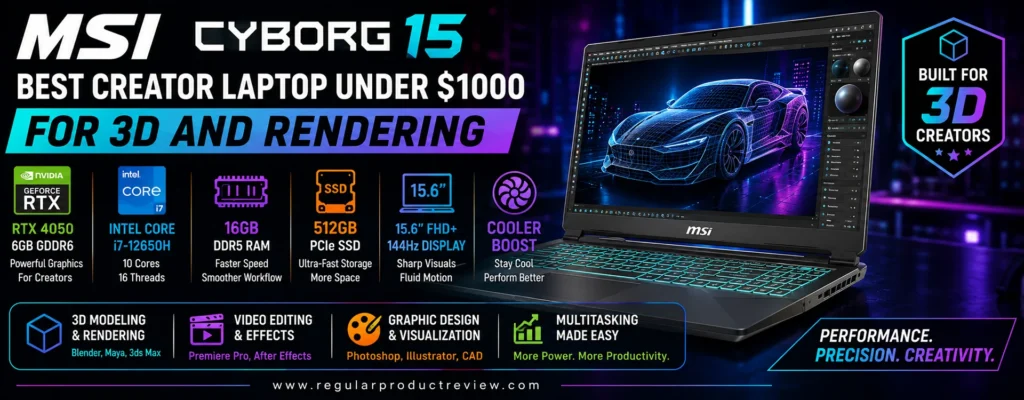
For Blender users, motion designers, VFX beginners, architecture students, product-visualization creators, and anyone experimenting with GPU rendering, that dedicated graphics hardware is the key advantage. MSI’s Cyborg 15 A13V platform supports configurations up to the Intel Core i7-13620H and GeForce RTX 4060 Laptop GPU with 8GB GDDR6, giving it enough graphics memory to be genuinely useful for moderate 3D scenes and GPU-accelerated rendering. MSI specifies the RTX 4060 implementation at up to 45W Maximum Graphics Power with Dynamic Boost, so buyers should understand that this is a lower-power RTX 4060 implementation rather than the highest-wattage version of the GPU.
That distinction matters. The Cyborg 15 can still offer a major step up from integrated graphics, but an RTX 4060 running at 45W should not be expected to match the performance of thicker gaming laptops that allow the same GPU to operate at much higher power limits.
Creators comparing several performance-focused machines should also look at our best gaming laptops under $1000, because gaming-oriented notebooks often provide some of the strongest GPU performance per dollar for Blender, Resolve, Premiere Pro, and other accelerated creative applications.
If your creative work is broader and does not revolve around 3D rendering, our best creator laptops guide covers alternatives that place more emphasis on display quality, portability, battery life, and everyday creative balance.
Editorial Insight: The Cyborg 15 is most interesting when you buy it for the right reason. Its advantage is RTX acceleration in a relatively affordable chassis, not premium display quality or workstation-class sustained GPU power.
📋 MSI Cyborg 15 Key Specifications
| Feature | Details |
|---|---|
| Platform | MSI Cyborg 15 A13V |
| Processor Options | Up to Intel Core i7-13620H |
| Recommended CPU for Creators | Core i7-13620H |
| CPU Configuration | 10 cores: 6 Performance + 4 Efficient cores |
| Maximum Turbo Frequency | Up to 4.9GHz |
| Graphics Options | GeForce RTX 4050 / RTX 4060 Laptop GPU |
| Recommended GPU for 3D | RTX 4060 8GB GDDR6 |
| RTX 4060 GPU Power | Up to 45W Maximum Graphics Power with Dynamic Boost |
| Display | 15.6-inch FHD IPS-level |
| Resolution | 1920 × 1080 |
| Refresh Rate | 144Hz |
| Memory | DDR5, configuration dependent |
| Memory Upgradeability | Two memory slots on supported A13V configurations |
| Maximum Memory | Up to 64GB on applicable configurations |
| Storage | PCIe NVMe SSD, configuration dependent |
| Wireless | Wi-Fi 6 + Bluetooth, configuration dependent |
| Operating System | Windows 11 Home / Windows 11 Pro |
| Best For | Blender, entry-to-intermediate 3D, VFX, rendering, GPU-assisted video workflows |
MSI’s official A13V specifications confirm the platform’s 15.6-inch FHD 144Hz display and RTX 40-series options, including an RTX 4060 with 8GB GDDR6.
⚠️ Configuration & Price Note: The Cyborg 15 family has been sold in many CPU, GPU, memory, and storage configurations. The RTX 4060 model is the version that best supports this 3D-focused award. However, US availability is currently inconsistent: Best Buy’s older RTX 4060 Cyborg 15 listing is no longer available in new condition, while third-party and clearance inventory can still appear elsewhere. Verify the exact seller, condition, GPU, RAM, SSD, and current price before treating a listing as a genuine creator laptop under $1000.
🎮 RTX 4060 8GB Makes the Cyborg 15 Relevant for Blender
For 3D creators, the GPU is not simply another specification in the table. It can determine how responsive the viewport feels, how efficiently scenes render, how much geometry and texture data can remain in GPU memory, and which rendering technologies are practical.
The Cyborg 15’s recommended RTX 4060 configuration includes 8GB of GDDR6 VRAM. That 8GB capacity is especially important because Blender’s current recommended system requirements list 8GB of GPU memory, making this configuration much better aligned with serious Blender use than entry-level laptops with only 4GB or 6GB of VRAM.
Blender’s Cycles renderer supports GPU rendering, and Blender’s documentation notes that NVIDIA OptiX can take advantage of hardware ray-tracing acceleration on RTX graphics cards. That gives RTX hardware a clear practical role in Cycles rendering rather than treating the GPU merely as a gaming component.
For product visualization, stylized animation, architecture practice, environmental scenes, student projects, and moderate 3D rendering, the RTX 4060 can therefore make the Cyborg substantially more useful than an integrated-graphics laptop.
The 45W power limit is the important qualifier.
A higher-wattage RTX 4060 can render faster because it has more electrical and thermal headroom. The Cyborg’s implementation is designed around a thinner, lighter gaming chassis, so maximum rendering performance is intentionally constrained.
💡 Expert Tip: When comparing two laptops with an “RTX 4060” badge, check GPU power and VRAM, not just the GPU name. Two RTX 4060 laptops can deliver noticeably different sustained performance when their wattage limits are different.
🧱 3D and Rendering Workload Fit
The Cyborg 15’s strongest use cases become clearer when separated by workload.
| Creative Workload | Editorial Fit | Practical Expectation |
|---|---|---|
| Blender Modeling | ★★★★★ | Strong fit for learning and moderate production scenes |
| Blender Cycles GPU Rendering | ★★★★☆ | RTX + OptiX is useful, though 45W GPU power limits peak speed |
| Eevee Rendering | ★★★★★ | Good match for real-time and lighter 3D workflows |
| Product Visualization | ★★★★☆ | 8GB VRAM provides useful scene headroom |
| Architecture Practice | ★★★★☆ | Capable for moderate student and freelance scenes |
| Motion Graphics | ★★★★☆ | Stronger than integrated-GPU laptops for accelerated effects |
| After Effects | ★★★★☆ | RTX hardware is useful; heavier work benefits from more RAM |
| Premiere Pro | ★★★★☆ | Dedicated GPU supports accelerated editing workflows |
| DaVinci Resolve | ★★★★☆ | GPU-centric workloads benefit from RTX graphics |
| Professional Large-Scene 3D | ★★★☆☆ | Higher-power GPU workstations offer much greater sustained performance |
Creators whose main goal is maximum GPU throughput should also compare the stronger cooling and higher-performance options in our best gaming laptops under $1500, where a larger budget can unlock much more rendering headroom.
⚡ Core i7-13620H Gives the GPU a Capable Partner
The Core i7-13620H remains a strong companion to the RTX GPU for creator workloads.
MSI’s specification identifies the processor as a 10-core design with six Performance cores and four Efficient cores, reaching up to 4.9GHz.
That matters because 3D workflows are rarely GPU-only.
Modeling, simulation setup, scene preparation, asset management, decompression, application logic, certain effects, exports, and multitasking can all rely substantially on CPU resources.
A Blender creator may simultaneously have reference images open, texture tools running, a browser full of tutorials or documentation, cloud storage syncing, and a scene compiling in the background. An H-series Core i7 gives the system enough CPU headroom to manage those mixed workloads more comfortably than an entry-level low-power processor.
The architecture is older than current-generation Core Ultra platforms, but for a sub-$1,000 rendering-focused purchase, the CPU + RTX GPU balance remains more important than simply buying the newest processor name.
🧠 Memory Matters More in 3D Than Many Beginners Expect
Three-dimensional creation can consume RAM quickly.
Complex scenes, high-resolution textures, simulations, multiple applications, large Photoshop files, browser references, and video-editing software running alongside Blender can push beyond 16GB faster than ordinary productivity work.
Blender currently recommends 32GB of system memory for its recommended configuration.
That does not mean every beginner immediately needs 32GB. Sixteen gigabytes can be perfectly workable for learning, smaller scenes, product models, simple environments, and general content creation.
But creators planning to keep the Cyborg for several years should consider 32GB as a sensible longer-term target.
Applicable Cyborg 15 A13V configurations support replaceable DDR5 memory and up to 64GB, which is a meaningful advantage over thin laptops that permanently solder memory to the motherboard.
Editorial Recommendation: If you find a good RTX 4060 configuration with only 16GB of RAM, don’t reject it automatically. Buy based on the GPU value, then consider moving to 32GB as your scenes and multitasking demands become more ambitious.
💾 SSD Capacity Can Become the Next Bottleneck
A creator laptop can have plenty of CPU and GPU capability yet still feel restrictive when storage fills.
3D projects accumulate:
- texture libraries
- HDRIs
- geometry assets
- cached simulations
- renders
- video references
- downloaded models
- project backups
- Adobe cache files
A 512GB SSD is enough to begin, but creators with large libraries will likely need more.
Many Cyborg 15 configurations have shipped with 512GB or 1TB SSDs, so the exact capacity should be checked on the listing rather than assumed from the model name.
For a new creator, 1TB is considerably more comfortable. If the chosen configuration contains only 512GB, an external SSD can provide inexpensive additional project storage.
🖥️ The 144Hz Screen Is Smooth, but It Is Not a Creator Display
MSI specifies a 15.6-inch 1920 × 1080 IPS-level display with a 144Hz refresh rate on the A13V platform.
The high refresh rate makes interface movement, viewport navigation, gaming, and animation playback feel smoother than on a traditional 60Hz panel.
For 3D modeling, that responsiveness can be enjoyable.
But refresh rate alone does not make a display good for creative work.
MSI’s main A13V product page emphasizes the resolution and 144Hz refresh rate rather than positioning the panel as a wide-gamut color-critical creator display. Because the official specifications available here do not establish professional-level color coverage for every US configuration, buyers doing serious texture work, photography, design, or grading should not assume the built-in screen is suitable for critical color decisions.
For a 3D creator, that limitation may be acceptable because modeling and rendering performance can matter more than built-in panel accuracy. At a desk, pairing the Cyborg with a quality external monitor creates a much stronger overall workstation.
Creators who prioritize an excellent built-in panel instead should compare options in our creator laptops category.
Editorial Insight: The Cyborg 15 is easier to recommend as a rendering engine connected to a good monitor than as an all-in-one color-critical studio laptop.
🌡️ Cooler Boost and the Reality of Sustained Rendering
Rendering is one of the hardest workloads a laptop can face because CPU and GPU utilization can remain high for long periods.
MSI equips the Cyborg 15 with its Cooler Boost thermal design, reflecting the fact that the chassis was created for sustained gaming-class workloads rather than simple office use.
That is valuable for Blender rendering, video exports, and other sustained creative tasks.
The trade-off is fan noise.
When the CPU and RTX GPU are both working hard, the cooling system must move more air. Creators recording voiceovers or audio in the same room should therefore avoid rendering simultaneously or use a separate recording environment.
Cooling is also why the Cyborg should be used on a hard, flat surface during heavy workloads. Blocking intake vents with bedding or soft furniture can reduce thermal efficiency.
⚙️ 45W RTX 4060: Strength and Limitation at the Same Time
The RTX 4060 configuration deserves additional context because MSI lists it at 45W Maximum Graphics Power with Dynamic Boost.
That power level helps MSI keep the Cyborg relatively slim and accessible, but it limits how far the GPU can stretch during sustained rendering.
This does not make the RTX 4060 ineffective.
Its 8GB VRAM, RTX architecture, CUDA ecosystem, and OptiX support still give it important capabilities for 3D creation.
What it changes is the comparison.
A thicker laptop with an RTX 4060 operating at a substantially higher wattage can finish long GPU renders faster. Buyers should therefore evaluate GPU implementation, not assume every laptop using the same chip performs identically.
This is why we award the Cyborg 15 for affordable 3D and rendering access, not for absolute RTX 4060 performance.
🎥 Premiere Pro and After Effects Add Secondary Creator Value
Although 3D work is the primary reason to choose the Cyborg, the RTX hardware also makes it capable for video and motion graphics.
Adobe’s current Premiere Pro requirements state that supported NVIDIA GPUs need at least 4GB of GPU memory on Windows, while Adobe’s current After Effects requirements likewise specify at least 4GB of GPU memory for NVIDIA graphics. The RTX 4060’s 8GB VRAM comfortably clears that basic requirement.
Requirements are not the same as recommended performance, of course.
More complex 4K projects, heavy compositions, multiple effects, and professional workloads benefit from more system memory, stronger cooling, and sometimes higher-powered GPUs.
Still, the same RTX hardware purchased for Blender can also accelerate a creator’s editing and motion-graphics workflow, increasing the laptop’s usefulness beyond pure 3D.
🪶 Portability Is Better Than a Workstation, Not Better Than an Ultrabook
The Cyborg family uses a thinner gaming-inspired design than many traditional performance laptops.
That is useful for students, beginning 3D artists, and creators who need to carry their rendering machine between home, class, a studio, or a shared workspace.
It is still not an ultrabook.
Performance hardware, cooling, and the power adapter make the complete setup more cumbersome than a lightweight productivity laptop.
Creators who spend far more time traveling than rendering may be better served by the best ultrabooks under $1000 and using a desktop or cloud-based system for heavier 3D tasks.
🔌 Creator Connectivity and Desk Setup
The Cyborg platform includes the type of connectivity expected from a gaming-derived notebook, with USB-C, USB-A, display connectivity, networking, and audio support varying somewhat by specific SKU.
That allows the laptop to serve as the center of a desk-based creator setup.
For a practical 3D workstation, we would prioritize:
- an external color-capable monitor
- a full-size mouse
- an external SSD for assets
- wired or fast wireless networking
- optional drawing tablet
- external keyboard for long sessions
The laptop then provides the processing hardware while the desk setup compensates for the limitations of its gaming-oriented built-in display.
📊 MSI Cyborg 15 Creator Performance Snapshot
| Category | Editorial Score | 3D Creator Perspective |
|---|---|---|
| CPU Performance | 8.7/10 | Core i7-13620H remains capable for modeling and mixed workloads |
| GPU Capability | 8.8/10 | RTX 4060 8GB is highly useful, though limited by 45W implementation |
| Blender Modeling | 9.0/10 | Strong fit for entry-to-intermediate scene creation |
| GPU Rendering | 8.8/10 | CUDA/OptiX support is valuable; higher-wattage RTX laptops render faster |
| VRAM Capacity | 9.2/10 | 8GB aligns well with Blender’s current recommended GPU memory |
| Memory Flexibility | 9.0/10 | Upgradeable DDR5 provides a path toward 32GB or more |
| Display for 3D Navigation | 8.4/10 | 144Hz makes viewport and interface movement smooth |
| Color-Critical Display Use | 6.8/10 | External monitor is preferable for serious visual accuracy |
| Portability | 7.8/10 | More mobile than a workstation, less convenient than an ultrabook |
| Value for 3D | 9.1/10 | Strong when a reputable RTX 4060 configuration stays below $1,000 |
| Overall Rating | 8.9/10 | Excellent entry point into RTX-accelerated 3D creation with clear power-limit trade-offs |
⚠️ About Our Scores: These are editorial suitability ratings based on verified specifications, software requirements, workload fit, upgradeability, and value. They are not laboratory benchmark results.
👤 Who Should Buy the MSI Cyborg 15?
The MSI Cyborg 15 is particularly well suited to:
- Blender beginners and intermediate users
- 3D modeling students
- Product visualization creators
- Architecture and design students
- Motion-graphics creators
- VFX learners
- Premiere Pro editors who also use 3D
- DaVinci Resolve users on a budget
- Creators experimenting with local RTX-accelerated AI tools
- Buyers who can upgrade RAM later
Students balancing creative software with coursework may also want to compare our best student laptops, especially if battery life and classroom portability matter as much as rendering performance.
⚠️ Who Should Skip the MSI Cyborg 15?
Choose another laptop if you need:
- maximum RTX 4060 performance
- workstation-class sustained GPU rendering
- professional color accuracy from the built-in panel
- ultra-light portability
- exceptionally quiet rendering
- very long unplugged creative sessions
- a premium aluminum creator-laptop aesthetic
- guaranteed current-generation retail availability
Professional 3D artists rendering complex scenes daily should consider spending more for a higher-power GPU implementation.
✅ MSI Cyborg 15 Pros & Cons
| ✅ Pros | ❌ Cons |
|---|---|
| RTX 4060 8GB option is genuinely useful for 3D creation | RTX 4060 is limited to around 45W on A13V configurations |
| NVIDIA CUDA and OptiX support benefit Blender Cycles | Higher-wattage RTX 4060 laptops can render substantially faster |
| 8GB VRAM matches Blender’s current recommended GPU memory | Exact configurations and availability vary widely |
| Core i7-13620H provides capable CPU performance | Older 13th Gen processor is less efficient than newer platforms |
| 144Hz display provides smooth viewport navigation | Built-in panel is not positioned as a professional color display |
| Upgradeable DDR5 configurations improve longevity | Some lower-cost SKUs may ship with too little RAM |
| Can handle Blender plus Premiere/After Effects workflows | 512GB configurations fill quickly with 3D assets |
| Gaming-derived cooling is useful for sustained work | Fan noise rises during rendering |
| Strong 3D value when discounted below $1,000 | Current new US stock for older A13V models is inconsistent |
| More portable than traditional mobile workstations | Still less portable than creator-focused ultrabooks |
🏆 Why It Earns Our Best 3D and Rendering Award
The MSI Cyborg 15 earns Best Creator Laptop Under $1000 for 3D and Rendering because it offers a rare combination at this budget: an RTX GPU with up to 8GB of dedicated VRAM, an H-series Intel processor, upgradeable memory, and a chassis designed around sustained performance.
Blender makes the value of that hardware easy to understand. Its current recommended requirements call for 32GB of RAM and an 8GB GPU, while Cycles can use GPU rendering and NVIDIA OptiX ray-tracing acceleration. An RTX 4060 Cyborg therefore provides a much more credible foundation for learning and moderate 3D production than a general-purpose laptop relying on integrated graphics.
The 45W GPU power limit prevents it from competing with the fastest RTX 4060 laptops. That is the central compromise and should not be hidden.
Yet under a strict budget, VRAM capacity and RTX features can be more useful to a developing 3D creator than buying a prettier laptop with much weaker graphics.
Current-market availability is the second caveat. Best Buy’s older RTX 4060 15-inch SKU is no longer available new, while other US inventory can appear through clearance or marketplace sellers. That means the Cyborg remains a worthwhile deal-dependent recommendation, not a model we would advise buying at any price.
Creators who find the RTX 4060 version at an unattractive price should compare newer performance machines in our gaming laptops category rather than paying extra simply to preserve this exact recommendation.
Our Recommendation: Choose the MSI Cyborg 15 with RTX 4060 8GB if you want an affordable entry into Blender, Cycles GPU rendering, 3D modeling, product visualization, motion graphics, or mixed 3D/video creation. Aim for at least 16GB of RAM initially and consider 32GB for serious projects. Avoid overpaying for older A13V inventory, and compare GPU wattage carefully against competing RTX laptops before purchasing.
Samsung Galaxy Book4 | Best Thin-and-Light Creator Laptop Under $1000
Best For: Photography, social content, design, writing, freelance work, mobile productivity, and lighter video editing
Primary Strength: Large 15.6-inch workspace in a thin, approximately 1.55kg chassis with excellent connectivity
Main Compromise: Integrated graphics and a basic FHD display limit demanding creator workloads
Editorial Rating: 8.7/10
The Samsung Galaxy Book4 earns this award because it gives creators a large 15.6-inch workspace without the bulk that usually comes with a full-size Windows laptop. At roughly 1.55 kg (3.42 lb) and about 15.4mm thick, it is far easier to carry than the gaming-derived systems in this roundup while still offering a practical Core 7 processor, 16GB of memory, 512GB SSD storage, a full metal chassis, and a broad selection of built-in ports.
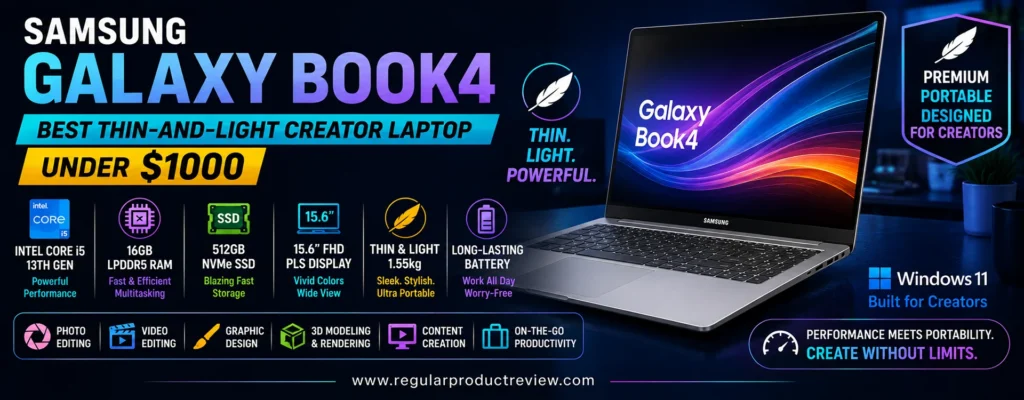
For photographers, social-media creators, designers, writers, remote freelancers, and YouTube creators handling lighter editing workloads, that balance can be more useful than carrying an RTX laptop everywhere. The Galaxy Book4 is not built to compete with the Gigabyte G6X or MSI Cyborg 15 in 3D rendering. Instead, it focuses on mobility, everyday creative responsiveness, connectivity, and ecosystem convenience.
That makes it particularly appealing to creators who work between home, client locations, classrooms, cafés, studios, and shared workspaces. If portability is your top priority, our ultrabooks under $1000 guide covers additional lightweight options with similarly mobile-focused designs.
Creators who prefer a wider selection of systems specifically evaluated for photography, video, design, and content production can also explore our creator laptops category.
Editorial Insight: The Galaxy Book4 is not the laptop to buy for maximum rendering speed. Its advantage is giving mainstream creators a 15.6-inch Windows workspace in a chassis light enough to carry every day.
📋 Samsung Galaxy Book4 Key Specifications
| Feature | Recommended Configuration |
|---|---|
| Model | Samsung Galaxy Book4 15.6-inch |
| US Model Reference | NP750XGK-KS2US |
| Processor | Intel Core 7 150U |
| Maximum Turbo Frequency | Up to 5.4GHz |
| Graphics | Integrated Intel Graphics |
| Memory | 16GB LPDDR4x onboard |
| Storage | 512GB NVMe SSD |
| Storage Slots | 2 |
| Display | 15.6-inch FHD IPS anti-glare |
| Resolution | 1920 × 1080 |
| Touchscreen | No |
| Wireless | Wi-Fi 6 + Bluetooth 5.2 |
| USB-C | 2 × USB Type-C |
| USB-A | 2 × USB 3.2 |
| Video Output | HDMI |
| Card Reader | MicroSD |
| Ethernet | Gigabit RJ45 |
| Audio | Stereo speakers with Dolby Atmos |
| Camera | 1MP webcam |
| Battery | 54Wh rated minimum capacity |
| Weight | Approximately 1.55 kg / 3.42 lb |
| Best For | Photography, graphic design, social content, writing, light editing, mobile productivity |
Samsung’s official Galaxy Book4 specifications confirm the Core 7 150U, 16GB onboard LPDDR4x memory, 512GB NVMe SSD, 15.6-inch FHD IPS anti-glare display, dual USB-C, dual USB-A, HDMI, microSD, RJ45 Ethernet, Wi-Fi 6, and approximately 1.55kg weight.
⚠️ US Availability Note: The original US retail configuration has become less consistent as the Galaxy Book4 ages. Best Buy currently lists the NP750XGK-KS2US configuration through a marketplace seller at around $879, while older direct Best Buy stock is no longer broadly available new. Treat this as a current-deal recommendation and verify seller, warranty, configuration, and condition before purchasing.
⚡ Core 7 150U: Designed More for Efficiency Than Heavy Rendering
The Intel Core 7 150U is a very different processor from the HX- and H-series chips used in our performance-focused recommendations.
Its job is to balance responsiveness with efficiency in thin laptops rather than chase maximum sustained rendering performance.
For day-to-day creator work, that can be exactly what you need.
Photoshop, Lightroom, Canva, Figma, WordPress, browser-based publishing tools, productivity software, social-media dashboards, office applications, and lighter editing tasks can all run comfortably when paired with 16GB of memory and fast SSD storage.
The processor can boost up to 5.4GHz in Samsung’s listed configuration, which helps maintain snappy foreground performance during common creative tasks.
The limitation appears during sustained multi-core workloads.
Long video exports, complex After Effects compositions, heavy code compilation, 3D rendering, and advanced simulation tasks favor higher-power H-, HX-, or modern Core Ultra performance platforms.
That is why the Galaxy Book4 earns a thin-and-light creator award, not a performance award.
🎨 Integrated Intel Graphics: Good for Mainstream Creation, Not GPU-Heavy Work
Samsung pairs the Core 7 150U with integrated Intel Graphics.
For photographers, designers, social-media creators, web publishers, writers, and users producing lighter short-form video, this is usually enough to keep the workflow responsive without adding the weight and power demands of a dedicated GPU.
Photoshop and Lightroom can make effective use of modern integrated graphics for many everyday tasks. Canva, Figma, browser-based editing, content scheduling, and general design software place even less demand on dedicated graphics.
Where the Galaxy Book4 falls behind is predictable.
Blender rendering, GPU-heavy DaVinci Resolve effects, complex Premiere Pro timelines, advanced 3D work, and CUDA-dependent software are much better suited to an RTX-equipped laptop.
| Creative Workload | Editorial Fit | Practical Expectation |
|---|---|---|
| Photoshop | ★★★★☆ | Strong fit for mainstream image editing |
| Lightroom | ★★★★☆ | Good for everyday photo workflows |
| Canva / Figma | ★★★★★ | Excellent match for mobile digital creation |
| Illustrator | ★★★★☆ | Good for typical vector-design workloads |
| 1080p Video Editing | ★★★★☆ | Suitable for lighter timelines and moderate effects |
| 4K Video Editing | ★★★☆☆ | Better for light projects than sustained complex production |
| After Effects | ★★☆☆☆ | Heavier compositions favor more RAM and stronger graphics |
| DaVinci Resolve Heavy Effects | ★★☆☆☆ | Dedicated GPU is strongly preferable |
| Blender Rendering | ★★☆☆☆ | Not the intended workload |
| Social Content Creation | ★★★★★ | Excellent balance for graphics, short video, publishing, and mobility |
Creators who want dedicated graphics without spending much more should compare our best gaming laptops under $1000, where RTX hardware is much more common.
🖥️ 15.6-Inch FHD Display Offers Space Without the Weight
Samsung uses a 15.6-inch 1920 × 1080 IPS anti-glare display on the Core 7 configuration.
The panel’s size is one of the Galaxy Book4’s strongest practical advantages.
A 15.6-inch workspace gives Photoshop panels, Lightroom controls, browser windows, documents, social-media tools, and editing timelines more room than a typical 13-inch ultraportable while keeping the overall system unusually light.
The anti-glare finish is also useful when working near windows, in classrooms, shared offices, or cafés where reflections can become distracting.
The limitation is that Samsung does not position this base Galaxy Book4 panel as a premium wide-gamut creator display. The official specification confirms FHD IPS but does not establish professional DCI-P3 or Adobe RGB coverage for this configuration.
That means photographers and designers doing color-critical work should use a calibrated external monitor rather than assuming the built-in display is suitable for final color decisions.
💡 Expert Tip: For mobile creation, a large anti-glare screen can improve everyday productivity even if it is not reference-grade. Do your rough edits and organization on the Galaxy Book4, then use a calibrated display when exact color accuracy matters.
🪶 1.55 kg Makes a Real Difference for Daily Creators
Samsung highlights the Galaxy Book4’s full-metal body and approximately 1.55kg weight, which is impressively light for a 15.6-inch laptop.
That matters more than it may appear on a specification sheet.
A creator carrying a camera, charger, external SSD, notebook, headphones, and other accessories already has a heavy bag. Saving weight on the laptop itself can make a noticeable difference during commuting or travel.
This is where the Galaxy Book4 clearly separates itself from gaming-based creator machines.
A performance laptop may render faster, but if it spends most of its life at home because carrying it is inconvenient, that extra speed provides little benefit to a creator who works on location.
For buyers who want even more portability, our ultrabooks section covers laptops built specifically around thinness, efficiency, and mobile work.
🧠 16GB Memory Is Sensible—But It Is Onboard
The recommended configuration includes 16GB of LPDDR4x memory, and Samsung lists it as onboard.
Sixteen gigabytes is a sensible capacity for this laptop’s intended workloads.
It provides enough room for Photoshop, Lightroom, multiple browser tabs, office applications, social-media tools, cloud-sync software, and general creative multitasking without the immediate constraints associated with 8GB systems.
However, onboard memory means you should not buy this configuration expecting an easy RAM upgrade later.
If your workload already requires more than 16GB, the Galaxy Book4 is probably not the right platform.
For mainstream mobile creators, 16GB remains well matched to the CPU and integrated graphics. For After Effects-heavy workflows, advanced 4K editing, or large professional project files, a laptop with 32GB support or upgradeable memory makes more sense.
💾 512GB SSD Is Adequate, and the Storage Platform Has Expansion Potential
The Galaxy Book4 includes a 512GB NVMe SSD, and Samsung lists two storage slots on the Core 7 configuration.
That gives the laptop a more useful ownership path than machines where internal storage is effectively fixed.
For photographers, designers, students, and social creators, 512GB can be sufficient when active projects are managed carefully and archived media is stored externally.
Video creators may find it restrictive.
Raw footage, proxies, exports, application caches, Lightroom catalogs, and creative assets can consume hundreds of gigabytes quickly.
The ability to expand storage is therefore meaningful, particularly for users who want to keep the laptop lightweight without carrying an external SSD everywhere.
🔌 Excellent Port Selection Without a Dongle Lifestyle
One of the Galaxy Book4’s most practical advantages is that Samsung does not sacrifice useful ports just to make the chassis thin.
The official specification includes two USB-C ports, two USB 3.2 Type-A ports, HDMI, microSD, a headphone/microphone jack, and Gigabit RJ45 Ethernet.
For creators, this is genuinely useful.
A USB mouse, external SSD, HDMI monitor, wired network connection, microSD media, and USB-C accessory can all be connected without immediately buying a large dock.
The RJ45 port is particularly unusual on a thin laptop and useful for creators transferring large files over stable wired networks or working in environments where Wi-Fi reliability is inconsistent.
Samsung’s broader design philosophy here is refreshingly practical: thin does not have to mean portless.
📱 Samsung Galaxy Ecosystem Can Simplify Mobile Content Work
The Galaxy Book4 becomes more interesting if you already use a Samsung Galaxy phone or tablet.
Samsung supports features that allow compatible Galaxy devices to interact more closely with the laptop, including file sharing and smartphone integration. Samsung also promotes the ability to use a compatible Galaxy smartphone as a connected camera through Windows Phone Link workflows.
For creators, ecosystem integration is not just convenience.
A social-media creator may capture footage on a Galaxy phone, transfer files to the laptop, edit them, and publish from Windows. A photographer or freelancer can move images between devices without repeatedly reaching for cables.
Samsung also promotes Samsung Studio as part of this cross-device creative workflow, allowing video shot on a compatible Galaxy mobile device to move into a larger-screen editing environment.
Creators already invested in Samsung hardware therefore receive more value from the Book4 than buyers using unrelated devices.
Editorial Insight: Ecosystem features rarely justify buying a laptop on their own, but they can remove small workflow interruptions. For high-volume mobile creators, fewer transfer steps can save meaningful time over a year.
🎥 Webcam Quality Is Functional Rather Than Creator-Focused
Samsung lists a 1MP webcam on the Galaxy Book4 Core 7 configuration.
That is adequate for routine meetings, online classes, and casual video calls, but it is not one of the laptop’s strengths.
Creators producing professional livestreams, courses, client-facing video, or recorded content should use an external webcam or camera.
Samsung’s connected-camera feature can partially offset this weakness for users with compatible Galaxy smartphones, allowing the phone’s camera system to take over certain video-call duties.
That is a clever ecosystem solution, but buyers outside the Galaxy ecosystem should consider the built-in webcam simply functional.
🔋 54Wh Battery Fits the Mobility-First Design
Samsung lists a 54Wh rated minimum battery capacity for the Galaxy Book4 platform.
That capacity is not unusually large, but the laptop also avoids the high power demands of an HX processor or dedicated RTX GPU.
For web work, writing, image organization, light editing, streaming, and productivity, the balance should be more mobility-friendly than performance laptops in this roundup.
Heavy exports and sustained creative tasks will naturally reduce runtime.
The compact USB-C charger also makes travel easier, and Samsung notes compatibility with supported USB-C Galaxy devices, potentially reducing the number of chargers users need to carry.
For a creator who spends significant time away from a desk, this combination can be more useful than a larger battery paired with much more power-hungry hardware.
🔊 Dolby Atmos and Everyday Media Work
Samsung equips the Galaxy Book4 with stereo speakers and Dolby Atmos support.
Laptop speakers should never replace proper monitoring headphones or studio speakers for professional audio decisions.
Still, decent built-in audio is helpful for rough video review, reference playback, client presentations, tutorials, and casual content consumption.
For final audio mixing, creators should use appropriate headphones or external monitoring equipment.
📊 Samsung Galaxy Book4 Creator Performance Snapshot
| Category | Editorial Score | Mobile-Creator Perspective |
|---|---|---|
| CPU Performance | 8.1/10 | Strong enough for mainstream creative productivity |
| GPU Capability | 6.9/10 | Integrated graphics suit light creation, not rendering-heavy work |
| Photo Editing | 8.5/10 | Good match for Photoshop and Lightroom-style workflows |
| Social Content Creation | 9.2/10 | Excellent blend of portability, screen size, and ecosystem tools |
| Display Workspace | 8.7/10 | 15.6-inch panel gives useful working room |
| Color-Critical Display Use | 7.0/10 | Official specs do not establish professional wide-gamut coverage |
| Memory | 8.2/10 | 16GB is sensible, but onboard design removes upgrade flexibility |
| Connectivity | 9.4/10 | USB-C, USB-A, HDMI, microSD, and RJ45 are unusually practical |
| Portability | 9.5/10 | Roughly 1.55kg is excellent for a 15.6-inch laptop |
| Galaxy Ecosystem Value | 9.0/10 | Particularly useful for Samsung phone and tablet users |
| Overall Rating | 8.7/10 | One of the most practical large-screen mobile creator options under $1,000 |
⚠️ About Our Scores: These are editorial suitability scores based on verified specifications, creator workload fit, portability, configuration, and value—not laboratory benchmark measurements.
👤 Who Should Buy the Samsung Galaxy Book4?
The Samsung Galaxy Book4 is particularly well suited to:
- Photographers who need a lightweight laptop for organizing and editing images
- Graphic designers working primarily on digital and web-focused projects
- Social-media creators managing short-form video, graphics, publishing, and analytics
- YouTube creators handling lighter edits, thumbnails, scripts, and uploads
- Writers and bloggers who also perform occasional visual content work
- Freelancers moving frequently between locations
- Students studying media, design, marketing, or communications
- Samsung Galaxy phone users who can benefit from ecosystem integration
- Creators who need Ethernet and multiple built-in ports without carrying a dock
Creative students who want to compare lighter systems designed around coursework and mobility should also review our best laptops for college students.
⚠️ Who Should Skip the Samsung Galaxy Book4?
Choose something else if your workload depends heavily on:
- Blender or other GPU rendering
- complex 3D production
- CUDA-accelerated workflows
- heavy DaVinci Resolve effects
- sustained professional 4K editing
- more than 16GB of system memory
- professional wide-gamut color work on the built-in display
- a high-resolution creator panel
- premium webcam quality
- maximum performance rather than mobility
Those workloads justify a thicker laptop with stronger graphics and more upgrade flexibility.
✅ Samsung Galaxy Book4 Pros & Cons
| ✅ Pros | ❌ Cons |
|---|---|
| Approximately 1.55kg despite the 15.6-inch screen | Integrated graphics are weak for demanding rendering |
| Slim full-metal chassis | Core 7 150U prioritizes efficiency over sustained workstation performance |
| 16GB memory is appropriate for mainstream creation | LPDDR4x memory is onboard and not a practical upgrade path |
| 512GB NVMe SSD | 512GB can feel small for video creators |
| Two storage slots are listed by Samsung | FHD resolution is basic compared with premium creator displays |
| Excellent port selection | Official specs do not establish professional wide-gamut color coverage |
| 2 × USB-C + 2 × USB-A | Built-in 1MP webcam is modest |
| HDMI and Gigabit Ethernet built in | No discrete NVIDIA graphics |
| MicroSD reader helps mobile creators | Direct new US retail availability is less consistent than at launch |
| Wi-Fi 6 and Bluetooth 5.2 | Current marketplace listings require seller verification |
| Samsung Galaxy ecosystem integration | Ecosystem benefits are smaller for non-Samsung phone users |
| Compact USB-C charging approach | 54Wh battery is not unusually large |
🏆 Why It Earns Our Best Thin-and-Light Creator Laptop Award
The Samsung Galaxy Book4 earns Best Thin-and-Light Creator Laptop Under $1000 because it solves a problem many performance laptops ignore: creators often need to carry their computer.
At approximately 1.55kg, the Galaxy Book4 delivers a full 15.6-inch workspace without moving into bulky gaming-laptop territory. Samsung’s full-metal design keeps the system relatively slim, while the Core 7 150U, 16GB of memory, and 512GB NVMe SSD provide a sensible foundation for photography, design, web work, social-media production, writing, and lighter editing.
Its port selection is another major strength. Two USB-C ports, two USB-A ports, HDMI, microSD, and RJ45 Ethernet make it far easier to integrate cameras, storage, displays, wired networks, and accessories without turning every workflow into a dongle exercise.
The weaknesses are equally important.
There is no discrete GPU. The memory is onboard. The built-in FHD panel is not documented as a wide-gamut professional creator display, and the webcam is modest.
Those limitations prevent it from competing with RTX systems for rendering or with premium OLED laptops for critical visual work.
But that is not the job it is trying to do.
The Galaxy Book4 is for creators who value mobility and practical everyday creation more than maximum compute power.
Current US pricing also supports its place in this budget category, though availability needs care. A Best Buy marketplace listing for the Core 7 150U / 16GB / 512GB NP750XGK-KS2US is currently around $879, while original direct retail stock has become less common.
Creators who need a more powerful system and are willing to carry extra weight can compare our gaming laptops under $1500 for significantly stronger GPU performance.
Our Recommendation: Choose the Samsung Galaxy Book4 Core 7 / 16GB / 512GB if your work revolves around photography, graphic design, social content, writing, client work, web publishing, and lighter video editing, and you want a 15.6-inch laptop that remains genuinely easy to carry. If 3D rendering or GPU-heavy video production is part of your regular workflow, choose an RTX-equipped alternative instead.
Dell 16 Plus 🖥️ Best Large-Screen Creator Laptop Under $1000
Best For: Photography, graphic design, writing, digital marketing, YouTube workflow management, and large-screen multitasking
Primary Strength: Spacious 16-inch 16:10 display with sharp 2.5K configuration options
Main Compromise: Current US pricing is often above $1,000 and most configurations use integrated graphics
Editorial Rating: 8.6/10
The Dell 16 Plus is designed for creators who want more room to work without moving all the way to a bulky 17-inch desktop replacement. Its 16-inch 16:10 display gives video timelines, Photoshop panels, browser references, spreadsheets, asset libraries, and multitasking layouts noticeably more breathing room than a 13- or 14-inch ultraportable.
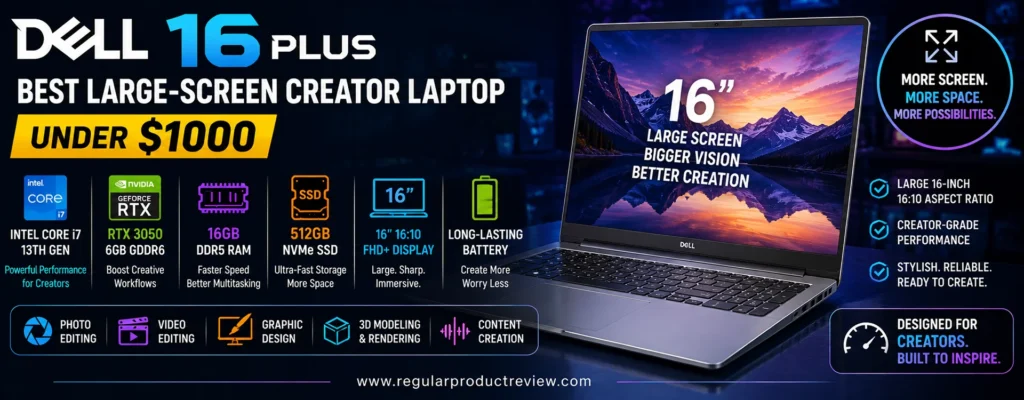
For photographers, designers, YouTube creators, students, writers, and digital professionals who spend long hours working inside visually dense applications, that larger canvas can improve usability even before raw performance enters the discussion. Dell offers the 16 Plus with modern Intel Core Ultra processors, Intel Arc integrated graphics, up to 32GB LPDDR5X memory, 1TB or larger SSD configurations, and 2.5K display options depending on the exact SKU.
There is, however, an important pricing caveat. Current Dell US configurations are not consistently below $1,000. Dell’s present store page shows configurable 16 Plus systems starting above the target budget, with higher-memory and 2.5K configurations moving well beyond four figures.
That means the Dell 16 Plus belongs in this article only when a genuine US promotion, outlet listing, clearance configuration, or retailer discount pulls the correct SKU below $1,000. At regular pricing, it should not automatically outrank more affordable alternatives.
Creators comparing large-screen value against more performance-oriented machines should also review our best creator laptops under $1500, where the higher budget opens the door to more powerful graphics and premium display configurations.
If you mainly need a spacious Windows laptop for productivity, design, writing, and lighter media work rather than creator-specific acceleration, our business laptops under $1000 guide includes additional large-screen professional options.
Editorial Insight: The Dell 16 Plus earns attention for its 16-inch 16:10 workspace and modern platform, but its under-$1,000 status is promotion-dependent. Price discipline matters more here than with some of the other laptops in this roundup.
📋 Dell 16 Plus Key Specifications
| Feature | Details |
|---|---|
| Model Family | Dell 16 Plus DB16250 / DB16255 |
| Processor Options | Intel Core Ultra 200V-series or AMD Ryzen AI configurations, depending on model |
| Recommended Creator Configuration | Core Ultra 7 / Ryzen AI 7 class, 16GB+ RAM, 1TB SSD |
| Graphics | Integrated Intel Arc or AMD Radeon Graphics |
| Memory | Up to 32GB LPDDR5X on selected configurations |
| Storage | PCIe NVMe SSD, commonly 1TB on higher configurations |
| Display Size | 16 inches |
| Aspect Ratio | 16:10 |
| Display Options | FHD+ / 2K / 2.5K depending on configuration |
| Maximum Common Resolution | 2560 × 1600 on 2.5K options |
| Touch Options | Available on selected configurations |
| Battery | 64Wh, 4-cell lithium-ion on current DB16250/DB16255 documentation |
| Operating System | Windows 11 Home / Pro |
| Best For | Large-screen productivity, design, photography, light video editing, multitasking |
Dell’s official documentation confirms that the Intel-based DB16250 can be configured with 16-inch FHD+ and 2.5K panels, including 2560 × 1600 options, while current AMD DB16255 listings show 16-inch 16:10 touch configurations with Ryzen AI processors and Radeon integrated graphics.
⚠️ Pricing Warning: Dell’s current US store does not consistently position the 16 Plus below $1,000. Treat it as a deal-dependent recommendation, not a guaranteed sub-$1,000 laptop. If the configuration you want is priced well above $1,000, choose a stronger value option rather than paying a premium simply for the Dell 16 Plus name.
🖼️ 16-Inch 16:10 Display Is the Main Reason to Buy It
The Dell 16 Plus makes the strongest case for itself through screen real estate.
A 16-inch 16:10 panel provides more vertical workspace than a traditional 16:9 laptop, which matters inside creative software. Photoshop and Lightroom dedicate significant space to tool panels. Video editors need room for timelines and preview windows. Writers and web creators often keep research, drafts, messaging, and browser tools open at the same time.
That extra vertical height allows more information to stay visible without constant scrolling or window reshuffling.
Dell’s current DB16250 documentation lists display options ranging from 1920 × 1200 to 2560 × 1600, while the main US retail configuration includes 2.5K options.
For creators, the 2.5K panel is the more attractive choice because it improves text clarity, image detail, and usable workspace density.
However, display quality should still be judged by the exact SKU. Resolution alone does not confirm professional color performance.
💡 Expert Tip: For a creator, 16:10 + 2.5K resolution can improve everyday usability more than a high refresh rate. Prioritize workspace, sharpness, and color characteristics over gaming-oriented display specs unless you also play competitively.
🎨 Large-Screen Productivity Without a 17-Inch Footprint
A 17-inch laptop can provide even more room, but it also becomes harder to carry and fit into standard bags.
The Dell 16 Plus sits in a useful middle ground.
It gives users a noticeably larger working area than a 14-inch laptop while remaining easier to manage than a full 17-inch desktop replacement. For freelancers, students, hybrid workers, and creators who move between a desk and other locations, that balance can be more practical.
Designers working with multiple panels, writers managing long documents, marketers juggling dashboards, and photographers sorting large image libraries can all benefit from the wider canvas.
Creators who want even more portability should compare our ultrabooks under $1000, where weight and mobile efficiency take priority over screen size.
⚡ Core Ultra and Ryzen AI Platforms Keep the Dell 16 Plus Current
The Dell 16 Plus family spans both Intel and AMD configurations.
Dell’s current Intel store page lists Core Ultra 7 and Core Ultra 9 options, while the AMD DB16255 variant uses Ryzen AI processors such as the Ryzen AI 7 350.
That gives buyers some flexibility in platform choice.
For everyday creator work, modern Core Ultra or Ryzen AI hardware provides enough processing capability for Photoshop, Lightroom, Canva, office productivity, browser-based design, media management, and lighter editing.
These processors also integrate NPUs for supported AI workloads and Copilot+ features.
The important limitation is sustained graphics performance.
Most current Dell 16 Plus configurations rely on integrated Intel Arc or AMD Radeon graphics rather than a dedicated RTX GPU. That makes them suitable for mainstream creation but less compelling for heavy 3D rendering or GPU-intensive Resolve workflows.
🎬 Integrated Graphics Are Fine for Mainstream Creation
Integrated graphics have improved significantly, but they still serve a different purpose from dedicated NVIDIA hardware.
The Dell 16 Plus is well suited to:
- Photoshop
- Lightroom
- Illustrator
- Canva
- Figma
- web publishing
- digital marketing
- social-content creation
- light-to-moderate 1080p editing
- lighter 4K projects
It is less ideal for:
- Blender Cycles rendering
- complex GPU effects
- heavy DaVinci Resolve workloads
- CUDA-dependent applications
- advanced 3D scenes
- sustained professional video rendering
| Creative Workload | Editorial Fit | Practical Expectation |
|---|---|---|
| Photoshop | ★★★★★ | Excellent fit for image and design workflows |
| Lightroom | ★★★★☆ | Strong for catalogs, RAW editing, and exports |
| Illustrator / Canva | ★★★★★ | Large screen is especially useful |
| 1080p Video Editing | ★★★★☆ | Good for mainstream projects |
| Light 4K Editing | ★★★☆☆ | Practical with reasonable effects and codecs |
| Heavy 4K Editing | ★★☆☆☆ | Dedicated graphics are preferable |
| DaVinci Resolve Effects | ★★☆☆☆ | GPU limits become more obvious |
| Blender / 3D Rendering | ★★☆☆☆ | Not the primary use case |
| Writing / Web Content | ★★★★★ | Excellent large-screen productivity |
| Multitasking | ★★★★★ | 16-inch 16:10 layout provides excellent working room |
Creators who need dedicated graphics should compare our gaming laptops under $1000 for RTX-equipped alternatives.
🧠 16GB Should Be the Minimum Creator Configuration
The Dell 16 Plus is available with multiple memory capacities, and selected current models offer 16GB or 32GB LPDDR5X.
For creators, 16GB should be treated as the practical starting point.
Eight gigabytes can become restrictive once Photoshop, browser tabs, cloud storage, communication apps, and background utilities are running simultaneously.
Thirty-two gigabytes is more attractive for:
- heavier Photoshop work
- large Lightroom catalogs
- multiple Adobe apps
- After Effects
- moderate 4K editing
- development + creative workflows
- long-term ownership
One downside of LPDDR5X is that it is typically soldered rather than user-upgradeable.
That makes choosing the right capacity at purchase more important than on laptops with SODIMM memory.
Editorial Recommendation: If the 32GB version is only slightly more expensive during a promotion, it can be worth prioritizing for long-term creative use. If it pushes the price far above $1,000, choose a better-value laptop instead.
💾 1TB SSD Is the Better Fit for Creative Work
Current Dell 16 Plus configurations commonly pair higher-tier processors with 1TB PCIe NVMe SSDs, while premium versions can offer more storage.
For creators, 1TB is a much more comfortable baseline than 512GB.
Photos, video footage, Lightroom catalogs, caches, exported files, software, templates, and downloaded assets can fill storage quickly.
A 1TB SSD gives enough room for:
- Windows and apps
- active projects
- cache files
- photo libraries
- moderate video footage
- local backups
Large video projects will still benefit from external SSDs or network storage.
🔋 64Wh Battery Balances Screen Size and Portability
Dell’s official DB16250 and DB16255 documentation lists a 64Wh, four-cell lithium-ion battery.
For a 16-inch productivity laptop, that is a reasonable capacity.
Actual runtime depends heavily on processor choice, panel resolution, brightness, touch capability, network activity, and workload.
Light productivity and browsing consume far less power than Lightroom exports or video rendering.
Creators should therefore view battery life as enough for mobile work sessions rather than expecting workstation-class performance away from an outlet.
🔌 External Displays Improve the Dell 16 Plus as a Creator Workstation
A large built-in panel already makes the Dell 16 Plus useful at a desk, but the system becomes more flexible when connected to external storage and monitors.
For creators, that opens up several practical workflows:
- laptop display for tools and panels
- external monitor for preview or color-critical work
- USB-C SSD for active projects
- cloud or NAS storage for archives
- external keyboard and mouse for longer editing sessions
That setup can turn the Dell 16 Plus into a capable home-office creator station without giving up portability.
Designers and photographers who care deeply about color accuracy should especially consider a calibrated external display, because exact gamut and brightness vary by panel configuration.
🪟 Windows 11 and Copilot+ Features Add Everyday Convenience
Current Core Ultra 200V and Ryzen AI variants are positioned as modern AI-capable Windows laptops, with selected models qualifying as Copilot+ PCs.
For creators, that can provide access to newer Windows AI features and supported local workloads.
However, AI branding should not be the main reason to choose this laptop.
The more important benefits remain:
- large display
- modern CPU
- sufficient memory
- SSD capacity
- everyday responsiveness
- connectivity
- strong multitasking environment
Editorial Insight: AI features may evolve quickly, but screen space, memory, storage, and software compatibility will influence your productivity every day. Buy for those fundamentals first.
📊 Dell 16 Plus Creator Performance Snapshot
| Category | Editorial Score | Large-Screen Creator Perspective |
|---|---|---|
| CPU Performance | 8.8/10 | Modern Core Ultra and Ryzen AI platforms are strong for mainstream creation |
| GPU Capability | 7.4/10 | Integrated graphics are useful, but RTX systems offer much more acceleration |
| Display Workspace | 9.5/10 | 16-inch 16:10 panel is excellent for multitasking and creative interfaces |
| Display Sharpness | 9.0/10 | 2.5K options provide crisp detail and dense workspace |
| Memory | 9.0/10 | 16GB–32GB configurations suit modern creator multitasking |
| Storage | 9.1/10 | 1TB configurations provide practical creator capacity |
| Portability | 8.2/10 | Easier to carry than a 17-inch desktop replacement |
| Battery Capacity | 8.3/10 | 64Wh is reasonable for a 16-inch productivity machine |
| Creator Versatility | 9.0/10 | Excellent for photography, design, writing, and mainstream editing |
| Value Under $1000 | 7.2/10 | Attractive only when a real discount brings the right SKU below budget |
| Overall Rating | 8.6/10 | Strong large-screen choice, but pricing determines whether it belongs in this roundup |
⚠️ About Our Scores: These are editorial suitability ratings based on verified specifications, creator workflow fit, configuration, and current market positioning—not laboratory benchmark results.
👤 Who Should Buy the Dell 16 Plus?
The Dell 16 Plus is especially suitable for:
- Photographers who want a larger editing canvas
- Graphic designers working with multiple panels and assets
- YouTube creators managing scripts, thumbnails, research, and lighter editing
- Writers and bloggers who value a spacious display
- Digital marketers working across dashboards and browser tools
- Freelancers handling creative and business tasks on one system
- Students who want a large-screen laptop for coursework and creation
- Home-office creators who do not want a 17-inch chassis
Students comparing creative performance with coursework and portability can also explore our best laptops for college students.
⚠️ Who Should Skip the Dell 16 Plus?
Choose another laptop if you need:
- guaranteed sub-$1,000 pricing
- NVIDIA RTX graphics
- heavy Blender rendering
- CUDA acceleration
- professional DaVinci Resolve performance
- maximum memory upgradeability
- ultra-light 13- or 14-inch portability
- a guaranteed wide-gamut built-in display
- maximum performance per dollar
The most important reason to skip it is simple: price.
A Dell 16 Plus discounted below $1,000 can make sense. The same laptop at $1,300–$1,700 competes against much stronger creator systems.
✅ Dell 16 Plus Pros & Cons
| ✅ Pros | ❌ Cons |
|---|---|
| 16-inch 16:10 display offers excellent workspace | Current US pricing is often above $1,000 |
| 2.5K display options improve sharpness | Under-$1,000 eligibility is deal dependent |
| Modern Core Ultra and Ryzen AI processor choices | Most configurations rely on integrated graphics |
| Up to 32GB LPDDR5X on selected models | LPDDR5X memory generally limits upgradeability |
| 1TB SSD options are creator-friendly | Heavy 3D and rendering workloads need stronger GPU hardware |
| Better portability than a 17-inch desktop replacement | Display color capability varies by exact panel |
| Modern Windows / Copilot+ platform on supported configurations | Premium configurations become expensive quickly |
| Strong multitasking layout | Not the strongest performance-per-dollar option |
| 64Wh battery provides reasonable capacity | Buyers must verify exact DB16250/DB16255 specification |
| Dell US support ecosystem is easy to access | Product naming can make Intel and AMD versions easy to confuse |
🏆 Why It Earns Our Best Large-Screen Creator Laptop Award
The Dell 16 Plus earns this award because its biggest strength directly affects how creators work every day: space.
A 16-inch 16:10 display gives applications room to breathe. Photoshop panels can stay visible without covering the image. Lightroom libraries are easier to navigate. Video timelines gain vertical room. Browser-based creators can keep multiple tools visible. Writers and marketers can work with research and drafts side by side.
Dell’s available 2.5K panels further improve that experience by adding sharper text and more useful pixel density.
Modern Core Ultra and Ryzen AI processors provide enough performance for mainstream creator workloads, while 16GB–32GB memory and 1TB SSD configurations give the platform a sensible productivity foundation.
Its limitation is not difficult to identify.
This is not a GPU-first creator system, and its current US retail pricing frequently exceeds the $1,000 ceiling. Dell presently lists Intel configurations above this article’s target budget, which means buyers should only consider the 16 Plus here when a genuine sale or outlet deal brings the appropriate configuration below four figures.
If it remains expensive, do not force the purchase. Our budget laptops coverage includes less expensive systems, while creators needing stronger graphics should prioritize performance-oriented alternatives.
Our Recommendation: Choose the Dell 16 Plus when you can find a 16GB+ RAM, 1TB SSD, 16-inch 2.5K configuration below $1,000 and your work centers on photography, graphic design, writing, multitasking, and mainstream content creation. Skip it at regular four-figure pricing, because its value falls sharply once dedicated-GPU creator laptops enter the same price range.
HP OmniBook 5 16 🎨 Best Creator Laptop Under $1000 for Everyday Content Creation
Best For: Photography, Canva, graphic design, blogging, social-media creation, YouTube, digital marketing, and light video editing
Primary Strength: 16-inch 2K OLED display with 100% DCI-P3 coverage at an accessible price
Main Compromise: Integrated graphics and non-upgradeable 16GB memory limit heavier professional workflows
Editorial Rating: 8.9/10
The HP OmniBook 5 16 is one of the easiest laptops in this roundup to recommend to creators who do a little bit of everything. It is not trying to be a mobile rendering workstation, and it does not rely on a heavy gaming chassis to deliver its value. Instead, the configuration we prefer combines a 16-inch 2K OLED display with 100% DCI-P3 coverage, an Intel Core 7 processor, 16GB of memory, and fast NVMe storage in a machine designed for mainstream everyday use. HP’s current US configuration confirms those core specifications.
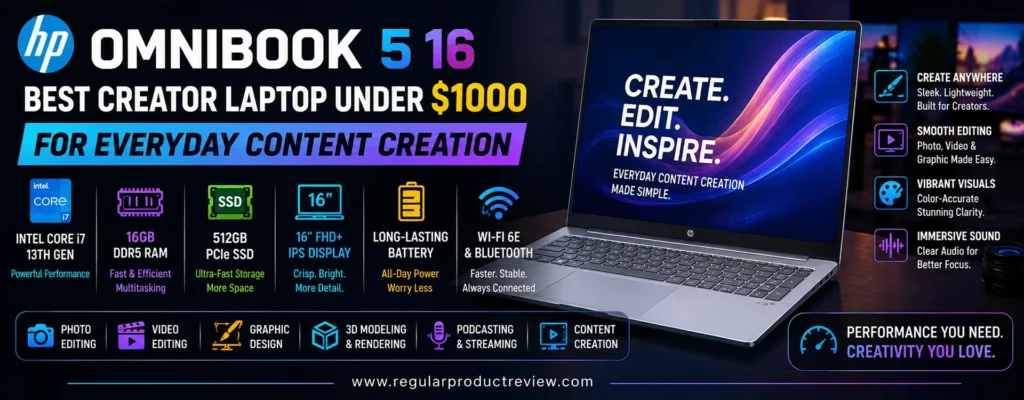
That combination fits an enormous group of modern creators: photographers editing social and web images, YouTubers making thumbnails and lighter videos, bloggers managing WordPress and graphics, Canva users, digital marketers, small-business owners, freelance designers, and students producing multimedia coursework. These users benefit from a good screen and sufficient multitasking capacity every day, but they may gain relatively little from carrying a dedicated RTX GPU that increases weight, heat, and power consumption.
The HP OmniBook 5 Laptop 16T-BN000 is the configuration we would prioritize for this award. Its Core 7 150U, 16GB onboard memory, 512GB PCIe Gen4 SSD, and 1920 × 1200 OLED panel create a balanced starting point, while HP also offers 1TB storage and a higher-end 3K 120Hz OLED as configurable upgrades.
If your workflow is considerably more demanding than everyday content creation, compare the options in our best creator laptops under $1500, where the extra budget can buy stronger CPUs, dedicated graphics, and more memory.
Creators whose priority is keeping the entire purchase as affordable as possible should also explore our budget laptops coverage before spending the full $1,000. Not every social-media manager, blogger, Canva designer, or light photographer actually needs four figures of hardware.
Editorial Insight: The OmniBook 5 16 is strongest when your workflow depends on display quality, multitasking, storage, and everyday responsiveness more often than it depends on GPU rendering.
📋 HP OmniBook 5 16 Key Specifications
| Feature | Recommended Creator Configuration |
|---|---|
| Model | HP OmniBook 5 Laptop 16T-BN000 |
| HP Product Reference | C2PV9AV_1 |
| Processor | Intel Core 7 150U |
| CPU | 10 cores / 12 threads |
| Maximum Turbo Frequency | Up to 5.4GHz |
| Graphics | Integrated Intel Graphics |
| Memory | 16GB onboard |
| Storage | 512GB PCIe Gen4 NVMe M.2 SSD |
| Optional Storage | 1TB PCIe Gen5 NVMe M.2 SSD |
| Recommended Display | 16-inch 2K OLED |
| Resolution | 1920 × 1200 |
| Aspect Ratio | 16:10 |
| Color Gamut | 100% DCI-P3 |
| Brightness | 300 nits |
| Response Time | 0.2ms |
| Premium Display Option | 3K 2880 × 1800 OLED, up to 120Hz |
| Premium Display Color | 100% DCI-P3 |
| Premium Display Brightness | 500-nit SDR / up to 1100-nit HDR specification |
| Operating System | Windows 11 Home |
| Best For | Photoshop, Lightroom, Canva, graphic design, social content, blogging, YouTube, light video editing |
HP’s official OmniBook 5 16T-BN000 product page currently lists the Core 7 150U, 16GB memory, 512GB Gen4 SSD, and 2K OLED 100% DCI-P3 configuration, with 1TB storage and a 3K 120Hz OLED panel available as upgrades.
⚠️ Price & Configuration Note: HP frequently changes promotional pricing and customization discounts. A recent US configuration with Core 7, 16GB RAM, 512GB SSD, and the OLED display was listed at $769.99, while HP’s current page is also advertising a limited-time percentage discount. Treat the OmniBook 5 16 as an under-$1,000 recommendation only when your final configured checkout price remains below that threshold.
🌈 2K OLED and 100% DCI-P3 Are the Real Creator Advantages
The display is the strongest reason to select this particular OmniBook 5 configuration over a generic productivity laptop.
HP’s standard creator-friendly option is a 16-inch 1920 × 1200 OLED panel with a 16:10 aspect ratio, 0.2ms response time, 300-nit brightness, low-blue-light support, and—most importantly—100% DCI-P3 coverage.
That wider gamut gives visual creators considerably more useful color capability than inexpensive screens covering only a fraction of sRGB.
For photographers, designers, thumbnail creators, social-media managers, and digital artists, this can affect the experience every time the laptop is opened. OLED technology also delivers effectively perfect black levels and very high contrast, making photographs, graphics, dark UI elements, and video content appear richer than on a basic IPS productivity panel.
The 16:10 aspect ratio is equally practical.
Photoshop gains more vertical space for images and tool panels. Lightroom can display larger previews while retaining controls. WordPress editors see more content at once. Canva and browser-based creative tools have additional room for menus and artwork without making the laptop excessively wide.
This is where the OmniBook 5 16 feels more like a creator-conscious productivity laptop than an ordinary home notebook.
✨ Optional 3K 120Hz OLED Takes the Display Much Further
HP also offers a significantly more ambitious display upgrade: 2880 × 1800 OLED at up to 120Hz, with 100% DCI-P3, a rated 500-nit SDR level, and up to 1100-nit HDR specification.
For creators, that improves three things at once.
First, the additional resolution makes fine image details, text, interfaces, and vector artwork considerably sharper.
Second, 120Hz makes scrolling, timeline navigation, animation previewing, and general Windows movement look smoother.
Third, increased brightness can improve usability in brighter environments and make supported HDR content more impactful.
The problem is budget.
A display upgrade that looks excellent technically can undermine the entire point of a creator laptop under $1000 if it pushes the finished configuration too far above the target.
💡 Expert Tip: The standard 2K OLED with 100% DCI-P3 is already the value sweet spot. Choose the 3K 120Hz panel only when HP’s current promotion keeps your complete configuration comfortably within budget.
⚡ Core 7 150U: More Than Enough for Everyday Creator Work
The Intel Core 7 150U is not intended to compete with HX-series processors found in heavy gaming laptops. Its design targets a more efficient balance between performance and battery-conscious everyday computing.
HP lists it with 10 cores, 12 threads, and boost speeds up to 5.4GHz.
For this laptop’s audience, that balance makes sense.
Everyday content creation rarely means rendering Blender scenes for eight hours straight. More commonly, it means editing several photos, moving into Canva, researching in Chrome, writing copy, managing social accounts, playing reference video, answering messages, and perhaps cutting a short video before uploading it.
Those jobs depend heavily on responsiveness and multitasking.
The Core 7 150U provides enough CPU capability for:
- Photoshop editing
- Lightroom adjustments
- RAW photo organization
- Illustrator and vector work
- Canva projects
- WordPress publishing
- web design
- short-form editing
- YouTube workflow management
- office applications
- large browser sessions
It becomes less suitable when workloads remain processor-intensive for long periods.
Heavy multicam editing, high-resolution video exports, large After Effects compositions, CPU rendering, and complex 3D simulations justify a faster H- or HX-class processor.
🎬 Integrated Intel Graphics: Enough for Creation, Not a Rendering Workstation
The OmniBook 5 16 uses integrated Intel Graphics, which is one of the clearest differences between it and the RTX-equipped machines elsewhere in this roundup.
That is not automatically a weakness.
Photoshop, Lightroom, Canva, Illustrator, Figma, browser-based creative applications, streaming tools, basic video editing, and general multimedia creation can all operate effectively without a dedicated GPU.
The important question is whether your workflow regularly depends on GPU acceleration.
Adobe’s current Premiere Pro hardware guidance recommends substantially more graphics and memory resources for heavier professional video workloads, including 32GB or more RAM for Windows-based production systems and stronger GPU memory resources for demanding editing.
That is exactly why we do not position the OmniBook 5 as a rendering specialist.
| Creative Workload | Editorial Fit | Practical Expectation |
|---|---|---|
| Photoshop | ★★★★★ | Excellent match for everyday photo and graphic work |
| Lightroom | ★★★★☆ | Strong for mainstream RAW editing and catalog management |
| Canva / Figma | ★★★★★ | Ideal for browser-based and lightweight design workflows |
| Illustrator | ★★★★☆ | Well suited to mainstream vector graphics |
| WordPress / Blogging | ★★★★★ | Excellent screen and multitasking combination |
| Social-Media Creation | ★★★★★ | One of its strongest use cases |
| 1080p Video Editing | ★★★★☆ | Good for lighter timelines and typical creator projects |
| Light 4K Video Editing | ★★★☆☆ | Possible with sensible codecs and effects |
| Heavy Premiere Pro Work | ★★☆☆☆ | Dedicated graphics and more memory are preferable |
| DaVinci Resolve Effects | ★★☆☆☆ | GPU-intensive workflows expose its limitations |
| Blender Rendering | ★★☆☆☆ | An RTX-equipped laptop is a substantially better choice |
Creators whose workflow is regularly GPU-heavy should compare our gaming laptops under $1000, where dedicated NVIDIA graphics provide much more acceleration per dollar.
🧠 16GB RAM Is the Right Capacity for This Kind of Creator
The recommended configuration includes 16GB of onboard memory.
For everyday creators, this is an important distinction from inexpensive 8GB laptops.
A realistic creative session may involve Photoshop, Chrome with numerous tabs, cloud storage, Spotify, Slack or Teams, a WordPress dashboard, and several background services simultaneously. Eight gigabytes can begin feeling restrictive quickly under that type of workload.
Sixteen gigabytes provides substantially more breathing room.
For photo editing, design, social content, browser-based creative tools, and lighter video projects, it is well aligned with the rest of the hardware.
The limitation is upgradeability.
Because HP lists the memory as onboard, buyers should treat 16GB as effectively permanent for that configuration.
Someone expecting to move into heavy After Effects, complex 4K production, virtual machines, or very large professional projects should buy a system offering 32GB rather than assuming this laptop will grow with the workload later.
Editorial Recommendation: 16GB is the correct target for everyday content creation. If you already know you require 32GB, move to a more performance-oriented machine rather than compromising your workflow to stay with this specific OmniBook configuration.
💾 512GB SSD Is Usable, but 1TB Is the Better Long-Term Choice
HP includes a 512GB PCIe Gen4 NVMe SSD in the base configuration and offers a 1TB PCIe Gen5 NVMe option.
For bloggers, Canva users, writers, students, and social creators, 512GB can be sufficient.
Photographers and video creators should think more carefully.
RAW photo libraries, Lightroom previews, application caches, recorded video, exported projects, music libraries, stock assets, and downloaded media can consume storage much faster than traditional documents.
A 512GB drive therefore works best when older content is archived to an external SSD or cloud service.
If HP’s current promotion allows the jump to 1TB without breaking the $1,000 ceiling, it is one of the most useful upgrades you can make.
🎨 Why the Display Matters More Than Adding an Entry-Level GPU
There is an interesting purchasing decision at this budget.
For roughly the same money, buyers may encounter gaming laptops with entry-level discrete graphics but mediocre displays, and productivity laptops with weaker graphics but much better panels.
The better choice depends on what you create.
A Blender user should take the GPU.
A photographer, web designer, graphic designer, social-media creator, or Canva professional may gain more everyday value from the 100% DCI-P3 OLED screen.
That is the philosophy behind this recommendation.
You see the display during every minute of work. Better contrast, wider color coverage, and more usable vertical space affect photo selection, graphic design, content consumption, browser work, and general productivity whether the GPU is under load or not.
Creators who want to compare this display-first approach against other purpose-built creative machines can explore our creator laptops hub.
🖥️ 16 Inches Is a Sweet Spot for Home and Hybrid Creators
The 16-inch screen sits in a practical middle ground.
It is substantially roomier than a 13- or 14-inch ultraportable, but it does not consume desk space like a 17-inch desktop replacement.
For creators who regularly divide the screen between two applications, the larger canvas can make a noticeable difference.
A blogger can keep research beside the WordPress editor.
A social-media manager can compare graphics and analytics.
A photographer gains more room for the image while adjustment controls remain visible.
A YouTube creator can manage thumbnails, scripts, research, uploads, and lighter timelines without immediately reaching for an external monitor.
Creators who travel constantly may still prefer something smaller. Our ultrabooks under $1000 guide provides more mobility-focused alternatives.
🔌 Connectivity Makes It Easier to Build a Creator Desk
A mainstream creator laptop should connect easily to the equipment creators actually use.
Depending on the exact OmniBook 5 16 configuration, HP provides modern USB-C connectivity, USB-A for legacy accessories, HDMI for external displays, and a standard audio connection. HP’s 16-inch OmniBook 5 family is specifically positioned around broad everyday connectivity rather than the minimalist two-port philosophy common on ultra-thin notebooks.
That matters when adding:
- external SSDs
- drawing tablets
- microphones
- external monitors
- webcams
- keyboards and mice
- card readers
- USB audio interfaces
An external color-calibrated monitor can also turn the OmniBook into a more serious desk-based visual workstation.
🖼️ OLED Trade-Offs Are Worth Understanding
OLED offers several clear creative advantages, including deep blacks, extremely high contrast, rapid pixel response, and rich color.
It also comes with characteristics buyers should understand.
Glossy OLED surfaces can show more reflections than matte IPS displays. Higher brightness can increase power consumption. Static content displayed for extremely long periods is also part of the long-term ownership discussion around OLED technology, although modern laptops use mitigation techniques designed to reduce image-retention risk.
For most creators, these concerns are manageable.
Using reasonable brightness, allowing the screen to sleep when idle, and avoiding permanently displaying the same static interface at maximum brightness for extraordinary periods are sensible habits.
The benefit is a display that looks substantially richer than the basic IPS panels used in many inexpensive Windows laptops.
🔋 Everyday Efficiency Fits the Intended Workflow
One advantage of avoiding a discrete GPU is reduced power demand during routine use.
The Core 7 U-series platform and integrated graphics are much better aligned with mobile office and creative productivity than an HX processor paired with a high-wattage RTX GPU.
This does not mean video exports cost nothing in battery life.
Creative workloads always increase power draw, and OLED brightness also affects endurance.
But for writing, browsing, photo organization, Canva work, social management, and lighter editing, the OmniBook’s hardware balance is more appropriate for hybrid and portable use than a gaming-derived alternative.
That makes it useful for creators who move between a home desk, classroom, coworking space, client meeting, and coffee shop.
🏠 A Strong Fit for Creators Who Also Use Their Laptop for Everything Else
Many people buying a creator laptop under $1,000 are not purchasing a dedicated production machine.
The same computer may handle:
- creative applications
- online classes
- Zoom meetings
- accounting
- streaming
- web browsing
- shopping
- office work
- entertainment
- personal photo libraries
The OmniBook 5 16 fits this mixed-use reality particularly well.
It provides enough creative capability to be useful without becoming specialized to the point that everyday ownership suffers.
Students whose laptop also needs to handle coursework can compare our best laptops for college students for additional options balancing productivity, portability, and budget.
📊 HP OmniBook 5 16 Creator Performance Snapshot
| Category | Editorial Score | Everyday Creator Perspective |
|---|---|---|
| CPU Performance | 8.2/10 | Core 7 150U is responsive for mainstream creator workloads |
| GPU Capability | 6.9/10 | Integrated graphics are practical but not built for heavy rendering |
| Photo Editing | 9.1/10 | OLED, DCI-P3 coverage, and 16GB RAM create a strong combination |
| Graphic Design | 9.2/10 | Excellent display characteristics for digital visual work |
| Social Content Creation | 9.5/10 | One of the strongest use cases |
| Light Video Editing | 8.2/10 | Good for everyday projects and short-form production |
| Display Quality | 9.5/10 | 2K OLED and 100% DCI-P3 stand out at this price |
| Memory | 8.2/10 | 16GB is appropriate, though onboard memory limits expansion |
| Storage | 8.2/10 | 512GB is usable; 1TB is preferable for creators |
| Everyday Versatility | 9.5/10 | Creative work, productivity, and entertainment coexist well |
| Value Under $1000 | 9.2/10 | Excellent when HP promotions keep the OLED configuration below budget |
| Overall Rating | 8.9/10 | A highly balanced display-first laptop for everyday creators |
⚠️ About Our Scores: These are editorial suitability ratings based on verified hardware, creator workflow fit, configuration, and value. They are not presented as laboratory benchmark measurements.
👤 Who Should Buy the HP OmniBook 5 16?
The HP OmniBook 5 16 is especially well suited to:
- Photographers editing mainstream RAW and JPEG libraries
- Graphic designers producing digital and web assets
- Canva creators working on marketing and social graphics
- Social-media managers creating and publishing mixed media
- Bloggers managing WordPress, imagery, research, and writing
- YouTube creators producing thumbnails and lighter video projects
- Small-business owners creating their own marketing materials
- Freelancers combining creative and office applications
- Students handling design, media, and general coursework
- Home creators who want one laptop for work and entertainment
⚠️ Who Should Skip the HP OmniBook 5 16?
Choose another laptop if your regular workflow centers on:
- Blender GPU rendering
- complex professional 3D projects
- CUDA-accelerated applications
- heavy DaVinci Resolve effects
- large After Effects compositions
- sustained professional 4K/6K editing
- more than 16GB RAM
- maximum CPU performance
- user-upgradeable system memory
- professional workstation-class graphics
If those tasks appear occasionally, the OmniBook can still be useful. If they define your working day, an RTX-equipped laptop is the better investment.
✅ HP OmniBook 5 16 Pros & Cons
| ✅ Pros | ❌ Cons |
|---|---|
| 2K OLED display is exceptional for everyday visual creation | No dedicated NVIDIA GPU |
| 100% DCI-P3 color coverage is a major advantage | Heavy rendering workloads are not its strength |
| Spacious 16-inch 16:10 workspace | Core 7 150U is less powerful than H/HX creator processors |
| Optional 3K 120Hz OLED provides a premium upgrade path | Premium display upgrades can push pricing upward |
| 16GB memory is appropriate for mainstream content creation | Memory is onboard rather than easily upgradeable |
| Fast 512GB Gen4 SSD | 512GB can fill quickly with photo and video libraries |
| 1TB Gen5 storage option | Integrated graphics reduce demanding Premiere/Resolve headroom |
| Excellent for Photoshop, Canva, social content, and web publishing | Not intended as a 3D workstation |
| OLED contrast makes media consumption excellent | OLED is less ideal for buyers wanting a matte display |
| Windows design works well for mixed professional and personal use | Configuration pricing changes frequently |
| Competitive value during HP promotions | Exact checkout configuration should be verified before purchase |
🏆 Why It Earns Our Best Everyday Content Creation Award
The HP OmniBook 5 16 earns Best Creator Laptop Under $1000 for Everyday Content Creation because most creators do not spend every working hour rendering video or 3D scenes.
They edit photos.
They design graphics.
They produce thumbnails.
They write articles.
They manage social posts.
They build presentations.
They work inside Canva, Photoshop, Lightroom, browsers, WordPress, and communication tools—often all during the same day.
For that kind of creator, the OmniBook’s hardware priorities make sense.
The 16-inch 2K OLED panel with 100% DCI-P3 is the standout feature. HP’s current US specification confirms this display alongside the Core 7 150U, 16GB memory, and 512GB Gen4 SSD, while an optional 3K 120Hz OLED gives buyers a higher-end display path.
Performance is deliberately more balanced than aggressive. The Core 7 is fast enough for everyday creator workloads without requiring the thermal design of an HX laptop, and integrated graphics keep the system appropriate for mixed portable use.
The compromises are straightforward.
Sixteen gigabytes of onboard memory limits future expansion. Integrated graphics make the laptop a poor fit for serious Blender or GPU-heavy Resolve workflows. And storage-hungry creators will probably want the 1TB upgrade or an external SSD.
Pricing is the final piece of the recommendation. HP has recently offered a 16GB/512GB configuration at $769.99, making the hardware particularly attractive within this article’s budget, although promotional pricing can change quickly.
Buyers who want additional lower-cost alternatives can also browse our best budget laptops of 2026 before deciding whether the OLED display justifies spending more.
Our Recommendation: Choose the HP OmniBook 5 16T-BN000 with 16GB RAM and the 2K 100% DCI-P3 OLED display if your daily workflow revolves around Photoshop, Lightroom, Canva, graphic design, blogging, social-media creation, YouTube production, and lighter video editing. Upgrade to 1TB storage when the price remains reasonable. Choose an RTX-equipped alternative instead if GPU acceleration, 3D rendering, or complex professional video production is central to your work.
MSI Modern 15 H AI 📸 Best Creator Laptop Under $1000 for Productivity and Photo Editing
Best For: Lightroom, Photoshop, blogging, digital marketing, freelance productivity, web content, and heavy multitasking
Primary Strength: Powerful H-series CPU plus exceptional DDR5 upgradeability up to 96GB
Main Compromise: Basic FHD display without verified professional color-gamut coverage
Editorial Rating: 8.9/10
The MSI Modern 15 H AI is a strong fit for creators whose daily workload blends photo editing, research, writing, client communication, spreadsheets, browser-heavy multitasking, and lighter media production. Rather than chasing gaming-class GPU power, it focuses on a more practical combination: a modern Intel Core Ultra H-series processor, Intel Arc integrated graphics, upgradeable DDR5 memory, NVMe storage, and a full-size 15.6-inch workspace. MSI’s current C2HM platform supports up to a Core Ultra 9 200H-series processor, 96GB of DDR5-5600 memory, and Intel Arc graphics.
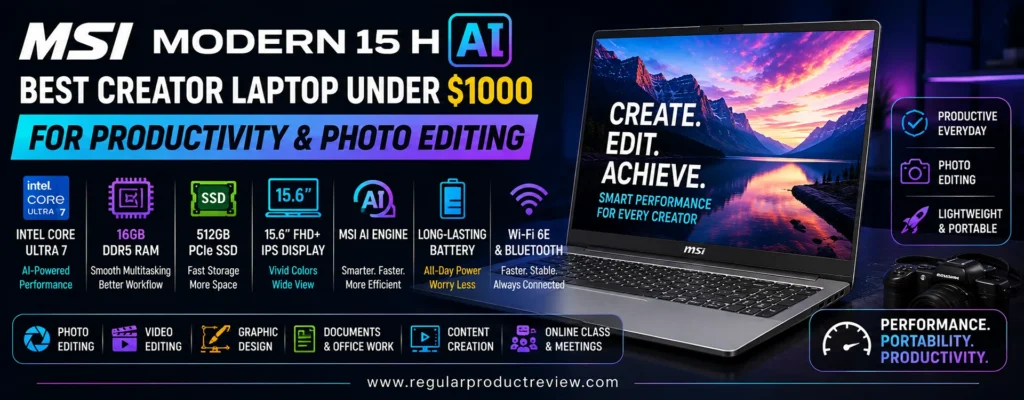
For photographers and freelance creators, that balance can make more sense than buying a heavier RTX laptop. Photo workflows often depend heavily on CPU performance, memory capacity, storage responsiveness, and sufficient GPU acceleration for supported effects rather than raw 3D-rendering power. Adobe’s current Lightroom and Lightroom Classic requirements recommend 16GB or more of memory and DirectX 12-capable graphics, with additional shared or dedicated GPU memory becoming useful for full acceleration and newer AI features.
That is why this MSI earns our Best Creator Laptop Under $1000 for Productivity and Photo Editing award. It provides unusually strong memory expansion for a mainstream productivity laptop, a fast H-series processor platform, practical connectivity, and enough integrated graphics capability for Photoshop, Lightroom, Canva, Figma, and mixed creator workflows.
Photographers who want to compare it with laptops that put even greater emphasis on displays and creator-specific hardware can browse our creator laptops hub.
If your priority is a lighter chassis and longer mobile sessions rather than upgradeability and H-series performance, our best ultrabooks under $1000 guide covers more portability-focused alternatives.
Editorial Insight: The Modern 15 H AI is most compelling for creators who need CPU performance, lots of upgradeable RAM, and everyday productivity flexibility more often than they need a dedicated RTX GPU.
📋 MSI Modern 15 H AI Key Specifications
| Feature | Details |
|---|---|
| Platform | MSI Modern 15 H AI C2HM / C2HMG |
| Processor Options | Up to Intel Core Ultra 9 200H-series |
| Recommended Creator CPU | Intel Core Ultra 7 255H |
| Core Ultra 7 255H | 16 cores / 16 threads |
| Maximum Turbo Frequency | Up to 5.1GHz |
| Graphics | Integrated Intel Arc Graphics |
| Memory Type | DDR5-5600 |
| Memory Slots | 2 |
| Maximum Memory | Up to 96GB |
| Storage | 1 × M.2 PCIe Gen4 NVMe SSD slot |
| Display | 15.6-inch FHD IPS-level |
| Resolution | 1920 × 1080 |
| Wireless | Wi-Fi 6E on applicable configurations |
| USB-C | USB-C with DisplayPort and Power Delivery on applicable SKUs |
| USB-A | Multiple USB-A ports |
| Video Output | HDMI |
| Card Reader | MicroSD on applicable configurations |
| Camera | 720p webcam with privacy shutter on applicable configurations |
| Best For | Lightroom, Photoshop, Canva, productivity, office work, blogging, web creation |
MSI’s official Modern 15 H AI specifications confirm a 15.6-inch FHD IPS-level panel, Intel Arc graphics, DDR5-5600 with two memory slots and up to 96GB capacity, plus PCIe Gen4 NVMe storage.
A Core Ultra 7 255H configuration uses a 16-core, 16-thread processor with up to 5.1GHz turbo frequency, giving the system a much stronger CPU foundation than typical low-power office laptops.
⚠️ US Availability Note: Current US retail availability for the newest C2HM/C2HMG generation is less consistent than for older Modern 15 H AI C1M models. The exact C2HMG configuration should therefore be verified before publication. Older US-listed versions with Core Ultra 5/7/9 processors, 16GB–32GB RAM, and 1TB SSDs remain available through retailers and marketplace sellers, but they are not identical to the newer C2HM platform.
⚡ Core Ultra 7 255H Is the Main Productivity Advantage
The Core Ultra 7 255H is the component that gives the Modern 15 H AI its character.
This is not a low-power U-series processor optimized primarily for email and battery life. It is an H-series chip with 16 cores, 16 threads, 24MB of L3 cache, and boost speeds up to 5.1GHz in MSI’s listed configuration.
That additional processing headroom is valuable for creators who work across several applications at once.
A realistic photography session might include Lightroom Classic importing RAW files, Photoshop handling layered edits, Chrome running tutorials and cloud services, an email client, messaging software, and a backup process in the background. Those workloads do not necessarily require a discrete GPU, but they benefit from a processor capable of maintaining responsiveness under multitasking pressure.
The same is true for digital marketers and freelancers.
A creator may switch between Canva, Excel, Photoshop, WordPress, Teams, cloud storage, and browser-based analytics throughout the day. The Modern 15 H AI’s H-series processor is better suited to that type of sustained professional multitasking than an entry-level office notebook.
💡 Expert Tip: For productivity-heavy creators, CPU performance and RAM capacity often matter more than a low-end discrete GPU. If your work is primarily Lightroom, Photoshop, browser tools, and multitasking, spend carefully rather than assuming “RTX” is automatically the better purchase.
📸 Lightroom and Photoshop Are Natural Workloads for This Hardware
Photo editing is where the MSI’s priorities make the most sense.
Adobe’s current Lightroom requirements recommend 16GB or more of RAM, while Lightroom Classic can make use of DirectX 12-compatible graphics and additional graphics memory for full GPU acceleration and AI features such as Denoise, Lens Blur, and Reflection Removal.
The Modern 15 H AI combines Intel Arc integrated graphics with potentially very large system-memory configurations.
That is especially relevant because Adobe notes that full GPU acceleration can use 16GB of shared memory as an alternative to a large dedicated VRAM pool in supported configurations.
For everyday Lightroom work, that makes a 16GB configuration viable.
For photographers managing very large catalogs, high-resolution RAW files, multiple Adobe applications, and AI-assisted editing simultaneously, moving to 32GB can be a much smarter long-term setup.
Photoshop follows a similar pattern. Adobe currently recommends 16GB or more of system memory and DirectX 12-capable graphics for a stronger desktop experience.
The Modern 15 H AI therefore aligns well with the actual requirements of mainstream photo creation rather than simply carrying a creator label.
🧠 Up to 96GB DDR5 Is Exceptional in This Price Class
The memory architecture is arguably the MSI’s biggest advantage over many thin productivity laptops.
MSI officially supports DDR5-5600 memory across two slots, with a maximum capacity of 96GB on the C2HM platform.
That gives creators a much better long-term upgrade path than notebooks with 16GB permanently soldered to the motherboard.
A sensible progression might look like this:
| Creator Level | Recommended RAM | Best Fit |
|---|---|---|
| Entry Creator | 16GB | Lightroom, Photoshop, Canva, web content |
| Intermediate Creator | 32GB | Large RAW catalogs, Adobe multitasking, light video |
| Advanced Productivity User | 64GB | Heavy multitasking, large creative projects, virtual machines |
| Specialized Power User | 96GB | Extremely memory-heavy workflows |
Most buyers will never need 96GB.
That is not the point.
The value comes from having the freedom to upgrade later rather than replacing the entire laptop when 16GB becomes limiting.
Creators who care about long-term ownership and expandability can also compare our business laptops category, where serviceability and professional longevity receive more emphasis.
🎨 Intel Arc Integrated Graphics Are Enough for Photo-First Creation
The Modern 15 H AI uses Intel Arc integrated graphics rather than a dedicated NVIDIA GPU.
For Lightroom, Photoshop, Canva, Figma, Illustrator, web design, office applications, and lighter editing, this is not necessarily a disadvantage.
Integrated Arc graphics can accelerate supported creative tasks while avoiding the extra power draw, heat, weight, and cost of a dedicated gaming GPU.
The trade-off becomes obvious in heavier workflows.
| Creative Workload | Editorial Fit | Practical Expectation |
|---|---|---|
| Adobe Lightroom | ★★★★★ | Excellent CPU/RAM balance for mainstream photo workflows |
| Lightroom Classic | ★★★★☆ | Strong fit; AI-heavy features benefit from more shared memory |
| Photoshop | ★★★★★ | Excellent for layered photo and graphic work |
| Canva / Figma | ★★★★★ | More than enough performance |
| Illustrator | ★★★★☆ | Well suited to general vector workflows |
| WordPress / Blogging | ★★★★★ | Excellent productivity platform |
| 1080p Video Editing | ★★★★☆ | Suitable for moderate editing |
| Light 4K Editing | ★★★☆☆ | Practical with sensible project complexity |
| Heavy DaVinci Resolve | ★★☆☆☆ | Dedicated graphics are preferable |
| Blender Rendering | ★★☆☆☆ | RTX hardware is a much stronger choice |
| 3D / CUDA Workflows | ★★☆☆☆ | Not the intended use case |
If GPU-heavy creation is central to your work, our best gaming laptops under $1500 covers much stronger discrete-graphics alternatives.
🖥️ The FHD IPS-Level Display Is Functional, Not the Star Feature
The biggest weakness for a photo-editing recommendation is the built-in display.
MSI specifies a 15.6-inch 1920 × 1080 IPS-level panel for the Modern 15 H AI C2HM series.
That provides sufficient resolution for everyday productivity and mainstream photo editing, but MSI’s official specification page does not establish premium creator-oriented gamut coverage such as 100% sRGB, Adobe RGB, or DCI-P3 for this panel.
That means we should not pretend this is a color-reference display.
For casual and mainstream photo work, the panel is usable.
For client-facing commercial photography, print production, advanced retouching, or color-critical design, an external calibrated monitor is the better solution.
This distinction is important because the Modern 15 H AI earns its photo-editing award through CPU capability, memory expansion, and productivity value, not through a premium built-in screen.
Creators who want display quality to be the highest priority should also compare our best creator laptops under $1500, where wider-gamut OLED and higher-resolution panels are more common.
Editorial Insight: Think of the Modern 15 H AI as a photo-processing and productivity engine, not a mobile reference monitor. Pairing it with a calibrated external display can significantly improve its suitability for serious photography.
💾 PCIe Gen4 SSD Keeps Libraries and Applications Responsive
MSI provides an M.2 PCIe Gen4 NVMe storage slot on the C2HM platform.
Fast SSD storage is particularly useful in Lightroom and Photoshop workflows.
Catalog previews, RAW imports, application caches, PSD files, exported images, and large photo folders all benefit from quick local storage.
A 512GB configuration can work for creators who archive finished projects externally.
For photographers keeping large RAW libraries locally, 1TB is a much better target.
Creators with several years of photo and video archives should still plan for external SSDs, NAS storage, or cloud backup regardless of internal capacity.
The limitation compared with some performance laptops is that MSI officially lists only one M.2 SSD slot for this platform, so buyers should choose internal capacity more carefully than on dual-drive systems.
🔌 Port Selection Suits a Productivity Desk
The Modern series is designed around professional productivity, and its connectivity reflects that focus.
Applicable C2HMG configurations include USB-C with DisplayPort and Power Delivery, multiple USB-A connections, HDMI, an audio jack, and MicroSD support.
That is useful for photographers and creators who often connect:
- external SSDs
- card storage
- external displays
- drawing tablets
- keyboards and mice
- audio devices
- USB accessories
USB-C display support also helps when building a dual-monitor or desk-based creator setup.
This matters because the easiest way to solve the built-in display’s limitations is to connect a higher-quality external monitor.
📷 MicroSD Support Adds Practical Value for Mobile Creators
A MicroSD card reader is available on applicable Modern 15 H AI configurations.
For drone creators, action-camera users, smartphone photographers, and creators working with devices that use MicroSD media, this can remove one adapter from the workflow.
Traditional DSLR and mirrorless users relying on full-size SD cards will still need an external reader.
That is less convenient than a built-in full-size SD slot, but the broad USB connectivity makes adding one straightforward.
💼 Productivity Is Where the Modern 15 H AI Separates Itself
The word “Modern” is not just branding here.
MSI places this series in its Business & Productivity range, which helps explain why the laptop emphasizes CPU resources, memory expansion, ports, and a traditional 15.6-inch form factor instead of gaming features.
That positioning works well for creators whose job involves more than creative applications.
A photographer may spend only half the day inside Lightroom. The remaining time might involve client proposals, spreadsheets, invoices, email, backups, website updates, analytics, and communication.
A blogger may use Photoshop for images but spend far more time researching, writing, optimizing posts, and managing browser tabs.
A digital marketer might move constantly between Canva, analytics tools, spreadsheets, ad platforms, WordPress, and communication software.
For these users, creative productivity is a better metric than pure rendering speed.
🤖 Intel AI Boost Adds Useful Future-Facing Capability
Core Ultra 200H processors include an NPU through Intel AI Boost, and MSI specifically lists the technology on its current Core Ultra 7 255H configurations.
Local AI acceleration is becoming increasingly relevant to creator software, conferencing, image tools, Windows features, and productivity applications.
It should not be the main reason to purchase the laptop.
AI software and hardware requirements change too quickly for that.
The better reason to value the NPU is that it provides another specialized compute resource alongside the CPU and integrated GPU, giving supported software additional options for efficient local processing.
💡 Buying Tip: Treat NPU capability as a bonus. RAM, CPU performance, storage, and display suitability will still have a much larger impact on your everyday creative experience.
📊 MSI Modern 15 H AI Creator Performance Snapshot
| Category | Editorial Score | Photo & Productivity Perspective |
|---|---|---|
| CPU Performance | 9.2/10 | Core Ultra 7 255H provides excellent productivity headroom |
| Photo Editing | 9.0/10 | Strong CPU and scalable RAM suit Lightroom and Photoshop |
| Multitasking | 9.6/10 | Up to 96GB RAM creates exceptional expansion potential |
| Integrated Graphics | 7.8/10 | Intel Arc handles mainstream creative acceleration well |
| Display Workspace | 8.2/10 | 15.6-inch screen provides practical working room |
| Color-Critical Display Use | 6.9/10 | Official specs do not establish premium gamut coverage |
| Memory Upgradeability | 9.8/10 | Two slots and up to 96GB are outstanding for the class |
| Storage Flexibility | 7.9/10 | Fast Gen4 NVMe support, but only one listed M.2 slot |
| Productivity Connectivity | 9.0/10 | USB-C, USB-A, HDMI, and MicroSD cover common workflows |
| Long-Term Creator Value | 9.2/10 | RAM expansion significantly extends practical usefulness |
| Overall Rating | 8.9/10 | Excellent photo-processing and productivity machine with a mediocre built-in creator display |
⚠️ About Our Scores: These are editorial suitability scores based on verified specifications, software requirements, creator workflow fit, upgradeability, and value—not fabricated laboratory benchmarks.
👤 Who Should Buy the MSI Modern 15 H AI?
The MSI Modern 15 H AI is particularly well suited to:
- Lightroom photographers
- Photoshop users
- bloggers and WordPress creators
- graphic designers with an external monitor
- digital marketers
- freelancers
- small-business content creators
- students studying photography, marketing, or media
- creators who run many applications simultaneously
- buyers who want RAM upgradeability
- professionals who mix creative and office workloads
Students who need one system for research, coursework, editing, and productivity can also compare our student laptops category.
⚠️ Who Should Skip the MSI Modern 15 H AI?
Choose another laptop if you primarily need:
- a color-accurate wide-gamut built-in display
- an OLED creator panel
- NVIDIA CUDA acceleration
- heavy Blender rendering
- professional 3D production
- demanding Resolve effects
- serious GPU rendering
- dual internal SSD slots
- workstation-class graphics
- maximum gaming performance
Its strongest attributes are CPU performance, memory flexibility, and productivity—not graphics horsepower or premium display technology.
✅ MSI Modern 15 H AI Pros & Cons
| ✅ Pros | ❌ Cons |
|---|---|
| Core Ultra H-series processors provide strong creator productivity | No dedicated NVIDIA GPU |
| Core Ultra 7 255H offers 16 cores / 16 threads | Heavy GPU workflows are not its strength |
| Two DDR5 slots are rare and valuable in mainstream laptops | FHD display is basic by creator-laptop standards |
| Supports up to 96GB RAM | Official specs do not confirm wide-gamut color coverage |
| Intel Arc graphics suit mainstream photo workflows | Color-critical photographers should use an external display |
| PCIe Gen4 NVMe storage | Only one M.2 SSD slot is officially listed |
| Good fit for Lightroom and Photoshop | Some configurations may ship with modest SSD capacity |
| USB-C supports display output on applicable configurations | MicroSD is less useful than full-size SD for many cameras |
| Multiple USB-A ports support older accessories | Webcam is only 720p on applicable configurations |
| HDMI helps build a multi-monitor workstation | Newest C2HM US availability is inconsistent |
| Excellent multitasking potential | Exact US pricing requires retailer verification |
🏆 Why It Earns Our Productivity and Photo Editing Award
The MSI Modern 15 H AI earns Best Creator Laptop Under $1000 for Productivity and Photo Editing because its strongest characteristics align unusually well with the way many photographers and independent creators actually work.
The Core Ultra 7 255H provides a substantial CPU foundation with 16 cores and boost speeds up to 5.1GHz.
More importantly, MSI supports two DDR5-5600 slots and up to 96GB of memory, creating an upgrade path that many thin laptops simply do not offer.
That matters in Lightroom and Photoshop because modern photo workflows increasingly combine large RAW files, AI-assisted features, multiple Adobe applications, background exports, browser tools, and cloud services. Adobe currently recommends at least 16GB for Lightroom and Photoshop, while Lightroom Classic can make productive use of substantially more shared graphics memory for full acceleration and AI tools.
The weak point is obvious: the display.
MSI’s official specification confirms a 15.6-inch FHD IPS-level panel but does not establish premium wide-gamut creator coverage.
That prevents us from calling it the best all-in-one photography laptop.
But for creators who work at a desk with a calibrated external monitor, that weakness becomes much easier to solve. CPU performance and RAM capacity remain inside the laptop; the display can be upgraded externally.
Creators wanting a more portable approach can compare our best ultrabooks of 2026 instead, while users who need far stronger graphics should prioritize an RTX-equipped model.
Our Recommendation: Choose the MSI Modern 15 H AI with Core Ultra 7 255H, at least 16GB of RAM, and preferably a 1TB SSD if your workflow centers on Lightroom, Photoshop, productivity, WordPress, Canva, digital marketing, and heavy multitasking. Upgrade to 32GB when working with large RAW catalogs or several Adobe apps simultaneously, and use a calibrated external monitor for color-critical photo work.
LG gram 15 | Best Lightweight Creator Laptop Under $1000 for Mobile Creators
Best For: Travel photography, blogging, freelance creation, social media, digital marketing, writing, and mobile photo editing
Primary Strength: A full-size 15.6-inch creator workspace in an exceptionally light approximately 2.84-pound chassis
Main Compromise: Integrated graphics and FHD display limit demanding professional production
Editorial Rating: 9.0/10
The LG gram 15 is built around a simple idea that matters enormously to creators who work away from a permanent desk: a full-size laptop does not have to feel heavy. The 15Z90S generation pairs a 15.6-inch display with an Intel Core Ultra 7 155H processor, Intel Arc graphics, 16GB or 32GB of LPDDR5X memory, and a 1TB PCIe Gen4 NVMe SSD, while LG’s current-generation gram 15 platform is rated at roughly 1.29 kg (2.84 lb) with a 72Wh battery.
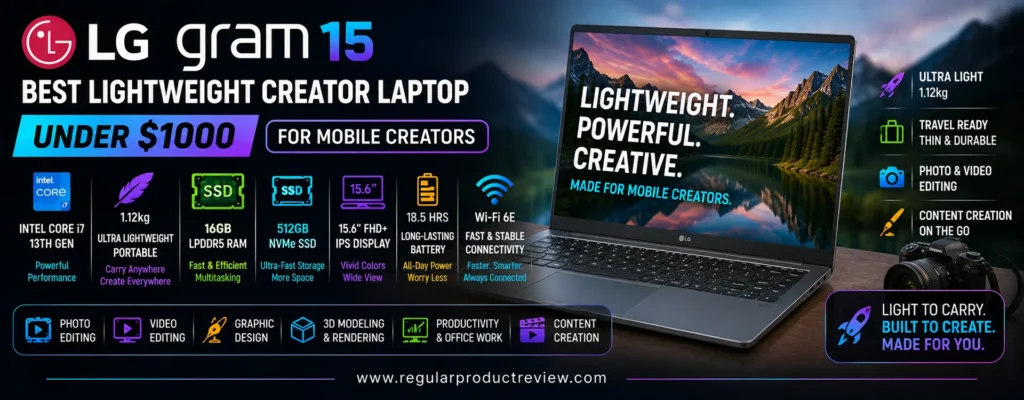
That combination makes the gram particularly appealing to photographers, travel creators, writers, bloggers, social-media professionals, digital marketers, and freelancers who regularly carry a computer alongside a camera, external SSD, headphones, chargers, and other gear. A heavier creator workstation may render faster, but the performance advantage matters less if the machine is inconvenient enough that you avoid carrying it.
The 15Z90S-H.AAB6U1 configuration we focus on combines a Core Ultra 7 155H, Intel Arc graphics, 16GB LPDDR5X RAM, and 1TB NVMe Gen4 SSD with a 15.6-inch FHD touch display. LG also offered a 32GB version, the 15Z90S-H.ADB8U1, using the same processor and storage capacity.
Creators comparing this portability-first approach with other slim machines should also explore our best ultrabooks under $1000, where weight, battery efficiency, and travel-friendly design receive greater priority than maximum GPU performance.
If you want to see how the gram compares with laptops designed more directly around editing, rendering, and visual production, our creator laptops hub covers a wider range of creator-focused hardware.
Editorial Insight: The LG gram 15 earns its place because mobility is a performance feature for creators who travel. Saving more than a pound compared with many 15- and 16-inch performance laptops can matter every day, even if it never appears in a benchmark chart.
📋 LG gram 15 Key Specifications
| Feature | Recommended Configuration |
|---|---|
| Model | LG gram 15Z90S-H.AAB6U1 |
| Processor | Intel Core Ultra 7 155H |
| Graphics | Intel Arc integrated graphics |
| Memory | 16GB LPDDR5X |
| Higher-Memory Variant | 32GB LPDDR5X on 15Z90S-H.ADB8U1 |
| Storage | 1TB NVMe Gen4 SSD |
| Display | 15.6-inch FHD touchscreen |
| Resolution | 1920 × 1080 |
| Operating System | Windows 11 Home |
| Camera | FHD webcam with dual microphones |
| Audio | Dolby Atmos |
| Battery Capacity | 72Wh on the 15Z90S platform |
| Approximate Weight | 1.29 kg / 2.84 lb |
| Wireless / Connectivity | Modern Wi-Fi plus Thunderbolt-class connectivity on the platform |
| Best For | Travel photography, blogging, social content, mobile design, writing, light video editing |
LG’s official US product page confirms the Core Ultra 7 155H, Intel Arc graphics, 16GB LPDDR5X RAM, 1TB NVMe Gen4 SSD, FHD touch display, FHD webcam, and Dolby Atmos for the AAB6U1 configuration.
⚠️ Price & Availability Note: The gram 15Z90S is an older generation rather than LG’s newest 2026 gram platform. LG’s US page currently points buyers toward retailers rather than showing a direct purchase price, and historical/remaining-stock pricing can vary considerably. Treat it as an under-$1,000 recommendation only when a reputable US retailer or verified sale lists the complete configuration below that threshold. LG itself warns that pricing, promotions, and availability vary by model and retailer.
🪶 2.84 Pounds Changes What a 15-Inch Laptop Feels Like
The main reason to buy an LG gram has always been weight, and the 15-inch platform remains unusually light for its screen size.
LG’s current global 15-inch gram specifications list the chassis at 1,290 grams, or roughly 2.84 pounds, while retaining a 15.6-inch display and a 72Wh battery.
That matters more in real creative work than it may seem.
A photographer heading to a location might already be carrying a camera body, lenses, batteries, memory cards, an external SSD, headphones, and charging equipment. A video creator may add microphones or a compact tripod. A student creator might also have books or notebooks.
Removing a pound or more from the laptop portion of that kit makes the total load noticeably easier to manage.
This is where the gram differs fundamentally from the GPU-heavy creator machines earlier in this guide.
The Gigabyte G6X and MSI Cyborg 15 give you substantially stronger graphics performance, but they also belong to a heavier performance class. The gram prioritizes the opposite experience: enough power for mainstream creation in a machine you are much more likely to carry everywhere.
💡 Expert Tip: If your laptop spends more time inside a backpack than connected to a desk, compare total travel weight, not laptop weight alone. A heavy gaming notebook plus a large power brick can feel dramatically less portable than a lightweight gram with compact USB-C charging.
⚡ Core Ultra 7 155H Gives a Lightweight Laptop Real CPU Capability
The Intel Core Ultra 7 155H is an important reason the gram 15 is more than a basic travel notebook.
LG’s official US specification confirms the processor in both its 16GB and 32GB 15Z90S configurations.
An H-series Core Ultra chip gives the laptop a much stronger foundation for creative multitasking than the low-power processors often used in ultraportables.
That helps when your workflow involves several applications at once.
A travel photographer might be importing images, running Lightroom, browsing references, uploading files to cloud storage, answering messages, and streaming music simultaneously. A blogger may move between Photoshop, WordPress, browser research, spreadsheets, and communication apps throughout the day.
The Core Ultra 7 platform is well suited to that kind of mixed productivity.
It will not sustain workstation-class performance indefinitely inside such a light chassis, but that is not the purpose of the gram. The point is to deliver credible creator performance without carrying a conventional performance laptop.
🎨 Intel Arc Graphics Handle Mainstream Creation Better Than Basic iGPUs
LG pairs the Core Ultra 7 155H with Intel Arc integrated graphics.
For mobile photographers, social creators, graphic designers, and users editing shorter videos, this is a sensible compromise.
Intel Arc integrated graphics provide acceleration for modern media and supported creative applications without the weight, thermal load, and battery demands of a discrete NVIDIA GPU.
That makes the gram well suited to:
- Photoshop
- Lightroom
- Illustrator
- Canva
- Figma
- social-media production
- WordPress
- image organization
- lighter Premiere Pro work
- short-form video production
Its limits appear quickly in GPU-intensive applications.
| Creative Workload | Editorial Fit | Practical Expectation |
|---|---|---|
| Photoshop | ★★★★★ | Excellent for mainstream mobile image editing |
| Lightroom | ★★★★☆ | Strong match for travel photography workflows |
| Illustrator / Canva | ★★★★★ | Well suited to portable design work |
| WordPress / Blogging | ★★★★★ | Excellent balance of screen size and mobility |
| 1080p Video Editing | ★★★★☆ | Good for light and moderate creator projects |
| Light 4K Editing | ★★★☆☆ | Practical when timelines and effects remain reasonable |
| Heavy 4K Editing | ★★☆☆☆ | Dedicated graphics offer substantially more headroom |
| DaVinci Resolve Effects | ★★☆☆☆ | GPU-intensive work is not its strength |
| Blender Rendering | ★★☆☆☆ | RTX-equipped hardware is much better suited |
| Travel Content Creation | ★★★★★ | Portability is where the hardware balance makes the most sense |
Creators who regularly work with Blender, Resolve, or GPU-heavy Premiere projects should compare our best gaming laptops under $1500 instead, where dedicated NVIDIA GPUs provide much greater acceleration.
🧠 16GB Works for Mobile Creation, but the 32GB Version Is Better for Power Users
LG’s AAB6U1 configuration includes 16GB LPDDR5X, while the ADB8U1 increases memory to 32GB LPDDR5X with the same Core Ultra 7 155H and 1TB SSD.
Sixteen gigabytes is appropriate for most of the workloads this laptop is intended to handle.
Photoshop, Lightroom, Canva, browser-heavy work, office software, WordPress, messaging, and lighter video editing can coexist comfortably when projects remain moderate.
The 32GB configuration is more attractive for creators who routinely work with:
- large RAW photo libraries
- several Adobe applications simultaneously
- large Photoshop documents
- heavier Lightroom catalogs
- 4K video
- virtual machines
- intensive browser multitasking
Because the gram uses LPDDR5X memory, buyers should treat RAM capacity as a purchase-time decision rather than assuming a simple later upgrade.
Editorial Recommendation: Buy 16GB for mainstream mobile creation. Choose 32GB when your existing projects already push beyond that level or when you plan to keep the laptop for several years.
💾 1TB Gen4 SSD Is Exactly What Mobile Creators Need
LG equips both of the US 15Z90S Core Ultra 7 configurations we reviewed with a 1TB NVMe Gen4 SSD.
That is a strong practical choice for creators.
A laptop built for travel should not immediately force you to carry external storage simply because the internal drive is too small for real projects.
One terabyte gives enough room for:
- RAW photo libraries
- active video projects
- Adobe applications
- Lightroom catalogs
- Photoshop files
- browser downloads
- music and reference media
- cache files
- exported projects
Large 4K video libraries will still need external or network storage, but 1TB dramatically reduces day-to-day storage pressure.
For photographers, that is particularly useful when working away from home. You can import a substantial shoot, create backups, and begin editing without immediately micromanaging free space.
🖥️ 15.6-Inch FHD Touch Display: Spacious, but Not a Premium Creator Panel
The gram 15Z90S uses a 15.6-inch 1920 × 1080 touch display. LG’s US product pages explicitly confirm the FHD touch panel on both the 16GB and 32GB variants.
The screen size is valuable for mobile creators.
Fifteen inches gives Photoshop, Lightroom, browser tools, writing software, and editing timelines more usable room than a compact 13-inch screen without requiring a much heavier chassis.
Touch support can also be convenient for navigating photos, scrolling through content, and presentation-oriented workflows.
The compromise is resolution.
FHD is functional, but it is less sharp than the 2.5K, 2.8K, or 3K displays available in several other creator laptops. Fine text, high-resolution photographs, and complex interfaces look better on higher-density panels.
Creators who place display sharpness and color performance ahead of portability should compare the alternatives in our best creator laptops under $1500.
🎨 Color-Critical Creators Should Verify the Exact Panel
LG’s US page confirms the FHD touch display but does not provide a complete professional color-gamut specification in the visible product details for the AAB6U1 SKU.
That means we should not automatically describe it as a reference-grade creator display.
For casual and mainstream photography, social-media work, blogging, and digital content production, the built-in screen is practical.
For commercial retouching, professional print work, grading, or any workflow where exact color accuracy affects client delivery, a calibrated external display remains the safer choice.
This distinction keeps the recommendation honest.
The LG gram 15 wins because of mobility—not because it has the best display in the roundup.
Editorial Insight: A mobile creator laptop can still be excellent even when its screen is not reference-grade. Use the gram for capture, organization, rough editing, writing, and production on location; use a calibrated monitor for final color decisions when accuracy matters.
🔋 72Wh Battery Is Impressive in Such a Light Chassis
LG’s 15-inch gram platform lists a 72Wh battery despite its approximately 1.29kg weight.
That ratio is one of the gram’s most attractive characteristics.
A lightweight laptop becomes much less useful if you must carry a charger everywhere or search constantly for an outlet. The relatively large battery helps offset that problem.
Real-world endurance will still depend on:
- display brightness
- Wi-Fi activity
- browser workload
- Photoshop and Lightroom use
- video playback
- exports
- AI processing
- external devices
Creative applications naturally reduce battery life more quickly than basic productivity tasks.
The benefit is not unlimited unplugged editing. It is the freedom to work through meaningful mobile sessions without carrying a workstation-class power setup.
🔌 Thunderbolt-Class Connectivity Helps Build a Portable Creator Desk
LG explicitly references Thunderbolt support on the 15Z90S platform, and its product notes also make clear that a Thunderbolt cable is not included.
For creators, Thunderbolt connectivity is valuable because it allows a lightweight laptop to become much more capable when it reaches a desk.
One connection can support workflows involving:
- high-speed external SSDs
- docking stations
- external monitors
- card readers
- wired networking
- additional USB devices
A traveling photographer can therefore carry the gram alone during the day, then return to a desk and connect it to a larger monitor and storage system.
That hybrid workflow is exactly where a lightweight laptop becomes more than simply a travel convenience.
🎥 FHD Webcam Supports Client Calls and Remote Collaboration
LG equips the 15Z90S with an FHD webcam and dual microphones.
For freelancers, remote creators, digital marketers, and students, this matters because the laptop may spend almost as much time in meetings as it does inside creative software.
The camera is not a professional production solution, but FHD resolution is appropriate for:
- client calls
- online classes
- collaboration
- remote presentations
- project meetings
- casual streaming
Dolby Atmos support also improves general media playback, although final audio decisions should still be made using appropriate headphones or monitoring speakers. LG lists Dolby Atmos as a core feature on the US model.
🛡️ Lightweight Does Not Automatically Mean Fragile
LG states that the 15Z90S passed seven MIL-STD-810H test methods through independent laboratory testing, including specified altitude, high-temperature, low-temperature, and vibration procedures. LG also correctly cautions that the device may not perform identically under every real-world condition.
That does not make the gram indestructible.
Military-standard testing should never be interpreted as permission to abuse a laptop.
What it does provide is useful context: LG did not achieve the low weight simply by ignoring durability testing.
For travel creators who move equipment frequently, that is reassuring.
✈️ The gram Makes More Sense for Airports Than Rendering Farms
The key question is not whether the gram is as fast as an RTX laptop.
It isn’t designed to be.
The more useful question is whether the performance you lose is worth the mobility you gain.
For a traveling photographer, writer, blogger, marketer, social creator, or freelance designer, the answer can easily be yes.
A 2.84-pound laptop is much easier to use in an airport, carry through a city, bring to client meetings, or keep in a camera bag than a 5-pound performance notebook.
Creators who need one laptop primarily for travel should also compare our best laptops for college students, where portability, battery life, and all-day usability overlap with many of the same priorities.
💼 A Strong Companion for Freelance and Hybrid Creative Work
Mobile creators often do much more than edit media.
A freelancer might spend the morning in Lightroom, the afternoon writing proposals, and the evening updating a website. A photographer may edit only a few images between shoots but spend hours managing email, cloud storage, invoices, calendars, and client galleries.
The LG gram handles that mixed workload well because its strengths are broad rather than specialized.
The Core Ultra platform provides strong general performance. Intel Arc graphics handle mainstream creative acceleration. The 15.6-inch screen offers proper working space. The 1TB SSD provides room for projects. And the lightweight chassis makes the whole system easier to keep with you.
For buyers whose workload resembles professional office work as much as creative production, our business laptops section offers additional alternatives centered on mobility and professional usability.
📊 LG gram 15 Creator Performance Snapshot
| Category | Editorial Score | Mobile-Creator Perspective |
|---|---|---|
| CPU Performance | 8.8/10 | Core Ultra 7 155H provides strong mobile creator performance |
| Integrated Graphics | 8.0/10 | Intel Arc works well for mainstream creative acceleration |
| Photography | 9.0/10 | Excellent portability and 1TB storage suit location workflows |
| Light Video Editing | 8.3/10 | Capable for mainstream projects without heavy GPU effects |
| Display Workspace | 8.6/10 | 15.6-inch panel gives considerably more room than compact ultraportables |
| Display Sharpness | 7.5/10 | FHD is functional but less impressive than higher-resolution competitors |
| Memory | 8.6/10 | 16GB is practical; 32GB variant is better for heavier workflows |
| Storage | 9.2/10 | 1TB Gen4 SSD is ideal for a mobile creator machine |
| Portability | 9.9/10 | Roughly 1.29kg is exceptional for a 15-inch-class laptop |
| Battery / Mobility Balance | 9.3/10 | 72Wh capacity is impressive relative to chassis weight |
| Creator Versatility | 9.0/10 | Strong fit for photography, writing, social content, and freelance work |
| Overall Rating | 9.0/10 | Exceptional mobility if you find a qualifying US configuration below $1,000 |
⚠️ About Our Scores: These are editorial suitability scores based on verified specifications, portability, creator workload fit, and ownership value. They are not fabricated laboratory benchmark results.
👤 Who Should Buy the LG gram 15?
The LG gram 15 is particularly well suited to:
- Travel photographers
- destination content creators
- bloggers and writers
- social-media creators
- freelancers
- digital marketers
- YouTube creators doing lighter edits
- students studying media or design
- remote professionals
- creators who frequently work in airports, cafés, studios, and client locations
- buyers who want a 15-inch screen without carrying a 15-inch gaming laptop
⚠️ Who Should Skip the LG gram 15?
Choose another laptop if your regular workload requires:
- dedicated NVIDIA graphics
- CUDA acceleration
- Blender Cycles rendering
- complex 3D scenes
- heavy DaVinci Resolve effects
- sustained professional 4K/6K production
- a built-in 2.5K or 3K creator display
- confirmed wide-gamut professional color performance
- user-upgradeable RAM
- maximum performance per dollar rather than portability
A heavier laptop is not automatically worse if you rarely leave your desk.
If raw performance matters more than weight, compare our gaming laptops under $1000 before paying a premium for the gram’s lightweight engineering.
✅ LG gram 15 Pros & Cons
| ✅ Pros | ❌ Cons |
|---|---|
| Approximately 1.29kg / 2.84 lb is exceptionally light for a 15-inch laptop | No dedicated NVIDIA GPU |
| Core Ultra 7 155H provides strong everyday creator performance | Heavy rendering workloads are not its strength |
| Intel Arc graphics support mainstream creative acceleration | FHD display is less sharp than 2.5K/3K alternatives |
| 16GB LPDDR5X configuration is suitable for mainstream creators | RAM is not positioned as a simple user upgrade |
| 32GB variant is available | Higher-memory stock may be harder to find under $1,000 |
| 1TB NVMe Gen4 SSD offers useful project capacity | Older 15Z90S generation has inconsistent current retail stock |
| 72Wh battery complements the mobility-focused design | Exact battery life varies significantly by workload |
| 15.6-inch screen provides useful workspace | Built-in panel is not established as a professional reference display |
| Touch display adds convenience | Touch capability does not replace pen-focused 2-in-1 functionality |
| Thunderbolt connectivity supports a strong docked setup | Port details should be verified by exact SKU |
| FHD webcam with dual microphones | Not intended as a professional streaming camera |
| MIL-STD-810H testing adds durability context | Ruggedness testing does not make the chassis damage-proof |
🏆 Why It Earns Our Best Lightweight Mobile Creator Award
The LG gram 15 earns Best Lightweight Creator Laptop Under $1000 for Mobile Creators because few laptops combine this much usable screen space with such little carrying weight.
LG’s 15-inch gram platform weighs around 1.29 kg, yet still accommodates a 15.6-inch display and a 72Wh battery.
The 15Z90S-H.AAB6U1 also provides enough actual computing hardware to make that portability useful rather than superficial: Core Ultra 7 155H, Intel Arc graphics, 16GB LPDDR5X, and a 1TB Gen4 SSD are all confirmed by LG’s US product page.
That gives photographers, bloggers, social creators, and freelancers enough performance for mainstream Photoshop, Lightroom, browser work, writing, asset management, and lighter video production without carrying a gaming-class machine.
The compromises are straightforward.
FHD resolution is modest. Integrated graphics limit rendering workloads. RAM flexibility is weaker than on upgrade-focused laptops, and the older 15Z90S generation is no longer as consistently stocked as current models.
Price is therefore crucial.
Historical US buyers have reported clearance-level pricing around the sub-$1,000 range for the AAB6U1, but current LG US pages direct shoppers to retailers and explicitly state that pricing and availability vary. We therefore recommend the gram 15 only when a trustworthy US seller offers the 16GB/1TB Core Ultra 7 configuration below $1,000 rather than assuming the model always qualifies.
If the gram is priced far above that threshold, buyers should compare newer models in our best ultrabooks of 2026 rather than paying an excessive premium for older inventory.
Our Recommendation: Choose the LG gram 15 with Core Ultra 7 155H, 16GB RAM, and 1TB SSD when you can find it below $1,000 and your workflow revolves around travel photography, blogging, social content, freelance work, writing, Lightroom, Photoshop, and lighter video editing. The 32GB version is preferable for heavier multitasking if it remains within budget. Choose an RTX laptop instead if rendering or GPU-intensive production defines your work.
🎯 Detailed Buying Guide: How to Choose the Best Creator Laptop Under $1000
Buying the best creator laptop under $1000 is less about finding one machine with the biggest specification numbers and more about spending your limited budget in the right places. A creator who edits YouTube videos has different hardware priorities from a photographer processing RAW files, a graphic designer working in Photoshop and Illustrator, or a Blender user rendering 3D scenes.
That difference is why generic laptop advice often leads to poor purchases. A gaming laptop may offer outstanding GPU performance but pair it with a mediocre display. A thin productivity notebook may provide beautiful OLED color and excellent battery life but struggle when a complex 4K timeline or 3D render pushes the graphics hardware. Neither approach is universally wrong—the question is whether the compromise matches your creative workflow.
At this budget, every dollar should improve something you regularly use: CPU performance, GPU acceleration, RAM, SSD capacity, display quality, connectivity, portability, or upgradeability. Features that look impressive in marketing material but rarely affect your work should come later.
Creators who want to see the broader market before narrowing the budget can explore our creator laptops buying hub, while buyers willing to spend more for stronger GPUs and premium displays should compare the best creator laptops under $1500.
Editorial Insight: Under $1,000, the smartest creator laptop is rarely the machine that wins every benchmark. It is the one with the fewest compromises in the areas your workflow depends on every week.
🧭 How to Choose the Right Creator Laptop
Start by identifying your most demanding recurring task.
Do not begin with a brand, processor generation, or retailer discount. Begin with your workload.
A photographer spending most of the day in Lightroom and Photoshop should prioritize different hardware from someone using Blender or DaVinci Resolve. Similarly, a creator producing short social videos does not automatically need the same GPU as someone editing multi-layer 4K projects for clients.
A useful buying process looks like this:
| Step | Question to Ask | Why It Matters |
|---|---|---|
| 1. Define Your Main Workload | What is the heaviest application I use regularly? | Determines CPU, GPU, and RAM requirements |
| 2. Set the Real Budget | Does $1,000 include upgrades and accessories? | DIY RAM, SSDs, docks, and card readers add cost |
| 3. Decide on GPU Need | Do my applications benefit heavily from dedicated graphics? | Prevents overpaying for unnecessary GPU power |
| 4. Choose RAM Capacity | Will 16GB remain enough for my projects? | Memory shortages affect multitasking and large projects |
| 5. Evaluate the Display | Is my work color-sensitive or primarily performance-driven? | Determines how important gamut, brightness, and resolution are |
| 6. Plan Storage | How large are my active projects and media libraries? | Creative files fill SSDs rapidly |
| 7. Check Connectivity | What cameras, drives, displays, and docks do I use? | Missing ports create daily friction |
| 8. Consider Mobility | How often will I actually carry the laptop? | Weight and battery life matter differently for each creator |
| 9. Check Upgradeability | Can RAM, SSD, or other parts be expanded later? | Extends useful ownership |
| 10. Verify the Exact SKU | Does this configuration match the specs I researched? | Laptop families often contain dramatically different hardware |
This approach helps prevent one of the most common mistakes in the budget creator laptop market: buying a model name instead of buying a configuration.
🎯 Match the Hardware to Your Creative Workflow
Different creative applications place pressure on different components.
| Creator Type | CPU Priority | GPU Priority | RAM Target | Display Priority | Storage Priority |
|---|---|---|---|---|---|
| Photographer | High | Medium | 16GB–32GB | Very High | High |
| Graphic Designer | High | Medium | 16GB–32GB | Very High | Medium–High |
| YouTube Creator | High | High | 16GB–32GB | High | Very High |
| Video Editor | Very High | Very High | 16GB–32GB+ | High | Very High |
| 3D / Blender Creator | High | Very High | 32GB preferred | Medium–High | High |
| Social-Media Creator | Medium–High | Medium | 16GB | High | Medium |
| Digital Marketer | High | Low–Medium | 16GB | Medium–High | Medium |
| Writer / Blogger | Medium | Low | 16GB | Medium–High | Medium |
| Mobile Photographer | High | Medium | 16GB–32GB | High | High |
| Motion Graphics Creator | Very High | Very High | 32GB preferred | High | Very High |
💡 Expert Tip: Buy for the hardest task you perform regularly, not the hardest task you might theoretically try once. This keeps you from paying for hardware that sits idle most of the year.
⚙️ CPU: How Much Processor Performance Do Creators Really Need?
The CPU remains one of the most important components in a creator laptop because it handles a broad range of tasks: application logic, photo processing, encoding, decompression, exports, simulations, multitasking, and many background operations.
However, processor names alone can be misleading.
An H- or HX-class processor is generally designed for higher sustained performance than a U-series chip, but that additional power comes with more heat and energy consumption. A mobile creator may gain more from a well-balanced Core Ultra or efficient Ryzen platform than from carrying an HX machine that spends most of its time browsing and editing photos.
CPU Priorities by Workload
| Workload | CPU Need | What to Prioritize |
|---|---|---|
| Photoshop | High | Strong single-core responsiveness + modern multicore CPU |
| Lightroom | High | Multicore performance for imports, exports, and processing |
| Premiere Pro | Very High | Strong modern multicore CPU with compatible media acceleration |
| After Effects | Very High | Fast CPU plus substantial RAM |
| Blender Modeling | High | Strong CPU responsiveness |
| CPU Rendering | Very High | More sustained multicore performance |
| Canva / Figma | Moderate | Modern efficient processor |
| Blogging / WordPress | Moderate | Responsive CPU rather than workstation power |
For most buyers under $1,000, modern Core Ultra 5/Core Ultra 7, Ryzen 5/Ryzen 7, or performance-oriented Core i5/Core i7 configurations can all make sense depending on the rest of the system.
Avoid choosing a laptop solely because it advertises an “i7” or “Ryzen 7.” Generation, power class, cooling, memory configuration, and GPU pairing can make two processors carrying similar branding perform very differently.
🎮 Integrated vs. Dedicated GPU: The Most Important Fork in the Road
The GPU decision can reshape the entire laptop.
Integrated graphics are built into the processor package and share system memory. Modern Intel Arc and AMD Radeon integrated solutions are capable enough for Photoshop, Lightroom, Canva, Figma, Illustrator, light video editing, and mainstream digital content.
Dedicated GPUs such as NVIDIA GeForce RTX chips include their own graphics memory and provide considerably more acceleration for applications that rely heavily on GPU compute.
Adobe’s current Premiere Pro hardware recommendations emphasize both memory and GPU resources for demanding video production, while Blender’s official system requirements recommend substantially more graphics memory for a stronger 3D experience.
Which GPU Type Fits You?
| Choose Integrated Graphics If… | Choose Dedicated RTX Graphics If… |
|---|---|
| You mainly use Photoshop and Lightroom | You regularly edit complex video |
| You create Canva or Figma content | You use DaVinci Resolve heavily |
| You prioritize battery life | You render with Blender Cycles |
| You travel frequently | You use CUDA or OptiX acceleration |
| Your video projects are relatively light | You work with 3D scenes |
| You want a thinner laptop | You use GPU-heavy effects |
| You mostly publish web and social content | Render/export time directly affects your income |
Creators who discover that a dedicated GPU is essential should also compare our gaming laptops under $1000. Gaming systems often deliver significantly more GPU performance per dollar than conventional productivity notebooks.
Editorial Insight: A weak built-in display can often be improved with an external monitor. A small SSD can often be upgraded. But you generally cannot add a real internal RTX GPU later. If GPU acceleration defines your workflow, prioritize it at purchase.
🧠 RAM: 16GB Should Be the Practical Starting Point
For a modern creator laptop, 16GB of RAM is the practical baseline.
Eight gigabytes can still handle basic computing, but creative applications increasingly coexist with browsers, cloud storage, messaging tools, background synchronization, media previews, and other utilities.
Adobe currently recommends 16GB or more for Photoshop, while its current Premiere guidance recommends significantly more memory for professional workflows. Adobe’s After Effects requirements also move toward 32GB or more for 4K and higher-resolution media.
Creator RAM Guide
| RAM | Best For | Recommendation |
|---|---|---|
| 8GB | Very light Canva, writing, browser work | Avoid for serious creator use |
| 16GB | Photoshop, Lightroom, Canva, 1080p editing, mainstream content | Best minimum target |
| 24GB | Heavier multitasking, larger photo projects | Useful middle ground |
| 32GB | 4K editing, After Effects, Blender, multiple Adobe apps | Preferred for advanced creators |
| 64GB+ | Heavy 3D, large compositions, professional multitasking | Specialized use |
Adobe’s current Photoshop technical requirements recommend 16GB or more, while the current After Effects requirements specify 32GB or more for higher-resolution media workflows.
Creators buying a laptop with soldered memory should be particularly careful.
If 16GB is permanently attached to the motherboard, you need to be comfortable keeping that capacity for the entire ownership period. Models such as the Framework Laptop 13 or MSI Modern 15 H AI are interesting precisely because they provide much more memory flexibility.
💾 SSD Storage: 512GB Is the Minimum, 1TB Is the Sweet Spot
Creative storage disappears much faster than ordinary office storage.
A creator laptop may need space for:
- RAW photographs
- 4K video clips
- proxy files
- application caches
- Lightroom catalogs
- Photoshop scratch files
- stock media
- music and sound effects
- 3D textures
- project backups
- exported videos
- Adobe applications
A 256GB SSD is too restrictive for most serious creator workflows.
512GB is workable, especially when paired with external storage.
1TB is the sweet spot for most buyers under $1,000 because it provides enough room for Windows, applications, caches, and several active projects without constant file management.
Storage Capacity Guide
| SSD Capacity | Creator Suitability | Best Use |
|---|---|---|
| 256GB | Poor | Basic office use only |
| 512GB | Acceptable | Photo work, social content, light video |
| 1TB | Excellent | Most creators |
| 2TB | Excellent | Video, large photography libraries, 3D assets |
| 4TB+ | Specialized | Large professional media libraries |
Do not assume you need all project storage internally.
A laptop with Thunderbolt 4, USB4, or fast USB-C can work extremely well with external SSDs. Intel specifies 40Gbps bandwidth for Thunderbolt 4, making compatible connections particularly useful for high-speed external storage and displays.
Creators who want inexpensive systems with flexible storage strategies can also explore our budget laptops section instead of automatically spending the entire $1,000 allowance.
🎨 Display Quality: The Specification Creators Should Never Ignore
A fast laptop with a poor display can be frustrating for visual work.
Resolution receives the most marketing attention, but creators should evaluate several display characteristics together:
- color gamut
- resolution
- brightness
- panel technology
- contrast
- aspect ratio
- refresh rate
- surface finish
- calibration potential
🌈 Understanding Color Gamut
For digital creators, sRGB and DCI-P3 are the two terms you will encounter most frequently in this price class.
100% sRGB is a strong baseline for web graphics, YouTube thumbnails, mainstream photography, UI work, and online content.
100% DCI-P3 provides a wider range of colors and is increasingly common on OLED displays.
A laptop advertising “IPS” or “OLED” does not automatically guarantee accurate or wide color coverage.
Always check the actual gamut specification.
| Display Coverage | Creator Suitability |
|---|---|
| 45% NTSC / low-gamut panels | Basic production; poor for color decisions |
| ~100% sRGB | Strong for web and general digital content |
| 100% DCI-P3 | Excellent for richer visual workflows |
| High Adobe RGB coverage | Particularly useful for certain photography/print workflows |
💡 Expert Tip: For photographers and designers, 100% sRGB on a good panel is more useful than a high resolution paired with weak color coverage.
🖥️ OLED vs. IPS for Content Creation
OLED panels have become increasingly available below $1,000.
They offer:
- extremely deep blacks
- very high contrast
- fast pixel response
- rich color
- excellent media viewing
IPS panels can offer:
- strong brightness
- matte anti-glare finishes
- good color accuracy
- potentially lower power consumption in some workflows
- fewer concerns around static UI elements
Neither technology automatically wins.
A quality IPS panel covering 100% sRGB can be more useful than a low-quality OLED configuration with poor calibration. Conversely, a 100% DCI-P3 OLED can provide a noticeably richer experience than a basic productivity IPS panel.
🔍 Resolution: FHD, 2K, 2.5K, 3K, or 4K?
For a creator laptop under $1,000:
1920 × 1080 / 1920 × 1200 is functional.
2K–2.5K is often the best balance of sharpness, workspace, and efficiency.
2.8K–3K looks excellent for detailed photography and design.
4K is usually unnecessary at this price unless color-critical display quality is also excellent.
Higher resolution consumes more GPU resources and may reduce battery life.
Do not pay for 4K simply because the number sounds premium.
📐 Why 16:10 and 3:2 Displays Are Great for Creators
Aspect ratio is easy to overlook.
A 16:10 or 3:2 panel provides additional vertical workspace compared with traditional 16:9 screens.
That can improve:
- Photoshop panel organization
- Lightroom libraries
- editing timelines
- browser-based tools
- document editing
- coding
- WordPress dashboards
- research and writing
The Framework Laptop 13’s 3:2 display is a good example of a design optimized around vertical workspace, while many current 16-inch creator laptops have moved toward 16:10.
🎬 What Video Editors Should Prioritize
Video editors should generally allocate budget in this order:
- CPU
- GPU
- RAM
- SSD capacity
- display
- connectivity
- portability
For 1080p YouTube projects, 16GB of RAM and modern integrated graphics can be enough.
For serious 4K work, 32GB RAM and dedicated graphics become substantially more attractive.
Adobe’s current Premiere guidance recommends 32GB or more RAM for Windows professional video systems and a GPU with meaningful VRAM resources. The exact requirement depends on codec, resolution, effects, and workflow, but it reinforces an important principle: heavier editing demands a balanced system rather than one impressive specification.
Video Editor Buying Matrix
| Video Workload | Suggested Hardware Direction |
|---|---|
| Short-form 1080p social video | Modern CPU + 16GB RAM + integrated graphics |
| YouTube 1080p production | Strong CPU + 16GB RAM + capable iGPU or entry GPU |
| Moderate 4K editing | H-series CPU + 16GB–32GB + dedicated GPU preferred |
| Heavy 4K effects | 32GB RAM + RTX-class GPU + 1TB+ SSD |
| Professional Resolve workflow | Strong dedicated GPU + ample VRAM + 32GB+ RAM |
If video production is your primary workload, our best gaming laptops under $1500 can also be worth examining because the additional budget dramatically increases GPU options.
📷 What Photographers Should Prioritize
Photography has a different hierarchy:
- display quality
- CPU performance
- RAM
- SSD storage
- portability
- card-reader connectivity
- GPU
For photographers, a laptop with 100% sRGB or DCI-P3 coverage can be more valuable than a gaming machine with a powerful GPU and poor display.
A good photo-editing configuration under $1,000 should ideally include:
- 16GB RAM minimum
- 1TB SSD when possible
- 100% sRGB or better
- modern processor
- useful USB-C connectivity
- full-size SD or easy external card-reader support
Travel photographers should also pay close attention to weight.
Our ultrabooks coverage can be especially useful if you prioritize carrying weight and battery behavior alongside Photoshop and Lightroom performance.
🖌️ What Graphic Designers Should Look For
Graphic designers should prioritize:
- accurate display
- resolution
- RAM
- CPU responsiveness
- external-monitor support
- comfortable keyboard and trackpad
- sufficient SSD storage
Illustrator, Photoshop, Figma, Affinity apps, Canva, and similar tools do not always demand a large discrete GPU.
A better display may improve your daily experience more than an RTX 4050 that spends most of its life idle.
For designers using 3D tools, motion graphics, or video alongside 2D applications, however, a discrete GPU becomes more useful.
🧊 Blender and 3D Creators Need a Different Machine
3D work is one of the clearest reasons to prioritize dedicated graphics.
Blender’s official current system requirements recommend:
- 32GB RAM
- an 8-core CPU
- 8GB of GPU memory
for its recommended Windows configuration.
That does not mean Blender will refuse to run below those specifications. It means heavier scenes and rendering become much more comfortable as hardware approaches those levels.
Blender’s Cycles renderer can also use NVIDIA GPU acceleration, including CUDA and OptiX on compatible hardware.
That gives RTX-equipped laptops a strong advantage for creators whose primary workload is rendering.
Editorial Recommendation: If Blender is one of your three most-used applications, try to buy RTX graphics with as much VRAM as the budget reasonably allows, then upgrade system RAM later if the laptop supports it.
🎙️ What YouTube and Social-Media Creators Actually Need
Many YouTube and social creators overbuy hardware.
A creator producing talking-head videos, Shorts, thumbnails, Canva graphics, scripts, browser research, and moderate Premiere timelines may not need workstation graphics.
A balanced system with:
- 16GB RAM
- 512GB–1TB SSD
- modern CPU
- decent integrated graphics
- quality display
- good webcam
- useful ports
can be much more practical.
If your channel evolves into multicamera 4K production, heavy effects, or frequent long exports, then an RTX laptop makes more sense.
🌡️ Cooling and Sustained Performance Matter More Than Benchmark Bursts
Creative workloads can remain demanding for extended periods.
A render may run for an hour.
A video export can load both CPU and GPU.
A large Lightroom batch export may stress the processor continuously.
A thin laptop that performs brilliantly for thirty seconds may slow down once temperatures rise. Gaming-oriented laptops typically have stronger cooling because they are designed for sustained loads, while ultrabooks trade some of that thermal capacity for portability.
There is no universally correct approach.
If you render for hours, prioritize cooling.
If you create social assets and edit photos between flights, prioritize mobility.
🔌 Ports Every Creator Should Think About
A creator laptop should connect easily to the rest of your workflow.
📊 Creator Connectivity Checklist
| Port / Feature | Why It Matters |
|---|---|
| USB-C | External drives, charging, docks, displays |
| Thunderbolt 4 / USB4 | High-speed storage, displays, advanced docks |
| USB-A | Older drives, mice, keyboards, audio gear |
| HDMI | External monitor and TV output |
| SD Card Reader | Cameras and professional media workflows |
| MicroSD | Drones, action cameras, mobile devices |
| Ethernet | Large network transfers and stable uploads |
| Headphone Jack | Monitoring and audio work |
Intel specifies Thunderbolt 4 with 40Gbps minimum bandwidth, making compatible ports particularly useful for fast SSDs and multiple creator peripherals.
Do not automatically reject a laptop without an SD reader. A good USB-C reader is inexpensive.
But photographers transferring cards several times every day may appreciate having one built in.
🔋 Battery Life vs. Performance: You Usually Can’t Maximize Both
High-performance laptops consume more power.
HX processors, high-wattage GPUs, bright OLED panels, and high-refresh displays can all reduce battery endurance.
Integrated-graphics ultrabooks typically perform better in mobile situations.
Ask yourself where the laptop will spend most of its life.
Mostly plugged in at a desk? Prioritize performance.
Frequently traveling? Prioritize efficiency and weight.
Half desk, half travel? Look for an H-series/Core Ultra platform without an oversized GPU, or choose a performance laptop with decent hybrid-graphics behavior.
🪶 Portability: Think Beyond the Laptop’s Weight
A laptop weighing 4.8 pounds may not sound dramatically heavier than one weighing 2.8 pounds.
Then add:
- a 180W power brick
- camera
- lenses
- external SSD
- headphones
- tablet
- cables
- battery pack
The difference becomes meaningful.
This is why laptops such as the LG gram appeal to traveling creators even though gaming systems offer much more graphics performance.
Students and mobile creators should also compare our best laptops for college students, where portability and everyday ownership receive greater emphasis.
🔧 Upgradeability Can Save Money Later
A creator laptop under $1,000 may eventually become limited by:
- RAM
- SSD capacity
- battery health
- ports
- processor performance
Upgradeable RAM and SSD storage provide the easiest ways to extend useful life.
A laptop supporting two SODIMM slots can often move from 16GB to 32GB or 64GB later.
A second M.2 SSD slot can add several terabytes of storage without replacing the original drive.
Framework takes this philosophy further by making the battery, ports, display, and mainboard modular.
Upgradeability should therefore be considered part of value—not merely a technical curiosity.
💵 How to Spend a $1,000 Creator Laptop Budget
The best allocation depends on your workload.
🎨 For Photo and Graphic Design
| Component | Budget Priority |
|---|---|
| Display | Very High |
| CPU | High |
| RAM | High |
| SSD | High |
| GPU | Medium |
| Portability | Medium–High |
🎬 For Video Editing
| Component | Budget Priority |
|---|---|
| CPU | Very High |
| GPU | Very High |
| RAM | Very High |
| SSD | Very High |
| Display | High |
| Portability | Medium |
🧊 For Blender and 3D
| Component | Budget Priority |
|---|---|
| GPU | Critical |
| VRAM | Critical |
| RAM | Very High |
| CPU | High |
| Cooling | High |
| Display | Medium |
✈️ For Mobile Creators
| Component | Budget Priority |
|---|---|
| Weight | Very High |
| Battery | Very High |
| Display | High |
| CPU | High |
| RAM | High |
| GPU | Medium |
⚠️ Common Creator Laptop Buying Mistakes
Buying an 8GB Laptop Because the Processor Looks Fast
The processor cannot compensate for constantly running out of memory.
For serious creator work, 16GB should be the starting point.
Assuming Every RTX Laptop Has a Good Display
Many budget gaming laptops sacrifice color gamut to reach aggressive prices.
For video mechanics and rendering this may be acceptable.
For photography and design it can be a serious disadvantage.
Choosing the GPU Name Without Checking VRAM or Power
An RTX 4060 running at a low wattage can perform very differently from a higher-power RTX 4060.
Similarly, 8GB VRAM provides more project headroom than 4GB in memory-heavy workloads.
Buying 256GB Storage
Creative media will overwhelm it quickly.
Avoid it unless you already have an external-storage workflow.
Ignoring Soldered RAM
A 16GB soldered laptop stays a 16GB laptop.
Consider your workload two or three years from now.
Paying for Features You Don’t Use
Touchscreens, 120Hz displays, premium webcams, RGB keyboards, AI branding, and luxury materials can all be useful—but only when they benefit your workflow.
Prioritize core hardware first.
Buying a Sale Without Checking the Exact SKU
Retailers often place several configurations under the same product name.
Verify:
- CPU
- GPU
- RAM
- SSD
- display
- battery
- warranty
- seller
before purchasing.
👥 Who Should Buy What?
| Creator Persona | Best Hardware Direction |
|---|---|
| Beginner Creator | 16GB RAM + 512GB SSD + modern integrated graphics |
| Photographer | 100% sRGB/DCI-P3 display + 16GB–32GB + 1TB SSD |
| Graphic Designer | High-quality display + 16GB+ RAM + external display support |
| YouTube Creator | Strong CPU + 16GB–32GB + dedicated GPU if editing is complex |
| Video Editor | H/HX CPU + RTX GPU + 32GB target + 1TB SSD |
| Blender Artist | RTX GPU + 8GB VRAM target + 32GB RAM |
| Student Creator | 16GB RAM + good battery + manageable weight |
| Travel Creator | Under ~3 lb where practical + 16GB + 1TB + efficient CPU |
| Freelancer | Balanced CPU + quality display + 16GB–32GB + good ports |
| Home Creator | Large display + performance + upgradeability |
📈 When Spending More Than $1,000 Is Worth It
Stretching the budget can be worthwhile when the extra money buys a meaningful workflow improvement.
Consider moving above $1,000 if it gets you:
- RTX 4060/5060-class graphics instead of integrated graphics
- 32GB RAM instead of soldered 16GB
- 1TB SSD instead of 512GB
- 100% DCI-P3 OLED instead of a low-gamut IPS panel
- substantially better cooling
- more GPU VRAM
- stronger warranty/support
- better upgradeability
If spending an extra $200 reduces every render by a meaningful amount and you render professionally every day, the higher price may quickly pay for itself.
If you mostly create Canva graphics and edit photographs, that same extra money might be better spent on a calibrated monitor, external SSD, camera gear, or software.
💰 When Spending Less Makes More Sense
You do not automatically need a $999 laptop because your maximum budget is $1,000.
For lighter workloads such as:
- blogging
- WordPress
- Canva
- social scheduling
- basic Photoshop
- light Lightroom
- writing
- research
- marketing dashboards
a less expensive machine can be perfectly adequate.
Our best budget laptops under $500 covers lower-cost options for users whose creative demands are modest.
The money saved could instead fund:
- more storage
- a better monitor
- an external SSD
- software subscriptions
- a microphone
- camera accessories
- cloud backup
🧰 Long-Term Ownership: Buy for Year Three, Not Just Day One
A creator laptop should ideally remain productive for several years.
Think about what will change during that time.
Project resolutions may increase.
AI tools may use more memory.
RAW files from a future camera may become larger.
Applications may become more demanding.
Your workflow may move from hobby to paid client work.
This is why 32GB-capable memory, replaceable SSDs, USB4/Thunderbolt connectivity, and repairability can matter even when you do not fully need them today.
A slightly slower upgradeable machine can sometimes provide better long-term value than a faster laptop whose memory and storage are permanently limited.
🧹 Maintenance Tips for Creator Laptops
Creator laptops often operate under heavier loads than ordinary office machines, so basic maintenance matters.
| Maintenance Task | Why It Helps |
|---|---|
| Keep vents clear | Reduces thermal throttling |
| Use a hard surface during renders | Improves airflow |
| Update GPU drivers | Maintains application compatibility |
| Keep creative software updated | Improves stability and codec support |
| Maintain SSD free space | Helps caches and working files |
| Back up projects | Protects irreplaceable media |
| Clean dust periodically | Helps long-term thermal performance |
| Monitor battery health | Prevents unexpected mobile-runtime decline |
| Calibrate displays when needed | Improves color consistency |
| Archive completed projects | Keeps active storage manageable |
💡 Final Buying Advice
The best laptop for content creation under $1000 should make your workflow easier, not merely look impressive on a comparison chart.
For photographers and graphic designers, prioritize display quality, 16GB or more RAM, and sufficient SSD storage. For video editors, allocate more of the budget to CPU and GPU capability. For Blender and 3D work, dedicated RTX graphics and VRAM become critical. For travelers, a lighter chassis and efficient platform may create more real-world value than another tier of GPU performance.
Do not assume every creator needs a gaming laptop, and do not assume every thin laptop is powerful enough simply because it uses a modern processor.
The strongest purchase is the one where every major component supports the job you actually do.
If your requirements are broader than this budget allows, compare our best creator laptops before compromising on something important. If $1,000 is a firm ceiling, prioritize your most demanding workload and accept compromises in areas that affect you less frequently.
Final Expert Recommendation: For most creators under $1,000, target 16GB RAM minimum, 1TB SSD when possible, a 100% sRGB-or-better display for visual work, and dedicated RTX graphics only when your applications genuinely benefit from it. A balanced configuration will usually remain useful longer than a laptop that spends the entire budget on one headline component.
📊 Product Comparison Tables: Best Creator Laptops Under $1000 Compared
Choosing between the best creator laptops under $1000 becomes much easier when their strengths are viewed side by side. The laptops in this roundup target very different creators: some prioritize GPU acceleration, others emphasize display quality, portability, upgradeability, or everyday productivity.
The tables below compare the ten recommendations using factors that matter most in real creative workflows, including CPU capability, GPU performance, memory flexibility, display suitability, storage, portability, and creator-specific value. Because several models are sold in multiple configurations, exact specifications can vary by SKU.
Creators who want a broader view of systems designed specifically for editing, photography, design, and digital production can also explore our creator laptops category for additional options across different price tiers.
If your workflow relies heavily on NVIDIA graphics, rendering, or GPU-accelerated video effects, compare these machines with our best gaming laptops under $1000, where dedicated-GPU performance often receives more of the budget.
Editorial Insight: A comparison table should not tell you which laptop has the largest numbers. It should help you identify which hardware advantage actually improves your own creative workflow.
🏆 Quick Ranking: Best Creator Laptops Under $1000
| Rank | Creator Laptop | Award | Best For | Main Strength | Main Trade-Off |
|---|---|---|---|---|---|
| 1 | HP OmniBook X 17 | Best Overall | Photography, design, YouTube, mainstream editing | Large 17.3-inch creator workspace and balanced hardware | Integrated graphics |
| 2 | Dell Inspiron 16 Plus 7620 | Best for Video Editing | Premiere Pro, YouTube, moderate 4K editing | RTX 3050 Ti + 3K 16:10 display | Older platform and limited clearance stock |
| 3 | Framework Laptop 13 Intel Core Ultra DIY | Best Upgradeable | Mobile creators and long-term ownership | Replaceable RAM, SSD, ports, battery, and mainboard | Complete DIY build can exceed $1,000 |
| 4 | Gigabyte G6X | Best for GPU-Accelerated Workflows | Resolve, Blender, video effects, rendering | RTX 4060 8GB option | Weak built-in color gamut |
| 5 | MSI Cyborg 15 | Best for 3D and Rendering | Blender, VFX, entry/intermediate 3D | RTX 4060 8GB and OptiX/CUDA support | Lower-power GPU implementation |
| 6 | Samsung Galaxy Book4 | Best Thin-and-Light | Social creation, photography, mobile productivity | 15.6-inch screen in a light chassis | Integrated graphics and basic FHD panel |
| 7 | Dell 16 Plus | Best Large-Screen | Design, multitasking, photography | Spacious 16-inch 16:10 display | Sub-$1,000 status depends on discounts |
| 8 | HP OmniBook 5 16 | Best for Everyday Content Creation | Canva, Photoshop, blogging, social media | 2K OLED with 100% DCI-P3 | No dedicated GPU |
| 9 | MSI Modern 15 H AI | Best for Productivity & Photo Editing | Lightroom, Photoshop, multitasking | H-series CPU and up to 96GB RAM support | Basic FHD creator display |
| 10 | LG gram 15 | Best for Mobile Creators | Travel photography, writing, freelance work | Around 2.84 lb with 15.6-inch screen | FHD display and integrated graphics |
⚠️ Pricing Note: Several products—especially the Dell Inspiron 16 Plus 7620, Dell 16 Plus, MSI Cyborg 15, Gigabyte G6X, and LG gram 15—can qualify for this roundup primarily through US promotional, outlet, clearance, or remaining-stock pricing. Always verify the exact SKU before purchasing.
⚡ CPU Performance Comparison
CPU performance affects exports, photo processing, multitasking, application responsiveness, and several editing operations. Performance-oriented H and HX processors generally provide more sustained power, while U-series and efficiency-focused chips are better suited to mobile creator workflows.
| Laptop | Processor Focus | CPU Class | Creator CPU Strength | Best CPU-Oriented Workload |
|---|---|---|---|---|
| HP OmniBook X 17 | Core Ultra 7 356H | H-Series | Very Strong | Photoshop, Lightroom, multitasking, mainstream video |
| Dell Inspiron 16 Plus 7620 | Core i7-12700H | H-Series | Very Strong | Video editing, exports, Adobe workloads |
| Framework Laptop 13 | Core Ultra 5/7 | H-Series | Very Strong | Photography, coding, design, mobile production |
| Gigabyte G6X | Core i7-13650HX | HX-Series | Excellent | Rendering, video editing, sustained creator workloads |
| MSI Cyborg 15 | Core i7-13620H | H-Series | Very Strong | 3D creation, VFX, editing |
| Samsung Galaxy Book4 | Core 7 150U | U-Series | Good | Everyday creative productivity |
| Dell 16 Plus | Core Ultra / Ryzen AI | Modern Mobile | Very Strong | Design, multitasking, photo workflows |
| HP OmniBook 5 16 | Core 7 150U | U-Series | Good | Canva, Photoshop, blogging, light editing |
| MSI Modern 15 H AI | Core Ultra 7 255H | H-Series | Excellent | Photo processing and heavy multitasking |
| LG gram 15 | Core Ultra 7 155H | H-Series | Very Strong | Mobile photography and creative productivity |
🧠 CPU Takeaway
For sustained processor-heavy workloads, the Gigabyte G6X and MSI Modern 15 H AI offer especially compelling CPU platforms. The Dell Inspiron 16 Plus 7620 also remains capable despite using an older processor generation.
Mobile-first models such as the Samsung Galaxy Book4 and HP OmniBook 5 16 deliberately trade some sustained CPU performance for better efficiency and everyday usability.
🎮 GPU Performance and Creative Acceleration Comparison
The GPU matters most for Blender, DaVinci Resolve, GPU-accelerated Premiere effects, 3D rendering, VFX, and selected AI workflows.
| Laptop | Graphics | VRAM | GPU Class | Best GPU Workload | GPU Verdict |
|---|---|---|---|---|---|
| HP OmniBook X 17 | Intel integrated graphics | Shared | Integrated | Photo/design/light video | ★★★☆☆ |
| Dell Inspiron 16 Plus 7620 | RTX 3050 Ti | 4GB | Dedicated | Premiere Pro, moderate Resolve | ★★★★☆ |
| Framework Laptop 13 | Intel Arc integrated | Shared | Integrated | Photo/design/light video | ★★★☆☆ |
| Gigabyte G6X | RTX 4060 Laptop GPU | 8GB | Dedicated | Resolve, Blender, rendering | ★★★★★ |
| MSI Cyborg 15 | RTX 4060 Laptop GPU | 8GB | Dedicated | Blender, Cycles, 3D | ★★★★☆ |
| Samsung Galaxy Book4 | Intel integrated graphics | Shared | Integrated | Photo/social/light editing | ★★★☆☆ |
| Dell 16 Plus | Intel Arc / Radeon | Shared | Integrated | Mainstream creator work | ★★★☆☆ |
| HP OmniBook 5 16 | Intel integrated graphics | Shared | Integrated | Photoshop, Canva, light editing | ★★★☆☆ |
| MSI Modern 15 H AI | Intel Arc integrated | Shared | Integrated | Lightroom, Photoshop | ★★★☆☆ |
| LG gram 15 | Intel Arc integrated | Shared | Integrated | Mobile photo/video workflows | ★★★☆☆ |
🏅 Best GPU Choice
The Gigabyte G6X with RTX 4060 8GB provides the strongest overall GPU proposition in this lineup when the correct configuration is available below $1,000.
The MSI Cyborg 15 RTX 4060 also provides 8GB VRAM and strong CUDA/OptiX capability, but its lower GPU power implementation makes it less competitive in sustained rendering.
The Dell Inspiron 16 Plus 7620 sits between those machines and integrated-graphics systems. Its RTX 3050 Ti is older and limited to 4GB VRAM, but it remains useful for mainstream GPU-accelerated editing at clearance pricing.
Creators who require even greater GPU performance should compare the higher-budget machines in our best gaming laptops under $1500, where stronger RTX configurations become easier to find.
🎬 Video Editing Comparison
| Laptop | 1080p Editing | Moderate 4K | Heavy 4K Effects | Premiere Pro | DaVinci Resolve | Video Editor Fit |
|---|---|---|---|---|---|---|
| HP OmniBook X 17 | ★★★★★ | ★★★☆☆ | ★★☆☆☆ | ★★★★☆ | ★★☆☆☆ | Mainstream |
| Dell Inspiron 16 Plus 7620 | ★★★★★ | ★★★★☆ | ★★★☆☆ | ★★★★★ | ★★★★☆ | Excellent Value |
| Framework Laptop 13 | ★★★★☆ | ★★★☆☆ | ★★☆☆☆ | ★★★☆☆ | ★★☆☆☆ | Light–Moderate |
| Gigabyte G6X | ★★★★★ | ★★★★★ | ★★★★☆ | ★★★★★ | ★★★★★ | Excellent |
| MSI Cyborg 15 | ★★★★★ | ★★★★☆ | ★★★★☆ | ★★★★☆ | ★★★★☆ | Very Strong |
| Samsung Galaxy Book4 | ★★★★☆ | ★★★☆☆ | ★★☆☆☆ | ★★★☆☆ | ★★☆☆☆ | Light Editing |
| Dell 16 Plus | ★★★★☆ | ★★★☆☆ | ★★☆☆☆ | ★★★☆☆ | ★★☆☆☆ | Mainstream |
| HP OmniBook 5 16 | ★★★★☆ | ★★★☆☆ | ★★☆☆☆ | ★★★☆☆ | ★★☆☆☆ | Light–Moderate |
| MSI Modern 15 H AI | ★★★★☆ | ★★★☆☆ | ★★☆☆☆ | ★★★★☆ | ★★☆☆☆ | CPU-Focused |
| LG gram 15 | ★★★★☆ | ★★★☆☆ | ★★☆☆☆ | ★★★☆☆ | ★★☆☆☆ | Mobile Editing |
Video Editing Recommendation: Choose the Dell Inspiron 16 Plus 7620 for the strongest combination of editing-focused features and creator-friendly display at clearance pricing. Choose the Gigabyte G6X when GPU acceleration and rendering speed matter more than built-in display quality.
🧊 Blender, 3D and Rendering Comparison
| Laptop | Blender Modeling | Cycles GPU Rendering | 3D Scene Headroom | GPU VRAM Advantage | Overall 3D Suitability |
|---|---|---|---|---|---|
| HP OmniBook X 17 | ★★★☆☆ | ★★☆☆☆ | ★★☆☆☆ | Low | 6.5/10 |
| Dell Inspiron 16 Plus 7620 | ★★★★☆ | ★★★★☆ | ★★★☆☆ | 4GB | 8.2/10 |
| Framework Laptop 13 | ★★★☆☆ | ★★☆☆☆ | ★★☆☆☆ | Shared | 6.7/10 |
| Gigabyte G6X | ★★★★★ | ★★★★★ | ★★★★★ | 8GB | 9.4/10 |
| MSI Cyborg 15 | ★★★★★ | ★★★★☆ | ★★★★☆ | 8GB | 9.0/10 |
| Samsung Galaxy Book4 | ★★☆☆☆ | ★☆☆☆☆ | ★★☆☆☆ | Shared | 5.5/10 |
| Dell 16 Plus | ★★★☆☆ | ★★☆☆☆ | ★★☆☆☆ | Shared | 6.4/10 |
| HP OmniBook 5 16 | ★★☆☆☆ | ★☆☆☆☆ | ★★☆☆☆ | Shared | 5.4/10 |
| MSI Modern 15 H AI | ★★★☆☆ | ★★☆☆☆ | ★★☆☆☆ | Shared | 6.5/10 |
| LG gram 15 | ★★★☆☆ | ★★☆☆☆ | ★★☆☆☆ | Shared | 6.3/10 |
🏆 Best for 3D
The Gigabyte G6X offers the strongest GPU performance for rendering when equipped with its RTX 4060 8GB configuration.
The MSI Cyborg 15 is particularly attractive for creators learning Blender because 8GB VRAM provides useful scene headroom and NVIDIA’s CUDA/OptiX ecosystem is directly relevant to GPU rendering.
📸 Photo Editing and Graphic Design Comparison
For photographers and designers, GPU performance becomes less dominant while display characteristics, CPU responsiveness, memory, storage, and portability move higher on the priority list.
| Laptop | Photoshop | Lightroom | Graphic Design | Built-In Display Advantage | Photo/Design Verdict |
|---|---|---|---|---|---|
| HP OmniBook X 17 | ★★★★★ | ★★★★★ | ★★★★★ | 100% sRGB, 17.3-inch workspace | Excellent |
| Dell Inspiron 16 Plus 7620 | ★★★★★ | ★★★★★ | ★★★★★ | 3K 16:10, 100% sRGB | Excellent |
| Framework Laptop 13 | ★★★★★ | ★★★★☆ | ★★★★★ | 3:2, 100% sRGB | Very Strong |
| Gigabyte G6X | ★★★★★ | ★★★★★ | ★★★☆☆ | 45% NTSC limits color work | External Monitor Recommended |
| MSI Cyborg 15 | ★★★★☆ | ★★★★☆ | ★★★☆☆ | Gaming-oriented FHD panel | External Monitor Recommended |
| Samsung Galaxy Book4 | ★★★★☆ | ★★★★☆ | ★★★★☆ | Large FHD IPS workspace | Good |
| Dell 16 Plus | ★★★★★ | ★★★★☆ | ★★★★★ | 16-inch 2.5K options | Very Strong |
| HP OmniBook 5 16 | ★★★★★ | ★★★★★ | ★★★★★ | 2K OLED, 100% DCI-P3 | Outstanding Display Value |
| MSI Modern 15 H AI | ★★★★★ | ★★★★★ | ★★★★☆ | Basic FHD IPS-level panel | Strong With External Monitor |
| LG gram 15 | ★★★★★ | ★★★★☆ | ★★★★☆ | Large FHD mobile workspace | Very Good for Travel |
🌈 Best Display for Everyday Visual Creation
The HP OmniBook 5 16 stands out for creators who prioritize a built-in screen. Its recommended configuration combines OLED technology with 100% DCI-P3 coverage, making it particularly compelling for photography, graphic design, social content, and general visual production.
The Dell Inspiron 16 Plus 7620 provides a different strength: a sharp 3K 16:10 display with 100% sRGB, giving editors more usable resolution and workspace.
The Framework Laptop 13 offers another creator-friendly alternative with its tall 3:2 display and 100% sRGB coverage.
🌈 Display and Workspace Comparison
| Laptop | Screen Size | Resolution / Option | Aspect Ratio | Color Strength | Best Display Use |
|---|---|---|---|---|---|
| HP OmniBook X 17 | 17.3″ | FHD | 16:9 | 100% sRGB | Large-screen visual productivity |
| Dell Inspiron 16 Plus 7620 | 16″ | 3K | 16:10 | 100% sRGB | Editing timelines and high-detail work |
| Framework Laptop 13 | 13.5″ | 2.2K / optional 2.8K | 3:2 | 100% sRGB | Photography and mobile design |
| Gigabyte G6X | 16″ | 1920 × 1200 | 16:10 | 45% NTSC | Editing mechanics / external monitor |
| MSI Cyborg 15 | 15.6″ | FHD | 16:9 | Configuration dependent | 3D navigation / external monitor |
| Samsung Galaxy Book4 | 15.6″ | FHD | 16:9 | Standard IPS | Mobile productivity |
| Dell 16 Plus | 16″ | Up to 2.5K | 16:10 | Configuration dependent | Large creator workspace |
| HP OmniBook 5 16 | 16″ | 2K OLED / optional 3K OLED | 16:10 | 100% DCI-P3 | Photography, graphics, social content |
| MSI Modern 15 H AI | 15.6″ | FHD | 16:9 | Standard IPS-level | Productivity / external monitor |
| LG gram 15 | 15.6″ | FHD Touch | 16:9 | Configuration dependent | Mobile photography and writing |
💡 Display Tip: If you deliver work primarily for websites, social platforms, and YouTube, 100% sRGB is a strong baseline. Photographers and designers wanting richer built-in gamut should prioritize a verified DCI-P3 or Adobe RGB-capable panel rather than assuming OLED, IPS, or high resolution automatically guarantees good color.
🧠 RAM and Upgradeability Comparison
| Laptop | Typical RAM | Maximum / Upgrade Path | RAM Type | Upgradeability Verdict |
|---|---|---|---|---|
| HP OmniBook X 17 | 16GB | Higher-capacity SKUs available | LPDDR5x onboard | Limited |
| Dell Inspiron 16 Plus 7620 | 16GB | Up to 40GB on applicable RTX configs | DDR5 + onboard | Good |
| Framework Laptop 13 | User-selected | Up to 96GB | DDR5 SODIMM | Exceptional |
| Gigabyte G6X | 16GB–32GB | Up to 64GB | DDR5 SODIMM | Excellent |
| MSI Cyborg 15 | 16GB | Up to 64GB on supported configs | DDR5 SODIMM | Excellent |
| Samsung Galaxy Book4 | 16GB | Fixed | LPDDR4x onboard | Limited |
| Dell 16 Plus | 16GB–32GB | Purchase-time configuration | LPDDR5X | Limited |
| HP OmniBook 5 16 | 16GB | Fixed on reviewed config | Onboard | Limited |
| MSI Modern 15 H AI | 16GB+ | Up to 96GB | DDR5 SODIMM | Exceptional |
| LG gram 15 | 16GB / 32GB | Purchase-time capacity | LPDDR5X | Limited |
🔧 Best for Memory Expansion
The Framework Laptop 13 and MSI Modern 15 H AI are the clear leaders for creators who expect their memory requirements to grow.
Framework adds much broader modularity beyond RAM, while MSI provides an unusually high 96GB ceiling in a traditional productivity-laptop format.
Creators interested in long-term professional ownership can also compare our business laptops coverage, where upgradeability, connectivity, and serviceability often receive additional emphasis.
💾 Storage and Expansion Comparison
| Laptop | Typical Storage | Internal Expansion | Creator Storage Verdict |
|---|---|---|---|
| HP OmniBook X 17 | 1TB | SKU dependent | Excellent starting capacity |
| Dell Inspiron 16 Plus 7620 | 512GB | Replaceable NVMe | Good, but 512GB fills quickly |
| Framework Laptop 13 | User-selected | Replaceable M.2 NVMe | Exceptional flexibility |
| Gigabyte G6X | 1TB common | 2 × Gen4 M.2 slots | Excellent for video/3D |
| MSI Cyborg 15 | 512GB–1TB | SKU dependent | Good |
| Samsung Galaxy Book4 | 512GB | Two storage slots listed | Very Good |
| Dell 16 Plus | 1TB common | Configuration dependent | Very Good |
| HP OmniBook 5 16 | 512GB / optional 1TB | Configuration dependent | Good |
| MSI Modern 15 H AI | 512GB–1TB | 1 × M.2 Gen4 | Good |
| LG gram 15 | 1TB | Model dependent | Excellent for mobile creation |
💡 Storage Recommendation
For serious creator use, 1TB is the ideal target whenever the budget allows it.
Video editors and 3D creators benefit most from internal expansion. The Gigabyte G6X is particularly strong because dual M.2 slots allow projects and applications to live on separate internal SSDs.
Framework provides greater freedom because buyers can select their own compatible M.2 storage and replace it later.
🔌 Creator Connectivity Comparison
| Laptop | USB-C / High-Speed I/O | HDMI | Card Reader | Standout Connectivity Feature |
|---|---|---|---|---|
| HP OmniBook X 17 | Thunderbolt 4 | HDMI 2.1 | No integrated SD | Multiple USB-A + TB4 |
| Dell Inspiron 16 Plus 7620 | Thunderbolt 4 | HDMI 2.0 | Full-size SD on RTX 3050 Ti config | Excellent video/photo workflow |
| Framework Laptop 13 | Configurable USB-C | HDMI via module | SD / MicroSD modules | Fully configurable ports |
| Gigabyte G6X | USB-C | HDMI | SKU dependent | Performance-focused expansion |
| MSI Cyborg 15 | USB-C | HDMI | Configuration dependent | Good gaming-derived I/O |
| Samsung Galaxy Book4 | 2 × USB-C | HDMI | MicroSD | RJ45 Ethernet + multiple USB-A |
| Dell 16 Plus | USB-C | HDMI | SKU dependent | Modern productivity connectivity |
| HP OmniBook 5 16 | USB-C | HDMI | Configuration dependent | Practical mainstream ports |
| MSI Modern 15 H AI | USB-C + DP/PD | HDMI | MicroSD | Strong productivity I/O |
| LG gram 15 | Thunderbolt-class connectivity | Model dependent | Model dependent | Strong docked-mobile workflow |
📷 Best for Camera-Based Creators
The Dell Inspiron 16 Plus 7620 stands out because the relevant RTX 3050 Ti configuration includes a full-size SD card reader, making it particularly convenient for photographers and videographers.
Framework deserves special mention because creators can choose an SD or MicroSD Expansion Card only when they need it.
✈️ Portability Comparison
| Laptop | Approx. Portability Class | Screen Size | Travel Suitability | Mobile-Creator Verdict |
|---|---|---|---|---|
| HP OmniBook X 17 | Large | 17.3″ | ★★☆☆☆ | Desk-first |
| Dell Inspiron 16 Plus 7620 | Medium-Heavy | 16″ | ★★★☆☆ | Transportable |
| Framework Laptop 13 | Lightweight | 13.5″ | ★★★★★ | Excellent |
| Gigabyte G6X | Heavy | 16″ | ★★☆☆☆ | Performance-first |
| MSI Cyborg 15 | Medium-Heavy | 15.6″ | ★★★☆☆ | Mobile performance |
| Samsung Galaxy Book4 | Lightweight | 15.6″ | ★★★★★ | Excellent |
| Dell 16 Plus | Medium | 16″ | ★★★★☆ | Good hybrid use |
| HP OmniBook 5 16 | Medium | 16″ | ★★★★☆ | Good hybrid use |
| MSI Modern 15 H AI | Medium | 15.6″ | ★★★★☆ | Productivity mobile |
| LG gram 15 | Ultra-Light | 15.6″ | ★★★★★ | Best for Travel |
🪶 Best for Travel
The LG gram 15 is the clear portability specialist. At roughly 2.84 pounds, it provides an unusually large working area for its weight.
The Framework Laptop 13 is another excellent travel choice and adds dramatically better upgradeability.
The Samsung Galaxy Book4 provides a useful compromise for buyers who want a larger 15.6-inch screen but still need a lightweight everyday machine.
Creators whose lifestyle centers on travel, class, or remote work can compare additional options in our best laptops for college students.
🔋 Battery and Mobility Priorities
Battery runtime depends heavily on workload, brightness, configuration, and power settings, so rated capacity should not be treated as a direct runtime ranking.
| Laptop | Battery / Efficiency Focus | Heavy Creative Use | Light Mobile Work | Mobility Profile |
|---|---|---|---|---|
| HP OmniBook X 17 | Large 83Wh battery | Moderate | Strong | Large-screen mobility |
| Dell Inspiron 16 Plus 7620 | 56Wh / 86Wh depending on SKU | Moderate | Moderate–Good | Performance-oriented |
| Framework Laptop 13 | 61Wh replaceable | Good | Strong | Balanced mobile creator |
| Gigabyte G6X | 73Wh | Low–Moderate | Moderate | GPU-first |
| MSI Cyborg 15 | Performance-focused | Low–Moderate | Moderate | Rendering-first |
| Samsung Galaxy Book4 | 54Wh + efficient U-series CPU | Moderate | Strong | Mobile productivity |
| Dell 16 Plus | 64Wh | Moderate | Strong | Hybrid |
| HP OmniBook 5 16 | Efficiency-focused | Moderate | Strong | Everyday creator |
| MSI Modern 15 H AI | H-series productivity | Moderate | Moderate | CPU-focused |
| LG gram 15 | 72Wh + ultra-light chassis | Moderate | Excellent | Travel specialist |
Battery Advice: Never compare creator laptops only by battery capacity. A 73Wh gaming laptop with an HX CPU and RTX GPU can consume significantly more power than a 54Wh productivity laptop during ordinary use.
🛠️ Upgradeability and Long-Term Ownership Comparison
| Laptop | RAM | SSD | Ports / Modules | Battery / Major Components | Long-Term Ownership |
|---|---|---|---|---|---|
| HP OmniBook X 17 | Limited | Moderate | Fixed | Conventional | ★★★☆☆ |
| Dell Inspiron 16 Plus 7620 | Partial upgrade | Replaceable | Fixed | Conventional | ★★★★☆ |
| Framework Laptop 13 | Replaceable | Replaceable | Modular | Battery, display, mainboard replaceable | ★★★★★ |
| Gigabyte G6X | Replaceable | Dual M.2 | Fixed | Conventional | ★★★★☆ |
| MSI Cyborg 15 | Replaceable | Upgradeable by SKU | Fixed | Conventional | ★★★★☆ |
| Samsung Galaxy Book4 | Fixed | Expandable | Fixed | Conventional | ★★★☆☆ |
| Dell 16 Plus | Fixed | Model dependent | Fixed | Conventional | ★★★☆☆ |
| HP OmniBook 5 16 | Fixed | Model dependent | Fixed | Conventional | ★★★☆☆ |
| MSI Modern 15 H AI | Replaceable up to 96GB | Replaceable | Fixed | Conventional | ★★★★☆ |
| LG gram 15 | Fixed | Model dependent | Fixed | Conventional | ★★★☆☆ |
🔧 Upgradeability Winner
The Framework Laptop 13 wins decisively.
Its value goes beyond replaceable RAM and storage. Framework’s modular design allows the display, battery, Expansion Cards, and even mainboard to evolve over time, giving it a fundamentally different ownership model from conventional laptops.
👥 Best Laptop by Creator Type
| Creator Type | Best Choice | Why |
|---|---|---|
| Best Overall Creator | HP OmniBook X 17 | Excellent balance of screen space, CPU, memory, storage, and connectivity |
| Video Editor | Dell Inspiron 16 Plus 7620 | RTX GPU + 3K 16:10 display + Thunderbolt 4 |
| Upgrade-Focused Creator | Framework Laptop 13 | Industry-leading modularity and memory flexibility |
| GPU-Accelerated Creator | Gigabyte G6X | RTX 4060 8GB and strong HX CPU |
| Blender / 3D Creator | MSI Cyborg 15 | RTX 4060 8GB with CUDA/OptiX access |
| Mobile Social Creator | Samsung Galaxy Book4 | Lightweight 15.6-inch everyday design |
| Large-Screen Multitasker | Dell 16 Plus | 16-inch 16:10 workspace |
| Everyday Content Creator | HP OmniBook 5 16 | OLED display, 100% DCI-P3, balanced performance |
| Photographer / Productivity User | MSI Modern 15 H AI | Powerful CPU and exceptional RAM expansion |
| Travel Creator | LG gram 15 | Extremely low weight and 15.6-inch workspace |
💵 Creator Value Comparison
Value means more than the lowest purchase price. It considers how much useful creator capability you receive for the money and how severe the compromises are.
| Laptop | Performance Value | Display Value | Upgrade Value | Mobility Value | Overall Creator Value |
|---|---|---|---|---|---|
| HP OmniBook X 17 | 8.8/10 | 8.8/10 | 7.0/10 | 7.5/10 | 9.0/10 |
| Dell Inspiron 16 Plus 7620 | 9.1/10 | 9.2/10 | 8.4/10 | 7.6/10 | 9.0/10 |
| Framework Laptop 13 | 8.5/10 | 9.0/10 | 10/10 | 9.4/10 | 9.1/10 |
| Gigabyte G6X | 9.5/10 | 6.8/10 | 9.3/10 | 6.9/10 | 9.0/10 |
| MSI Cyborg 15 | 9.0/10 | 6.8/10 | 9.0/10 | 7.8/10 | 8.9/10 |
| Samsung Galaxy Book4 | 7.9/10 | 7.4/10 | 6.8/10 | 9.5/10 | 8.7/10 |
| Dell 16 Plus | 8.3/10 | 9.0/10 | 7.0/10 | 8.2/10 | 8.6/10 |
| HP OmniBook 5 16 | 8.2/10 | 9.5/10 | 7.0/10 | 8.4/10 | 8.9/10 |
| MSI Modern 15 H AI | 9.1/10 | 6.9/10 | 9.8/10 | 8.0/10 | 8.9/10 |
| LG gram 15 | 8.5/10 | 7.6/10 | 7.0/10 | 9.9/10 | 9.0/10 |
⚠️ Editorial Score Note: These are comparative editorial suitability scores, not laboratory benchmark measurements. They summarize how each laptop’s verified hardware and design fit its intended creator audience.
⚖️ Performance vs. Portability Comparison
| Laptop | Raw Performance | Portability | Better Choice If You Prioritize… |
|---|---|---|---|
| HP OmniBook X 17 | ★★★★☆ | ★★★☆☆ | Large workspace and general creation |
| Dell Inspiron 16 Plus 7620 | ★★★★☆ | ★★★☆☆ | Video editing |
| Framework Laptop 13 | ★★★★☆ | ★★★★★ | Mobility + long-term ownership |
| Gigabyte G6X | ★★★★★ | ★★☆☆☆ | GPU acceleration |
| MSI Cyborg 15 | ★★★★☆ | ★★★☆☆ | 3D and rendering |
| Samsung Galaxy Book4 | ★★★☆☆ | ★★★★★ | Everyday mobile creation |
| Dell 16 Plus | ★★★★☆ | ★★★★☆ | Screen size + hybrid work |
| HP OmniBook 5 16 | ★★★☆☆ | ★★★★☆ | OLED visual workflows |
| MSI Modern 15 H AI | ★★★★☆ | ★★★★☆ | CPU productivity |
| LG gram 15 | ★★★★☆ | ★★★★★ | Frequent travel |
🎯 Fast Decision Table: Which Creator Laptop Should You Buy?
| If Your Priority Is… | Choose | Why |
|---|---|---|
| The best all-around balance | HP OmniBook X 17 | Large screen, strong CPU, 16GB RAM, 1TB SSD, 100% sRGB |
| Video editing under $1000 | Dell Inspiron 16 Plus 7620 | RTX graphics and sharp 3K creator display |
| Long-term upgrades | Framework Laptop 13 | Replaceable memory, storage, ports, battery, display, and mainboard |
| Maximum GPU capability | Gigabyte G6X RTX 4060 | Strongest RTX implementation among our value picks |
| Blender and 3D | MSI Cyborg 15 RTX 4060 | 8GB VRAM plus CUDA/OptiX |
| Thin-and-light everyday creation | Samsung Galaxy Book4 | Large screen without gaming-laptop weight |
| Large 16:10 workspace | Dell 16 Plus | Excellent screen area when discounted appropriately |
| OLED display quality | HP OmniBook 5 16 | 100% DCI-P3 OLED is excellent for visual content |
| Photo editing + lots of RAM | MSI Modern 15 H AI | Strong H-series CPU and up to 96GB RAM |
| Minimum travel weight | LG gram 15 | Around 2.84 lb with a 15.6-inch screen |
🥇 Final Head-to-Head Recommendations
Best Overall Balance — HP OmniBook X 17
Choose the HP OmniBook X 17 if you want one machine for photography, design, YouTube, browser-heavy work, lighter video editing, and professional productivity. Its main advantage is that no single everyday weakness dominates the experience.
Best Performance Deal — Gigabyte G6X
Choose the Gigabyte G6X if GPU acceleration determines how quickly you finish work. RTX 4060 8GB graphics make it the most convincing option for Resolve, Blender, GPU effects, and rendering when an eligible configuration falls below $1,000.
Best Visual Value — HP OmniBook 5 16
Choose the HP OmniBook 5 16 if your work is primarily visual but not heavily GPU-dependent. Its 2K OLED with 100% DCI-P3 is more useful to many photographers, Canva creators, and designers than an entry-level discrete GPU paired with a weak screen.
Best Long-Term Investment — Framework Laptop 13
Choose the Framework Laptop 13 if you dislike disposable laptop design. Memory, storage, ports, battery, display, and mainboard flexibility give it unmatched potential to evolve with your workflow.
Best Mobile Choice — LG gram 15
Choose the LG gram 15 when mobility influences your productivity every day. Its combination of an approximately 2.84-pound chassis, 15.6-inch screen, Core Ultra processor, and 1TB storage is difficult to replicate with a conventional performance laptop.
Final Comparison Advice: Do not buy solely from the ranking. Start with the table that matches your primary workload—GPU performance for 3D, display quality for photography, portability for travel, or upgradeability for long-term ownership—and choose the laptop that leads in the category you will actually use.
❓ Frequently Asked Questions (FAQs)
Choosing the best creator laptop under $1000 often comes down to the details: how much RAM you really need, whether dedicated graphics matter, what display quality is worth paying for, and how far a sub-$1,000 machine can realistically go with modern creative software.
The questions below address the most common buying concerns for photographers, video editors, designers, YouTubers, Blender users, freelancers, students, and other creators shopping in this price range.
Is $1,000 enough for a good creator laptop?
Yes. A $1,000 budget can buy a very capable creator laptop if your expectations match the workload.
For photography, graphic design, social-media production, Canva, Photoshop, Lightroom, blogging, and moderate video editing, a sub-$1,000 system with 16GB RAM, a modern CPU, fast NVMe storage, and a quality display can be excellent.
The limitations become more obvious in GPU-heavy work. Blender, advanced DaVinci Resolve effects, complex After Effects projects, and heavy 4K production benefit substantially from stronger dedicated graphics and more memory.
Creators who want to see what additional budget unlocks can compare our best creator laptops under $1500.
How much RAM should a creator laptop have?
For most creators, 16GB should be considered the practical minimum.
That amount works well for Photoshop, Lightroom, Canva, browser-heavy workflows, 1080p editing, and normal creative multitasking. Adobe’s current Photoshop requirements recommend 16GB or more for a stronger experience.
More demanding creators should target 32GB. Adobe’s current Premiere guidance recommends 32GB RAM or more for Windows professional video systems, while After Effects recommends 32GB or more for 4K and higher-resolution media.
Is 16GB RAM enough for 4K video editing?
It can be enough for lighter 4K projects, but 32GB is the safer target for serious editing.
Sixteen gigabytes can handle relatively straightforward 4K timelines when effects, applications, and background processes remain controlled. Larger projects, multicamera editing, After Effects integration, large caches, and intensive multitasking quickly increase memory pressure.
Adobe currently recommends 32GB or more for professional Premiere workflows on Windows, which is a useful target for buyers who expect 4K editing to become a regular part of their work.
Do content creators need a dedicated GPU?
Not every creator does.
Photographers, bloggers, Canva users, graphic designers, writers, social-media managers, and creators handling lighter video can often work effectively with modern integrated Intel Arc or AMD Radeon graphics.
A dedicated GPU becomes much more important for Blender, DaVinci Resolve, GPU-intensive Premiere effects, 3D rendering, VFX, and CUDA-accelerated applications.
If those tasks define your workflow, compare the RTX-equipped systems in our gaming laptops under $1000 coverage.
Is an RTX GPU worth it for video editing?
Yes, when your software and projects actually take advantage of it.
Adobe’s current Premiere guidance recommends a GPU with at least 4GB of VRAM for stronger professional workflows and notes that additional GPU resources can improve rendering and export performance.
An RTX laptop can therefore make sense for editors using accelerated effects, heavier timelines, or applications such as DaVinci Resolve.
For simpler 1080p editing or social content, however, spending the same money on more RAM, a better display, or a 1TB SSD can sometimes improve everyday usability more.
Which is more important for creators: CPU or GPU?
It depends on the application.
For Lightroom, Photoshop, general productivity, browser-based creation, and many exports, CPU performance remains extremely important.
For Blender, GPU rendering, DaVinci Resolve, 3D applications, and accelerated video effects, GPU capability becomes more important.
Most video editors need balance rather than choosing one component in isolation. A powerful GPU attached to a weak processor or only 8GB of RAM can still produce a poor creator experience.
Editorial Insight: Buy around the component your heaviest application uses most—but never ignore the rest of the system.
Is OLED better than IPS for creators?
OLED can be excellent for creators, but OLED is not automatically better in every situation.
A good OLED panel can provide deep blacks, excellent contrast, rapid response, and wide color coverage. The HP OmniBook 5 family, for example, is available with 16-inch 2K OLED configurations. HP currently markets OmniBook 5 systems with OLED display options in its US lineup.
A good IPS panel can still be preferable for buyers who want a matte finish, strong brightness, or a less expensive configuration.
Color gamut and calibration matter more than the panel technology label alone.
What color gamut should a creator laptop have?
For mainstream digital content, 100% sRGB is a strong minimum target.
It is well suited to:
- web graphics
- YouTube thumbnails
- social-media assets
- mainstream photography
- interface design
- online publishing
A display covering 100% DCI-P3 offers a wider color range and can be more attractive for richer visual workflows.
Low-gamut panels such as many 45% NTSC gaming displays are acceptable for editing mechanics and rendering, but they are not ideal for serious color decisions.
Is a 512GB SSD enough for content creation?
Yes, but it can become limiting quickly.
A 512GB SSD is practical for Photoshop, Lightroom, Canva, social content, and smaller video projects. Once you begin storing RAW libraries, 4K footage, proxies, project caches, audio libraries, and exports, storage disappears rapidly.
For most serious creators, 1TB is the better target.
If the laptop has fast USB-C, USB4, or Thunderbolt connectivity, external SSDs can also provide an efficient way to expand project storage.
Do creators need Thunderbolt 4 or USB4?
Not necessarily, but high-speed connectivity can significantly improve a creator workstation.
Thunderbolt and USB4 can be valuable for:
- high-speed external SSDs
- docks
- multiple displays
- card readers
- audio interfaces
- wired networking
- expanding a thin laptop at a desk
It becomes especially useful for creators who keep large footage libraries on external drives or regularly dock a portable laptop to a larger workspace.
Are gaming laptops good for content creation?
Yes—sometimes extremely good.
Gaming laptops often offer dedicated RTX graphics, strong cooling, upgradeable RAM, and multiple SSD slots at prices conventional creator notebooks cannot match.
Their weaknesses usually include:
- heavier weight
- shorter battery life
- louder cooling
- gaming-oriented styling
- weaker built-in color gamut on some models
This makes them excellent for rendering and video performance, but not automatically ideal for photographers or designers.
Our gaming laptops category is particularly relevant if GPU acceleration matters more than portability.
Can a laptop under $1000 run Adobe Premiere Pro?
Yes. Many sub-$1,000 laptops can run Premiere Pro effectively.
The real question is what type of Premiere project you expect to edit.
Light 1080p and moderate 4K production can work well on modern creator laptops. Heavier projects require more memory and graphics resources. Adobe currently recommends 32GB or more system RAM for professional Windows workflows and at least 4GB of GPU memory.
For heavier video work, prioritize an H/HX-class CPU and dedicated graphics.
Can a creator laptop under $1000 run Blender?
Yes, but Blender places much greater demands on graphics than typical photography or design applications.
Blender’s current recommended Linux hardware guidance lists an 8-core CPU, 32GB RAM, and 8GB VRAM as recommended specifications.
That makes an RTX 4060 8GB configuration much more appealing for 3D work than a general-purpose laptop using integrated graphics.
Beginners can start below those recommendations, but scene complexity and rendering time will determine how quickly stronger hardware becomes valuable.
Is a MacBook or Windows laptop better for creators under $1000?
For this particular budget, Windows usually provides more configuration diversity.
A Windows buyer can choose among:
- OLED productivity laptops
- lightweight ultrabooks
- upgradeable systems
- RTX gaming-derived creator machines
- large-screen laptops
- 2-in-1 designs
MacBooks remain strong creator tools, especially for optimized media workflows, but configuration flexibility and sub-$1,000 memory/storage options can be more limited depending on current pricing.
The better platform ultimately depends on your software, workflow, peripherals, and ecosystem—not simply the operating system.
Should a photographer buy a gaming laptop?
Usually only if the photographer also needs GPU-heavy video or 3D performance.
For photography alone, prioritize:
display quality, 16GB–32GB RAM, CPU responsiveness, 1TB storage, portability, and card-reader connectivity.
A gaming laptop with RTX graphics but weak color gamut can be less useful for photography than a lighter machine with 100% sRGB or DCI-P3 coverage.
Photographers who want broader portable options can also explore our ultrabooks category.
How important is an SD card reader for a creator laptop?
It depends on your camera workflow.
A built-in full-size SD reader is extremely convenient for photographers and videographers who transfer media several times a day.
It is less important for:
- smartphone creators
- creators using USB-C cameras
- users who already carry a high-speed external reader
- drone users primarily working with MicroSD
An external USB-C card reader is inexpensive, so the lack of an SD slot should rarely outweigh more important considerations such as GPU performance, RAM, or display quality.
Is upgradeability important in a creator laptop?
Yes, especially if you plan to keep the laptop for several years.
Creative workloads tend to become more demanding over time. RAW files get larger, projects become more complex, and software consumes more memory.
Upgradeable RAM and SSD storage can therefore extend useful ownership significantly.
Framework takes this concept much further. The company specifically designs the Laptop 13 to be customizable, repairable, and upgradeable, including modular components and future mainboard replacement options.
This can make upgradeability worth prioritizing even when another laptop benchmarks slightly faster today.
Should I buy a discounted older laptop or a newer budget model?
A discounted older performance laptop can be an excellent purchase when its hardware remains competitive.
The Dell Inspiron 16 Plus 7620 is a good example from this roundup: an older high-performance processor combined with RTX graphics and a high-resolution display can still offer stronger creator value than a newer low-power notebook.
However, check:
- battery age
- warranty
- seller
- remaining stock
- software support
- GPU VRAM
- display quality
- upgradeability
Do not buy older hardware merely because the discount percentage looks large.
How long should a $1000 creator laptop last?
A well-chosen creator laptop can remain useful for several years, but longevity depends more on configuration than the original price.
Models with:
- 16GB–32GB RAM
- replaceable SSDs
- capable modern processors
- sufficient GPU resources
- good ports
- repairable batteries
usually age better.
A laptop already constrained by 8GB RAM or 256GB storage on day one is much more likely to feel limiting early.
What should I upgrade first: RAM or storage?
Upgrade whichever component is creating the actual bottleneck.
Choose RAM first if:
- applications frequently reload
- multitasking causes slowdowns
- After Effects or Lightroom projects consume most available memory
- you regularly exceed 16GB usage
Choose storage first if:
- the SSD is almost full
- footage constantly needs to be moved
- cache files consume large amounts of space
- you cannot keep active projects locally
For video and 3D creators, moving from 16GB to 32GB RAM is often a particularly meaningful upgrade.
Which creator laptop under $1000 is best for students?
Students need a balance of creative capability, battery life, portability, and affordability.
The Framework Laptop 13, Samsung Galaxy Book4, and LG gram 15 are especially relevant for students who carry their computers daily, while GPU-focused students studying animation, VFX, or 3D may be better served by an RTX-equipped performance laptop.
For a broader student-first comparison, see our best laptops for college students.
🏆 Final Verdict — The Best Creator Laptop Under $1000 Depends on What You Create
The sub-$1,000 creator market is unusually diverse. That is good for buyers, but it also means there is no single specification sheet that defines the best choice.
A photographer may benefit more from a 100% sRGB or DCI-P3 display than from extra GPU power. A Blender creator should make the opposite decision and prioritize RTX graphics and VRAM. A video editor needs balance across CPU, GPU, memory, and storage. A travel creator may willingly sacrifice rendering speed to remove two pounds from a daily carry bag.
That is why the ten laptops in this guide were selected around different creator personas rather than ranked as though everyone performs the same work.
For broader category research before buying, our best creator laptops guide provides additional options across multiple performance classes. Buyers working with an even tighter budget can instead explore our budget laptops coverage before spending more than their workflow requires.
🥇 Best Overall — HP OmniBook X 17
The HP OmniBook X 17 remains our Best Overall recommendation because it offers one of the most balanced creator experiences in the roundup.
Its large 17.3-inch workspace, capable modern processor, 16GB memory, 1TB SSD, useful connectivity, and creator-friendly display characteristics suit photography, graphic design, YouTube production, social content, and professional multitasking.
Its integrated graphics are the main limitation, so creators whose work revolves around GPU rendering should choose a more specialized option.
Choose it if: You want a large-screen creator machine that handles many different workflows well.
Skip it if: Blender, CUDA, heavy Resolve effects, or 3D rendering define your work.
🎬 Best for Video Editing — Dell Inspiron 16 Plus 7620
The Dell Inspiron 16 Plus 7620 remains one of the most interesting clearance-value machines because it combines an H-series Core i7 with RTX 3050 Ti graphics and a sharp 3K 16:10 display.
The RTX GPU helps with accelerated effects and rendering, while the high-resolution screen makes editing timelines much more comfortable than on many inexpensive gaming laptops.
Its age and 4GB VRAM are the limitations.
Adobe’s current guidance makes the trade-off clear: professional Premiere workflows benefit from 32GB or more RAM and at least 4GB GPU memory, so the Inspiron sits near the entry point of a serious editing configuration rather than the upper end.
Choose it if: You find the right RTX 3050 Ti configuration at a strong clearance price.
Skip it if: The price approaches newer RTX 4060/5060 systems.
⚡ Best GPU Value — Gigabyte G6X
For creators who care most about GPU acceleration, the Gigabyte G6X with RTX 4060 8GB remains the strongest performance-oriented choice in the lineup when a qualifying configuration is available below $1,000.
Its 8GB VRAM is particularly valuable for Blender, DaVinci Resolve, rendering, VFX, and other GPU-heavy applications.
The built-in display is the obvious compromise. Creators doing serious color work should pair it with a better external monitor.
Choose it if: GPU speed directly affects how quickly you finish paid work.
Skip it if: You prioritize portability or built-in color quality.
🧊 Best for Blender and 3D — MSI Cyborg 15
The MSI Cyborg 15 RTX 4060 is particularly attractive to new and intermediate 3D creators because its 8GB graphics-memory configuration aligns closely with Blender’s current recommended VRAM target. Blender currently recommends 32GB RAM and 8GB VRAM for a stronger experience.
Its lower GPU power limit means other RTX 4060 laptops can render faster, but access to CUDA/OptiX-class hardware at a budget price still makes it compelling.
Choose it if: Blender, product visualization, 3D modeling, and GPU rendering are central to your workflow.
Skip it if: You can find a higher-powered RTX 4060 laptop for similar money.
🔧 Best Long-Term Investment — Framework Laptop 13
The Framework Laptop 13 wins on ownership flexibility rather than peak benchmark performance.
Framework explicitly designs the platform around customization, repairability, and upgradeability.
RAM, storage, ports, battery, display, and even the mainboard can evolve over time. That gives creators a fundamentally different path from replacing an entire laptop every few years.
The main drawback is the lack of dedicated RTX graphics.
Choose it if: Repairability and upgradeability matter as much as today’s performance.
Skip it if: GPU rendering is one of your primary workloads.
🌈 Best Display Value — HP OmniBook 5 16
The HP OmniBook 5 16 is our favorite choice for creators who care deeply about everyday visual work but do not require dedicated graphics.
HP currently offers 16-inch 2K configurations in the OmniBook 5 family, including OLED-equipped models in the broader lineup.
That makes it especially attractive for Photoshop, Canva, graphic design, social-media content, blogging, and general digital production.
Choose it if: Display quality affects your workflow more than GPU rendering speed.
Skip it if: Heavy Resolve, Blender, or CUDA acceleration matters.
📸 Best for Photo Editing and Productivity — MSI Modern 15 H AI
The MSI Modern 15 H AI is most appealing for creators who want strong CPU performance and unusually generous RAM expansion.
That combination makes sense for Lightroom, Photoshop, multitasking, browser-heavy productivity, WordPress, and freelance work.
Its main weakness is display quality. Color-critical photographers should pair it with a calibrated external monitor.
Choose it if: You want a powerful productivity laptop that can grow to much larger memory capacities.
Skip it if: Your priority is a premium built-in creator display.
🪶 Best Mobile Choice — LG gram 15
The LG gram 15 remains the travel specialist.
Its real advantage is not winning performance charts. It is combining a usable 15.6-inch workspace with extremely low carrying weight.
For travel photography, blogging, freelance work, writing, and mobile content production, that matters every day.
Choose it if: Your laptop is in your backpack almost as often as it is on your desk.
Skip it if: Rendering performance is more important than travel weight.
👥 Final Buyer Persona Recommendations
| Buyer Type | Best Choice | Why |
|---|---|---|
| Most Creators | HP OmniBook X 17 | Best overall balance |
| Video Editor | Dell Inspiron 16 Plus 7620 | RTX graphics + 3K display |
| GPU-Heavy Creator | Gigabyte G6X | RTX 4060 8GB performance |
| Blender / 3D Artist | MSI Cyborg 15 | RTX + 8GB VRAM |
| Photographer | HP OmniBook 5 16 | Strong display-focused value |
| Graphic Designer | HP OmniBook 5 16 | OLED / wide-gamut configuration options |
| Upgradeable Laptop Buyer | Framework Laptop 13 | Modular long-term ownership |
| Photo + Productivity User | MSI Modern 15 H AI | Strong CPU and memory expansion |
| Frequent Traveler | LG gram 15 | Exceptional portability |
| Mobile Social Creator | Samsung Galaxy Book4 | Lightweight everyday workflow |
| Large-Screen Multitasker | Dell 16 Plus | 16-inch 16:10 workspace when properly discounted |
🎯 Final Buying Recommendation
For most people shopping for the best creator laptop under $1000, start with three requirements:
16GB of RAM or more, enough SSD capacity for your active projects, and hardware designed around the application you use most.
If you primarily work in Photoshop, Lightroom, Canva, and web-based applications, prioritize the display and memory before chasing a discrete GPU.
If you edit video professionally, move CPU, GPU, RAM, and SSD performance higher on the list.
If Blender or 3D rendering generates your workload, prioritize RTX graphics and VRAM.
And if you travel constantly, remember that the laptop you actually carry is more useful than the faster one you leave at home.
Final Editorial Recommendation: The HP OmniBook X 17 is the most balanced choice for the broadest range of creators, while the Gigabyte G6X is the stronger option when GPU performance dominates your workflow. Photographers and designers should pay special attention to the HP OmniBook 5 16, and buyers who value repairability should consider the Framework Laptop 13.
Prices and configurations in the US market can move quickly, particularly for clearance and promotional models. Compare the exact CPU, GPU, RAM, SSD, display, warranty, and seller before making the final purchase.
Ready to Choose? Compare current US pricing and the exact configuration of your shortlisted laptop before buying—the model name alone is never enough to guarantee the hardware reviewed in this guide.