

Best Budget Laptops Under $300: Affordable Computing Without the Guesswork
Finding a genuinely useful laptop for less than $300 requires more care than simply choosing the lowest-priced model on a retailer’s website. This price range contains everything from efficient Chromebooks and entry-level Windows notebooks to refurbished business machines. It also includes plenty of frustrating configurations with slow processors, cramped storage, dim displays, and too little memory for comfortable multitasking.
The best budget laptops under $300 are designed for focused everyday workloads rather than demanding computing. A carefully selected model can handle web browsing, email, Google Workspace, Microsoft 365, video calls, online classes, streaming, and basic document management. However, shoppers should not expect smooth modern gaming, professional video editing, advanced 3D applications, or heavy creative workloads at this price.
Operating-system choice matters almost as much as hardware. ChromeOS typically feels more responsive on modest components and works especially well for browser-based tasks. Windows offers broader software compatibility, but low-cost models require more attention to processor performance, memory, and storage. Some inexpensive Windows laptops arrive in Windows 11 S mode, which initially limits software installation to Microsoft Store applications. Microsoft allows users to leave S mode without paying, but the change is permanent. Buyers who need unrestricted desktop programs should understand this before choosing a machine.
Our list combines traditional Windows notebooks, streamlined Chromebooks, touchscreen convertibles, a detachable device, and a carefully identified refurbished business option. The Acer Aspire Go 15 earns our Best Overall position because its qualifying configuration offers one of the strongest combinations of everyday performance, Full HD screen space, connectivity, and familiarity. Buyers who mainly work in a browser should consider the HP Chromebook 14a-nf0000, while students wanting an inexpensive Windows machine may prefer the Lenovo IdeaPad 1i 15.
Price discipline remains essential. A laptop that normally costs $350 does not automatically qualify simply because it reached $299 during one short promotion. We prioritized configurations that regularly approach the target budget, while clearly identifying products that depend on a sale or refurbished condition. If you can increase your budget, our guide to the best budget laptops under $500 covers models with faster processors, better screens, and more comfortable multitasking.
This guide is intended for shoppers who need an affordable computer for practical daily use and understand that every sub-$300 laptop involves compromises. Our broader budget laptop resource center can help if you want to compare additional price ranges and use cases.
Expert Buying Tip: Aim for at least 8GB of memory whenever possible. A well-optimized Chromebook can remain usable with 4GB for lighter browser-based tasks, but 4GB Windows laptops are best reserved for basic, single-task workloads.
Quick Buying Summary: Which Laptop Should You Choose?
The Acer Aspire Go 15 is the most balanced choice for shoppers who want a conventional Windows experience. Its qualifying Core i3-N305 configuration provides enough performance for documents, research, streaming, and moderate browser multitasking. The Full HD display also gives it a meaningful advantage over entry-level models restricted to 1366 × 768 resolution.
The HP Chromebook 14a-nf0000 is the stronger option for buyers who primarily use Chrome, Google Docs, Gmail, YouTube, web applications, and cloud storage. ChromeOS demands fewer resources than Windows, allowing its Intel N100 processor and 8GB configuration to provide a responsive everyday experience.
Students should consider the Lenovo IdeaPad 1i 15 when Windows compatibility and a full-size keyboard matter more than display quality or speed. Buyers who prefer touch input can choose between the convertible ASUS Vivobook Go 14 Flip, the touchscreen-equipped Acer Chromebook 314, and the more portable Lenovo Chromebook Duet Gen 9.
The refurbished Dell Latitude 7490 offers better business-oriented construction and potentially stronger multitasking than many new laptops in this price class. Its value depends heavily on battery health, seller reputation, warranty coverage, and cosmetic condition. It should only be purchased from a retailer that clearly states its refurbishment and return policies.
None of these laptops is designed for demanding PC gaming. Buyers who want to play current games locally should skip this price range and compare dedicated gaming laptops under $1,000.
| Buying Priority | Recommended Laptop | Why It Fits |
|---|---|---|
| Best balance of features | Acer Aspire Go 15 | Capable entry-level Windows performance and a Full HD display |
| Browser-based productivity | HP Chromebook 14a-nf0000 | Efficient ChromeOS experience with a desirable 8GB configuration |
| School assignments | Lenovo IdeaPad 1i 15 | Familiar Windows interface and a practical full-size keyboard |
| Touchscreen versatility | ASUS Vivobook Go 14 Flip | Convertible hinge supports laptop, tent, and tablet-style use |
| Large display | Acer Chromebook 315 | Spacious 15.6-inch Full HD screen with a number pad |
| Long unplugged sessions | ASUS Chromebook CX1 | Lightweight ChromeOS design with strong claimed endurance |
| Multiple browser tabs | Lenovo IdeaPad 3i Chromebook 15 | Available 8GB configuration improves web multitasking |
| Affordable touch control | Acer Chromebook 314 | Touchscreen convenience in a manageable 14-inch format |
| Business-focused value | Dell Latitude 7490 Refurbished | Sturdier construction and stronger legacy business hardware |
| Maximum portability | Lenovo Chromebook Duet Gen 9 | Detachable keyboard, touchscreen, and compact tablet design |
Smart Comparison: Best Laptops Under $300 at a Glance
The configurations below represent the versions buyers should target. Retailers frequently group multiple processors, memory capacities, screen types, and storage options under the same product name, so matching the complete configuration is more important than matching the model family alone.
| Product | Editorial Award | Target Configuration | Important Buying Condition |
|---|---|---|---|
| Acer Aspire Go 15 (AG15-31P) | Best Overall | Core i3-N305, 8GB RAM, 128GB storage, Full HD display | Must be priced at $300 or less |
| HP Chromebook 14a-nf0000 | Best Chromebook | Intel N100, 8GB RAM, 128GB UFS | Avoid overpriced third-party listings |
| Lenovo IdeaPad 1i 15 Gen 7 | Best for Students | Intel N4500, 4GB RAM, 128GB eMMC | Best for light workloads and limited multitasking |
| ASUS Vivobook Go 14 Flip (J1400KA) | Best 2-in-1 | Intel N4500 or N6000, 4GB RAM, 64GB–128GB storage | Verify screen resolution and seller warranty |
| Acer Chromebook 315 (CB315-4H) | Best Large-Screen Pick | Intel N4500, 4GB RAM, 64GB eMMC, Full HD display | Choose the Full HD configuration |
| ASUS Chromebook CX1 (CX1400) | Best Battery Life | Intel N4500 or N5100, 4GB–8GB RAM | Prefer 8GB when available within budget |
| Lenovo IdeaPad 3i Chromebook 15 | Best for Multitasking | Intel N4500, 8GB RAM, 64GB eMMC | Confirm the listing includes 8GB RAM |
| Acer Chromebook 314 (CB314-4H) | Best Touchscreen Pick | Core i3-N305, 8GB RAM, 128GB storage | Often available under $300 as refurbished |
| Dell Latitude 7490 Refurbished | Best Refurbished Business Laptop | 8th Gen Core i5, 8GB–16GB RAM, 256GB SSD | Check battery health, warranty, and condition |
| Lenovo Chromebook Duet Gen 9 | Best Detachable | MediaTek Kompanio 838, 4GB RAM, 64GB storage | Qualifies only when the complete bundle is under $300 |
Price and Configuration Notice: Laptop prices can change daily. A model only qualifies for this guide when the reviewed configuration costs no more than $300 before optional accessories, protection plans, and sales tax.
Why You Can Trust These Budget Laptop Recommendations
Our recommendations are built around buyer usefulness, not brand popularity or the number of features printed on a product page. Every laptop was evaluated for the workloads people realistically perform on an entry-level computer: document editing, web research, online learning, email, streaming, video calls, and light multitasking.
We also separate manufacturer specifications from editorial conclusions. Battery-life claims, for example, are treated as controlled estimates rather than guaranteed real-world results. Screen resolution, memory, storage, processor model, port selection, operating system, and weight are checked against manufacturer documentation whenever it is available.
The guide openly identifies important limitations. A 4GB Windows laptop is not presented as a heavy multitasking machine, and an inexpensive Chromebook is not recommended to someone who needs specialized Windows applications. Refurbished laptops are evaluated separately because battery wear, warranty terms, and physical condition can significantly affect long-term value.
Readers looking specifically for academic use can also explore our student laptop guides and recommendations for the best laptops for college students. Those guides cover wider budgets and more demanding degree programs.
How We Evaluated Performance and Everyday Usability
This is a research-driven editorial comparison. We did not claim identical hands-on laboratory testing for every configuration because some models vary by retailer and several are sold only during limited promotions or through certified refurbishment programs.
Our evaluation process focused on six consistent areas:
| Evaluation Area | What We Examined | Why It Matters |
|---|---|---|
| Everyday performance | Processor class, memory, operating-system demands, and storage type | Determines responsiveness during browsing, documents, and video calls |
| Display usability | Resolution, panel type, screen size, touch support, and brightness when documented | Affects reading comfort, workspace, and media quality |
| Portability | Weight, dimensions, battery capacity, and manufacturer endurance claims | Shows whether the laptop is practical for school, travel, or commuting |
| Connectivity | USB-C, USB-A, HDMI, card reader, Wi-Fi, and Bluetooth | Determines compatibility with monitors, storage, and accessories |
| Ownership experience | Update support, warranty, seller quality, repair considerations, and battery condition | Helps estimate usefulness beyond the initial purchase |
| Price-to-performance | Current US pricing compared with the complete configuration | Prevents a weak specification from ranking solely because it is inexpensive |
We interpreted processor and memory specifications according to their practical impact instead of treating larger numbers as automatic proof of better performance. ChromeOS devices were assessed within browser-based and Android-app workflows, while Windows laptops were judged for traditional desktop compatibility and the heavier background demands of Windows 11.
For Chromebooks, we considered Google’s official Auto Update policy, especially when evaluating older or refurbished models. For Windows devices shipped in S mode, we considered Microsoft’s official explanation of switching out of Windows 11 S mode.
How We Selected the Final 10 Affordable Laptops
We began with a strict maximum purchase price of $300. Products that exceeded the limit were excluded unless a clearly identified configuration was regularly available within budget or had a documented promotional price below the threshold. Sale-dependent models remain labeled accordingly so readers can avoid overpaying.
The final selection favors 8GB of memory, Full HD displays, modern entry-level processors, and practical port selection whenever the price allows. A few 4GB devices remain because ChromeOS can operate efficiently with modest hardware or because the product offers a distinctive benefit such as convertible functionality, portability, or a particularly low purchase price.
Each laptop also had to fill a different buyer need. The list includes:
- A balanced Windows notebook for general home use
- A responsive Chromebook for cloud-based productivity
- An affordable student-focused Windows laptop
- A convertible touchscreen Windows device
- A large-screen Chromebook
- A battery-focused portable Chromebook
- An 8GB Chromebook for browser multitasking
- A touchscreen Chromebook
- A refurbished business laptop
- A detachable ChromeOS tablet
We excluded devices that depended on unfamiliar specifications, misleading storage descriptions, unsupported operating systems, questionable third-party upgrades, or poor seller transparency. We also avoided presenting these machines as suitable for workloads they cannot handle.
Buyers who need stronger multitasking, a better display, or more local storage should consider the best student laptops under $500. Those needing convertible designs with fewer compromises can compare our broader collection of 2-in-1 laptops. Professional users considering a refurbished Latitude may also benefit from reviewing newer business laptops before deciding whether the lower purchase price justifies an older battery and limited warranty.
Acer Aspire Go 15 (AG15-31P) – Best Overall Budget Laptop Under $300
Overall Rating: 9.2/10
The Acer Aspire Go 15 (AG15-31P) earns our Best Overall award by getting the fundamentals right without pretending to be more powerful than it is. In its strongest qualifying configuration, it combines an Intel Core i3-N305 processor, 8GB of LPDDR5 memory, 128GB of local storage, and a 15.6-inch Full HD display. That is a practical foundation for school assignments, home-office work, web research, streaming, and routine communication.
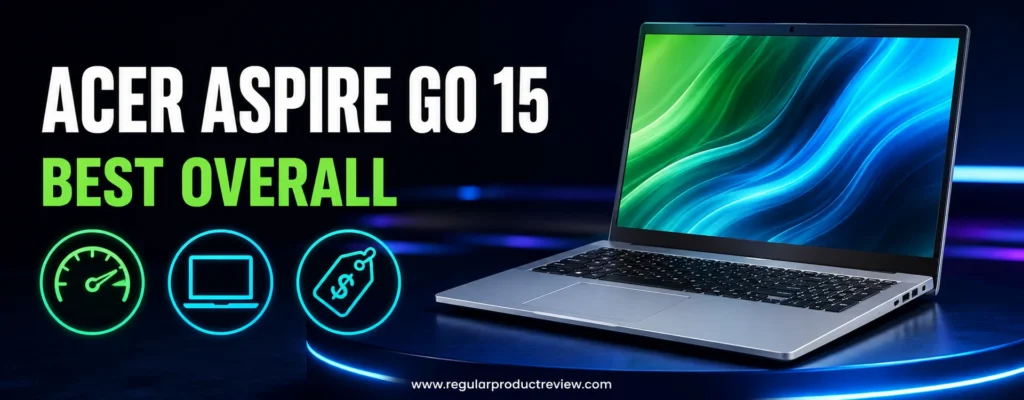
What makes the Aspire Go 15 stand out is balance. Many laptops in this price range compromise on both speed and screen quality, leaving buyers with 4GB of memory and a low-resolution display. This configuration provides enough memory for reasonable multitasking while maintaining a sharper 1920 × 1080 workspace. Its selection of USB-A, USB-C, HDMI, and audio connections also makes it easier to use existing accessories without immediately purchasing a hub.
There are meaningful compromises. The screen is designed for indoor productivity rather than color-sensitive creative work, the integrated graphics cannot support demanding gaming, and 128GB of storage fills quickly when Windows, applications, and personal files share the same drive. Build materials and input devices also reflect the entry-level price.
For shoppers who need a familiar Windows laptop and can find the Core i3-N305 configuration at or below $300, the Aspire Go 15 provides the most complete everyday computing package in this roundup.
Quick Verdict
The Acer Aspire Go 15 is a sensible choice for buyers who want an affordable Windows computer for documents, browser-based work, video calls, streaming, and basic home administration. Its eight-core entry-level processor, 8GB of memory, Full HD screen, and useful port selection create a better-balanced experience than most new Windows laptops near this price.
It is not designed for modern gaming, professional media production, or heavy multitasking. The 128GB configuration also requires careful storage management. Still, when the correct version costs no more than $300, it offers strong everyday value with fewer deal-breaking compromises than most entry-level competitors.
| Quick Verdict Category | Assessment |
|---|---|
| Everyday productivity | Very Good |
| Browser multitasking | Good |
| Display usability | Good for indoor work |
| Port selection | Very Good |
| Portability | Good for a 15-inch laptop |
| Creative workloads | Limited |
| Gaming capability | Limited to light or older games |
| Value under $300 | Excellent |
Key Specifications
Acer sells several laptops under the Aspire Go 15 name, and their specifications can differ substantially. The table below covers the AG15-31P configuration we recommend targeting, not every version in the product family.
| Feature | Recommended Configuration |
|---|---|
| Processor | Intel Core i3-N305 |
| Processor Design | 8 cores, 8 threads, up to 3.8 GHz |
| Graphics | Integrated Intel UHD Graphics |
| Display | 15.6-inch Full HD, 1920 × 1080, 60Hz |
| Memory | 8GB LPDDR5 |
| Storage | 128GB UFS on the target budget configuration |
| Operating System | Windows 11 Home or Windows 11 Home in S mode |
| Wireless Connectivity | Wi-Fi 6 and Bluetooth |
| Ports | USB-C, two USB-A ports, HDMI, and 3.5mm audio |
| Webcam | 720p HD |
| Battery | Approximately 50Wh, depending on configuration |
| Weight | Approximately 3.7–3.9 pounds |
| Upgrade Considerations | Configuration-dependent; memory may not be user-upgradeable |
| Target Price | $300 or less |
Configuration Warning: Some retailers describe the 128GB storage as an “SSD,” even when the system uses UFS flash storage. Confirm the complete specification before purchasing because UFS storage generally offers less flexibility and lower sustained performance than a replaceable NVMe SSD.
Why We Recommend the Acer Aspire Go 15
The Aspire Go 15 earns its position because it avoids several of the most frustrating limitations common among cheap Windows laptops. Its Core i3-N305 processor is still an entry-level chip, but its eight efficiency cores provide more breathing room than dual-core Celeron configurations. This is especially noticeable when Windows is handling background updates while the user is working across several browser tabs and a document editor.
Eight gigabytes of memory is equally important. It does not transform the machine into a performance laptop, but it reduces the frequent slowdowns associated with 4GB Windows systems. Users can keep a reasonable number of browser tabs open, participate in a video call, and work on a document without immediately exhausting available memory.
The Full HD screen and broad port selection complete the package. A sharper display improves text clarity and provides more usable workspace, while HDMI and multiple USB connections support monitors, flash drives, mice, keyboards, and other everyday accessories. These practical advantages are why the Aspire Go 15 ranks ahead of cheaper models that make more severe compromises.
Performance Breakdown
Everyday Productivity
The Intel Core i3-N305 is built for efficient, entry-level computing rather than demanding performance. It handles Microsoft Word, Google Docs, spreadsheets, presentations, email, web research, and streaming comfortably when workloads remain reasonable. Intel lists the processor with eight cores, eight threads, and a maximum turbo frequency of 3.8 GHz, although real performance depends on the laptop’s power and cooling configuration.
For a student writing assignments or a home user managing bills, shopping, email, and video calls, the laptop should feel responsive enough. Launching several applications simultaneously or working with extremely large spreadsheets will expose its limitations, but normal single-app and light multitasking workloads remain within its intended capability.
The 8GB memory configuration is essential to this experience. We do not recommend choosing the 4GB version simply to save a small amount of money. Windows 11, browser tabs, security services, and background processes can quickly consume 4GB, leaving little room for active applications.
Browser and Office Multitasking
The Aspire Go 15 can support moderate browser multitasking, including several active tabs, cloud documents, music streaming, and basic communication applications. It will not maintain the same responsiveness as a modern Core i5 or Ryzen 5 laptop when dozens of tabs and multiple desktop applications are open, but it performs appropriately for its price.
Users who regularly work with complex Excel files, large databases, virtual machines, or multiple external displays should consider increasing their budget. Our guide to the best budget laptops under $500 includes systems with faster processors, larger SSDs, and more memory.
Graphics and Light Gaming
Intel UHD Graphics is suitable for video playback, browser-based games, simple educational titles, and older PC games at reduced settings. It is not intended for demanding modern releases, serious content creation, 3D rendering, or GPU-accelerated professional applications.
Light games may run at 720p or low-quality settings, but performance varies widely. Buyers should not choose this laptop expecting a consistent gaming experience simply because a game can technically launch. Cloud gaming is more realistic when a fast internet connection is available, although service fees and network latency should be considered.
Storage Performance
The target under-$300 configuration commonly includes 128GB of UFS storage. It provides faster startup and application loading than a traditional mechanical hard drive, but it does not offer the capacity or performance of a larger NVMe SSD.
After Windows, updates, recovery files, and applications take their share, the remaining usable space can become limited. Cloud storage, an external USB drive, or disciplined file management may be necessary. Buyers who keep large photo libraries, offline videos, or many applications should look for a discounted 256GB version or budget for external storage.
Display Quality and Everyday Viewing
The 15.6-inch Full HD display is one of the Aspire Go 15’s strongest practical features. Its 1920 × 1080 resolution makes text and interface elements appear sharper than the 1366 × 768 panels still used by many entry-level laptops. The larger screen also provides useful space for placing two documents side by side.
Color reproduction and brightness remain modest. The display is suitable for writing, research, casual streaming, and indoor office use, but it is not ideal for photo editing, design work, or frequent use in bright outdoor environments. Depending on the exact configuration, panel technology and viewing angles may also vary.
The matte finish helps reduce reflections, which is valuable in classrooms and offices. Buyers should prioritize the Full HD version because Acer sells similarly named configurations with different display specifications.
Build Quality and Design
The Aspire Go 15 uses a straightforward plastic chassis that prioritizes affordability and low weight over premium materials. It looks clean and professional enough for school, home, and office environments, but it does not have the rigidity or refined finish of a more expensive aluminum ultrabook.
At roughly 3.7 to 3.9 pounds, it remains reasonably portable for a 15.6-inch laptop. It fits comfortably in a standard laptop backpack, although commuters who carry their computer daily may prefer a smaller 14-inch model.
The chassis should tolerate normal everyday use, but buyers should avoid lifting it by one corner or placing heavy objects on the lid. A padded sleeve is a sensible addition for students and travelers.
Keyboard and Touchpad
The full-size keyboard includes a number pad, making the Aspire Go 15 useful for spreadsheets, accounting homework, data entry, and household budgeting. The spacious layout is easier to adapt to than the compressed keyboards found on many 11-inch budget laptops.
Typing feel is functional rather than premium. Key feedback can feel softer than on a business laptop, and the budget configuration generally does not include keyboard backlighting. That omission can be inconvenient when working in a dim room.
The Precision-style touchpad provides adequate space for navigation and Windows gestures. A basic wireless mouse may still improve comfort for long study or office sessions.
Battery Life and Charging
Battery performance depends on screen brightness, wireless activity, application load, and the exact battery installed. Acer documentation for comparable AG15-31P configurations lists a battery around 50Wh and manufacturer estimates that can approach 11.5 hours under controlled conditions.
Real buyers should expect less during mixed Windows use. Video calls, updates, high display brightness, and multiple active applications can shorten runtime considerably. The efficient processor gives the Aspire Go 15 a reasonable chance of covering several hours away from an outlet, but it should not be purchased solely for class-leading endurance.
The supplied power adapter is compact enough for a backpack. Users who spend an entire school or workday away from power should carry the charger instead of relying on the maximum advertised estimate.
Ports and Wireless Connectivity
The Aspire Go 15 provides a useful selection of connections for an entry-level laptop. USB-A supports existing mice, keyboards, and storage devices, while USB-C improves compatibility with newer accessories. HDMI makes it possible to connect a monitor, television, or classroom display without requiring a separate adapter.
Wi-Fi 6 supports modern wireless networks, and Bluetooth handles headphones, mice, and other peripherals. USB-C capabilities can vary between configurations, so buyers who specifically need laptop charging or video output through USB-C should verify the retailer’s detailed specifications.
Pros & Cons
Every laptop under $300 involves compromises. The Aspire Go 15 succeeds by keeping most of them manageable, but buyers should understand its limitations before ordering.
| ✅ Pros | ❌ Cons |
|---|---|
| Core i3-N305 handles everyday productivity reliably | Not suitable for demanding games or creative software |
| 8GB memory supports reasonable multitasking | 128GB storage fills quickly |
| Full HD display provides sharper text and more workspace | Display color and brightness are modest |
| Full-size keyboard includes a number pad | Keyboard is generally not backlit |
| Useful USB-C, USB-A, and HDMI connectivity | Plastic construction lacks premium rigidity |
| Reasonable weight for a 15.6-inch laptop | UFS storage is slower and less flexible than NVMe |
| Excellent value when priced below $300 | Specifications vary significantly between listings |
Who Should Buy the Acer Aspire Go 15?
The Aspire Go 15 is best suited to buyers whose workloads are predictable and relatively light.
- Students writing papers, conducting research, and attending online classes
- Home users managing email, finances, shopping, and video streaming
- Remote workers performing browser-based administrative tasks
- Buyers who require Windows software compatibility
- Users who prefer a spacious 15.6-inch screen
- Spreadsheet users who benefit from a dedicated number pad
- Families purchasing an affordable shared computer
- Shoppers who can find the 8GB Core i3-N305 version under $300
Students with heavier workloads should also compare our broader selection of student laptops before choosing an entry-level model.
Who Should Avoid It?
This laptop is unlikely to satisfy users with demanding performance or display requirements.
- Gamers who want to run current PC games locally
- Video editors, 3D artists, and professional content creators
- Buyers needing highly accurate colors or strong outdoor brightness
- Heavy multitaskers who regularly keep many applications open
- Users who need substantial internal file storage
- Travelers prioritizing the smallest possible laptop
- Anyone paying significantly more than $300 for the reviewed configuration
Our Expert Opinion
The Acer Aspire Go 15 (AG15-31P) is not remarkable because of one premium feature. It earns its recommendation by delivering a workable combination of processor performance, memory, screen resolution, connectivity, and familiar Windows functionality at a difficult price point.
Its Core i3-N305 processor and 8GB of memory are sufficient for the practical workloads most sub-$300 buyers have in mind. The Full HD display is another meaningful advantage, particularly when competing products rely on lower-resolution panels. A number pad, HDMI output, and both USB-A and USB-C connectivity make the machine easier to integrate into a home, school, or basic office setup.
Storage capacity, display quality, keyboard feel, and integrated graphics remind buyers that this remains an entry-level laptop. It should be purchased with realistic expectations and only when the exact configuration meets the $300 limit. Within those boundaries, it offers the broadest appeal and fewest serious compromises in this roundup.
Bottom Line
Choose the Acer Aspire Go 15 if you want a traditional Windows laptop for studying, office documents, browsing, streaming, and everyday household tasks. The Core i3-N305 and 8GB configuration is the version worth targeting, provided its current price does not exceed $300.
🏆 Award: Best Overall Budget Laptop Under $300
Overall Score: 9.2/10
Recommended For: Students, home users, light office work, web-based productivity, and everyday Windows computing
Award Reason: It offers the strongest balance of practical performance, Full HD screen space, useful connectivity, and everyday usability within the target budget.
HP Chromebook 14a-nf0000 – Best Chromebook Under $300
Overall Rating: 8.9/10
The HP Chromebook 14a-nf0000 is the strongest Chromebook in this roundup for buyers who want responsive browser-based performance without stretching beyond a $300 budget. Our recommendation specifically targets the 14a-nf0099nr configuration with an Intel N100 processor, 8GB of LPDDR5 memory, 128GB of UFS storage, and a 14-inch HD display. Other configurations in the same series may have different processors, screens, memory capacities, and ports.
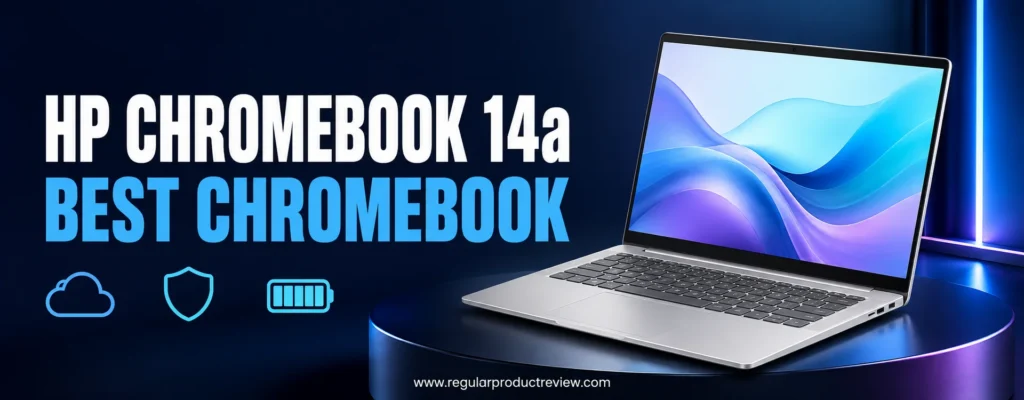
ChromeOS allows this modest hardware to feel more responsive than similarly priced Windows laptops during web browsing, Google Workspace editing, streaming, email, and online classes. The 8GB memory configuration is particularly important because it provides enough room for multiple browser tabs, video conferencing, and several web applications without the frequent slowdowns associated with many 4GB Chromebooks.
The laptop is also relatively portable. Its approximately 3.2-pound starting weight, USB-C charging, 47Wh battery, and compact 14-inch footprint make it practical for classrooms, libraries, commuting, and casual travel.
Its biggest weakness is the 1366 × 768 display used by the target under-$300 configuration. It is adequate for documents and streaming, but it looks less detailed and provides less working space than a Full HD panel. Software compatibility is another consideration: buyers who depend on full Windows or macOS applications should choose a different laptop.
For students, families, and cloud-focused users, however, the HP Chromebook 14a-nf0000 provides a useful combination of performance, memory, portability, and simplicity at an accessible price.
Quick Verdict
The HP Chromebook 14a-nf0000 is an excellent affordable laptop for people whose daily routine takes place primarily inside a browser. It handles Google Docs, Gmail, YouTube, web research, online banking, streaming, and video meetings without demanding expensive hardware.
Its Intel N100 processor and 8GB of LPDDR5 memory make it more comfortable for multitasking than entry-level Chromebooks limited to 4GB. The 128GB UFS storage also provides considerably more local space than the 32GB and 64GB capacities commonly found in inexpensive ChromeOS devices.
The HD display, limited port selection, and inability to run every traditional Windows application keep it from being the right choice for everyone. If your essential software works through Chrome, Android, or supported web applications, this is one of the most balanced Chromebooks under $300.
| Quick Verdict Category | Assessment |
|---|---|
| Web browsing | Very Good |
| Google Workspace | Very Good |
| Browser multitasking | Good |
| Online classes | Very Good |
| Portability | Very Good |
| Display sharpness | Fair |
| Windows software compatibility | Limited |
| Value under $300 | Excellent |
Key Specifications
The HP Chromebook 14a-nf0000 is a product family rather than one fixed configuration. These specifications apply to the recommended HP Chromebook 14a-nf0099nr or an equivalent under-$300 version with the same hardware.
| Feature | Recommended Configuration |
|---|---|
| Processor | Intel Processor N100 |
| Processor Design | 4 cores, 4 threads, up to 3.4 GHz |
| Graphics | Integrated Intel UHD Graphics |
| Display | 14-inch HD, 1366 × 768, anti-glare |
| Display Brightness | Approximately 250 nits |
| Memory | 8GB LPDDR5-4800 |
| Storage | 128GB UFS |
| Operating System | ChromeOS |
| Wireless Connectivity | Wi-Fi 6 or Wi-Fi 6E and Bluetooth 5.3, configuration-dependent |
| Ports | USB-C, USB-A, and headphone/microphone combination jack |
| Webcam | HP True Vision 720p HD camera |
| Battery | 47Wh lithium-ion polymer |
| Charging | 45W USB-C adapter; fast charging supported |
| Weight | Starting at approximately 3.2 pounds |
| Dimensions | Approximately 12.82 × 8.48 × 0.72 inches |
| Target Price | $300 or less |
Complete configuration options are documented on the official HP Chromebook 14a-nf0000 specification page.
Configuration Warning: The under-$300 14a-nf0099nr generally uses a 1366 × 768 HD display. Some more expensive 14a-nf0000 configurations include a Full HD screen or Core i3-N305 processor, but those should not be assumed to match the reviewed model.
Why We Recommend the HP Chromebook 14a-nf0000
Most low-cost Chromebooks are built around 4GB of memory and 32GB or 64GB of storage. Those specifications can support basic ChromeOS use, but they leave limited space for multitasking, Android applications, offline files, and future workload growth. The recommended HP configuration doubles the memory and provides 128GB of local storage without moving outside the target budget.
The Intel N100 is another practical advantage. It remains an entry-level processor, but its four-core design handles ChromeOS, video playback, documents, and web applications more comfortably than older dual-core Celeron chips. This does not make the Chromebook suitable for heavy creative software, but it helps daily navigation feel consistent.
HP also gives the laptop a more travel-friendly design than many 15.6-inch budget models. At around 3.2 pounds, it is light enough for a student backpack, while its 14-inch screen remains large enough for writing and research.
The result is a Chromebook that focuses its limited budget on the hardware affecting everyday usability. Buyers still accept a modest display and basic construction, but they receive enough memory and storage to avoid some of the category’s most restrictive compromises.
Performance Breakdown
ChromeOS and Everyday Responsiveness
ChromeOS is designed around browser-based applications, cloud storage, and lightweight background processes. This allows the HP Chromebook 14a-nf0000 to provide a responsive experience without requiring the same processor and memory resources as a full Windows installation.
The Intel N100 performs well for opening web pages, editing documents, watching streaming video, managing email, and navigating Google Drive. Startup and wake times are generally quick, which makes the device convenient for short classroom sessions or casual use around the home.
Performance begins to slow when workloads extend beyond the laptop’s intended purpose. Complex browser-based editing tools, large spreadsheets, multiple video streams, and demanding Android applications can challenge the processor. Buyers should view it as a capable web productivity machine rather than an inexpensive replacement for a performance notebook.
Browser Multitasking
Eight gigabytes of LPDDR5 memory is the key reason this configuration earns our Best Chromebook award. It allows users to keep more tabs active while moving between Google Docs, research pages, email, music, and messaging applications.
The laptop will not support unlimited multitasking. Browser extensions, animated websites, video calls, and Android applications all consume memory and processor resources. Still, the 8GB configuration offers considerably more flexibility than the 4GB Chromebooks commonly sold at the same price.
Students who regularly conduct online research while writing assignments should find the experience comfortable. Users opening dozens of tabs or managing complex professional workflows should consider a Chromebook Plus or a Windows laptop with a faster processor.
Google Workspace and Online Learning
Google Docs, Sheets, Slides, Classroom, Meet, and Drive represent the Chromebook’s natural workload. These services are integrated closely with ChromeOS, making the HP Chromebook 14a-nf0000 particularly useful for schools and households already using Google accounts.
Offline editing can be enabled for supported Google files, although the platform delivers its best experience with a reliable internet connection. The 128GB storage provides room for downloaded documents, Android applications, photos, and offline media, but cloud storage remains central to the operating system.
Students who need broader software compatibility should review our recommendations for the best laptops for college students. Some degree programs require specialized Windows or macOS applications that ChromeOS cannot run natively.
Android and Linux Applications
ChromeOS supports many Android applications through Google Play, giving users access to entertainment, communication, note-taking, and productivity tools. Application quality varies because not every Android app is optimized for a laptop-size screen, keyboard, or touchpad.
Supported Chromebooks can also run Linux applications, but the Intel N100 and limited resources make this feature better suited to lightweight coding tools and experimentation than demanding development environments. Beginners learning basic programming may find it useful, while professional developers should choose more capable hardware.
Gaming and Entertainment
The HP Chromebook 14a-nf0000 works well for YouTube, streaming services, browser games, and compatible Android titles. Intel UHD Graphics can decode modern video efficiently, but the screen’s HD resolution and modest color quality limit the visual experience.
Traditional Windows PC games cannot be installed normally on ChromeOS. Cloud gaming services can provide access to more demanding titles when internet speed and latency are suitable, but they may require subscriptions and compatible controllers.
This laptop should therefore be viewed as a casual entertainment device rather than a gaming system.
Display Quality and Viewing Experience
The 14-inch display is large enough for writing, browsing, and streaming without making the laptop difficult to carry. Its anti-glare surface helps reduce distracting reflections in classrooms and offices, while the micro-edge design keeps the chassis relatively compact.
Resolution is the main compromise. At 1366 × 768, text and interface elements are less detailed than on a Full HD screen, and the reduced vertical workspace can feel restrictive when editing long documents or viewing large spreadsheets. The difference becomes especially noticeable when comparing two laptops side by side.
Brightness around 250 nits is acceptable for indoor environments but insufficient for comfortable use in strong sunlight. Color reproduction is adequate for casual media and schoolwork, not professional photography or design.
The display serves its intended purpose, but buyers who prioritize image quality should look for a discounted Full HD configuration or consider the best student laptops under $500.
Build Quality and Portability
HP uses a straightforward lightweight chassis that feels appropriate for the price. It does not provide the metal construction or display rigidity of a premium laptop, but its compact dimensions and approximately 3.2-pound starting weight make it easy to transport.
The design is suitable for students moving between classrooms, remote workers changing locations, and families sharing a computer around the home. A protective sleeve remains worthwhile because budget plastic panels can flex or scratch when carried beside books and accessories.
The hinge and keyboard deck should withstand normal use, but the laptop is not marketed as a rugged education model. Younger students may be better served by a reinforced Chromebook designed specifically for classroom environments.
Keyboard and Touchpad
The full-size keyboard provides enough spacing for document writing, email, and school assignments. Some configurations may offer keyboard backlighting, but buyers should not assume it is included without checking the exact product listing.
Key travel and feedback are functional rather than premium. The keyboard is comfortable enough for everyday typing, although users producing long documents may prefer an external keyboard at a permanent desk.
The touchpad supports standard ChromeOS gestures and provides adequate room for browsing and navigation. Its surface is suitable for routine use, but it cannot match the smoother glass touchpads found on more expensive laptops.
Webcam, Microphones, and Speakers
The Intel N100 configuration generally includes a 720p webcam with temporal noise reduction and integrated dual-array microphones. It is sufficient for online classes, family calls, and occasional meetings in a well-lit room.
Image detail and low-light performance remain basic. Positioning the laptop near a window or soft front-facing light can improve video quality considerably. An external webcam is worth considering for users who appear in professional meetings regularly.
The dual speakers are suitable for spoken content, online lessons, and casual streaming. Headphones provide better clarity and privacy for music, movies, and video calls.
Battery Life and USB-C Charging
The 47Wh battery is a good match for the power-efficient Intel N100 processor and ChromeOS. Runtime varies with screen brightness, video conferencing, wireless activity, Android applications, and the number of active browser tabs.
Students performing light document work and browsing should expect better endurance than users spending hours in Google Meet or streaming video at maximum brightness. Manufacturer estimates should always be treated as controlled results rather than guaranteed daily runtime.
HP includes a 45W USB-C power adapter, making the charger easier to replace or share with compatible USB-C devices. HP states that supported configurations can reach approximately 50% charge in 45 minutes while the system is turned off, although actual charging time can vary.
Ports and Wireless Connectivity
Port selection is more limited than on the Acer Aspire Go 15. The Intel N100 version typically includes one USB-C port, one USB-A port, and a combined headphone and microphone jack. The USB-C connection supports charging and may provide DisplayPort functionality, depending on the exact configuration.
One USB-A port may be insufficient for users who regularly connect a mouse, external storage, and other wired accessories. A USB-C hub can expand connectivity, but it adds cost and another item to carry.
Wi-Fi 6 or Wi-Fi 6E and Bluetooth 5.3 support modern routers, wireless headphones, mice, and keyboards. Exact wireless hardware can vary within the series, so buyers should verify the retailer’s specification sheet.
Software Support and Security
ChromeOS automatically handles system updates and includes built-in security protections. This reduces maintenance compared with many traditional computers and makes the laptop accessible to beginners and family members who do not want to manage frequent manual updates.
Every Chromebook has an Auto Update Expiration date. Buyers should check the exact model on Google’s official ChromeOS Auto Update policy, especially when purchasing open-box, refurbished, or older inventory.
ChromeOS also depends heavily on a Google account and cloud-based services. Buyers who prefer local-only workflows or require uncommon desktop software may find Windows more flexible.
Pros & Cons
The HP Chromebook 14a-nf0000 prioritizes memory, storage, portability, and browser performance while accepting several display and compatibility limitations.
| ✅ Pros | ❌ Cons |
|---|---|
| 8GB LPDDR5 memory supports comfortable browser multitasking | HD display is less sharp than Full HD alternatives |
| Intel N100 performs well for ChromeOS productivity | Cannot natively run many Windows desktop applications |
| 128GB storage exceeds many budget Chromebook configurations | Limited selection of physical ports |
| Lightweight 14-inch design is easy to carry | Screen brightness is best suited to indoor use |
| USB-C charging improves travel convenience | Keyboard backlighting is configuration-dependent |
| Fast startup and straightforward system maintenance | Android applications are not always laptop-optimized |
| Strong value when priced below $300 | Performance remains limited for demanding workloads |
Who Should Buy the HP Chromebook 14a-nf0000?
This Chromebook is best for users who can complete most of their work through a browser or Google’s application ecosystem.
- Students using Google Classroom and Google Workspace
- Families needing an affordable shared computer
- Users working primarily in Chrome, Gmail, and web applications
- Buyers who value simple software maintenance
- Remote learners attending browser-based classes
- Travelers wanting a lightweight secondary laptop
- People who store most files in the cloud
- Shoppers who find the N100 and 8GB configuration below $300
Readers comparing more education-focused options can explore our complete student laptop category.
Who Should Avoid It?
The HP Chromebook 14a-nf0000 is not appropriate for every software environment or workload.
- Users who require full Windows or macOS applications
- PC gamers who want to install traditional desktop games
- Video editors, 3D designers, and professional creators
- Buyers who prioritize a sharp Full HD display
- Professionals requiring several built-in ports
- Users who work primarily without internet access
- Anyone considering a 4GB configuration at an inflated price
Our Expert Opinion
The HP Chromebook 14a-nf0000 succeeds because its recommended configuration invests in the specifications that matter most to everyday ChromeOS use. The Intel N100 processor is efficient enough for browser-based productivity, while 8GB of LPDDR5 memory provides welcome flexibility for multitasking. Its 128GB storage also makes the laptop less dependent on constant file management than many entry-level Chromebooks.
HP’s lightweight design, USB-C charging, and 47Wh battery make it practical for school and travel. ChromeOS reduces maintenance and provides a straightforward environment for users already comfortable with Google services.
The 1366 × 768 display remains its most visible compromise. Buyers should also confirm that every required application is available through the web, Google Play, or ChromeOS before purchasing. Provided those restrictions are acceptable and the price remains below $300, this model offers one of the most complete Chromebook experiences available within the target budget.
Bottom Line
Choose the HP Chromebook 14a-nf0000 if you need an affordable, portable computer for Google Workspace, browsing, streaming, email, and online learning. The Intel N100, 8GB RAM, and 128GB storage configuration is the version to target; avoid assuming that lower-memory variants provide the same experience.
🏆 Award: Best Chromebook Under $300
Overall Score: 8.9/10
Recommended For: Students, families, cloud-focused users, online learning, and browser-based productivity
Award Reason: Its efficient ChromeOS performance, 8GB memory, 128GB storage, portable design, and accessible pricing create the best Chromebook balance in this roundup.
Lenovo IdeaPad 1i 15 Gen 7 – Best Budget Laptop for Students
Overall Rating: 8.1/10
The Lenovo IdeaPad 1i 15 Gen 7 is designed for students whose computing needs are simple and whose spending limit is strict. The reviewed 82LX00A4US configuration combines an Intel Celeron N4500 processor, 4GB of soldered memory, 128GB of eMMC storage, and a 15.6-inch HD display. Those specifications are modest even by budget-laptop standards, but the machine can still provide useful Windows functionality when purchased at the right price and used within realistic limits.
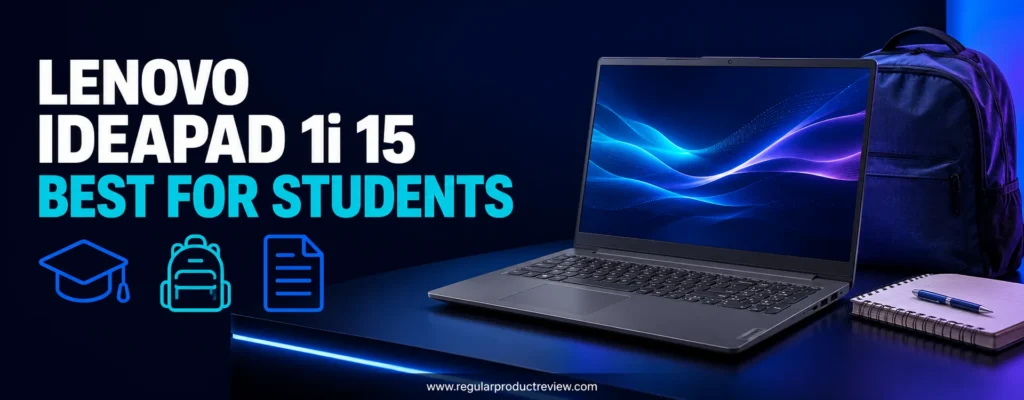
Its strongest student-friendly qualities are practical rather than performance-focused. The full-size keyboard includes a number pad, the 15.6-inch display provides adequate room for assignments, and the chassis weighs approximately 3.5 pounds. Lenovo also includes USB-C, two USB-A ports, HDMI, an SD card reader, Wi-Fi 6, and a webcam privacy shutter. That selection supports common school accessories without requiring an immediate investment in adapters.
The trade-offs are significant. The dual-core processor and 4GB of non-upgradeable memory struggle with heavy browser multitasking. The 1366 × 768 TN display is dim and limited in sharpness, while 128GB eMMC storage is slower than a conventional NVMe SSD. Battery endurance is adequate for short sessions but may not cover a full school day under mixed use.
This IdeaPad earns its award because it can serve as an exceptionally inexpensive Windows study machine not because it competes with more powerful student laptops. It makes the most sense near $150–$200. At prices approaching $300, the Acer Aspire Go 15 or an 8GB Chromebook offers considerably better value.
Quick Verdict
The Lenovo IdeaPad 1i 15 Gen 7 is suitable for writing assignments, checking email, accessing school portals, watching lectures, and handling basic Microsoft 365 tasks. Its Windows operating system provides broader software compatibility than ChromeOS, while the large keyboard and useful ports make it comfortable at a desk.
Performance is limited by the Intel Celeron N4500 processor and 4GB of soldered memory. Students must keep browser tabs and background applications under control, and the laptop should not be purchased for gaming, creative production, programming with demanding development tools, or data-heavy coursework.
The recommendation depends heavily on price. Below $200, it can be a practical first laptop or secondary study computer. Near $300, its hardware compromises become difficult to justify.
| Quick Verdict Category | Assessment |
|---|---|
| Essay writing | Good |
| Online research | Adequate |
| Video classes | Adequate |
| Light Microsoft 365 use | Good |
| Browser multitasking | Limited |
| Display quality | Below Average |
| Port selection | Very Good |
| Value below $200 | Good |
| Value near $300 | Poor |
Key Specifications
Lenovo sells the IdeaPad 1i Gen 7 in configurations ranging from basic Celeron models to much faster Core-powered systems. This review applies specifically to the entry-level 82LX00A4US configuration.
| Feature | Details |
|---|---|
| Processor | Intel Celeron N4500 |
| Processor Design | 2 cores, 2 threads, 1.1 GHz base, up to 2.8 GHz burst |
| Graphics | Integrated Intel UHD Graphics |
| Display | 15.6-inch HD, 1366 × 768, TN, anti-glare |
| Display Brightness | 220 nits |
| Color Coverage | 45% NTSC |
| Memory | 4GB DDR4-2933, soldered |
| Storage | 128GB eMMC 5.1 |
| Operating System | Windows 11 Home in S mode |
| Wireless Connectivity | Wi-Fi 6 and Bluetooth 5.1 or newer |
| Ports | USB-C, USB-A 3.2, USB-A 2.0, HDMI, SD card reader, audio jack |
| Webcam | 720p HD with privacy shutter |
| Audio | Two 1.5W speakers with Dolby Audio |
| Battery | 42Wh, three-cell |
| Weight | Starting at approximately 3.5 pounds |
| Dimensions | Approximately 14.2 × 9.3 × 0.7 inches |
| Warranty | One-year standard depot warranty |
| Recommended Purchase Price | Preferably $200 or less |
The complete 82LX00A4US configuration is listed on the official Lenovo US Outlet product page.
Configuration Warning: Some retailers describe the 128GB eMMC storage as an “SSD.” It is embedded flash storage rather than a typical replaceable NVMe solid-state drive. Buyers should also avoid confusing this model with faster IdeaPad 1i configurations carrying Core i3 or Core i5 processors.
Why We Recommend the Lenovo IdeaPad 1i 15 Gen 7
The IdeaPad 1i remains relevant because it provides a complete Windows laptop at a price commonly associated with tablets and entry-level Chromebooks. Students receive a physical keyboard, large screen, webcam, multiple ports, local file storage, and compatibility with familiar Windows applications.
Its keyboard layout is particularly useful. The dedicated number pad can help with introductory accounting, mathematics, data entry, and spreadsheet assignments. HDMI output also allows students to connect a larger monitor or classroom display, while the SD card reader makes inexpensive storage expansion more convenient.
The machine is not recommended because of raw performance. It is recommended because it can cover a narrowly defined set of educational tasks at a very low purchase price. When a student needs only a basic writing, research, and communication device and Windows compatibility is mandatory the IdeaPad 1i can be sufficient.
Price determines whether this recommendation remains sensible. The closer it gets to $300, the more attractive an 8GB laptop becomes. Buyers should compare current offers rather than assuming that every inexpensive listing represents good value.
Performance Breakdown
Basic Schoolwork and Productivity
The Intel Celeron N4500 is a low-power dual-core processor intended for basic computing. It can handle Word documents, PDFs, email, simple presentations, online portals, and light spreadsheet work. These activities perform best when the user focuses on one or two tasks rather than keeping many applications active.
Writing an essay while referencing a few browser tabs is realistic. Running a video meeting alongside a large document, music streaming, cloud synchronization, and numerous research tabs can cause noticeable delays. Application launches, Windows updates, and file operations also take longer than on systems equipped with a modern Core i3 or Ryzen 3 processor.
Students can improve responsiveness by uninstalling unnecessary trial software, limiting startup applications, and avoiding excessive browser extensions. These adjustments do not change the hardware’s capability, but they help preserve the limited resources available.
Browser Multitasking
Four gigabytes of memory is the most restrictive specification. Windows 11 and its background services consume a meaningful portion before the user opens a browser or productivity application. Several image-heavy websites, an active video stream, and multiple open documents can quickly exhaust available memory.
When memory pressure increases, Windows relies more heavily on the relatively slow eMMC storage. This can cause delayed tab switching, longer application response times, and temporary freezing. Students should close tabs they no longer need and restart the laptop periodically rather than leaving every application open indefinitely.
Buyers who routinely conduct research across many tabs should prioritize an 8GB Chromebook or save for a stronger Windows model. Our guide to the best student laptops includes options better suited to heavier academic workloads.
Microsoft 365 and School Applications
The IdeaPad 1i can run the web versions of Word, Excel, PowerPoint, Outlook, and Teams. Desktop Microsoft 365 applications can also work after leaving Windows 11 S mode, although performance is best with smaller files and basic features.
Simple essays, presentations, and household spreadsheets are appropriate. Large workbooks containing complex formulas, macros, or extensive datasets may become frustrating. Microsoft Teams and Zoom can run, but using them alongside several other applications places additional pressure on the processor and memory.
Schools relying on browser-based learning platforms should have few compatibility issues. Students using specialized engineering, media, statistics, or development software should confirm requirements before purchasing because many academic programs demand substantially more capable hardware.
Graphics and Gaming
Integrated Intel UHD Graphics is intended for desktop display, video playback, and very light graphical workloads. Browser games, older educational titles, and simple casual games may run at reduced settings. Modern PC games and GPU-intensive applications are beyond the laptop’s intended capability.
Cloud gaming is technically possible with a stable high-speed connection, but the display quality and wireless latency prevent this machine from becoming a compelling gaming option. Students who want local PC gaming should not select an entry-level N4500 laptop.
Storage and File Management
The 128GB eMMC capacity provides more room than a 64GB entry-level configuration, but usable space becomes limited after Windows, updates, recovery files, and applications are accounted for. Students storing large video lectures, photo libraries, or offline media will need additional capacity.
The built-in SD card reader makes expansion inexpensive, while USB storage and cloud services provide other options. External storage is suitable for documents and media, but applications should remain on the internal drive whenever possible.
Because eMMC is slower than NVMe storage, large installations and file transfers can take longer. It is also generally integrated into the motherboard, limiting replacement and upgrade options.
Display Quality and Study Comfort
The 15.6-inch screen offers more physical space than compact 11-inch or 14-inch budget laptops. Students can read documents comfortably, view online lectures, and work with basic split-screen layouts without interface elements feeling excessively small.
Resolution and panel quality are the problems. The 1366 × 768 resolution provides less detail and workspace than Full HD, while the TN panel has narrower viewing angles. Colors and contrast can change when the screen is viewed from above, below, or off-center.
Brightness is rated at 220 nits, making the display best suited to indoor classrooms, bedrooms, libraries, and offices. It can appear washed out near bright windows and is not a comfortable outdoor display.
For text-focused assignments, the screen remains usable. Students interested in photography, design, media production, or accurate visual work should choose a Full HD IPS laptop instead.
Build Quality and Portability
The IdeaPad 1i uses a plastic chassis that keeps manufacturing costs and weight low. Its Cloud Grey finish looks understated enough for school or home use, although the surfaces do not feel as rigid or refined as those of a business-class laptop.
At approximately 3.5 pounds and 0.7 inches thick, it is relatively portable for a 15.6-inch model. It fits into a conventional laptop backpack, but its wider footprint requires more desk and bag space than a 14-inch notebook.
Students should carry it in a padded compartment and avoid applying pressure to the lid. The chassis is designed for normal daily handling, not the repeated drops and impacts tolerated by rugged education laptops.
Keyboard and Touchpad
A full-size keyboard is one of the strongest reasons to consider this model. The keys are widely spaced, and the dedicated number pad benefits students working with numerical data. The layout feels less cramped than keyboards on small Chromebooks and detachable devices.
The keyboard is not backlit, which can make typing difficult in a dark classroom or bedroom. Key feel is acceptable for short assignments and email, although frequent writers may prefer a more tactile external keyboard at home.
The ClickPad supports standard Windows gestures and offers enough surface area for everyday navigation. Its plastic surface and basic click mechanism are consistent with the laptop’s entry-level positioning.
Webcam, Privacy, and Audio
The 720p webcam provides adequate video for online classes and family calls when lighting is good. Image detail is limited, and darker rooms can introduce noise and softness.
Lenovo includes a physical webcam privacy shutter, which is a valuable feature at this price. Students can cover the camera without tape or a separate accessory when it is not being used.
Dual-array microphones support calls, while two 1.5W speakers with Dolby Audio are suitable for spoken lessons and casual video. Headphones remain the better option for private study, music, and clearer communication.
Battery Life and Charging
The reviewed configuration includes a 42Wh battery. Lenovo lists up to approximately 6.1 hours under its controlled MobileMark testing, but actual runtime varies with brightness, video meetings, browser activity, wireless usage, and Windows background updates.
Students should not assume that the laptop will last through a full day of classes. Mixed use may require access to an outlet, particularly when video conferencing or streaming. Carrying the included 45W adapter is advisable.
The moderate battery life is another reason this laptop works better as an inexpensive home-study machine than as an all-day campus companion.
Ports and Connectivity
Port selection is considerably better than the performance specifications might suggest. USB-C, USB-A 3.2, USB-A 2.0, HDMI, an SD card reader, and a combined audio jack cover most student accessories.
The USB-C port supports data connectivity, but buyers should verify charging and display capabilities before relying on a single-cable docking setup. HDMI provides a straightforward way to connect a monitor or television.
Wi-Fi 6 improves compatibility with modern wireless networks, and Bluetooth supports headphones, mice, keyboards, and other peripherals. Connection quality still depends on the router, internet service, and surrounding network conditions.
Windows 11 S Mode and Software Compatibility
The 82LX00A4US ships with Windows 11 Home in S mode. This setting initially permits applications from the Microsoft Store, which can improve security and simplify maintenance for less-experienced users.
Students requiring software unavailable through the Microsoft Store can leave S mode without paying. The decision is one-way, meaning the laptop cannot return to S mode afterward. Switching also does not improve the processor or memory, so unrestricted software should still be selected with the hardware limitations in mind.
Before purchasing, students should compare the laptop’s specifications with requirements provided by their school or academic department.
Long-Term Ownership and Upgradeability
The 4GB memory is soldered and cannot be expanded. This is the most important long-term limitation because future applications and websites may require more memory than current lightweight workloads.
The 128GB eMMC storage also offers limited upgrade flexibility. An SD card or external drive can expand file capacity, but neither changes the system’s core performance. Battery capacity will gradually decline with age and use, as it does in every laptop.
The one-year depot warranty provides basic manufacturer coverage. Buyers should retain purchase documentation and confirm whether the retailer is selling a new, open-box, refurbished, or outlet unit.
Pros & Cons
The IdeaPad 1i offers practical Windows functionality at a very low price, but its performance and display compromises are more substantial than those of our higher-ranked picks.
| ✅ Pros | ❌ Cons |
|---|---|
| Often available well below the $300 limit | Dual-core processor feels slow under multitasking |
| Full-size keyboard includes a number pad | 4GB soldered memory cannot be upgraded |
| Windows supports familiar education applications | HD TN display is dim and low resolution |
| Useful USB-C, USB-A, HDMI, and SD connections | eMMC storage is slower than an NVMe SSD |
| Webcam includes a physical privacy shutter | Battery may not cover a full school day |
| Approximately 3.5-pound weight is manageable | Keyboard lacks backlighting |
| 128GB capacity exceeds many ultra-budget models | Poor value if priced close to $300 |
Who Should Buy the Lenovo IdeaPad 1i 15 Gen 7?
This laptop is intended for students with basic workloads and an unusually limited purchasing budget.
- School students writing essays and completing web assignments
- Families needing a low-cost secondary Windows computer
- Beginners learning basic computer skills
- Users working with email, PDFs, and simple documents
- Students who benefit from a full-size keyboard and number pad
- Buyers who need HDMI and several conventional ports
- Shoppers finding the reviewed configuration around $150–$200
- Users willing to limit multitasking to maintain responsiveness
Who Should Avoid It?
The IdeaPad 1i is not suitable for students with demanding coursework or long-term performance expectations.
- College students using engineering, architecture, or scientific software
- Programmers running large development environments
- Video editors, photographers, designers, and content creators
- Users who keep numerous browser tabs and applications open
- Buyers needing all-day battery life
- Anyone expecting modern PC gaming performance
- Shoppers paying close to $300 for this configuration
- Users wanting upgradeable memory or fast internal storage
Our Expert Opinion
The Lenovo IdeaPad 1i 15 Gen 7 occupies the lowest practical end of the Windows laptop market. It provides familiar software compatibility, a spacious keyboard, useful ports, and enough local storage for basic school files. When available near $150–$200, those qualities can make it a reasonable first computer or emergency replacement.
Its limitations must not be minimized. The Celeron N4500, 4GB of soldered memory, eMMC storage, and low-resolution TN display create a noticeably slower and less polished experience than our top choices. This is a laptop for focused, light tasks not a machine that will comfortably adapt to demanding coursework.
Students who can afford an 8GB model should usually spend more. However, for a buyer who needs Windows, cannot exceed a very small budget, and understands how to keep workloads simple, the IdeaPad 1i remains a functional option with a student-friendly keyboard and connectivity package.
Bottom Line
Choose the Lenovo IdeaPad 1i 15 Gen 7 only when you need an extremely affordable Windows laptop for writing, browsing, online learning, and basic Microsoft 365 work. Its strongest value appears below $200; at prices near $300, select a faster 8GB laptop instead.
🏆 Award: Best Budget Laptop for Students
Overall Score: 8.1/10
Recommended For: Basic school assignments, beginner computer users, light Windows workloads, and buyers with an exceptionally tight budget
Award Reason: It combines a full-size keyboard, useful connectivity, Windows compatibility, and low purchase cost for students with modest computing needs.
ASUS Vivobook Go 14 Flip (J1400KA) Review – Best 2-in-1 Laptop Under $300
Overall Rating: 8.3/10
The ASUS Vivobook Go 14 Flip (J1400KA) brings something uncommon to the entry-level Windows market: a genuinely useful 360-degree touchscreen design at a budget-friendly price. Instead of functioning only as a conventional notebook, it can transform into tablet, tent, and stand modes giving students, families, and casual users more ways to work, stream, read, or take handwritten notes.
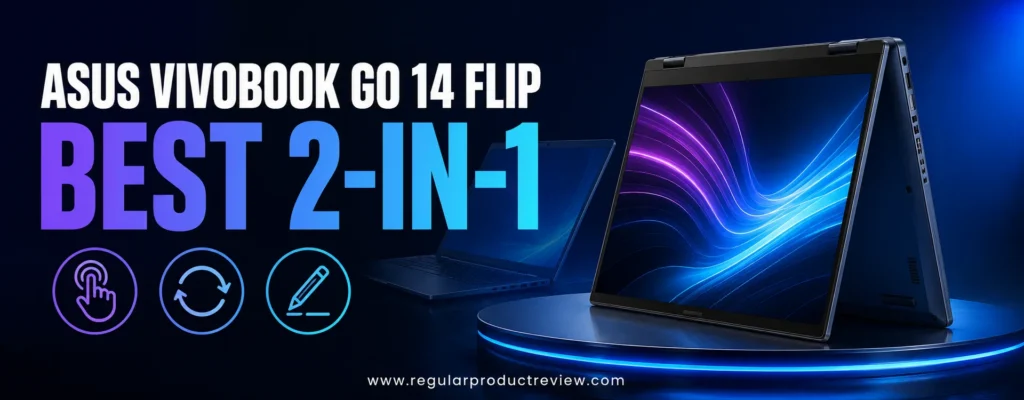
For this recommendation, we focused on the J1400KA-ES21T configuration with an Intel Pentium Silver N6000 processor, 4GB of onboard memory, 128GB of eMMC storage, and a 14-inch Full HD touchscreen. ASUS also produced slower Celeron N4500 and lower-resolution display variants, so checking the complete model number before purchasing is essential.
The Pentium Silver N6000 is not designed for demanding creative software, modern gaming, or intensive multitasking. However, its four-core architecture can handle web browsing, Microsoft 365, email, online classes, video streaming, and basic productivity more comfortably than many dual-core processors found in ultra-cheap convertible laptops.
Its biggest advantages are the versatile hinge, responsive touchscreen, Full HD resolution, backlit keyboard, fingerprint reader, and practical selection of ports. The principal compromises are equally important: the 4GB memory is soldered, eMMC storage is slower than an NVMe SSD, and the glossy 250-nit display can be difficult to see outdoors.
Availability is another consideration. This is an older model that increasingly appears through third-party, clearance, open-box, or refurbished channels. It deserves the best 2-in-1 laptop under $300 designation only when the exact Pentium N6000 and Full HD configuration costs $300 or less.
Editorial Price Alert: Buy the ASUS Vivobook Go 14 Flip only when the final price is $299.99 or lower. Current third-party prices can exceed its real value, and a conventional laptop with 8GB of RAM becomes the smarter purchase once the price climbs above $300.
Quick Verdict: An Affordable Convertible with Real Flexibility
The ASUS Vivobook Go 14 Flip is an appealing choice for shoppers who prioritize touchscreen versatility over raw computing power. Its 360-degree hinge, sharp Full HD panel, pen support, and compact dimensions make it suitable for note-taking, presentations, streaming, reading, and light schoolwork.
Performance remains firmly entry-level. Four gigabytes of soldered RAM limits the number of applications and browser tabs that can remain open comfortably, while 128GB of eMMC storage responds more slowly than a true SSD. Buyers who keep their workloads simple should find it practical, but heavy multitaskers will quickly encounter its limits.
Buy it if: You find the Pentium N6000 and Full HD version below $300 and specifically want an inexpensive Windows convertible.
Skip it if: You need 8GB of RAM, fast SSD storage, outdoor display visibility, gaming performance, or enough power for video editing.
ASUS Vivobook Go 14 Flip Key Specifications
| Specification | J1400KA-ES21T Configuration |
|---|---|
| Processor | Intel Pentium Silver N6000 |
| CPU design | 4 cores, up to 3.3GHz |
| Graphics | Integrated Intel UHD Graphics |
| Memory | 4GB onboard DDR4 |
| Memory upgrade | Not upgradeable |
| Storage | 128GB eMMC |
| Display | 14-inch Full HD IPS-level touchscreen |
| Resolution | 1920 × 1080 |
| Brightness | 250 nits |
| Color coverage | 45% NTSC |
| Refresh rate | 60Hz |
| Convertible modes | Laptop, stand, tent, and tablet |
| Stylus support | Yes; pen inclusion varies by seller |
| Operating system | Windows 11 Home in S mode |
| Wireless | Wi-Fi 5 and Bluetooth |
| Webcam | 720p HD |
| Battery | 39Wh, 2-cell |
| Weight | Approximately 3.31 pounds |
| Thickness | Approximately 0.67 inches |
| Color | Quiet Blue |
Specifications can vary between regional and retailer configurations. Verify the processor, screen resolution, memory, storage type, and included accessories against the seller’s listing. The broader hardware options are documented in the official ASUS Vivobook Go 14 Flip specifications.
Why We Recommend This Budget 2-in-1 Laptop
Most Windows laptops below $300 concentrate on the fundamentals and eliminate features such as touch input, flexible hinges, pen compatibility, and biometric security. The Vivobook Go 14 Flip takes the opposite approach. It accepts modest performance limitations in exchange for a more adaptable physical design.
The 360-degree hinge is more than a visual feature. Tent mode works well when watching a movie in a confined space, stand mode brings the touchscreen closer during presentations, and tablet mode is convenient for reading PDFs or reviewing class notes. Laptop mode remains available whenever a physical keyboard is more practical.
This flexibility makes the J1400KA more distinctive than similarly priced clamshell models. Shoppers comparing other convertible designs can explore our broader 2-in-1 laptop recommendations before deciding whether touch and tablet functionality justify the performance trade-offs.
Everyday Performance: Capable When the Workload Stays Light
Performance Rating: 7.4/10
The Intel Pentium Silver N6000 is a low-power quad-core processor intended for affordable, fanless, or compact computers. It provides enough performance for everyday activities such as:
- Browsing several lightweight websites
- Editing Word documents and basic spreadsheets
- Attending classes through Google Meet or Microsoft Teams
- Streaming Full HD video
- Managing email and cloud-based files
- Running simple educational and Microsoft Store applications
The experience becomes less consistent when multiple demanding browser tabs, video calls, and desktop applications operate simultaneously. The processor is not the only limitation the soldered 4GB of memory leaves Windows with little breathing room once background services and several applications are active.
Users can improve responsiveness by disabling unnecessary startup applications, keeping browser extensions under control, and storing large files in the cloud or on a microSD card. These adjustments will not turn it into a performance laptop, but they can make routine use more comfortable.
This is not a suitable system for current AAA games, professional photo editing, 4K video production, CAD, virtual machines, or complex data analysis. Casual browser games, lightweight indie titles, and cloud gaming may work, depending on the internet connection and individual game requirements.
Full HD Touchscreen and Convertible Experience
Display and Touch Rating: 8.7/10
The 14-inch Full HD touchscreen is the main reason to consider this particular configuration. Its 1920 × 1080 resolution displays text, streaming content, and documents with greater clarity than the 1366 × 768 panels commonly installed in low-cost laptops.
Touch response is suitable for navigation, scrolling, drawing simple diagrams, and interacting with educational applications. The display also supports a compatible stylus, although a digital pen may not be included with every retail package. Buyers planning to take handwritten notes should confirm pen compatibility and bundle contents before ordering.
The IPS-level panel offers more consistent viewing angles than a basic TN display, which is especially useful in stand or tent mode. However, its 45% NTSC color coverage is too limited for color-critical photo or design work. The 250-nit brightness and glossy surface also create reflections in bright rooms and outdoor environments.
For indoor schoolwork, movies, browsing, and general productivity, the screen is one of the strongest available features at this price. For professional visual work, look toward a more capable model from our best 2-in-1 laptops under $1,000 guide.
Expert Tip: Some J1400KA listings use an HD touchscreen instead of the superior Full HD panel. Confirm that the resolution is listed as 1920 × 1080 before completing your purchase.
Design, Portability, and 360-Degree Hinge
Design Rating: 8.5/10
At approximately 3.31 pounds and 0.67 inches thick, the Vivobook Go 14 Flip is portable enough for a backpack, classroom, library, or occasional commute. It is not exceptionally light by premium ultrabook standards, but it is manageable for a 14-inch convertible in this price range.
The Quiet Blue finish gives the device a more distinctive appearance than the plain black and silver designs that dominate the entry-level category. Its chassis is primarily plastic, so buyers should not expect the rigid feel of an aluminum premium laptop. Some flex may be noticeable when handling the screen or typing firmly.
The 360-degree hinge is the centerpiece of the design. It supports multiple working positions and holds the display securely enough for normal touch interaction. As with any inexpensive convertible, users should open the screen from near its center and avoid lifting the entire laptop by the display.
Tablet mode is useful, although the 3.31-pound weight makes it less comfortable than a dedicated tablet during extended handheld use. It works better when resting on a desk, lap, or other supported surface.
Keyboard, Touchpad, and Fingerprint Access
Input Rating: 8.0/10
The chiclet keyboard provides approximately 1.4mm of key travel, giving it a more familiar laptop feel than a detachable keyboard cover. It is suitable for assignments, email, browsing, and moderate document work. The compact 14-inch chassis does not include a dedicated numeric keypad, which may matter to users who regularly enter spreadsheet data.
A backlit keyboard is listed for the J1400KA-ES21T configuration, but this feature can vary between regional versions. The backlight is valuable when studying, traveling, or working in a dim room, so buyers should verify it on the exact listing.
The touchpad is reasonably sized for ordinary navigation. Selected configurations integrate a fingerprint sensor into the touchpad, enabling faster sign-in without typing a password. Fingerprint-reader availability should also be confirmed because sellers sometimes combine specifications from several J1400KA variants.
Battery Life and Charging
Battery Rating: 7.9/10
The 39Wh battery is modest, but the low-power processor and integrated graphics help control energy consumption. It should cover several hours of mixed browsing, document editing, and streaming, although actual runtime will vary significantly with screen brightness, video calls, background activity, wireless strength, and battery condition.
Users who spend an entire school or workday away from an outlet should carry the compact 45W adapter. Older clearance or refurbished units may also have reduced battery capacity, making the seller’s battery-health policy important.
Charging uses a dedicated barrel-style DC connector rather than USB-C. The USB-C port is intended for data transfer, and shoppers should not assume it supports charging or external video unless the exact seller documentation explicitly confirms those functions.
Ports and Wireless Connectivity
Connectivity Rating: 8.2/10
The Vivobook Go 14 Flip offers a useful selection of physical connections for an affordable convertible:
- One USB 3.2 Gen 1 Type-C port
- One USB 3.2 Gen 1 Type-A port
- One USB 2.0 Type-A port
- One HDMI 1.4 output
- One 3.5mm headphone and microphone jack
- One microSD card reader
- One dedicated DC charging input
HDMI makes it easy to connect a monitor, classroom projector, or television without purchasing an adapter. The microSD reader can provide inexpensive supplemental storage, which is especially helpful because the internal 128GB eMMC drive fills quickly.
Wi-Fi 5 is adequate for browsing, streaming, and video meetings on a stable network, but it lacks the efficiency and potential speed improvements of Wi-Fi 6. There is no built-in Ethernet connection, although a compatible USB adapter can add wired networking.
Storage and Windows 11 S Mode
Storage and Software Rating: 7.2/10
The 128GB eMMC drive provides more room than a 64GB entry-level laptop, but usable capacity will be considerably lower after Windows, recovery files, updates, and bundled software are accounted for. eMMC storage is also slower than an NVMe SSD, affecting application launches, large updates, and file transfers.
A microSD card or cloud-storage service can help keep photographs, videos, and school files away from the system drive. Users should still leave sufficient free space for Windows updates.
Windows 11 Home arrives in S mode, which initially limits software installation to applications available through the Microsoft Store. Microsoft allows users to switch out of Windows 11 S mode without paying a fee, but the change is one-way.
Leaving S mode increases software compatibility, yet unrestricted desktop applications can place additional pressure on the limited memory and storage. Students who primarily use Edge, Microsoft 365, and web-based learning platforms may benefit from keeping the streamlined configuration.
Webcam, Speakers, and Online Learning
Communication Rating: 7.5/10
The 720p webcam is serviceable for online classes, family calls, and occasional meetings. Its image quality is typical of an inexpensive laptop: acceptable in a well-lit room but grainier when lighting is poor. Placing a small lamp behind the screen can noticeably improve video-call visibility.
The built-in microphone array is adequate for routine conversations, while headphones or a dedicated headset will deliver clearer voice pickup in noisy environments. ASUS SonicMaster speakers are suitable for spoken content and casual video streaming, though they lack the bass and volume of larger multimedia laptops.
Students who value portability but do not require the convertible hinge should also compare models in our student laptop collection, where stronger conventional configurations may offer more memory for the same price.
ASUS Vivobook Go 14 Flip Pros and Cons
| Pros | Cons |
|---|---|
| Versatile 360-degree convertible hinge | Only 4GB of soldered memory |
| Full HD touchscreen on the recommended configuration | eMMC storage is slower than an NVMe SSD |
| Supports laptop, tent, stand, and tablet modes | Glossy 250-nit screen reflects bright light |
| Pentium N6000 offers four CPU cores | Too slow for demanding creative work or modern games |
| Stylus-compatible display | Stylus may be sold separately |
| Backlit keyboard on the ES21T configuration | USB-C does not provide guaranteed charging or video output |
| HDMI and microSD card reader included | Uses older Wi-Fi 5 connectivity |
| Fingerprint reader on selected configurations | Current third-party prices can exceed $300 |
| Portable 3.31-pound design | Availability is becoming inconsistent |
Who Should Buy the ASUS Vivobook Go 14 Flip?
| Recommended Buyer | Why It Fits |
|---|---|
| Students with lightweight coursework | Handles research, documents, online classes, and note review |
| Families buying a shared computer | Convertible modes work well for learning and entertainment |
| Touchscreen-first users | Offers direct navigation and compatible pen input |
| Frequent streamers | Tent and stand modes improve viewing flexibility |
| Travelers with basic computing needs | Compact dimensions fit easily into most backpacks |
| Bargain hunters | Delivers unusual flexibility when discounted below $300 |
Who Should Avoid It?
| Consider Another Laptop If You Need | Primary Limitation |
|---|---|
| Heavy browser multitasking | 4GB of non-upgradeable RAM |
| Professional video or photo editing | Entry-level CPU, graphics, and limited color coverage |
| Modern PC gaming | Intel UHD integrated graphics |
| Fast local storage | 128GB eMMC instead of NVMe SSD |
| All-day unplugged certainty | Small 39Wh battery and variable battery condition |
| Outdoor usability | Reflective display with limited brightness |
| Long-term performance headroom | Memory and storage constraints |
| A new laptop at more than $300 | Stronger conventional models become available |
Our Expert Opinion
The ASUS Vivobook Go 14 Flip J1400KA succeeds because it offers flexibility that inexpensive conventional laptops cannot match. A Full HD touchscreen, dependable 360-degree hinge, HDMI output, microSD expansion, backlit keyboard, and optional fingerprint access create a surprisingly complete feature set for the category.
Its limitations are not minor, however. Four gigabytes of soldered RAM and eMMC storage restrict both immediate responsiveness and long-term usefulness. The processor is appropriate for basic productivity, but buyers expecting smooth heavy multitasking will be disappointed.
The exact price determines whether this is an intelligent purchase. At $250 to $299, the Pentium N6000 and Full HD version remains a compelling cheap convertible laptop for schoolwork, streaming, and casual home use. Above $300, its aging platform and limited availability make newer 8GB laptops a better investment.
Expert Recommendation: Choose the J1400KA-ES21T only after confirming the Pentium Silver N6000 processor, 1920 × 1080 touchscreen, 128GB storage, seller warranty, and a final price below $300. Avoid overpriced marketplace listings and slower Celeron or HD-screen substitutions.
Bottom Line: Is the ASUS Vivobook Go 14 Flip Worth Buying?
Yes, provided that flexibility is your priority and the price remains below the article’s $300 ceiling. The Vivobook Go 14 Flip is not the fastest affordable laptop, but its touchscreen, four operating modes, Full HD resolution, compact build, and useful ports make it one of the more versatile choices in this budget class.
It is best suited to focused, lightweight tasks rather than demanding workloads. Students can write assignments, join online classes, read digital textbooks, and annotate documents. Families can use tent mode for recipes or streaming, while casual users receive a portable Windows computer that adapts to different environments.
The 4GB memory and eMMC storage prevent an unconditional recommendation. Buyers should treat the laptop as a specialized value pick not an all-purpose performance machine. When priced correctly, it provides an appealing combination of 2-in-1 versatility, touchscreen convenience, and everyday Windows functionality that few sub-$300 competitors deliver.
🏆 Award: Best 2-in-1 Laptop Under $300
Overall Score: 8.3/10
Recommended For: Students, families, travelers, streaming, note review, and lightweight everyday computing
Award Reason: A flexible 360-degree hinge, Full HD touchscreen, stylus support, portable design, and practical connectivity make it a standout convertible when the correct configuration is available for $300 or less.
Acer Chromebook 315 (CB315-4H) Review – Best Large-Screen Budget Laptop
Overall Rating: 8.6/10
The Acer Chromebook 315 (CB315-4H) proves that buying an affordable laptop does not always mean settling for a cramped display. Its expansive 15.6-inch screen gives students, home users, and remote workers noticeably more room for documents, browser tabs, streaming content, and online learning than most 11-inch or 14-inch budget Chromebooks.
Our recommendation focuses on the CB315-4H-C0BR configuration, which combines an Intel Celeron N4500 processor, 4GB of LPDDR4X memory, 64GB of eMMC storage, and a 15.6-inch Full HD anti-glare display. This exact combination matters because Acer sells several CB315-4H variants with different screen resolutions, processors, storage capacities, panel technologies, and color finishes.
Performance is appropriately modest. The dual-core Intel processor will not compete with a modern Core i3 or Chromebook Plus model, but ChromeOS uses its limited hardware more efficiently than a full Windows installation typically would. Everyday browsing, email, Google Docs, video streaming, and basic Android applications feel comfortable when the workload remains controlled.
The full-size keyboard includes a dedicated numeric keypad, making this Chromebook especially practical for spreadsheets, household budgeting, inventory entry, and school assignments. Four USB ports, microSD expansion, Wi-Fi 6, and USB-C charging further strengthen its everyday usability.
Its primary weaknesses are the limited 4GB memory, small local drive, non-backlit keyboard, basic webcam, and restricted compatibility with traditional Windows or macOS software. Even so, when available between approximately $160 and $220, it is one of the most useful large-screen laptops under $300 for browser-based work and home entertainment.
Editorial Price Guidance: The Acer Chromebook 315 delivers its strongest value at $220 or less. It can still qualify below $300, but shoppers approaching that ceiling should compare newer Chromebooks with 8GB of RAM or faster processors.
Quick Verdict: A Big Screen Without a Big Price
The Acer Chromebook 315 CB315-4H is our preferred large-screen budget laptop because it pairs a spacious Full HD display with a desktop-friendly keyboard, reliable Wi-Fi 6 connectivity, and the uncomplicated ChromeOS experience.
Its 15.6-inch anti-glare screen provides considerably more working space than smaller entry-level Chromebooks. The dedicated number pad is another meaningful advantage for students, small-business users, and anyone regularly working with numbers.
The Intel Celeron N4500 and 4GB of memory are adequate for focused everyday computing but unsuitable for heavy multitasking. Buyers should expect smooth performance with a reasonable number of lightweight tabs not dozens of complex websites, multiple video streams, and demanding Android applications running together.
Buy it if: You want a low-cost Chromebook with a large Full HD screen, numeric keypad, modern USB-C connectivity, and enough performance for everyday online tasks.
Skip it if: You require Windows desktop programs, serious gaming, professional content creation, extensive local storage, or fast performance across demanding applications.
Acer Chromebook 315 Key Specifications
| Specification | CB315-4H-C0BR Configuration |
|---|---|
| Processor | Intel Celeron N4500 |
| CPU design | 2 cores, up to 2.8GHz |
| Graphics | Integrated Intel UHD Graphics |
| Memory | 4GB LPDDR4X |
| Storage | 64GB eMMC |
| Display size | 15.6 inches |
| Resolution | 1920 × 1080 Full HD |
| Panel | Matte TN/ComfyView |
| Touchscreen | No |
| Refresh rate | 60Hz |
| Operating system | ChromeOS |
| Wireless | Wi-Fi 6 and Bluetooth 5.1 or later |
| Webcam | 720p HD |
| Keyboard | Full-size with numeric keypad |
| Keyboard backlight | No |
| Memory-card support | microSD |
| Claimed battery life | Up to 10 hours |
| Weight | Approximately 3.53 pounds |
| Dimensions | Approximately 14.4 × 9.6 × 0.79 inches |
| Color | Silver |
Acer manufactures several Chromebook 315 versions. The specifications above apply to the CB315-4H-C0BR model and should not be assumed for every similarly named listing. Buyers can confirm configuration-level details through the official Acer Chromebook 315 specifications.
Why We Recommend the Acer Chromebook 315
Many laptops in this price category make users choose between screen size, resolution, or practical connectivity. The Acer Chromebook 315 offers a more balanced package by providing a 15.6-inch Full HD display, four USB ports, a numeric keypad, microSD expansion, and Wi-Fi 6 while remaining comfortably below $300 through most retailers.
The spacious screen is particularly useful for browser-based productivity. Google Docs can display more text without constant scrolling, spreadsheets have room for additional columns, and split-screen multitasking feels less restrictive than it does on an 11.6-inch Chromebook.
ChromeOS is another reason the modest hardware remains usable. The operating system boots quickly, installs security updates automatically, and centers the experience around web applications, Google Workspace, cloud storage, and supported Android apps. It requires less maintenance than a typical low-cost Windows installation.
Shoppers who have not decided between ChromeOS and Windows can review our broader collection of budget laptop recommendations before choosing a platform.
Everyday ChromeOS Performance
Performance Rating: 7.6/10
The Intel Celeron N4500 is a dual-core entry-level processor with a maximum burst frequency of 2.8GHz. It is suitable for essential tasks but should not be mistaken for a high-performance laptop processor.
The Acer Chromebook 315 works best for:
- Google Docs, Sheets, and Slides
- School learning portals and browser-based assignments
- Email and calendar management
- Online shopping and household administration
- Full HD video streaming
- Video meetings with limited background activity
- Lightweight Android applications
- Cloud-based productivity platforms
ChromeOS helps the processor feel responsive during startup, basic navigation, and simple web tasks. Problems become more noticeable when the 4GB memory fills up. Complex websites may reload after sitting in the background, and switching between numerous tabs can produce short delays.
For the best experience, users should keep unnecessary browser extensions disabled, close applications they are no longer using, and avoid running multiple demanding Android apps simultaneously.
The integrated Intel UHD Graphics can handle video playback and very simple games. It is not intended for modern PC gaming, advanced photo manipulation, video editing, 3D modeling, or other graphics-intensive workloads.
Performance Insight: The Acer Chromebook 315 feels faster when used as a focused web and productivity machine. Its limitations become most apparent when buyers try to use it like a full Windows workstation.
15.6-Inch Full HD Display Quality
Display Rating: 8.3/10
The large display is this Chromebook’s defining feature. At 1920 × 1080, it presents text and streaming content more sharply than the 1366 × 768 screens still found on some inexpensive 15-inch laptops.
The matte ComfyView surface reduces distracting reflections from windows and overhead lighting, making it more practical for classrooms, kitchens, offices, and shared family spaces. Its 16:9 aspect ratio also works naturally with most streaming video.
The CB315-4H-C0BR uses a TN-based panel rather than the optional IPS panel advertised for some Chromebook 315 configurations. This means colors and viewing angles are more limited. The display looks best when viewed directly from the center, and image quality can shift when the screen is tilted too far forward or backward.
Color accuracy is sufficient for documents, browsing, casual photographs, and entertainment. It is not appropriate for professional photo editing, graphic design, or any task requiring dependable color reproduction.
The screen is also non-touch. Buyers wanting touch input should search for a CB315-4HT configuration, but those models can cost more and may not remain below the article’s $300 limit.
Configuration Warning: Some retailer pages combine specifications from the IPS, TN, touch, and non-touch models. Confirm Full HD 1920 × 1080 resolution and the exact CB315-4H suffix before purchasing.
Full-Size Keyboard and Numeric Keypad
Keyboard and Touchpad Rating: 8.4/10
The wider chassis gives Acer enough room to include a full-size keyboard with a dedicated numeric keypad. That keypad distinguishes the Chromebook 315 from most smaller budget laptops and can save time when entering grades, prices, inventory figures, or spreadsheet data.
The keys provide a conventional Chromebook layout with quick access to browser navigation, window management, screen brightness, audio controls, and search. Typing comfort is suitable for homework, email, forms, and moderate document creation.
The keyboard is not backlit on the recommended C0BR configuration. Users who frequently work at night may need a desk lamp or should search for a different model that explicitly includes keyboard illumination.
Acer’s OceanGlass touchpad uses recycled ocean-bound plastic to create a smooth, glass-like surface. It supports ChromeOS gestures and provides enough room for regular navigation. The click mechanism and chassis materials feel functional rather than premium, which is reasonable at this price.
Design, Build Quality, and Portability
Design Rating: 8.0/10
The Chromebook 315 uses a straightforward silver chassis that looks clean in a classroom, office, or home environment. Its construction is primarily plastic, but the design feels appropriate for routine desk use and occasional travel.
At approximately 3.53 pounds, it is relatively light for a 15.6-inch laptop. The larger footprint, rather than the weight, is what users will notice in a backpack. A bag designed for a full 15-inch notebook is recommended.
The narrow side bezels help keep the body from becoming unnecessarily bulky. The hinge opens like a conventional clamshell laptop and does not convert into tablet mode. Users wanting a flexible touchscreen design should compare products from our 2-in-1 laptop guide.
Because the display panel has narrower vertical viewing angles, adjusting the hinge carefully improves contrast and color consistency. The anti-glare finish makes finding a comfortable viewing position easier in bright rooms.
Battery Life and USB-C Charging
Battery Rating: 8.5/10
Acer rates the Chromebook 315 for up to 10 hours of battery life. Manufacturer estimates represent controlled testing, so real-world runtime will change with display brightness, browser activity, video calls, streaming resolution, connected accessories, and wireless conditions.
The efficient ChromeOS platform and low-power Intel processor should provide enough endurance for a substantial school or work session. Video meetings and Android applications consume more power than basic document editing, so users with a demanding schedule should keep the charger nearby.
USB-C charging is a significant convenience. Compatible USB-C ports can handle power input, data transfer, and DisplayPort video output, reducing dependence on a proprietary charging connector. Buyers should still use a charger that meets the Chromebook’s required USB Power Delivery specifications.
Battery health deserves extra attention when buying an open-box or refurbished unit. Check the seller’s condition grading, warranty coverage, and return policy before selecting the lowest available price.
Ports and Wireless Connectivity
Connectivity Rating: 9.0/10
The Acer Chromebook 315 provides more physical connectivity than many inexpensive ultraportable laptops. The recommended configuration includes:
- Two USB 3.2 Type-A ports
- Two USB-C ports
- DisplayPort video output through compatible USB-C
- USB-C charging support
- A microSD card reader
- A 3.5mm headphone and microphone jack
- Wi-Fi 6
- Bluetooth 5.1 or later
Two Type-A ports allow users to connect traditional accessories without immediately buying a hub. The USB-C connections accommodate newer storage devices, docking accessories, compatible external displays, and charging.
There is no dedicated HDMI port or Ethernet jack. An appropriate USB-C adapter can add either connection when needed. Wi-Fi 6 supports efficient connectivity with modern routers, although actual internet speed will still depend on the router, broadband service, network congestion, and distance from the access point.
The microSD reader is especially valuable because internal storage is limited to 64GB. It can hold downloaded media and personal documents, although cloud storage remains the platform’s preferred approach.
ChromeOS, Applications, and Storage Limitations
Software and Storage Rating: 8.0/10
ChromeOS is designed around the Chrome browser, Google Workspace, cloud services, progressive web apps, and supported applications from Google Play. It is simple to manage and receives security updates automatically while the device remains within Google’s support window.
The Chromebook 315 CB315-4H and CB315-4HT are scheduled to receive automatic updates through June 2031, according to Google’s Auto Update policy. That still provides several years of software coverage, but shoppers should consider the remaining support period when comparing it with newer Chromebook generations.
The 64GB eMMC drive is adequate for ChromeOS, browser downloads, and a modest collection of Android apps. It is not intended for storing a large offline photo or video library. A microSD card, external USB drive, or cloud-storage subscription can expand practical capacity.
Application compatibility is the most important purchasing consideration. A Chromebook cannot natively install standard Windows programs or traditional macOS applications. Browser versions of Microsoft 365 work well for general productivity, but specialized business, accounting, engineering, and creative software may require Windows.
Confirm that your school, employer, printer, VPN, testing platform, and required applications support ChromeOS. A Chromebook is excellent when the necessary tools run in a browser or supported Android app, but it is not a direct replacement for every Windows laptop.
Webcam, Microphones, and Speakers
Video Call Rating: 7.5/10
The 720p webcam is adequate for Google Meet, Zoom, classroom sessions, and casual family calls. It performs best with soft lighting positioned in front of the user. Low-light environments can introduce grain and reduce facial detail.
Dual microphones help capture speech during ordinary calls, while the stereo speakers are suitable for dialogue, educational videos, and casual streaming. Acer also promotes DTS Audio at the series level, but buyers should maintain realistic expectations
the thin chassis cannot produce the depth or bass of external speakers.
A basic USB or Bluetooth headset will improve voice clarity in noisy rooms. The 3.5mm audio jack remains available for wired headphones and headsets without adapters.
Acer Chromebook 315 Pros and Cons
| Pros | Cons |
|---|---|
| Spacious 15.6-inch Full HD display | Only 4GB of memory |
| Matte surface reduces reflections | TN panel has limited viewing angles |
| Dedicated numeric keypad | Keyboard is not backlit |
| Four USB ports | No dedicated HDMI port |
| USB-C charging and display support | 64GB eMMC storage is limited |
| Wi-Fi 6 connectivity | Cannot run standard Windows desktop software |
| Built-in microSD card reader | Intel Celeron N4500 is entry-level |
| Up to 10 hours of claimed battery life | Non-touch display on the C0BR version |
| Relatively light for a 15.6-inch laptop | Too large for compact travel bags |
| ChromeOS updates scheduled through June 2031 | Support window is shorter than newer Chromebook models |
Who Should Buy the Acer Chromebook 315?
| Recommended Buyer | Why It Fits |
|---|---|
| Students using browser-based learning tools | Large screen provides room for documents and research |
| Home users | Simple setup suits browsing, email, shopping, and streaming |
| Spreadsheet users | Dedicated numeric keypad speeds up number entry |
| Seniors and first-time laptop owners | Large display and straightforward ChromeOS interface |
| Remote workers using cloud platforms | Wi-Fi 6, USB-C, and Full HD screen support basic productivity |
| Value-focused shoppers | Frequently available well below the $300 limit |
Students needing greater performance or Windows compatibility can also compare the options in our best student laptops under $500 guide.
Who Should Avoid It?
| Consider Another Laptop If You Need | Primary Limitation |
|---|---|
| Windows-only applications | ChromeOS cannot natively install conventional Windows software |
| Advanced multitasking | 4GB of memory fills quickly |
| Professional creative tools | Entry-level processor and limited display color quality |
| PC gaming | Integrated graphics and ChromeOS compatibility restrictions |
| Extensive offline storage | Only 64GB of internal eMMC capacity |
| Premium video-call quality | Basic 720p webcam |
| Frequent one-handed travel | Larger 15.6-inch footprint |
| Longest possible update support | Automatic updates are scheduled through June 2031 |
Our Expert Opinion
The Acer Chromebook 315 CB315-4H is not the most powerful laptop under $300, but it uses its budget intelligently. Instead of chasing performance that entry-level hardware cannot realistically deliver, it focuses on a comfortable display, convenient keyboard, useful connectivity, and straightforward cloud-based computing.
Its 15.6-inch Full HD panel gives documents, websites, and streaming content room to breathe. The numeric keypad increases productivity, while four USB connections and microSD expansion make the system easier to adapt than many minimalist Chromebooks.
The N4500 processor, 4GB of RAM, and 64GB eMMC drive place clear boundaries around its capabilities. Buyers who respect those boundaries should receive a reliable experience for ordinary browsing and productivity. Anyone expecting workstation-level multitasking will need a faster laptop with at least 8GB of memory.
Value is strongest between $160 and $220. At $250 or more, compare newer Chromebook models and discounted Windows laptops before committing. The exact CB315-4H-C0BR configuration remains worth considering below $300, but a sale price makes the recommendation substantially stronger.
Expert Recommendation: Choose the Full HD CB315-4H configuration for its sharper 1920 × 1080 display. Avoid similarly named HD models unless their price is significantly lower and screen quality is not a priority.
Bottom Line: Is the Acer Chromebook 315 Worth It?
The Acer Chromebook 315 is worth buying for users who want maximum screen space without leaving the entry-level price category. It provides a comfortable Full HD workspace, full-size keyboard, number pad, modern wireless connectivity, and enough battery capacity for typical school or home use.
It is particularly well suited to Google Workspace, web research, email, video streaming, virtual classes, and household administration. ChromeOS keeps these activities accessible without requiring the maintenance associated with some inexpensive Windows systems.
Its restricted local storage, modest processor, and 4GB memory prevent it from becoming an all-purpose laptop. Software compatibility also needs to be verified before purchase. Within the right workflow, however, these compromises are manageable.
For shoppers seeking the best large-screen budget laptop under $300, the Acer Chromebook 315 offers an unusually practical combination of display size, Full HD clarity, connectivity, and everyday usability especially when discounted below $220.
🏆 Award: Best Large-Screen Budget Laptop
Overall Score: 8.6/10
Recommended For: Students, families, seniors, spreadsheet users, streaming, and cloud-based productivity
Award Reason: Its 15.6-inch Full HD display, numeric keypad, four USB ports, Wi-Fi 6, and approachable ChromeOS experience deliver outstanding large-screen utility at a genuinely affordable price.
ASUS Chromebook CX1 (CX1400) Review – Best Budget Laptop for Battery Life
Overall Rating: 8.7/10
The ASUS Chromebook CX1 (CX1400) is designed for shoppers who want to spend less time searching for a power outlet and more time working, learning, or streaming. Its efficient ChromeOS platform, low-power Intel processor, and 50Wh battery support up to 12 hours of advertised runtime an impressive figure for a laptop that can regularly be found below $300.
Our recommendation focuses on the CX1400CKA-IS88F configuration, which includes an Intel Celeron N4500 processor, 8GB of LPDDR4X memory, 128GB of eMMC storage, and a 14-inch Full HD anti-glare display. This configuration offers significantly better multitasking and storage capacity than the 4GB and 64GB versions commonly found in the entry-level Chromebook category.
Battery endurance is not its only advantage. The Chromebook CX1 includes two full-function USB-C ports, two USB-A ports, Wi-Fi 6, microSD expansion, a spill-resistant keyboard, and a durable 180-degree hinge. At approximately 3.2 pounds, it remains portable enough for students, commuters, and remote workers who regularly move between locations.
Performance is still entry-level. The dual-core Intel Celeron N4500 handles browser-based productivity comfortably but cannot match the responsiveness of a Chromebook Plus or modern Intel Core processor. Its display also prioritizes resolution and battery efficiency over brightness, color accuracy, and premium viewing angles.
Availability requires careful attention. The 8GB and 128GB configuration increasingly appears as a certified-refurbished, open-box, or clearance product. It is an excellent budget laptop with long battery life when purchased below $220 with a dependable warranty, but overpriced third-party listings should be avoided.
Editorial Price Guidance: Target $150 to $220 for a certified-refurbished CX1400CKA with 8GB of RAM and 128GB of storage. A new or open-box unit can remain competitive below $300, but stronger Chromebook Plus deals become attractive near that limit.
Quick Verdict: Dependable All-Day Mobility on a Tight Budget
The ASUS Chromebook CX1 CX1400CKA combines strong advertised battery endurance with a portable design and practical everyday connectivity. Its efficient hardware makes it suitable for school assignments, web research, cloud-based office work, email, video streaming, and routine communication.
The recommended 8GB memory configuration is important. ChromeOS runs on 4GB, but 8GB provides noticeably more breathing room for browser tabs, Google Workspace, Android applications, and video meetings. The 128GB eMMC drive also offers twice the storage of many affordable Chromebooks.
Its Intel Celeron N4500 processor remains a limitation. It performs best with focused workloads and may slow down when several demanding applications operate together. The non-touch Full HD display is sharp enough for documents and streaming, although its modest brightness and basic color reproduction prevent it from feeling premium.
Buy it if: You want an affordable Chromebook with long battery life, 8GB of memory, Full HD resolution, and flexible USB-C connectivity.
Skip it if: You need Windows-exclusive programs, a touchscreen, professional creative performance, modern gaming capability, or premium display quality.
ASUS Chromebook CX1 Key Specifications
| Specification | CX1400CKA-IS88F Configuration |
|---|---|
| Processor | Intel Celeron N4500 |
| CPU design | 2 cores and 2 threads, up to 2.8GHz |
| Graphics | Integrated Intel UHD Graphics |
| Memory | 8GB onboard LPDDR4X |
| Storage | 128GB eMMC |
| Display | 14-inch Full HD anti-glare display |
| Resolution | 1920 × 1080 |
| Brightness | Approximately 250 nits |
| Color coverage | 45% NTSC |
| Touchscreen | No |
| Operating system | ChromeOS |
| Wireless | Wi-Fi 6 and Bluetooth 5.2 |
| Webcam | 720p HD |
| Keyboard | Spill-resistant chiclet keyboard |
| Key travel | Approximately 1.4mm |
| Hinge | 180-degree lay-flat design |
| Battery | 50Wh, 3-cell |
| Advertised battery life | Up to 12 hours |
| Charging | 45W USB-C |
| Weight | Approximately 3.2 pounds |
| Thickness | Approximately 0.74 inches |
| Color | Transparent Silver |
ASUS offers multiple CX1400 models with different processors, memory capacities, storage sizes, displays, and support periods. Confirm that the complete model number contains CX1400CKA, not the older CX1400CNA designation. Broader specifications are available on the official ASUS Chromebook CX1 product page.
Why We Recommend the ASUS Chromebook CX1 for Battery Life
The Chromebook CX1 earns this recommendation by combining a relatively large 50Wh battery with hardware designed around efficiency. ChromeOS demands fewer system resources than a conventional Windows installation, while the low-power Celeron processor and integrated graphics help reduce energy consumption during routine tasks.
ASUS advertises up to 12 hours of operation on one charge. Actual runtime will depend on brightness, wireless conditions, browser activity, video resolution, connected accessories, and battery health, but the underlying hardware is well suited to extended unplugged use.
The 14-inch form factor also strikes a useful balance. It provides more working space than an 11.6-inch Chromebook while remaining easier to carry than most 15.6-inch alternatives. USB-C charging adds further convenience because one compatible power adapter can potentially charge the Chromebook, a phone, and other USB-C devices.
The combination of 8GB RAM, 128GB storage, Full HD resolution, and long battery life is particularly compelling when the laptop is discounted below $220. Few inexpensive Chromebooks balance mobility and practical specifications as effectively.
Realistic Battery Performance and Charging
Battery Rating: 9.2/10
ASUS rates the Chromebook CX1 for up to 12 hours of battery life. That number represents controlled manufacturer testing rather than a guarantee for every user. Real-world endurance will change according to the workload.
Light activities such as Google Docs, email, reading, and basic web research should place less pressure on the battery. Continuous Full HD streaming, high screen brightness, video conferencing, Android games, and numerous background tabs will reduce runtime more quickly.
The CX1 is particularly suitable for:
- Full school days with mixed browser-based work
- Library sessions without convenient power outlets
- Business travel and airport use
- Remote work involving email and cloud documents
- Long streaming sessions at moderate brightness
- Household use away from a permanent desk
Two USB-C ports support power delivery, allowing the laptop to charge from either side when used with a compatible adapter. The included 45W charger is compact enough for a backpack, and standardized USB-C charging makes replacing or sharing the adapter easier than with a proprietary connector.
Battery condition becomes especially important when purchasing a refurbished unit. Buyers should confirm whether the seller provides a battery-health guarantee, return period, and written warranty. A heavily used battery may no longer achieve performance close to the original manufacturer estimate.
Battery-Saving Tip: Reducing display brightness, limiting unnecessary Android applications, closing inactive tabs, and disabling Bluetooth when it is not required can extend practical runtime during long school or travel days.
Everyday Performance and Multitasking
Performance Rating: 7.8/10
The Intel Celeron N4500 is an entry-level dual-core processor with a base frequency of 1.1GHz and a maximum burst frequency of 2.8GHz. ChromeOS helps it remain responsive during everyday activities, but its capabilities have clear boundaries.
Appropriate workloads include:
- Google Docs, Sheets, and Slides
- Browser-based learning platforms
- Gmail and calendar management
- Web research and online shopping
- Full HD YouTube and streaming services
- Google Meet or Zoom with limited background activity
- Lightweight Android applications
- Progressive web applications
- Basic cloud-based business tools
The recommended 8GB of LPDDR4X memory makes this CX1 configuration more capable than many 4GB Chromebooks. It allows users to keep more tabs and applications available before ChromeOS begins aggressively reloading background content.
The processor can still become a bottleneck during complex web applications, large spreadsheets, high-resolution video meetings, or simultaneous Android apps. It is not intended for advanced programming environments, professional video editing, intensive photo manipulation, virtual machines, or modern PC gaming.
Users who regularly perform demanding work should consider a Chromebook Plus or a conventional laptop with a modern Core i3 or Ryzen 3 processor. Options with additional performance can be found in our best budget laptops under $500 guide.
Full HD Anti-Glare Display
Display Rating: 8.1/10
The 14-inch Full HD screen provides a sharper workspace than the 1366 × 768 displays still used by some inexpensive Chromebooks. Text looks cleaner, videos display more detail, and two windows can fit side by side with less crowding.
An anti-glare surface helps control reflections from classroom lights, windows, and office fixtures. This makes the screen more practical for long productivity sessions than a highly reflective glossy panel.
The display is not a premium creative panel. Approximately 250 nits of brightness is adequate indoors but may struggle near direct sunlight or outdoors. Its 45% NTSC color coverage is suitable for web content, documents, and casual video but insufficient for color-sensitive photography or design work.
Panel descriptions sometimes vary between sellers. Some listings label the display as TN, while others use broader terms such as Full HD NanoEdge or wide-view. Buyers should prioritize the confirmed 1920 × 1080 resolution and maintain realistic expectations for viewing angles and color quality.
The recommended CX1400CKA-IS88F configuration is non-touch. ASUS also sells Chromebook Flip CX1 variants with touchscreens and 360-degree hinges, but those are different models and may carry higher prices.
Configuration Alert: Do not assume every CX1400 has a Full HD display. Some cheaper versions use a 1366 × 768 HD panel. Verify the resolution before ordering.
Portable Design and 180-Degree Hinge
Design Rating: 8.5/10
At roughly 3.2 pounds and 0.74 inches thick, the ASUS Chromebook CX1 is portable enough for commuting, school, travel, and movement around the home. The 14-inch chassis fits into most standard laptop backpacks without creating the bulk of a larger 15.6-inch notebook.
The Transparent Silver finish gives it a clean, understated appearance suitable for classrooms and professional environments. Construction relies primarily on practical materials rather than premium aluminum, so some chassis flex can be expected when pressure is applied.
The hinge opens to approximately 180 degrees, allowing the laptop to lie flat on a table. This position can make it easier to share content with classmates or colleagues sitting across from the user. It does not fold into tablet mode and should not be confused with the ASUS Chromebook Flip CX1.
ASUS states that the CX1 meets MIL-STD-810H durability standards. That indicates the design has undergone specified environmental and handling tests, but it does not make the laptop indestructible. A protective sleeve remains advisable when transporting it.
Spill-Resistant Keyboard and Touchpad
Keyboard and Touchpad Rating: 8.3/10
The full-size chiclet keyboard provides approximately 1.4mm of key travel, creating a comfortable amount of movement for assignments, email, forms, and moderate document writing. The Chromebook-specific top row gives quick access to navigation, refresh, window management, brightness, and volume controls.
A spill-resistant design offers additional reassurance in classrooms, kitchens, and shared family spaces. It is intended to provide limited protection against accidental liquid exposure not complete waterproofing. Any spill should still be handled immediately according to the manufacturer’s guidance.
The keyboard is generally not backlit on the recommended configuration. Users working frequently in dark rooms should confirm the listing carefully or consider a model that explicitly includes keyboard illumination.
The touchpad provides enough space for ChromeOS gestures, scrolling, and everyday navigation. It feels functional rather than luxurious, which is appropriate for this price class.
Ports, Wi-Fi, and External Display Support
Connectivity Rating: 9.0/10
The ASUS Chromebook CX1 offers an unusually useful port selection for an affordable 14-inch laptop:
- Two USB 3.2 Gen 1 Type-C ports
- Two USB 3.2 Gen 1 Type-A ports
- DisplayPort output through USB-C
- USB-C Power Delivery charging
- One microSD card reader
- One 3.5mm headphone and microphone jack
- Wi-Fi 6
- Bluetooth 5.2
The two USB-A connections support conventional mice, keyboards, storage drives, and other established accessories. The two USB-C ports accommodate charging, data transfer, compatible docking stations, and external monitors.
There is no dedicated HDMI port or built-in Ethernet jack. Users can add either connection through a suitable USB-C hub or adapter. The ability to output video over USB-C remains valuable for classroom presentations and desktop workstations.
Wi-Fi 6 can provide more efficient connectivity on compatible networks, particularly when several devices share the same router. Actual speeds will still depend on the internet service, network hardware, distance, interference, and local congestion.
The microSD reader provides a convenient way to supplement the internal storage without occupying a USB port.
Storage and ChromeOS Experience
Software and Storage Rating: 8.5/10
The recommended 128GB eMMC drive offers more space than the 32GB or 64GB storage found in many inexpensive Chromebooks. It provides additional room for offline files, Android applications, downloads, and locally saved media.
It remains eMMC storage rather than a high-speed NVMe SSD. Large file transfers and application installations may therefore take longer than they would on a more expensive laptop. For ordinary ChromeOS use, however, the capacity is more important than maximum storage speed.
ChromeOS emphasizes cloud-based productivity, automatic security updates, Google Workspace, progressive web apps, and supported Android applications. Setup is straightforward, and most users can begin browsing or accessing synchronized files shortly after signing in.
Traditional Windows programs cannot be installed natively. Buyers who depend on specialized accounting, engineering, creative, testing, or business software should confirm ChromeOS compatibility before purchasing.
The CX1400CKA is scheduled to receive automatic ChromeOS updates through June 2031, according to Google’s official Auto Update policy. This support period is another reason to avoid the older CX1400CNA variant.
CX1400CKA vs. CX1400CNA: Which Version Should You Buy?
| Model Family | Typical Processor | Automatic Updates | Recommendation |
|---|---|---|---|
| CX1400CKA | Intel Celeron N4500 | Through June 2031 | Recommended |
| CX1400CNA | Older Intel Celeron N3350 | Through June 2027 | Avoid for long-term use |
| CX1400FKA | N4500, N5100, or N6000 depending on configuration | Through June 2031 | Consider if touchscreen and convertible design are required |
The similar names make this distinction easy to miss. For a current purchase, look for CX1400CKA in the complete model number and verify the Intel Celeron N4500 processor.
Expert Buying Tip: A very cheap CX1400CNA may appear attractive, but its older processor and much shorter remaining update window make the CX1400CKA a significantly better long-term purchase.
Webcam, Audio, and Online Classes
Communication Rating: 7.6/10
The built-in 720p webcam is suitable for routine Google Meet, Zoom, and family video calls. Image quality is acceptable under good lighting but can become soft or grainy in darker rooms.
Positioning a lamp or window in front of the user improves facial detail. Lighting from directly behind the screen’s subject should be avoided because it can make the face appear underexposed.
The integrated microphone and speakers handle spoken content, educational videos, and occasional calls adequately. They do not provide the depth, volume, or clarity of premium laptop audio. A wired or Bluetooth headset will improve communication in noisy environments.
ASUS Chromebook CX1 Pros and Cons
| Pros | Cons |
|---|---|
| Up to 12 hours of advertised battery life | Manufacturer runtime is not guaranteed in every workload |
| Efficient 50Wh battery | Battery health varies on refurbished units |
| 8GB of LPDDR4X memory | Entry-level dual-core processor |
| 128GB storage on the recommended configuration | eMMC is slower than an NVMe SSD |
| Sharp 14-inch Full HD resolution | Modest brightness and color coverage |
| Two USB-C and two USB-A ports | No dedicated HDMI or Ethernet port |
| USB-C charging and external display support | Non-touch display |
| Wi-Fi 6 and Bluetooth 5.2 | Keyboard is generally not backlit |
| Spill-resistant keyboard | Basic 720p webcam |
| Lightweight 14-inch design | Refurbished inventory may have limited warranties |
| ChromeOS updates through June 2031 | Cannot natively install Windows desktop programs |
Who Should Buy the ASUS Chromebook CX1?
| Recommended Buyer | Why It Fits |
|---|---|
| Students | Long battery life and 8GB of memory support a full day of coursework |
| Commuters | Portable design and USB-C charging simplify travel |
| Remote workers | Handles cloud documents, email, and browser-based platforms |
| Frequent travelers | Efficient hardware reduces dependence on power outlets |
| Home users | Suitable for browsing, shopping, streaming, and communication |
| Refurbished-laptop shoppers | The 8GB and 128GB configuration can offer exceptional value |
Students comparing other affordable options can explore our dedicated student laptop recommendations.
Who Should Avoid It?
| Consider Another Laptop If You Need | Primary Limitation |
|---|---|
| Windows-exclusive applications | ChromeOS software restrictions |
| Intensive multitasking | Intel Celeron N4500 performance |
| Professional video or photo editing | Limited processor, graphics, and color coverage |
| Modern PC gaming | Integrated graphics and ChromeOS compatibility |
| Touchscreen navigation | Recommended configuration is non-touch |
| Premium display visibility | Approximately 250-nit brightness |
| High-quality video conferencing | Basic 720p webcam |
| Guaranteed new-device condition | Best-value inventory is often refurbished |
| Updates beyond 2031 | Newer Chromebook families have longer support periods |
Our Expert Opinion
The ASUS Chromebook CX1 CX1400CKA succeeds by concentrating on features that matter during everyday mobile use. Its 50Wh battery, efficient ChromeOS platform, USB-C charging, manageable weight, and up to 12-hour rating create a strong foundation for users who regularly work away from an outlet.
The 8GB and 128GB configuration is the version worth pursuing. It provides more multitasking flexibility and storage capacity than most Chromebooks sold at similarly low prices. The Full HD screen and four USB ports further improve its practical value.
Its Intel Celeron processor remains modest, and the display is built for productivity rather than premium entertainment or creative accuracy. Those compromises are reasonable near $180 but become difficult to justify as the price approaches $300.
Refurbished status should not automatically disqualify the laptop. A professionally refurbished unit with documented battery condition, a reasonable return window, and dependable warranty coverage can represent excellent value. Anonymous marketplace listings without clear protection should be treated more cautiously.
Expert Recommendation: Prioritize the CX1400CKA-IS88F configuration with 8GB of RAM, 128GB of storage, and a Full HD display. Confirm the battery-health policy and avoid the older CX1400CNA version regardless of how similar the product names appear.
Bottom Line: Is the ASUS Chromebook CX1 Worth Buying?
The ASUS Chromebook CX1 is worth considering for shoppers who value battery endurance, portability, and uncomplicated online productivity more than raw processing power. Its efficient design can support long study, travel, or remote-work sessions while remaining light enough for daily transportation.
The recommended configuration improves on typical entry-level Chromebooks with 8GB of memory, 128GB of storage, Full HD resolution, four USB ports, and Wi-Fi 6. Those features give it greater everyday flexibility than its low price initially suggests.
It remains best for browser-centered workloads. Google Workspace, email, streaming, web research, and video meetings fit its strengths, while Windows software, professional editing, and demanding games fall outside its intended purpose.
When available between $150 and $220, the CX1400CKA is one of the strongest budget laptops for battery life. At prices closer to $300, compare newer Chromebook Plus deals before making the final decision.
🏆 Award: Best Budget Laptop for Battery Life
Overall Score: 8.7/10
Recommended For: Students, commuters, travelers, remote workers, and cloud-based productivity
Award Reason: Its efficient 50Wh battery, up to 12-hour rating, USB-C charging, 8GB of memory, and portable 14-inch design create outstanding unplugged value below $300.
Lenovo IdeaPad 3i Chromebook 15 Review – Best Budget Laptop for Everyday Multitasking
Overall Rating: 8.9/10
The Lenovo IdeaPad 3i Chromebook 15 stands apart from many sub-$300 laptops by combining a quad-core processor with 8GB of memory, 128GB of storage, and a spacious Full HD touchscreen. That combination gives it more multitasking flexibility than the 4GB Chromebooks and underpowered Windows laptops commonly sold in this price range.
Our recommendation applies specifically to the IdeaPad 3 Chrome 15IJL6 configuration 82N40045US. It includes an Intel Pentium Silver N6000 processor, 8GB of soldered LPDDR4X memory, 128GB of eMMC storage, and a 15.6-inch Full HD IPS touchscreen. Lenovo sells similar-looking models with Celeron processors, 4GB of RAM, non-touch displays, and smaller drives, so the complete part number matters.
The four-core Intel processor is still entry-level, but ChromeOS allows it to handle browser-based productivity more efficiently than a similarly specified budget Windows machine. Students and home users can move among Google Docs, Gmail, research tabs, streaming services, learning platforms, and lightweight Android apps without encountering the immediate memory restrictions associated with a 4GB configuration.
A dedicated numeric keypad, Wi-Fi 6, HDMI output, microSD expansion, webcam privacy shutter, and up to 10 hours of advertised battery life add practical value. The 15.6-inch chassis is less travel-friendly than a compact Chromebook, but the additional workspace improves spreadsheets, split-screen browsing, and everyday entertainment.
The principal purchasing concern is availability. New inventory often exceeds $300, while open-box and refurbished units may fall between approximately $110 and $230. It belongs in this roundup only when the final price remains below the article’s $300 ceiling.
Editorial Price Guidance: An open-box or certified-refurbished 82N40045US offers excellent value below $230. A new unit is reasonable at $299 or less, but shoppers should compare newer Chromebook Plus models if the price rises above $300.
Quick Verdict: More Memory for Smoother Everyday Computing
The Lenovo IdeaPad 3i Chromebook 15 is one of the strongest choices for practical multitasking under $300 because its recommended configuration includes 8GB of memory and a four-core Intel Pentium Silver N6000 processor.
That hardware provides enough breathing room for a realistic mix of browser tabs, productivity tools, communication apps, and streaming content. It will not behave like a premium workstation, but it can manage common school, home, and cloud-office workloads more comfortably than most entry-level Chromebooks with 4GB of RAM.
Its 15.6-inch Full HD IPS touchscreen is another major advantage. The display provides room for side-by-side windows, large spreadsheets, video lessons, and entertainment. A dedicated number pad and full-size HDMI port make the laptop feel more appropriate for desk-based productivity.
The compromises include slower eMMC storage, a non-backlit keyboard, basic 720p webcam, limited creative performance, and ChromeOS software restrictions. Its larger dimensions may also be inconvenient for frequent travelers.
Buy it if: You want an affordable Chromebook with 8GB of RAM, a quad-core processor, touchscreen convenience, and enough screen space for everyday multitasking.
Skip it if: You need Windows-only software, professional creative tools, advanced gaming, an NVMe SSD, or a lightweight laptop for daily travel.
Lenovo IdeaPad 3i Chromebook 15 Key Specifications
| Specification | 82N40045US Configuration |
|---|---|
| Product family | IdeaPad 3 Chrome 15IJL6 |
| Processor | Intel Pentium Silver N6000 |
| CPU design | 4 cores and 4 threads, up to 3.3GHz |
| Graphics | Integrated Intel UHD Graphics |
| Memory | 8GB LPDDR4X-2933 |
| Memory upgrade | Not upgradeable |
| Storage | 128GB eMMC 5.1 |
| Display | 15.6-inch Full HD IPS touchscreen |
| Resolution | 1920 × 1080 |
| Brightness | 300 nits |
| Color coverage | 45% NTSC |
| Refresh rate | 60Hz |
| Operating system | ChromeOS |
| Wireless | Wi-Fi 6 and Bluetooth 5.1 or later |
| Webcam | 720p HD with privacy shutter |
| Audio | Dual speakers and dual-array microphones |
| Keyboard | Full-size with numeric keypad |
| Keyboard backlight | No |
| Battery | 47Wh lithium-polymer |
| Advertised battery life | Up to 10 hours |
| Charging | 45W USB-C |
| Weight | Approximately 3.59 pounds |
| Dimensions | Approximately 14.25 × 9.57 × 0.75 inches |
| Color | Arctic Grey |
These specifications apply to part number 82N40045US. Lenovo lists Celeron, Pentium, touch, non-touch, 4GB, 8GB, 64GB, and 128GB configurations within the same product family. Confirm the exact hardware through the official Lenovo IdeaPad 3i Chromebook product page.
Why We Recommend It for Everyday Multitasking
The most important specification is not the touchscreen or large display it is the 8GB of LPDDR4X memory. ChromeOS can operate with 4GB, but modern websites, video meetings, browser extensions, and Android apps can consume that capacity quickly.
With 8GB available, the IdeaPad 3i can keep more browser tabs and applications active before ChromeOS needs to suspend or reload background content. That makes common transitions such as moving from a video lesson to a research page and then into Google Docs feel less restrictive.
The Intel Pentium Silver N6000 also provides four CPU cores, compared with the dual-core Celeron N4500 installed in many inexpensive Chromebooks. The additional cores improve responsiveness when several lightweight tasks demand attention simultaneously.
Its 15.6-inch screen complements that capability. Split-screen work is more comfortable, spreadsheets display additional rows and columns, and browser-based dashboards have more room to present information.
This is everyday multitasking rather than professional workstation performance. The laptop is designed to manage multiple ordinary activities efficiently, not run demanding editing suites, complex development environments, or intensive desktop applications.
Browser, Productivity, and Multitasking Performance
Performance Rating: 8.6/10
The Intel Pentium Silver N6000 operates at 1.1GHz and can boost up to 3.3GHz. Its four cores and four threads provide an advantage over dual-core processors commonly found in the lowest-cost Chromebook configurations.
The IdeaPad 3i Chromebook is well suited to:
- Research across multiple browser tabs
- Google Docs, Sheets, and Slides
- Gmail, Calendar, and cloud-storage management
- Online classes and learning-management systems
- Google Meet or Zoom with supporting tabs open
- Full HD video streaming
- Lightweight Android applications
- Web-based accounting and administration
- Progressive web applications
- Basic image adjustments through online tools
The 8GB memory makes these workloads more manageable, but the processor remains the ultimate performance boundary. Complex websites, large spreadsheets, demanding Android games, and high-resolution video meetings can still create delays.
The integrated Intel UHD Graphics supports everyday media playback and browser visuals. It is not intended for advanced gaming, 3D design, professional video editing, or GPU-accelerated creative production.
The laptop performs best when users keep unnecessary extensions disabled and avoid allowing numerous Android apps to run in the background. ChromeOS memory management helps preserve responsiveness, but no optimization can transform an entry-level processor into a modern Core-class chip.
Performance Perspective: The IdeaPad 3i earns its multitasking award because it provides a more balanced 8GB and quad-core configuration than most laptops in this price category not because it offers premium-level processing power.
8GB vs. 4GB: Which Configuration Should You Buy?
| Workload | 8GB 82N40045US | Typical 4GB Version |
|---|---|---|
| Basic browsing | Smooth | Usually smooth |
| Multiple browser tabs | More comfortable | Tabs may reload sooner |
| Google Workspace | Good for routine productivity | Best for lighter documents |
| Video call with supporting tabs | More consistent | Greater chance of slowdowns |
| Android applications | Better flexibility | Limited simultaneous use |
| Long-term usability | Stronger | More restrictive |
| Recommended for multitasking | Yes | No |
| Maximum price worth paying | $300 | Approximately $180–$200 |
The 4GB configurations can still serve users with simple needs, but they should not be substituted for the model reviewed here unless the price is substantially lower.
Full HD IPS Touchscreen Experience
Display Rating: 8.8/10
The 15.6-inch Full HD IPS display is one of this Chromebook’s strongest features. Its 1920 × 1080 resolution keeps text clear, presents streaming content in native Full HD, and supplies enough workspace for split-screen productivity.
IPS technology provides more consistent viewing angles than an entry-level TN panel. This matters when sharing the display, watching videos from an off-center position, or adjusting the screen angle during touch interaction.
The 300-nit brightness is respectable for a budget Chromebook and works well in most indoor environments. The anti-glare treatment helps control reflections, although the touchscreen layer can still introduce some visible glare under strong lighting.
Touch input is useful for scrolling, selecting interface elements, interacting with Android applications, and navigating educational content. The laptop is not a convertible, so the display does not fold completely into tablet mode. Touch should be considered an additional input method rather than a replacement for a dedicated tablet.
Color coverage is limited to approximately 45% NTSC. The panel is suitable for productivity, streaming, casual photographs, and school projects but not professional photography or color-critical design.
Display Tip: Some IdeaPad 3 Chrome 15IJL6 configurations use a dimmer 220-nit TN panel. Confirm IPS, touchscreen, 300 nits, and 1920 × 1080 when shopping for the recommended model.
Design, Build Quality, and Desk-Friendly Size
Design Rating: 8.2/10
The Arctic Grey chassis has a simple, professional appearance that works equally well in a classroom, home office, or shared family space. Its plastic construction keeps the cost and weight under control but does not provide the rigid feel of a premium metal laptop.
At approximately 3.59 pounds, it is reasonably light for a 15.6-inch device. The wider footprint is more noticeable than the weight and requires a bag designed for a full-size laptop.
The larger chassis is advantageous on a desk. It allows space for a numeric keypad, a comfortable palm rest, a broad display, and a useful selection of physical ports. Students or home users who rarely carry their laptops may prefer this layout to a more compact 11-inch or 14-inch alternative.
Build quality is appropriate for the price, although users should avoid lifting the laptop by one corner or placing heavy objects on the lid. Open-box models should be inspected for hinge looseness, chassis cracks, display pressure marks, and missing accessories.
Keyboard, Number Pad, and Touchpad
Input Rating: 8.7/10
The full-size keyboard includes a dedicated numeric keypad, making the IdeaPad 3i more convenient for spreadsheets, budgets, inventory records, grade entry, and other number-heavy tasks.
Key spacing benefits from the wider chassis, and the layout is comfortable for homework, email, forms, and everyday document production. The Chromebook-specific top row provides quick controls for browser navigation, window management, brightness, volume, and other frequently used functions.
The keyboard is not backlit on the 82N40045US configuration. Users who frequently type in dark rooms will need nearby lighting or should consider a model with confirmed keyboard illumination.
The touchpad offers enough surface area for ChromeOS gestures and standard pointer navigation. Touchscreen input provides a useful alternative when scrolling through long pages or using Android applications.
Battery Life and USB-C Charging
Battery Rating: 8.5/10
Lenovo rates the integrated 47Wh battery for up to 10 hours under Google’s Power Load Test. That estimate is useful for comparison, but actual endurance depends on display brightness, browser activity, video calls, streaming, wireless strength, connected accessories, and battery condition.
The efficient ChromeOS platform should provide enough runtime for a substantial school or work session. Continuous touchscreen use, high brightness, video conferencing, and Android gaming will reduce battery life more rapidly than document editing or general browsing.
The included 45W USB-C adapter provides standardized charging. Because this model has only one USB-C port, charging occupies that connection and leaves the two USB-A ports available for accessories.
Open-box and refurbished buyers should ask whether the seller tests battery health. A low purchase price becomes less attractive if the battery has already lost a significant portion of its original capacity.
Ports and Wireless Connectivity
Connectivity Rating: 8.9/10
The IdeaPad 3i Chromebook includes a practical selection of ports:
- Two USB 3.2 Gen 1 Type-A ports
- One USB 3.2 Gen 1 Type-C port
- USB-C Power Delivery charging
- DisplayPort video support through USB-C
- One full-size HDMI 1.4 output
- One microSD card reader
- One 3.5mm headphone and microphone jack
- Wi-Fi 6
- Bluetooth 5.1 or later
The full-size HDMI port is especially convenient because users can connect a monitor, projector, or television without purchasing a USB-C adapter. Combined with DisplayPort over USB-C, the laptop provides flexible external-display support.
Two USB-A ports accommodate a mouse, keyboard, external drive, headset, or other established accessories. The microSD reader can supplement local storage without permanently occupying a USB connection.
There is no built-in Ethernet port. A USB adapter can provide wired networking when needed. Wi-Fi 6 supports efficient performance on compatible routers, although actual speeds depend on the internet connection and surrounding network conditions.
Storage and ChromeOS Compatibility
Software and Storage Rating: 8.4/10
The 128GB eMMC drive provides twice the capacity of many affordable Chromebooks. It offers more room for offline documents, downloads, Android applications, and locally stored entertainment.
Some retailer listings incorrectly describe this drive as an SSD. The official configuration uses 128GB eMMC 5.1 storage, which is slower than an NVMe SSD. ChromeOS remains responsive during ordinary use, but large transfers and application installations can take longer.
The microSD reader, external USB storage, and cloud services can extend practical capacity. Users should maintain enough free internal space for ChromeOS updates and application data.
ChromeOS supports Google Workspace, web applications, progressive web apps, and compatible Android software from Google Play. Browser versions of Microsoft 365 can handle common documents and spreadsheets, but specialized Windows desktop programs cannot be installed natively.
Before purchasing, confirm that required school testing software, employer tools, printers, VPN clients, and peripherals support ChromeOS. Users who need broader software compatibility can compare conventional Windows options in our best budget laptops under $500 guide.
ChromeOS Update Support
The IdeaPad 3i Chromebook 15 is scheduled to receive automatic ChromeOS updates through June 2031. These updates provide security fixes, browser improvements, compatibility changes, and new system features during the supported period.
Google maintains model-specific dates through its official Chromebook Auto Update policy. Buyers should confirm the update date shown under Settings → About ChromeOS → Additional details, particularly when purchasing used or open-box inventory.
June 2031 provides several more years of support, but newer Chromebook generations may receive updates for longer. This remaining window should be considered when comparing the IdeaPad 3i with a newer model near the same price.
Webcam, Privacy, and Audio
Communication Rating: 8.0/10
The 720p webcam is appropriate for online classes, routine work meetings, and family conversations. It produces its clearest image when the user faces a soft light source. Dark rooms and strong backlighting reduce visible detail.
A physical privacy shutter allows the camera lens to be covered when it is not in use. This simple feature provides more reliable visual assurance than depending entirely on software controls.
Dual-array microphones help capture speech during calls, while the two built-in speakers are suitable for dialogue, classes, and casual entertainment. A wired or Bluetooth headset remains preferable in shared or noisy environments.
The speakers are not designed for deep bass or room-filling music. Their performance matches the practical, productivity-focused character of the laptop.
Lenovo IdeaPad 3i Chromebook 15 Pros and Cons
| Pros | Cons |
|---|---|
| 8GB of LPDDR4X memory | Memory is soldered and not upgradeable |
| Quad-core Intel Pentium Silver N6000 | Still slower than modern Core-class processors |
| 128GB of local storage | eMMC storage is slower than NVMe |
| 15.6-inch Full HD IPS display | Limited 45% NTSC color coverage |
| Responsive touchscreen | Does not convert into tablet mode |
| Dedicated numeric keypad | Keyboard is not backlit |
| Full-size HDMI output | Only one USB-C port |
| Two USB-A ports and microSD reader | Charging occupies the USB-C connection |
| Wi-Fi 6 connectivity | No built-in Ethernet |
| Webcam privacy shutter | Basic 720p webcam |
| Up to 10 hours of advertised battery life | New inventory can cost more than $300 |
| ChromeOS updates through June 2031 | Best-value units are often open-box or refurbished |
Who Should Buy the Lenovo IdeaPad 3i Chromebook 15?
| Recommended Buyer | Why It Fits |
|---|---|
| Students managing several browser tools | 8GB of memory provides better multitasking flexibility |
| Home-office users | Large screen, number pad, and HDMI improve desk productivity |
| Google Workspace users | ChromeOS integrates smoothly with Docs, Sheets, and Drive |
| Families sharing a laptop | Touch input and large display suit different age groups |
| Spreadsheet users | Dedicated numeric keypad makes number entry easier |
| Open-box bargain hunters | High-value configurations can fall far below $300 |
| Streaming-focused users | Full HD IPS display provides a comfortable viewing experience |
College shoppers requiring additional software flexibility can also review our best laptops for college students.
Who Should Avoid It?
| Consider Another Laptop If You Need | Primary Limitation |
|---|---|
| Windows desktop programs | ChromeOS compatibility restrictions |
| Professional video editing | Entry-level processor and integrated graphics |
| Advanced photo or design work | Limited display color coverage |
| Modern PC gaming | Intel UHD Graphics and ChromeOS software limitations |
| NVMe storage performance | Uses 128GB eMMC |
| Maximum portability | Larger 15.6-inch footprint |
| A backlit keyboard | Not included on the recommended configuration |
| Updates beyond June 2031 | Newer Chromebooks offer longer support |
| A brand-new unit above $300 | Better current-generation alternatives become available |
Our Expert Opinion
The Lenovo IdeaPad 3i Chromebook 15 earns its recommendation through balance. Its quad-core processor, 8GB of memory, 128GB drive, large IPS touchscreen, numeric keypad, and flexible connectivity form a substantially more useful package than the stripped-down specifications associated with many inexpensive laptops.
The 8GB memory is the defining advantage. It does not make the processor dramatically faster, but it allows ChromeOS to maintain more tabs and applications without constant reloading. For research, documents, communication, streaming, and lightweight Android apps, that difference improves everyday usability.
Its touchscreen and large display add versatility, while HDMI and the numeric keypad make it suitable for a permanent home-office or study setup. The trade-off is reduced portability compared with a 14-inch Chromebook.
Price and condition determine the final value. An open-box or certified-refurbished unit below $230 can be an exceptional purchase. A new unit above $300 no longer fits this roundup and competes against newer Chromebook Plus models with faster processors and longer software-support periods.
Expert Recommendation: Choose only the 82N40045US configuration with the Pentium Silver N6000, 8GB of RAM, 128GB eMMC storage, and 300-nit IPS touchscreen. Verify condition, battery health, included charger, warranty, and return coverage before buying an open-box unit.
Bottom Line: Is the Lenovo IdeaPad 3i Chromebook 15 Worth Buying?
The Lenovo IdeaPad 3i Chromebook 15 is worth buying when you need affordable everyday multitasking and find the correct configuration below $300. It provides a better-balanced collection of memory, processing cores, storage, screen quality, and connectivity than most entry-level Chromebooks.
It performs particularly well as a school, family, or cloud-office laptop. Users can research online, edit documents, manage email, attend meetings, stream video, and keep several ordinary applications available without immediately overwhelming the system.
The laptop is not designed for professional creative work, demanding games, or Windows-exclusive applications. Its eMMC storage and aging processor also require realistic expectations.
Within those boundaries, the 8GB and 128GB configuration remains an excellent value especially as a verified open-box or refurbished purchase between $110 and $230.
🏆 Award: Best Budget Laptop for Everyday Multitasking
Overall Score: 8.9/10
Recommended For: Students, families, home offices, spreadsheet users, Google Workspace, and browser-based productivity
Award Reason: Its quad-core processor, 8GB of memory, 128GB storage, Full HD IPS touchscreen, and desktop-friendly connectivity provide unusually capable everyday multitasking below $300.
Acer Chromebook 314 (CB314-4HT) Review – Best Budget Touchscreen Laptop
Overall Rating: 9.1/10
The Acer Chromebook 314 delivers an unusually strong touchscreen package for shoppers who can find the correct configuration below $300. Its 14-inch Full HD IPS touch display is paired with an eight-core Intel Core i3-N305 processor, 8GB of LPDDR5 memory, and 128GB of storage specifications that place it well above the basic Celeron-powered Chromebooks normally available at this price.
There is an important model distinction to understand before buying. CB314-4H models are generally non-touch, while CB314-4HT models include a touchscreen. Because this award is specifically for the best budget touchscreen laptop, our recommendation focuses on the Acer Chromebook 314 CB314-4HT-32X6.
Touch input makes ChromeOS more intuitive when scrolling, navigating Android applications, enlarging images, selecting interface elements, or browsing from a couch. The matte ComfyView display also reduces reflections more effectively than many glossy touchscreen panels, while IPS technology provides comfortable viewing angles.
Performance is another major advantage. The Intel Core i3-N305 has eight efficiency cores and can reach up to 3.8GHz. Combined with 8GB of LPDDR5 memory, it provides smoother multitasking than entry-level Chromebooks built around older dual-core processors and 4GB of RAM.
Its limitations include a non-backlit keyboard, conventional clamshell hinge, modest color coverage, and uncertain storage descriptions across retailer listings. New units frequently cost more than $300, so this recommendation generally depends on a certified-refurbished or open-box offer.
Essential Model Check: Choose CB314-4HT for touchscreen functionality. A model number ending in CB314-4H without the “T” normally indicates a non-touch display.
Quick Verdict: Premium Chromebook Features at a Refurbished-Laptop Price
The Acer Chromebook 314 CB314-4HT-32X6 is our preferred budget touchscreen laptop because it combines a responsive Full HD IPS touch panel with significantly stronger hardware than most Chromebooks under $300.
Its Intel Core i3-N305 processor and 8GB of LPDDR5 memory can support web research, Google Workspace, video meetings, streaming, Android apps, and numerous lightweight browser tabs more comfortably than a basic 4GB Chromebook. The 128GB storage capacity also provides useful room for downloads and offline files.
Acer equips the laptop with two USB-C ports, two USB-A ports, HDMI, microSD expansion, Wi-Fi 6E, and an OceanGlass touchpad. Battery life is rated for up to 11.5 hours, while the approximately 3.15-pound weight makes it practical for school, commuting, and travel.
The strongest value comes from certified-refurbished inventory between approximately $235 and $299. New marketplace listings can exceed $375, at which point this model no longer belongs in an under-$300 roundup.
Buy it if: You find the CB314-4HT touchscreen configuration below $300 and want strong ChromeOS performance, a portable design, and modern connectivity.
Skip it if: You require Windows software, a convertible hinge, a backlit keyboard, professional color accuracy, or guaranteed brand-new condition.
Acer Chromebook 314 Key Specifications
| Specification | CB314-4HT-32X6 Configuration |
|---|---|
| Processor | Intel Core i3-N305 |
| CPU design | 8 cores, up to 3.8GHz |
| Graphics | Integrated Intel UHD Graphics |
| Memory | 8GB LPDDR5 |
| Maximum memory | 8GB |
| Storage | 128GB storage |
| Display | 14-inch Full HD IPS ComfyView touchscreen |
| Resolution | 1920 × 1080 |
| Refresh rate | 60Hz |
| Touchscreen | Yes |
| Convertible design | No |
| Operating system | ChromeOS |
| Wireless | Wi-Fi 6E and Bluetooth 5.1 or later |
| Webcam | Integrated HD webcam |
| Audio | Two built-in speakers and microphone |
| Keyboard | Full-size non-backlit keyboard |
| Touchpad | OceanGlass touchpad |
| Memory-card support | microSD |
| Advertised battery life | Up to 11.5 hours |
| Charging | USB-C |
| Power adapter | Up to 65W |
| Weight | Approximately 3.15 pounds |
| Dimensions | Approximately 12.87 × 8.86 × 0.81 inches |
| Color | Silver |
Acer lists several Chromebook 314 configurations under the CB314-4H and CB314-4HT families. Buyers should confirm the suffix, processor, memory, display technology, and storage before purchasing. Configuration-level information is available through the official Acer Chromebook 314 specifications.
Why We Recommend This Budget Touchscreen Chromebook
Budget touchscreen laptops often compromise heavily on processor performance, memory, screen resolution, or display technology. The Acer Chromebook 314 avoids several of those common weaknesses.
Its Full HD IPS panel provides better clarity and viewing angles than an HD TN display. The Intel Core i3-N305 offers eight cores instead of the two cores found in many Celeron N4500 laptops. Eight gigabytes of modern LPDDR5 memory creates more space for active browser tabs, applications, and background processes.
These features make touch interaction feel more useful. Slow hardware can undermine even a responsive panel because applications take longer to react. The Chromebook 314’s stronger processor and memory configuration help the interface respond more consistently during web browsing, Android app use, and cloud productivity.
The clamshell design does not provide tablet or tent modes, but this may benefit shoppers who want direct touch control without the added complexity or cost of a convertible hinge.
Full HD IPS Touchscreen Quality
Display and Touch Rating: 9.2/10
The 14-inch Full HD touchscreen is the defining feature of the CB314-4HT configuration. Its 1920 × 1080 resolution delivers clear text, detailed video, and enough workspace for productive split-screen use.
IPS technology maintains more consistent colors and contrast when the display is viewed from different angles. This is useful when sharing content with another person, watching video from an off-center position, or reaching toward the screen during touch interaction.
Acer’s ComfyView matte treatment helps reduce reflections. Matte touchscreens are less common than glossy alternatives, and the reduced glare makes this panel more practical in classrooms, offices, kitchens, and rooms with overhead lighting.
The touchscreen works well for:
- Scrolling through websites and documents
- Navigating Android applications
- Selecting small interface controls
- Enlarging photographs and diagrams
- Completing interactive learning activities
- Managing streaming applications
- Using browser-based drawing and annotation tools
This is not a 2-in-1 laptop. The display does not fold backward into tablet mode, and Acer does not position it as a detachable drawing device. Buyers wanting those functions should compare models in our 2-in-1 laptop guide.
Color reproduction is adequate for browsing, streaming, presentations, and ordinary school projects. It is not intended for professional color grading, photography, or print design.
Touchscreen Buying Tip: Retailer titles sometimes omit the touchscreen even when the correct suffix is shown. Verify that the listing explicitly includes both CB314-4HT and Touchscreen: Yes.
ChromeOS Performance and Everyday Responsiveness
Performance Rating: 9.1/10
The Intel Core i3-N305 is one of the strongest processors included in this roundup. Its eight efficiency cores provide considerably more processing headroom than entry-level dual-core Celeron chips.
It handles common Chromebook workloads such as:
- Google Docs, Sheets, and Slides
- Numerous lightweight browser tabs
- Google Meet and Zoom
- Learning-management platforms
- Progressive web applications
- Supported Android apps
- Full HD streaming
- Cloud-based business tools
- Basic online photo editing
- Remote desktop access
- Browser-based coding platforms
The 8GB of LPDDR5 memory complements the processor. ChromeOS can keep more tabs and apps active without constantly suspending or reloading content, making transitions between tasks feel smoother.
Performance still has limits. The Core i3-N305 uses efficiency-focused cores and integrated graphics, so it cannot replace a premium laptop for professional video production, advanced 3D work, demanding Linux development, or modern PC gaming.
For students, families, and cloud-focused professionals, however, it supplies substantially more everyday performance than the price suggests provided the laptop is purchased below $300.
Touchscreen vs. Non-Touch Chromebook 314
| Feature | CB314-4HT Touch Version | CB314-4H Non-Touch Version |
|---|---|---|
| Touch input | Yes | No |
| Typical display | Full HD IPS touch | Full HD IPS or TN, depending on configuration |
| Android app navigation | More intuitive | Keyboard and touchpad only |
| Screen reflections | Controlled by ComfyView finish | Often lower on matte non-touch panels |
| Weight | May be slightly heavier | Usually marginally lighter |
| Typical price | Higher | Lower |
| Recommended award | Best Budget Touchscreen Laptop | Better for basic low-cost productivity |
| Model detail to verify | “T” after 4H | No “T” after 4H |
The touchscreen version is the better choice for interactive use, but the non-touch model may represent stronger value for shoppers who work exclusively with a keyboard and touchpad.
Design, Portability, and Build Quality
Design Rating: 8.6/10
The Chromebook 314 uses a compact silver chassis that fits naturally into school, home, and professional environments. Its appearance is understated, and the narrow display borders help the device feel contemporary.
At approximately 3.15 pounds, it is noticeably easier to carry than many 15.6-inch budget laptops. The 14-inch footprint fits into common laptop sleeves and backpacks without consuming excessive space.
The chassis is built for affordability rather than luxury. Users should expect practical plastic construction instead of premium aluminum surfaces. Some flex may be noticeable under concentrated pressure, but the design is appropriate for routine mobile use.
The conventional hinge keeps the display in a standard laptop position. It does not rotate through 360 degrees, so users should never attempt to force it into tablet mode.
Acer’s relatively light design makes the Chromebook suitable for students moving between classes, commuters, library users, and families who regularly move a shared computer between rooms.
Keyboard and OceanGlass Touchpad
Input Rating: 8.4/10
The keyboard provides a familiar Chromebook layout with dedicated controls for navigation, refresh, window management, brightness, volume, and search. Its 14-inch design does not include a numeric keypad, but the centered layout leaves comfortable space for ordinary typing.
It is suitable for assignments, email, online forms, notes, and moderate document creation. The keyboard is not backlit on the CB314-4HT-32X6 configuration, which is a disadvantage for users who often work in dim environments.
Acer’s OceanGlass touchpad uses recycled ocean-bound plastic to create a smoother surface. It supports ChromeOS gestures and complements the touchscreen when precise pointer control is required.
The combination of touchscreen, touchpad, and physical keyboard gives users three convenient ways to navigate. Touch works best for quick interface actions, while the touchpad remains more precise for spreadsheet cells, text selection, and browser-based productivity.
Battery Life and USB-C Charging
Battery Rating: 8.9/10
Acer rates the Chromebook 314 for up to 11.5 hours of battery life. Real-world endurance will vary with display brightness, touchscreen activity, video calls, streaming, wireless conditions, connected accessories, and battery health.
The efficient processor, ChromeOS platform, and relatively compact display should provide enough power for a substantial school or work session. Continuous streaming, Android gaming, and maximum brightness will reduce runtime more rapidly than document editing or web research.
USB-C charging allows users to connect the power adapter through a modern reversible port. Compatible USB-C power-delivery chargers may also work, provided they meet the laptop’s requirements.
Battery health deserves special attention because most sub-$300 listings are refurbished or open-box units. Buyers should confirm the seller’s battery policy, warranty coverage, return period, and included charger.
Storage: Verify the Exact Drive Before Buying
Storage Rating: 8.3/10
The recommended configuration includes 128GB of storage, providing more local capacity than the 32GB and 64GB drives commonly installed in budget Chromebooks.
However, product listings are inconsistent about the underlying storage technology. Acer’s US store has identified certain CB314-4HT-32X6 inventory as using a 128GB PCIe NVMe SSD, while other retailer and regional listings describe 128GB eMMC or flash storage.
Because storage type affects responsiveness and value, buyers should verify the exact drive with the seller rather than relying only on the shortened product title.
| Storage Listing | What It Means |
|---|---|
| 128GB PCIe NVMe SSD | Faster application loading and file transfers |
| 128GB eMMC | Adequate for ChromeOS but slower than NVMe |
| 128GB flash storage | Generic wording that requires seller confirmation |
| 64GB eMMC | Lower-capacity configuration that should cost less |
Regardless of the drive type, the microSD reader, USB storage, and cloud services can provide additional capacity for personal files and offline media.
Editorial Insight: Do not pay an NVMe-level premium unless the seller confirms the laptop contains a PCIe SSD. Storage descriptions for this model are not consistent across current listings.
Ports and Wireless Connectivity
Connectivity Rating: 9.2/10
The Acer Chromebook 314 provides a well-balanced selection of connections:
- Two USB 3.2 Gen 1 Type-C ports
- Two USB 3.2 Gen 1 Type-A ports
- USB-C charging support
- Video output through compatible USB-C
- One HDMI output
- One microSD card reader
- One 3.5mm audio connection
- Wi-Fi 6E
- Bluetooth 5.1 or later
Two Type-A ports support conventional mice, keyboards, storage drives, and other accessories. The USB-C ports accommodate charging, newer peripherals, compatible docking stations, and external displays.
A dedicated HDMI connection simplifies classroom presentations and home-monitor setups because it does not require a separate dongle. Wi-Fi 6E can use the 6GHz band with a compatible router and regional support, potentially improving performance in congested wireless environments.
There is no built-in Ethernet port. Users needing a wired connection can add one through a suitable USB adapter.
ChromeOS, Applications, and Update Support
Software Rating: 8.8/10
ChromeOS provides fast startup, automatic system maintenance, built-in security features, Google Workspace integration, progressive web apps, and access to supported Android applications.
Touch input improves many Android apps because they were originally designed for phones and tablets. Not every application is optimized for a 14-inch Chromebook display, but the touchscreen generally makes supported apps easier to navigate.
The principal limitation is software compatibility. Traditional Windows and macOS programs cannot be installed natively. Browser-based Microsoft 365 works for ordinary productivity, but specialized professional software may require another platform.
The CB314-4H and CB314-4HT families are scheduled to receive automatic ChromeOS updates through June 2033, according to Google’s official Auto Update policy. This relatively long remaining support period strengthens the laptop’s value compared with older clearance Chromebooks.
Users should still confirm that required school portals, exam software, employer tools, printers, VPN services, and accessories support ChromeOS before purchasing.
Webcam, Microphone, and Speakers
Communication Rating: 8.0/10
The integrated webcam supports routine video classes, remote meetings, and family calls. Exact camera resolution can vary between Chromebook 314 configurations, so buyers should verify whether a specific listing includes a standard 720p camera or an upgraded Full HD version.
Image quality depends heavily on lighting. A soft light source positioned in front of the user produces better results than overhead lighting or a bright window behind the subject.
The built-in microphone handles ordinary conversations, while the two speakers are adequate for spoken content, educational videos, and casual streaming. A dedicated headset will improve voice clarity and privacy in shared environments.
Acer Chromebook 314 Pros and Cons
| Pros | Cons |
|---|---|
| Responsive 14-inch Full HD IPS touchscreen | CB314-4H models without “T” are non-touch |
| Powerful Intel Core i3-N305 processor | Not intended for demanding professional software |
| Eight processor cores | Integrated graphics limit advanced gaming |
| 8GB of fast LPDDR5 memory | Memory is not upgradeable |
| 128GB storage capacity | Storage technology varies by listing |
| Matte ComfyView display | Limited color coverage |
| Two USB-C and two USB-A ports | Keyboard is not backlit |
| Dedicated HDMI output | No built-in Ethernet |
| Wi-Fi 6E connectivity | Conventional hinge does not support tablet mode |
| Up to 11.5 hours of advertised battery life | Battery condition varies on refurbished units |
| Lightweight 3.15-pound design | New inventory frequently exceeds $300 |
| ChromeOS updates through June 2033 | Windows desktop apps are not supported natively |
Who Should Buy the Acer Chromebook 314?
| Recommended Buyer | Why It Fits |
|---|---|
| Students | Touchscreen, portability, and long update support suit coursework |
| Android app users | Direct touch control improves app navigation |
| Home users | Handles browsing, streaming, email, and cloud documents |
| Remote workers | Strong processor, 8GB memory, and modern connectivity |
| Travelers | Compact dimensions and low weight improve portability |
| Open-box and refurbished shoppers | Powerful configuration can fall below $300 |
| Touchscreen-first users | Full HD IPS panel provides a better experience than basic HD touch displays |
Students comparing additional affordable options can explore our best student laptops under $500 guide.
Who Should Avoid It?
| Consider Another Laptop If You Need | Primary Limitation |
|---|---|
| Windows-exclusive programs | ChromeOS compatibility |
| A true tablet mode | Standard clamshell hinge |
| Professional color accuracy | Limited display color coverage |
| Modern AAA gaming | Integrated Intel UHD Graphics |
| A backlit keyboard | Not included |
| Guaranteed NVMe storage | Conflicting retailer specifications |
| Brand-new condition below $300 | Most qualifying offers are refurbished |
| Built-in Ethernet | Requires a USB adapter |
| Premium creative performance | Efficiency-focused processor and integrated graphics |
Our Expert Opinion
The Acer Chromebook 314 CB314-4HT offers one of the most convincing combinations of touchscreen quality, processor performance, memory, portability, and connectivity available below $300 when purchased through a trustworthy refurbished or open-box offer.
Its Core i3-N305 processor and 8GB of LPDDR5 memory distinguish it from slower entry-level Chromebooks. The Full HD IPS touchscreen is practical rather than decorative, providing responsive navigation and clearer visuals without the poor viewing angles associated with basic TN panels.
The conventional hinge means it cannot replace a tablet or convertible laptop, but many users do not need those modes. For browser navigation, Android applications, interactive learning, and casual entertainment, direct touch input still adds genuine convenience.
Price discipline is essential. A certified-refurbished unit around $235 to $299 can be an excellent value. A new marketplace listing at $375 or more competes with newer Chromebook Plus laptops and should be skipped.
Expert Recommendation: Look specifically for CB314-4HT-32X6 or another verified CB314-4HT configuration with the Core i3-N305, 8GB of LPDDR5 memory, and Full HD IPS touchscreen. Confirm storage type, battery health, charger inclusion, warranty, and return coverage before buying.
Bottom Line: Is the Acer Chromebook 314 Worth Buying?
The Acer Chromebook 314 is worth buying for shoppers who want a responsive touchscreen Chromebook without exceeding $300. Its eight-core processor, 8GB memory, Full HD IPS panel, extensive port selection, and long software-support window create a more complete experience than most budget competitors.
It handles Google Workspace, web research, video meetings, streaming, Android applications, and everyday multitasking with greater confidence than basic Celeron Chromebooks. Its compact dimensions and approximately 3.15-pound weight also make it convenient for daily transportation.
The recommendation is conditional on selecting the correct model. A CB314-4H without the “T” does not satisfy the touchscreen requirement, while new CB314-4HT inventory can exceed the budget.
For buyers who find a properly verified refurbished unit below $300, the Acer Chromebook 314 CB314-4HT is a powerful and practical budget touchscreen laptop with few direct rivals.
🏆 Award: Best Budget Touchscreen Laptop
Overall Score: 9.1/10
Recommended For: Students, home users, Android apps, web productivity, streaming, and portable everyday computing
Award Reason: Its Full HD IPS touchscreen, eight-core Intel processor, 8GB of LPDDR5 memory, strong connectivity, and update support through June 2033 deliver premium Chromebook usability at a refurbished price below $300.
Dell Latitude 7490 Certified Refurbished Review – Best Refurbished Business Laptop Under $300
Overall Rating: 8.9/10
The Dell Latitude 7490 proves that a carefully selected refurbished business laptop can offer more practical value than many brand-new Windows notebooks under $300. Originally designed for corporate users, this 14-inch machine combines a durable chassis, comfortable keyboard, upgradeable memory, genuine M.2 SSD storage, extensive connectivity, and Windows 11-compatible eighth-generation Intel processors.
Our recommended configuration uses the Intel Core i5-8350U, 16GB of DDR4 memory, a 256GB M.2 SSD, and a 1920 × 1080 anti-glare display. This combination delivers noticeably stronger everyday responsiveness than entry-level laptops restricted to a dual-core processor, 4GB of soldered RAM, or slower eMMC storage.
The compromise is age. The Latitude 7490 was introduced as a premium business notebook several years ago, so its battery condition, cosmetic quality, keyboard wear, display configuration, and remaining warranty depend heavily on the refurbisher. Some listings also contain seventh-generation processors or low-resolution 1366 × 768 displays, neither of which should be accepted at the same price.
Recent US refurbished listings have placed suitable Core i5 configurations between approximately $180 and $250, although prices and availability change frequently. A current professionally refurbished Latitude 7490 listing illustrates why condition, battery coverage, and warranty length matter as much as the hardware specifications.
Editorial Price Alert: Target a price of $180 to $249 for a certified refurbished Latitude 7490 with an eighth-generation Core i5, Full HD display, 16GB of RAM, 256GB SSD, Windows 11 Pro, charger, return period, and written warranty. Do not pay more than $300 merely for additional cosmetic polish.
Quick Verdict: Business-Class Hardware at an Entry-Level Price
The Dell Latitude 7490 Certified Refurbished is our preferred refurbished business laptop under $300 because it prioritizes the features that directly affect productivity. The Core i5-8350U provides four cores and eight threads, 16GB of memory supports meaningful multitasking, and the M.2 SSD keeps Windows, applications, and file transfers responsive.
Its business-focused construction is another advantage. The keyboard is comfortable for long documents, the anti-glare Full HD screen is suitable for spreadsheets and research, and the port selection includes USB-A, USB-C, HDMI, Ethernet, an SD card reader, and a headset jack. Two accessible memory slots and replaceable storage also give it more long-term flexibility than most inexpensive consumer laptops.
Battery life is the greatest uncertainty. A refurbished unit may contain its original battery, a third-party replacement, or a professionally tested battery with reduced capacity. Cosmetic condition and optional features can also vary.
Buy it if: You want a capable Windows 11 laptop for office work, business software, remote learning, research, browsing, and multitasking without exceeding $300.
Skip it if: You require guaranteed all-day battery life, a factory-new chassis, modern Wi-Fi 6, strong gaming performance, or manufacturer-level warranty coverage.
Dell Latitude 7490 Recommended Specifications
| Specification | Recommended Refurbished Configuration |
|---|---|
| Processor | Intel Core i5-8350U |
| CPU architecture | 4 cores and 8 threads |
| CPU speed | 1.7GHz base, up to 3.6GHz |
| Graphics | Intel UHD Graphics 620 |
| Memory | 16GB DDR4-2400 |
| Memory slots | Two SODIMM slots |
| Maximum supported memory | Up to 32GB |
| Storage | 256GB M.2 SSD |
| Recommended display | 14-inch Full HD anti-glare IPS |
| Resolution | 1920 × 1080 |
| Display brightness | Up to 300 nits on supported FHD panels |
| Touchscreen | Optional; not required for this recommendation |
| Operating system | Windows 11 Pro |
| Wireless | Dual-band 802.11ac Wi-Fi |
| Bluetooth | Version varies by installed wireless card |
| Webcam | 720p HD on most configurations |
| Battery options | 42Wh or 60Wh when originally configured |
| Starting weight | Approximately 3.11 pounds |
| Thickness | Approximately 0.70 inches |
| Recommended warranty | At least 90 days; preferably 6–12 months |
| Recommended price | $180–$249 |
| Maximum acceptable price | $299.99 |
Dell sold the Latitude 7490 in numerous configurations. The processor, screen, battery, keyboard backlight, webcam, fingerprint reader, Thunderbolt support, wireless card, and storage interface can differ between units. Buyers can review the available factory options in the official Dell Latitude 7490 Owner’s Manual.
Why We Recommend This Refurbished Business Laptop
New laptops under $300 frequently require buyers to accept several performance limitations at once. Common compromises include 4GB of non-upgradeable memory, 64GB or 128GB of eMMC storage, low-resolution displays, shallow keyboards, and limited connectivity.
The Latitude 7490 approaches the budget category differently because it was originally engineered for professional deployment. Its processor, keyboard, ports, security hardware, internal serviceability, and build quality were designed for office environments rather than the lowest possible retail price.
The recommended Core i5-8350U configuration offers enough processing power for:
- Microsoft 365 and Google Workspace
- Web-based business applications
- Research with multiple browser tabs
- Zoom, Microsoft Teams, and Google Meet
- Accounting and point-of-sale software
- Moderate spreadsheet workloads
- Basic photo adjustments
- Streaming and everyday entertainment
- Remote desktop and cloud applications
- Introductory programming and development tools
Professionals comparing newer machines with longer warranties can explore our wider business laptop recommendations. The Latitude remains compelling specifically because refurbished inventory brings its business-grade features into the sub-$300 category.
Productivity Performance and Everyday Multitasking
Performance Rating: 8.7/10
The Intel Core i5-8350U is an eighth-generation mobile processor with four cores and eight processing threads. That architecture gives it a substantial multitasking advantage over the dual-core Celeron and Pentium processors commonly found in inexpensive Windows laptops.
Paired with 16GB of DDR4 memory, the Latitude 7490 can manage a realistic working environment containing multiple browser tabs, email, Word documents, spreadsheets, streaming audio, messaging applications, and occasional video meetings. It will not match a current-generation premium laptop, but it remains capable enough for focused office and academic workloads.
The M.2 SSD also makes an important difference. Windows starts more quickly, programs launch faster, and updates complete more efficiently than they would on an eMMC-based budget laptop. Some Latitude 7490 units use SATA M.2 drives, while others contain faster PCIe SSDs. Both are preferable to eMMC storage for everyday Windows use.
Performance limitations appear in demanding creative and technical workloads. The Latitude 7490 is not designed for professional 4K video editing, advanced 3D rendering, large engineering simulations, current AAA gaming, or sustained high-resolution media production.
Expert Tip: Prioritize 16GB of RAM and a verified M.2 SSD over a Core i7 badge. For typical office use, a Core i5-8350U with 16GB of memory usually provides better value than an overpriced Core i7 configuration with an aging battery or poor display.
Full HD Display: Choose the Correct Panel
Display Rating: 8.3/10
The recommended 14-inch Full HD anti-glare display has a resolution of 1920 × 1080 and provides significantly more workspace than the lower-resolution 1366 × 768 option. Text appears sharper, spreadsheets show more information, and side-by-side windows are easier to manage.
Dell offered several Full HD panels, including conventional non-touch, low-power, and touchscreen versions. Official specifications list supported Full HD IPS panels with approximately 300 nits of brightness and wide viewing angles. These characteristics make the display suitable for indoor offices, libraries, classrooms, and home workspaces.
Color performance remains adequate rather than exceptional. This laptop can handle presentations, casual photo editing, streaming, and everyday visual work, but it should not be selected for professional color grading or print-critical design.
The low-resolution HD panel is considerably less desirable. It offers limited viewing angles, lower brightness, and less usable workspace. Refurbished sellers sometimes use generic phrases such as “14-inch display” without disclosing resolution, so obtain written confirmation before ordering.
Display Buying Rule: Select a listing that explicitly states 1920 × 1080, Full HD, or FHD. If the seller cannot confirm the resolution, assume it may contain the inferior 1366 × 768 panel.
Business-Class Build Quality and Portability
Design Rating: 8.8/10
The Latitude 7490 feels more purposeful than most newly manufactured laptops in the same price range. Its compact business-oriented chassis is designed to withstand regular transportation, office deployment, and repeated servicing.
At approximately 3.11 pounds in its lightest configuration, it remains manageable for commuting, travel, client visits, and campus use. The understated black finish also fits naturally into professional environments without attracting unnecessary attention.
The materials and construction are stronger than those of many entry-level consumer notebooks, but refurbished condition varies. A lower-grade unit may show polished palm-rest areas, minor lid scratches, worn keys, small edge marks, or evidence that an asset sticker was removed.
These cosmetic details do not automatically reduce functionality. However, cracks near the hinges, bent ports, missing screws, separated chassis panels, or a distorted lid should be treated as return-worthy defects.
Keyboard, Touchpad, and Office Usability
Input Rating: 8.9/10
The keyboard is one of the strongest reasons to choose this model. Dell designed the Latitude series for sustained office work, and the 7490 provides well-spaced keys, useful travel, and a familiar layout for documents, email, coding, and data entry.
Many configurations include a backlit keyboard, but it was not standard on every unit. Listings should explicitly state whether backlighting is included. Replacement keyboards can also differ from the original factory part, so check key alignment and backlight operation immediately after delivery.
The touchpad supports common Windows gestures and includes separate physical buttons on dual-pointing configurations. Some units also have a pointing stick positioned between the keyboard keys, which can be convenient for users accustomed to traditional business notebooks.
The 14-inch layout does not include a numeric keypad. Accountants and spreadsheet-heavy users who frequently enter numbers may prefer a 15.6-inch business laptop or an inexpensive external USB number pad.
Memory, SSD, and Repairability
Upgradeability Rating: 9.3/10
The Latitude 7490 provides a level of internal flexibility that has become uncommon in affordable thin laptops. Dell specifies two DDR4 SODIMM slots with support for up to 32GB of memory, allowing both modules to be replaced.
The M.2 SSD can also be upgraded. A 256GB drive is sufficient for office documents, web applications, and moderate local storage, while a 512GB or 1TB replacement can extend the laptop’s usefulness for larger file collections.
Its battery, wireless card, cooling fan, and several other components are internally accessible after removing the base cover. This does not make every repair simple, but replacement parts are generally easier to locate than components for obscure entry-level consumer models.
Buyers should still verify that the refurbisher has installed matched memory correctly and secured the SSD. Windows Task Manager, Device Manager, and a reputable hardware-information utility can confirm the processor, memory capacity, drive model, and wireless adapter after delivery.
Battery Health: The Most Important Refurbished-Laptop Check
Battery Rating: 7.2/10
Dell originally offered 42Wh and 60Wh batteries for the Latitude 7490. Certain new configurations with the 60Wh battery and low-power display were marketed with exceptionally long runtime, but those original estimates should not be applied to a refurbished unit years later.
Lithium-ion batteries lose usable capacity through age, charging cycles, temperature exposure, and storage conditions. Two otherwise identical Latitude 7490 laptops can therefore provide very different unplugged runtimes.
A trustworthy seller should disclose one of the following:
- A newly installed replacement battery
- A minimum guaranteed battery-health percentage
- A minimum unplugged-runtime guarantee
- Battery coverage within the product warranty
- A return policy that allows battery-condition testing
After receiving the laptop, open Command Prompt and run powercfg /batteryreport. Windows will generate a report showing the battery’s design capacity and current full-charge capacity. A current capacity near or above 80% of the original figure is desirable for a refurbished business laptop.
Expert Battery Advice: Do not accept vague promises such as “battery holds a charge.” Look for a measurable capacity guarantee or a warranty that explicitly includes the battery.
Ports, Docking, and Wireless Connectivity
Connectivity Rating: 9.2/10
The Latitude 7490 offers a broad range of connections that can reduce dependence on adapters:
- Three USB 3.1 Gen 1 Type-A ports
- One USB Type-C port with DisplayPort support
- Optional Thunderbolt 3 on selected configurations
- One HDMI 1.4 output
- One Gigabit Ethernet port
- One full-size SD card reader
- One 3.5mm headset jack
- One dedicated DC charging input
- Optional smart-card and SIM-related features
The built-in Ethernet port is particularly valuable for offices, hotels, schools, laboratories, and troubleshooting environments where a stable wired connection is preferred. HDMI can connect a standard monitor, projector, or television without an additional dongle.
Thunderbolt 3 was optional rather than universal. Sellers frequently describe every USB-C port as Thunderbolt-capable, which is inaccurate. Confirm the original service-tag configuration or look for documented Thunderbolt support before purchasing a compatible dock.
Wireless connectivity is based on older 802.11ac technology rather than Wi-Fi 6. It remains sufficient for normal browsing, cloud applications, Full HD streaming, and video calls when paired with a reliable router.
Windows 11 Compatibility and Software Support
Software Rating: 8.8/10
The recommended Core i5-8350U is an eighth-generation Intel processor. Microsoft includes supported eighth-generation Core i5 processors within its Windows 11 supported Intel processor families, and Dell’s documentation lists TPM 2.0 support for the Latitude 7490.
Processor generation still matters. Dell also sold this model with seventh-generation Core i3-7130U and Core i5-7300U processors. Those older configurations should be avoided because they do not offer the same straightforward official Windows 11 support path.
Windows 10 reached the end of standard support on October 14, 2025, according to Microsoft’s Windows 10 lifecycle guidance. For that reason, a 2026 refurbished purchase should arrive with properly activated Windows 11 Pro rather than an unsupported Windows 10 installation.
Confirm the following immediately after setup:
- Windows 11 Pro is activated
- Windows Update operates normally
- TPM 2.0 is enabled
- Secure Boot is available
- The BIOS has no unknown administrator password
- Dell firmware and drivers can be installed
- The device is not connected to a previous organization’s management system
Webcam, Speakers, and Remote Work
Communication Rating: 7.6/10
Most Latitude 7490 configurations include a 720p webcam and microphone array. Video quality is adequate for meetings and classes in a well-lit room, although it cannot match the sharper cameras found in newer premium laptops.
Some configurations were sold without a webcam, while selected versions included an infrared camera for facial authentication. Refurbished listings should therefore show the top display bezel clearly and identify the installed camera hardware.
The integrated speakers are suitable for spoken content, online meetings, and casual streaming. Their limited bass and volume are typical of a compact business laptop. A wired headset or USB microphone will produce clearer communication in noisy workspaces.
What “Certified Refurbished” Should Include
A certified refurbished label is only valuable when the seller explains what the certification covers. It does not automatically mean that Dell performed the refurbishment.
A dependable listing should provide:
- Complete diagnostic testing
- A genuine eighth-generation processor
- Confirmed Full HD display resolution
- Verified memory and SSD capacities
- A clean Windows 11 Pro installation
- Valid Windows activation
- Functional USB, HDMI, Ethernet, audio, and charging ports
- Tested keyboard, touchpad, webcam, microphone, and speakers
- A battery-health standard
- An included compatible charger
- Clear cosmetic grading
- At least a 30-day return period
- A written hardware warranty
- No BIOS, asset-management, or organization lock
Avoid listings marked “used,” “untested,” “as-is,” or “parts only” when shopping for a dependable everyday computer.
Dell Latitude 7490 Pros and Cons
| Pros | Cons |
|---|---|
| Strong Core i5-8350U productivity performance | Battery condition varies considerably |
| 16GB configurations support practical multitasking | Older 2018-era hardware |
| Genuine replaceable M.2 SSD | Uses Wi-Fi 5 rather than Wi-Fi 6 |
| Two upgradeable memory slots | Cosmetic wear depends on refurbishing grade |
| Supports up to 32GB of RAM | Some listings include a low-resolution HD display |
| Comfortable business-class keyboard | Thunderbolt 3 is not included on every unit |
| Full HD anti-glare IPS display available | Webcam and keyboard backlight can vary |
| Extensive USB, HDMI, Ethernet, and SD connectivity | Integrated graphics are unsuitable for demanding games |
| Compact and relatively lightweight | No dedicated numeric keypad |
| Official Windows 11 path with eighth-generation CPUs | Seventh-generation configurations should be avoided |
| Easy to service compared with many budget laptops | Seller certification standards are inconsistent |
| Excellent value below $250 | Poor value when priced above $300 |
Who Should Buy the Dell Latitude 7490?
| Recommended Buyer | Why It Fits |
|---|---|
| Remote and hybrid workers | Handles office applications, browsers, meetings, and external displays |
| Small-business owners | Provides Windows 11 Pro, Ethernet, security features, and repairability |
| Students using Windows software | Offers more memory and storage flexibility than many cheap laptops |
| Writers and researchers | Comfortable keyboard supports long working sessions |
| Budget-conscious professionals | Delivers business-class construction below many consumer-laptop prices |
| Home-office users | Extensive ports simplify monitor, printer, storage, and network connections |
| IT learners | Upgradeable hardware makes maintenance and basic repair easier |
| Heavy browser users | A 16GB configuration supports more tabs and web applications |
Buyers who need newer processors, stronger battery guarantees, or manufacturer-backed coverage should compare the models in our best business laptops under $1,000 guide.
Who Should Avoid It?
| Consider Another Laptop If You Need | Primary Limitation |
|---|---|
| Guaranteed all-day battery life | Refurbished battery capacity is unpredictable |
| Modern gaming performance | Intel UHD Graphics 620 is entry-level |
| Professional video production | Aging processor and integrated graphics |
| Factory-new condition | Cosmetic wear may be visible |
| Wi-Fi 6 or Wi-Fi 6E | Original wireless hardware uses 802.11ac |
| Premium webcam quality | Most configurations use a basic 720p camera |
| Manufacturer warranty | Coverage usually comes from the refurbisher |
| Color-critical creative work | Display color performance is not professional-grade |
| A lightweight travel charger ecosystem | Most units ship with a traditional Dell power adapter |
| Hassle-free configuration consistency | Processor, display, battery, and optional features vary |
Refurbished Latitude 7490 Buying Checklist
Before placing an order, confirm every item in this table with the seller:
| Purchase Check | Minimum Requirement |
|---|---|
| Processor | Core i5-8250U or Core i5-8350U |
| Preferred processor | Core i5-8350U |
| Processor generation | Eighth generation |
| Memory | 16GB preferred; 8GB minimum |
| Storage | 256GB M.2 SSD minimum |
| Display | 1920 × 1080 Full HD |
| Operating system | Activated Windows 11 Pro |
| Battery | Measurable health guarantee preferred |
| Charger | Compatible 65W adapter included |
| BIOS | No administrator password |
| Device management | No organization or enrollment lock |
| Keyboard | Fully functional; backlight verified if advertised |
| Webcam | Confirmed present and working |
| Ports | Tested USB, USB-C, HDMI, Ethernet, audio, and SD reader |
| Return period | At least 30 days |
| Warranty | 90 days minimum; 6–12 months preferred |
| Recommended final price | $180–$249 |
| Absolute price ceiling | $299.99 |
Our Expert Opinion
The Dell Latitude 7490 Certified Refurbished earns its place because it offers a more balanced Windows experience than many new laptops under $300. Its quad-core Core i5 processor, 16GB of upgradeable memory, M.2 SSD, Full HD anti-glare display, strong keyboard, and extensive ports address the practical needs of business users, students, and home-office buyers.
Its age cannot be ignored. Battery health may be significantly lower than the original specification, and not every seller performs the same level of refurbishment. Configuration inconsistencies also require more careful shopping than purchasing a sealed retail laptop.
The strongest value is the Core i5-8350U, 16GB RAM, 256GB SSD, Full HD, Windows 11 Pro configuration priced below $250. At that level, the Latitude 7490 offers productivity performance, repairability, and build quality that entry-level consumer machines struggle to match.
Once the price approaches $300, the decision becomes less straightforward. A newer laptop may offer a fresher battery, longer retail warranty, modern wireless connectivity, and fewer condition-related risks. Shoppers willing to spend slightly more can compare our broader budget laptops under $500 for newer alternatives.
Expert Recommendation: Purchase only an eighth-generation Core i5 configuration with a confirmed Full HD display, activated Windows 11 Pro, clearly defined battery standard, included charger, return window, and written warranty. The refurbisher’s quality is as important as the Dell model number.
Bottom Line: Is a Refurbished Dell Latitude 7490 Worth Buying?
Yes, the Dell Latitude 7490 remains one of the strongest refurbished business laptops under $300 when the configuration and seller meet strict requirements. It delivers enough performance for serious everyday productivity while providing a better keyboard, more ports, greater repairability, and stronger multitasking capacity than many new entry-level notebooks.
The recommendation is conditional rather than universal. Buyers must avoid seventh-generation processors, 1366 × 768 displays, unsupported Windows 10 installations, unidentified batteries, and listings without meaningful return protection.
A properly refurbished Core i5-8350U model with 16GB of RAM, a 256GB SSD, Full HD display, and Windows 11 Pro represents the sweet spot. It is fast enough for office applications, research, remote work, online learning, and everyday multitasking while remaining easy to upgrade and service.
🏆 Award: Best Refurbished Business Laptop Under $300
Overall Score: 8.9/10
Recommended For: Remote workers, students, small businesses, writers, researchers, home offices, and budget-conscious professionals
Award Reason: Business-class construction, capable quad-core performance, upgradeable memory, genuine SSD storage, an excellent keyboard, and extensive connectivity make it a premium-value refurbished Windows laptop when purchased from a reputable seller.
Lenovo Chromebook Duet Gen 9 Review – Best Detachable Laptop Under $300
Overall Rating: 8.7/10 at $299 or Less
The Lenovo Chromebook Duet Gen 9 is one of the few affordable devices that works convincingly as both a lightweight tablet and a compact productivity laptop. Its detachable folio keyboard, adjustable rear stand, responsive touchscreen, dual USB-C ports, and efficient MediaTek processor create a flexible package for students, travelers, readers, and casual home users.
Our primary under-$300 recommendation is the 83HH0002US configuration, which includes a MediaTek Kompanio 838 processor, 4GB of LPDDR4X memory, 128GB of eMMC storage, a 10.95-inch 1920 × 1200 touchscreen, and the detachable keyboard with stand. This version does not include Lenovo’s USI Pen 2, although the display supports compatible USI input.
A more capable 83HH0001US version increases memory to 8GB and includes the Lenovo USI Pen 2. That is the configuration we prefer for multitasking and handwritten notes, but it frequently costs more than this article’s $300 limit. Buy it instead only when an exceptional promotion brings the complete package below $300.
Pricing requires particular attention. At the time of this editorial update, the mainstream Best Buy listing for the 4GB/128GB model was above $300. The Duet Gen 9 therefore earns this award only when a new, open-box, or certified-refurbished configuration falls within the required budget.
Editorial Price Alert: Buy the 4GB/128GB model at $249–$279, consider it at $299, and skip it above $300. If the 8GB/128GB model with USI Pen 2 drops to $299 or less, choose that configuration instead.
Quick Verdict: A Tablet-First Chromebook with Laptop Flexibility
The Lenovo Chromebook Duet Gen 9 is an excellent option for buyers who want tablet portability without giving up a physical keyboard. The tablet weighs approximately 1.12 pounds by itself, making it easier to hold while reading, watching videos, reviewing documents, or joining a casual video call.
Attaching the folio keyboard and rear stand creates a functional miniature Chromebook for writing assignments, responding to email, browsing, and working in Google Workspace. The experience is best on a desk or table because the kickstand requires more surface depth and feels less stable on a lap than a conventional laptop hinge.
The 10.95-inch WUXGA touchscreen is another standout feature. Its 400-nit brightness, IPS panel, 16:10 aspect ratio, and 1920 × 1200 resolution deliver clearer text and richer visuals than the low-resolution screens installed in many inexpensive Chromebooks.
Performance is appropriate for web-based productivity rather than demanding desktop software. The MediaTek Kompanio 838 handles browsing, streaming, Android applications, and everyday schoolwork efficiently, but 4GB of soldered memory limits heavy multitasking.
Buy it if: You want an extremely portable Chromebook that transforms between tablet and laptop modes and you find the complete keyboard bundle below $300.
Skip it if: You need Windows applications, extensive ports, upgradeable storage, heavy multitasking, or a rigid laptop that remains stable on your lap.
Lenovo Chromebook Duet Gen 9 Key Specifications
| Specification | Recommended 83HH0002US Configuration |
|---|---|
| Processor | MediaTek Kompanio 838 |
| Maximum processor speed | Up to 2.60GHz |
| Graphics | Integrated ARM Mali-G57 MC3 |
| Memory | 4GB LPDDR4X-4266 |
| Memory upgrade | Not upgradeable |
| Storage | 128GB eMMC 5.1 |
| Storage upgrade | Not internally upgradeable |
| Display | 10.95-inch WUXGA IPS touchscreen |
| Resolution | 1920 × 1200 |
| Aspect ratio | 16:10 |
| Brightness | 400 nits |
| Color coverage | 72% NTSC |
| Refresh rate | 60Hz |
| Surface | Glossy Corning glass |
| Stylus support | USI Pen 2 compatible |
| Included stylus | No on 83HH0002US |
| Rear camera | 8MP autofocus |
| Front camera | 5MP with privacy shutter |
| Audio | Two 1W speakers with SmartAMP and Waves Audio |
| Wireless | Wi-Fi 6 and Bluetooth 5.1 or later |
| Ports | Two USB-C 5Gbps and one headset jack |
| USB-C functions | Charging, data, and display output |
| Battery | 29Wh |
| Claimed battery life | Up to 12 hours, depending on use |
| Tablet weight | Starting at approximately 1.12 pounds |
| Tablet thickness | Approximately 0.30 inches |
| Operating system | ChromeOS |
| Automatic updates | Scheduled through June 2034 |
| Keyboard and stand | Included with the recommended US bundle |
| Recommended price | $249–$299 |
Specifications and included accessories vary between part numbers. The official Lenovo Chromebook Duet Gen 9 product page should be checked against the retailer listing before purchase.
Why We Recommend This Detachable Chromebook
Most inexpensive 2-in-1 laptops use a permanently attached 360-degree hinge. Those devices can fold into tablet mode, but the keyboard remains attached to the back and adds weight during handheld use.
The Duet Gen 9 takes a different approach. Its keyboard disconnects completely, leaving a slim touchscreen tablet for reading, streaming, browsing, Android applications, and touch-based navigation. Reconnect the keyboard when typing becomes necessary, or attach only the rear cover when the screen needs support.
This modular design makes the device particularly useful in situations where a conventional laptop feels unnecessarily bulky. It can serve as:
- A compact laptop for assignments and email
- A handheld tablet for reading and browsing
- A portable screen for movies and streaming
- A digital notebook with an optional USI pen
- A video-calling device with front and rear cameras
- A lightweight travel computer
- A kitchen or household reference screen
- A child-friendly family Chromebook with supervision enabled
Shoppers comparing different convertible designs can explore our wider 2-in-1 laptop recommendations before deciding whether a detachable keyboard or conventional 360-degree hinge better suits their routine.
MediaTek Kompanio 838 Everyday Performance
Performance Rating: 8.2/10
The MediaTek Kompanio 838 is an efficient ARM-based processor developed for Chromebooks. It is well matched to ChromeOS, which requires fewer hardware resources than a traditional Windows installation.
For everyday use, the processor can handle:
- Chrome browsing with a moderate number of tabs
- Google Docs, Sheets, Slides, and Classroom
- Gmail and web-based communication
- YouTube, Netflix, and other streaming platforms
- Android productivity and entertainment applications
- Google Meet and casual video calls
- Digital textbooks and PDF documents
- Cloud-storage management
- Basic photo editing
- Lightweight browser games
The processor is not intended for professional video editing, 3D modeling, advanced programming environments, modern PC gaming, or large spreadsheet calculations. ChromeOS also cannot install conventional Windows .exe applications.
Memory capacity has a greater influence on multitasking. The 4GB model is suitable for focused use, but performance can slow when numerous browser tabs, Android applications, and video meetings run simultaneously. The 8GB version provides more breathing room and should age more gracefully.
Expert Performance Tip: Close unused Android applications when working in Chrome. Android apps can continue consuming memory in the background, which is particularly noticeable on the 4GB configuration.
WUXGA Touchscreen: Bright, Sharp, and Tablet-Friendly
Display Rating: 9.1/10
The 10.95-inch touchscreen is one of the Duet Gen 9’s strongest advantages. Its 1920 × 1200 resolution provides a crisp image, while the 16:10 aspect ratio offers more vertical workspace than a traditional 16:9 screen.
A rated brightness of 400 nits is unusually strong for this price category. The display remains comfortable in bright indoor rooms and is more usable near windows than the 220- or 250-nit panels common in budget laptops.
The IPS panel provides wide viewing angles, which is helpful when the tablet is placed on a desk for streaming, presentations, recipes, or shared viewing. Corning glass adds a smooth touch surface and contributes to the device’s more premium appearance.
Its glossy finish is the primary weakness. Reflections can become distracting outdoors or directly beneath strong lighting. Fingerprints are also more visible than they would be on a matte laptop display.
Lenovo occasionally describes the panel as “2K,” but the precise resolution is 1920 × 1200 WUXGA. Buyers should use the exact pixel count when comparing it with other tablets and laptops.
Detachable Design and Portable Build
Design Rating: 9.3/10
The tablet measures approximately 0.30 inches thick and starts at about 1.12 pounds without its keyboard and rear cover. That compact construction makes it comfortable to carry between classes, meetings, rooms, and transportation.
The metal tablet chassis and glass-covered front provide a more refined appearance than the plastic-heavy construction of many entry-level Chromebooks. The Luna Grey finish is understated enough for school, travel, and professional environments.
Its detachable system has three principal components:
- The touchscreen tablet
- The magnetic folio keyboard
- The removable rear cover with an adjustable kickstand
Users can attach the rear cover in landscape orientation for conventional laptop-style use or reposition the device for portrait-oriented reading and note review. Removing both accessories creates the lightest possible handheld configuration.
The kickstand requires a relatively deep surface. It works well on a desk, table, airplane tray, or countertop but feels less secure on a narrow lap. Buyers who type primarily while sitting on a couch or in bed may prefer a traditional clamshell laptop.
Folio Keyboard and Touchpad Experience
Keyboard and Touchpad Rating: 8.0/10
The included keyboard is a major value advantage because some detachable tablets sell their keyboard covers separately. It attaches magnetically and receives power directly from the tablet, eliminating the need for Bluetooth pairing or separate charging.
The layout is necessarily compact. The keys are smaller and closer together than those on a 14- or 15-inch laptop, so users with larger hands may need an adjustment period. It works well for email, notes, discussion posts, and short-to-medium assignments, but it is less comfortable for writing thousands of words every day.
The touchpad supports standard ChromeOS navigation and multitouch gestures. Its limited physical size is expected on an 11-inch detachable, yet it remains more practical than relying exclusively on the touchscreen in laptop mode.
The folio keyboard can flex when pressed firmly because it lacks the rigid base of a conventional notebook. Typing on a solid surface produces the best experience.
USI Pen Support and Digital Note-Taking
Stylus Experience Rating: 8.8/10
The touchscreen supports the Lenovo USI Pen 2 for handwritten notes, document annotation, sketches, and touch-based navigation. ChromeOS applications such as Google Keep, Cursive, Canvas, and compatible Android note-taking tools can take advantage of pen input.
Accessory inclusion varies significantly:
| US Part Number | Memory and Storage | USI Pen 2 |
|---|---|---|
| 83HH0000US | 4GB and 64GB eMMC | Included |
| 83HH0001US | 8GB and 128GB eMMC | Included |
| 83HH0002US | 4GB and 128GB eMMC | Not included |
The 83HH0002US remains the most realistic under-$300 configuration because it combines 128GB of storage with the keyboard bundle. Buyers who need handwriting functionality should include the cost of a compatible pen when calculating the final price.
Accessory Warning: Product photographs may show a stylus even when one is not included. Confirm the exact part number and the written “What’s in the Box” list instead of relying on promotional images.
Battery Life and USB-C Charging
Battery Rating: 8.8/10
The Duet Gen 9 uses a relatively small 29Wh battery, but the efficient MediaTek processor and ChromeOS help control energy consumption. Lenovo advertises up to 12 hours of battery life, although actual runtime depends on screen brightness, streaming, video calls, Android applications, wireless activity, and peripheral use.
A mixed routine of web browsing, document editing, reading, and occasional video playback should be less demanding than continuous high-brightness streaming or extended video conferencing. Buyers should treat the manufacturer’s figure as an upper target rather than guaranteed everyday runtime.
Both USB-C ports support charging, allowing the power cable to connect from either side. This is more convenient than a detachable with only one charging port, particularly when the tablet is placed on a crowded desk.
Charging through USB-C also makes it easier to use a compatible power bank or replacement charger. Buyers should select a USB-C Power Delivery charger with appropriate output rather than an unidentified low-power phone adapter.
Cameras, Speakers, and Video Calls
Communication Rating: 8.5/10
The Duet Gen 9 provides two cameras:
- A 5MP front-facing camera with a physical privacy shutter
- An 8MP rear camera with autofocus
The front camera offers more resolution than the basic 720p webcams installed in many inexpensive laptops. It is suitable for online classes, family calls, remote appointments, and occasional meetings when lighting is adequate.
The physical privacy shutter provides a visible way to block the front camera when it is not in use. The rear camera is useful for scanning documents, photographing a whiteboard, capturing classroom material, or showing an object during a video call.
Two 1W speakers use SmartAMP and Waves Audio processing. They are adequate for spoken content, online classes, and casual streaming, but their compact size limits bass response and room-filling volume. Headphones provide a more private and immersive experience.
Ports and Wireless Connectivity
Connectivity Rating: 8.4/10
The Chromebook includes:
- Two USB-C 5Gbps ports
- USB-C Power Delivery charging
- USB-C display output
- One 3.5mm headphone and microphone jack
- Wi-Fi 6
- Bluetooth 5.1 or later
Lenovo states that the USB-C connections support data transfer, charging, and external video output. An appropriate USB-C hub can add HDMI, USB-A, Ethernet, and removable-storage connectivity when needed.
The dual-port arrangement is more flexible than detachables with a single USB-C connection. One port can remain available for an accessory while the other charges the tablet.
There are no built-in USB-A, HDMI, Ethernet, or microSD connections. Users with conventional flash drives, wired printers, memory cards, or external monitors may need a hub.
ChromeOS, Android Apps, and Update Support
Software Rating: 8.9/10
ChromeOS provides a streamlined environment centered on the Chrome browser, Google services, Android applications, and cloud storage. It starts quickly, installs system updates automatically, and requires less routine maintenance than many traditional desktop operating systems.
The Duet Gen 9 works particularly well with:
- Google Workspace
- Microsoft 365 web applications
- Google Classroom
- Android productivity tools
- Streaming applications
- Video-calling platforms
- Cloud-storage services
- Chrome extensions
- Selected Linux applications
The ARM-based MediaTek processor can create compatibility limitations with specialized Linux software developed only for x86 hardware. Android application layouts can also vary because not every app is fully optimized for a desktop-sized ChromeOS screen.
Google lists the Chromebook Duet (11-inch, Gen 9) for automatic updates through June 2034 in its official ChromeOS Auto Update policy. This long update window improves its potential value compared with older discounted Chromebooks approaching the end of software support.
Students who want a larger keyboard or need to run Windows applications should also compare our broader student laptop recommendations.
Storage and Memory Limitations
Storage Rating: 7.8/10
The recommended configuration contains 128GB of eMMC storage. It provides more local capacity than the 64GB version, but eMMC is slower than a modern NVMe SSD and cannot be replaced internally.
ChromeOS relies heavily on cloud storage, so 128GB should be sufficient for documents, Android applications, offline files, and moderate media storage. The absence of a microSD card slot makes careful storage management more important.
Both the 4GB and 8GB memory configurations use soldered LPDDR4X memory. Neither can be upgraded after purchase. Buyers expecting to keep the device for several years should choose the 8GB model when it enters the sub-$300 price range.
The 83HH0002US is the most practical budget configuration when discounted below $300. It includes 4GB of memory, 128GB of storage, the folio keyboard, and the rear stand. The USI Pen 2 is not included.
The 83HH0001US is the best overall configuration because it includes 8GB of memory, 128GB of storage, and the USI Pen 2. Purchase it immediately if the complete package falls to $299 or less.
The 83HH0000US includes a pen but reduces storage to 64GB. It is suitable for cloud-focused note-taking only when priced substantially below the 128GB versions.
Lenovo Chromebook Duet Gen 9 Pros and Cons
| Pros | Cons |
|---|---|
| Genuinely detachable tablet-and-laptop design | Regular retail price can exceed $300 |
| Sharp 1920 × 1200 IPS touchscreen | Only 4GB of memory in the common budget model |
| Bright 400-nit display | Memory is soldered and non-upgradeable |
| Folio keyboard and stand included | eMMC storage is slower than an NVMe SSD |
| Tablet weighs approximately 1.12 pounds | No microSD card reader |
| Two USB-C ports with charging and display output | No built-in USB-A or HDMI |
| Compatible with USI Pen 2 | Pen not included with 83HH0002US |
| Wi-Fi 6 connectivity | Compact keyboard requires adjustment |
| Useful front and rear cameras | Kickstand is less stable on a lap |
| Front-camera privacy shutter | Glossy screen shows reflections and fingerprints |
| ChromeOS updates scheduled through June 2034 | Cannot run conventional Windows applications |
| Excellent portability for travel and school | ARM processor may limit specialized Linux software |
Who Should Buy the Lenovo Chromebook Duet Gen 9?
| Recommended Buyer | Why It Fits |
|---|---|
| Students with web-based coursework | Supports Google Classroom, research, documents, and video lessons |
| Frequent travelers | The tablet is compact, light, and easy to carry |
| Digital readers | Detachable design works naturally for ebooks and PDFs |
| Streaming-focused users | Bright WUXGA touchscreen offers sharp video and wide viewing angles |
| Casual note-takers | Supports an optional USI Pen 2 |
| Families | Can function as a shared tablet and basic Chromebook |
| Google Workspace users | ChromeOS integrates smoothly with Google services |
| Buyers seeking long software support | Automatic updates are scheduled through June 2034 |
| Tablet-first shoppers | Keyboard and stand can be removed completely |
Who Should Avoid It?
| Consider Another Laptop If You Need | Primary Limitation |
|---|---|
| Heavy browser multitasking | The budget configuration has only 4GB of RAM |
| Windows desktop software | ChromeOS cannot install standard Windows programs |
| Comfortable lap-based typing | The kickstand requires a stable surface |
| A full-size keyboard | The detachable keyboard is compact |
| Expandable internal storage | The eMMC drive is soldered |
| Built-in legacy ports | USB-A, HDMI, and Ethernet require a hub |
| Professional creative software | Processor and application compatibility are limited |
| Modern PC gaming | Integrated ARM graphics target lightweight use |
| An included stylus on every model | Pen availability depends on the part number |
| Guaranteed sub-$300 pricing | Full retail prices frequently exceed the budget |
Our Expert Opinion
The Lenovo Chromebook Duet Gen 9 succeeds because it embraces the advantages of a detachable instead of pretending to be a conventional laptop. Its lightweight tablet body, sharp touchscreen, removable keyboard, adaptable rear stand, dual USB-C connections, and long ChromeOS update window make it one of the most flexible compact computers in the budget category.
Its weaknesses are equally clear. Four gigabytes of memory restricts intensive multitasking, eMMC storage cannot be upgraded, and the small folio keyboard is better for portable productivity than extended professional writing. The kickstand also works best on a desk rather than a lap.
Price ultimately determines the recommendation. At $249–$299, the 4GB/128GB 83HH0002US package offers enough versatility to earn the best detachable laptop under $300 award. Above $300, its memory limitation becomes harder to accept.
The 8GB/128GB 83HH0001US is the superior long-term purchase. If that model appears below $300 with its keyboard, stand, charger, and USI Pen 2 included, it becomes the strongest value in the range.
Expert Recommendation: Confirm the complete US part number, memory, storage, keyboard, stand, stylus inclusion, condition, warranty, and final checkout price. Do not assume that every Duet Gen 9 bundle contains the same accessories.
Bottom Line: Is the Lenovo Chromebook Duet Gen 9 Worth Buying?
Yes, when the complete package costs $299 or less. The Lenovo Chromebook Duet Gen 9 combines tablet convenience with enough laptop functionality for schoolwork, browsing, email, streaming, reading, and light productivity.
Its 10.95-inch WUXGA display is brighter and sharper than many budget-laptop screens, while the detachable keyboard provides more flexibility than a standard tablet case. Dual USB-C ports, Wi-Fi 6, capable cameras, optional pen input, and updates through June 2034 strengthen its long-term appeal.
This is not the right machine for Windows-specific software, advanced creative work, or heavy multitasking. It is a compact ChromeOS companion designed for mobility, touch interaction, and cloud-based workflows.
Buy the 4GB/128GB model only at a meaningful discount. Whenever possible, choose the 8GB/128GB configuration below $300 for smoother multitasking and better long-term usability.
🏆 Award: Best Detachable Laptop Under $300
Overall Score: 8.7/10 at $299 or Less
Recommended For: Students, travelers, readers, streamers, casual users, families, and Google Workspace users
Award Reason: A sharp 400-nit touchscreen, genuinely detachable design, included keyboard and stand, excellent portability, dual USB-C connectivity, and support through June 2034 create exceptional flexibility when the complete package is discounted below $300.
Detailed Buying Guide: How to Choose the Best Laptop Under $300
Buying a budget laptop under $300 requires more careful comparison than shopping in a premium price range. Manufacturers reach this price by limiting memory, storage, display quality, processor performance, construction, or upgradeability. The goal is not to find a laptop without compromises it is to choose the compromises that will have the smallest effect on your work.
A student using Google Classroom has different requirements from a remote worker running Windows accounting software. A traveler may value low weight and USB-C charging, while a home user may prefer a larger screen, full-size keyboard, and additional ports. Choosing the operating system and intended workload before comparing specifications prevents many expensive mistakes.
This buying guide explains how to evaluate Windows laptops, Chromebooks, convertibles, detachables, and refurbished business notebooks within a strict $300 budget. It covers processors, memory, storage technology, displays, battery expectations, software support, connectivity, warranties, and long-term ownership.
By the end, you should be able to identify a configuration that fits your actual needs even when retailer listings use confusing model numbers or incomplete specifications.
How to Choose the Right Budget Laptop
A successful purchase begins with a clear decision process. Follow these steps in order instead of comparing dozens of unrelated models.
1. Define the Laptop’s Primary Purpose
Start by identifying the most demanding task the laptop must perform regularly.
| Primary Use | Appropriate Capability |
|---|---|
| Email and basic browsing | Entry-level Chromebook or Windows laptop |
| Streaming and household use | Good display, reliable Wi-Fi, and adequate speakers |
| School assignments | Comfortable keyboard, webcam, 8GB RAM preferred |
| Online classes | Stable wireless connection, usable webcam, and microphone |
| Microsoft Office | Windows laptop or Microsoft 365 web-compatible Chromebook |
| Heavy browser multitasking | 8GB RAM and a modern quad-core processor |
| Business applications | Windows 11 compatibility and sufficient local storage |
| Travel | Compact dimensions, low weight, and practical battery life |
| Handwritten notes | Touchscreen with confirmed stylus support |
| Family computer | Durable construction, simple software, and multiple user profiles |
A laptop under $300 is generally appropriate for web browsing, documents, video calls, streaming, cloud applications, and lightweight schoolwork. It is not a realistic choice for professional video editing, advanced CAD, current AAA gaming, complex engineering applications, or large-scale data analysis.
Buyers with demanding graphics requirements should review our gaming laptop recommendations instead of expecting entry-level integrated graphics to deliver acceptable results.
2. Choose Windows or ChromeOS Before Comparing Hardware
The operating system determines which applications the laptop can run. This decision is more important than the logo on the lid.
| Requirement | Windows 11 | ChromeOS |
|---|---|---|
| Traditional desktop applications | Best choice | Generally unavailable |
| Google Workspace | Fully supported | Excellent integration |
| Microsoft Office | Desktop and web versions | Web and Android versions |
| Simple maintenance | Moderate | Excellent |
| Android applications | Limited | Supported on compatible models |
| Local file management | More flexible | Cloud-focused |
| Specialized school software | Broad compatibility | Verify before buying |
| PC gaming | Limited by hardware but supported | Mostly Android, browser, and cloud gaming |
| Security updates | Based on Microsoft lifecycle | Based on model-specific AUE date |
| Performance on 4GB RAM | Often restrictive | More manageable |
| Ease of use | Familiar desktop environment | Streamlined browser-first experience |
Choose Windows 11 when you need desktop versions of Microsoft Office, specialized school applications, printer utilities, accounting software, Windows accessories, or conventional file-management tools.
Choose a Chromebook when most of your work happens through Chrome, Google Workspace, web applications, Android apps, streaming services, and cloud storage. Chromebooks generally feel more responsive than similarly priced Windows laptops with the same amount of memory.
Before buying for school or employment, ask the institution whether required testing, monitoring, VPN, accounting, design, or communication software supports ChromeOS. A Chromebook is poor value when one essential application requires Windows.
3. Set a Performance Minimum
Under $300, the processor and memory must be evaluated together. A capable processor cannot compensate completely for inadequate RAM, and 8GB of memory cannot transform a very slow dual-core processor into a strong multitasking machine.
For Windows, target:
- A modern Intel N100, N200, Core i3-N305, or comparable processor
- At least 8GB of RAM whenever possible
- 128GB of storage as the absolute practical minimum
- An SSD or UFS drive instead of eMMC when available
For ChromeOS, target:
- A modern Intel N-series, MediaTek Kompanio, or comparable processor
- 4GB of RAM for focused basic use
- 8GB of RAM for multitasking and longer ownership
- 64GB of storage for cloud-focused use
- 128GB for Android applications and offline files
The Intel Processor N100 has four cores, while the Intel Core i3-N305 provides eight efficiency cores. These architectural differences matter more than comparing product names or maximum clock speeds alone.
4. Decide Between New, Open-Box, and Refurbished
Each condition offers a different balance of risk and performance.
| Condition | Main Advantage | Main Risk |
|---|---|---|
| New | Full retail warranty and unused battery | Weaker specifications at the same price |
| Open-box | Newer hardware at a discount | Missing accessories or cosmetic marks |
| Manufacturer refurbished | Professional inspection and warranty | Limited inventory |
| Certified third-party refurbished | Strong business hardware for less | Certification quality varies |
| Used | Lowest potential price | Minimal protection and uncertain condition |
A refurbished business laptop can provide 16GB of RAM, an SSD, a stronger keyboard, and better repairability for less than $300. However, battery health, cosmetic condition, BIOS security, charger quality, and warranty coverage must be confirmed.
A new Chromebook may offer better battery confidence, longer software support, and fewer condition-related concerns. Neither category is automatically better; the correct choice depends on the seller and configuration.
5. Compare the Exact Model Number
Laptop families frequently contain several processors, displays, memory capacities, and storage types under one product name. A retailer may place reviews for every configuration on the same page, making a low-end model appear better than it is.
Before ordering, record the complete part number and verify:
- Processor model
- Installed memory
- Storage capacity and technology
- Display resolution
- Touchscreen availability
- Operating system
- Keyboard backlight
- Wireless standard
- Included charger
- Stylus or keyboard inclusion
- Warranty coverage
Expert Buying Rule: Never purchase a budget laptop using only the family name. The complete model or part number is the most reliable way to identify the hardware you will receive.
Key Features to Consider
The following priority table helps separate essential hardware from optional extras.
| Priority | Features |
|---|---|
| Critical | Operating-system compatibility, processor, RAM, storage type, software support |
| Important | Display resolution, keyboard, battery condition, ports, warranty, build quality |
| Nice to Have | Touchscreen, backlit keyboard, fingerprint reader, stylus support, premium finish |
Processor Performance
The processor controls application responsiveness, browser performance, video playback, and multitasking capacity. Budget laptops typically use low-power chips designed to prioritize efficiency rather than maximum speed.
A modern quad-core processor is the safest baseline. Intel N100-class chips are suitable for documents, web applications, email, and streaming. A Core i3-N305 provides additional processing headroom for multitasking. Older Pentium Silver N6000 processors remain usable for light work, while dual-core Celeron N4500 systems should be reserved for very simple workloads and aggressive discounts.
Refurbished laptops with supported eighth-generation Core i5 processors can outperform many new entry-level machines. Their age, battery health, and Windows 11 eligibility must still be evaluated.
Avoid judging a processor by GHz alone. Core count, architecture, power limits, cooling, memory, and storage all affect real responsiveness.
Memory Capacity
RAM determines how many applications and browser tabs can remain active without constant reloading.
| Memory | Windows 11 Experience | ChromeOS Experience |
|---|---|---|
| 4GB | Minimum-level, focused tasks only | Adequate for light use |
| 8GB | Recommended for everyday buyers | Strong for multitasking |
| 16GB | Excellent at this price, usually refurbished | Uncommon and generally unnecessary |
| Upgradeable RAM | Valuable for longer ownership | Rare on Chromebooks |
Microsoft lists 4GB as the official minimum in its Windows 11 system requirements, but meeting a minimum requirement does not guarantee comfortable everyday performance. Windows background services, browser tabs, video calls, and productivity applications can consume that capacity quickly.
For a Windows laptop, 8GB of RAM should be the primary target. Select 4GB only when the memory is upgradeable or the purchase price is exceptionally low.
Four gigabytes is more acceptable on ChromeOS because the operating system is lighter. Buyers who keep many tabs and Android applications open should still choose 8GB.
Storage Type and Capacity
Retail listings often use “storage” and “SSD” as if they mean the same thing. They do not.
| Storage Type | Relative Performance | Replaceable? | Best Use |
|---|---|---|---|
| NVMe SSD | Fastest | Sometimes | Windows and demanding everyday use |
| SATA SSD | Fast | Usually on refurbished laptops | Office productivity |
| UFS | Faster than typical eMMC | Usually soldered | Thin entry-level laptops |
| eMMC | Slowest | Usually soldered | Chromebooks and basic computing |
A 128GB NVMe SSD is more responsive than a 128GB eMMC drive even though the advertised capacity is identical. UFS storage can deliver better responsiveness than eMMC, but sellers should not describe it as an NVMe SSD.
Recommended capacities are:
- Windows: 128GB minimum; 256GB preferred
- ChromeOS: 64GB minimum; 128GB preferred
- Refurbished business laptop: 256GB SSD preferred
- Shared family laptop: 256GB if photographs and videos will be stored locally
Windows updates, recovery files, installed applications, and temporary data reduce available capacity. A 64GB Windows laptop can become difficult to maintain and should generally be avoided.
Display Resolution and Panel Quality
The screen is the component you use continuously, yet it is frequently the first area manufacturers downgrade.
For 14- and 15.6-inch laptops, look for:
- 1920 × 1080 Full HD resolution
- IPS or IPS-level panel
- At least 250 nits of brightness for indoor use
- 300 nits or more for brighter environments
- Anti-glare coating for work and study
- Wide viewing angles
A 1366 × 768 display can remain acceptable on a deeply discounted Chromebook or secondary household computer, but it provides less workspace and noticeably softer text.
Panel technology matters as much as resolution. A Full HD TN panel may have narrow viewing angles and weak colors, while an IPS screen remains clearer when viewed from the side.
Touchscreens are valuable for Android apps, drawing, recipes, reading, and convertible modes. They add little value to a conventional clamshell laptop when the buyer rarely touches the display.
Battery Life and Charger Type
Manufacturer battery claims are produced under controlled conditions. Actual runtime changes with display brightness, processor activity, video meetings, wireless strength, application use, and battery age.
Evaluate:
- Battery capacity in watt-hours
- Manufacturer runtime claim
- USB-C or proprietary charging
- Charger size
- Replacement-battery availability
- Warranty coverage for refurbished batteries
USB-C charging is convenient because one compatible adapter may charge multiple devices. However, the presence of a USB-C port does not guarantee charging support. Some entry-level laptops use USB-C only for data.
For refurbished machines, request a measurable battery-health guarantee. A statement such as “battery holds a charge” does not indicate how long it will run.
Keyboard and Touchpad
A strong processor cannot compensate for an uncomfortable keyboard when the laptop is used for assignments or office work.
Consider:
- Key spacing
- Key travel
- Keyboard flex
- Touchpad size
- Backlighting
- Numeric keypad
- Spill resistance
- Detachable-keyboard stability
A 15.6-inch laptop may include a numeric keypad, which benefits accounting, data entry, and spreadsheet work. Compact 11- and 14-inch models are easier to carry but generally omit it.
Detachable keyboards provide excellent portability but are less stable on a lap. Conventional clamshell designs remain better for long typing sessions.
Ports and External Display Support
Count the connections required for your normal setup before buying.
Useful ports include:
- USB-A for flash drives, mice, and older accessories
- USB-C for modern peripherals
- HDMI for monitors and projectors
- Headset jack
- SD or microSD card reader
- Ethernet for stable wired networking
- Dedicated charging input
USB-C capabilities vary. One port may support only data, while another supports charging, DisplayPort video, and high-speed transfers. Confirm each function in the official specification.
A laptop with limited connectivity may require a $20–$50 hub, reducing the apparent savings.
Wi-Fi and Bluetooth
Wi-Fi 5 remains adequate for routine browsing, streaming, and video calls. Wi-Fi 6 offers better efficiency and network management when paired with a compatible router, especially in homes or classrooms containing many connected devices.
Bluetooth is helpful for wireless headphones, mice, keyboards, controllers, and speakers. The exact Bluetooth version is less important than reliable implementation for most budget buyers.
Do not reject an otherwise strong sub-$300 laptop solely because it uses Wi-Fi 5. Prioritize memory, storage, processor performance, and screen quality first.
Webcam, Microphone, and Speakers
A 720p webcam is sufficient for occasional classes and family calls but often appears soft in poor lighting. A 1080p or 5MP camera is preferable for frequent meetings.
A physical privacy shutter adds useful reassurance. Microphone quality matters more than speaker bass during online classes and remote work.
When communication quality is essential, budget for a basic headset. An inexpensive headset often improves both voice clarity and privacy more effectively than paying extra for slightly better built-in speakers.
Build Quality and Portability
Entry-level laptops typically use plastic construction. Plastic is not automatically poor quality; hinge stability, keyboard flex, panel protection, and assembly matter more than the material name.
| Screen Size | Main Advantage | Main Compromise |
|---|---|---|
| 10–11 inches | Maximum portability | Small keyboard and workspace |
| 14 inches | Best balance for travel and work | Usually no numeric keypad |
| 15.6 inches | Larger screen and keyboard | Heavier and less compact |
| 17 inches | Maximum workspace | Rare and bulky below $300 |
Students and commuters should aim for approximately 3.5 pounds or less when possible. Home users may prefer a heavier 15.6-inch model with a larger display and numeric keypad.
Upgradeability and Repairability
Some budget laptops have soldered memory and storage, preventing future upgrades. Others provide accessible memory slots or replaceable M.2 SSDs.
Upgradeable components can extend useful life, but they should not excuse an unusable starting configuration. A laptop with 4GB of RAM is only a good upgrade candidate when compatible memory is readily available and installation does not create warranty problems.
Check:
- Number of memory slots
- Maximum supported memory
- Replaceable or soldered storage
- Battery availability
- Service-manual access
- Replacement charger availability
- Whether opening the chassis affects coverage
Software Support and Security Updates
A low price does not compensate for an unsupported operating system.
Windows buyers should confirm:
- Official Windows 11 compatibility
- TPM 2.0 and Secure Boot capability
- Activated Windows license
- Available manufacturer drivers
- No unknown BIOS password
Windows 10 reached the end of regular support on October 14, 2025, according to Microsoft’s official lifecycle guidance. A laptop sold for normal use should now have an official path to Windows 11.
Many affordable Windows laptops arrive in S mode. It limits installation to Microsoft Store applications until the user switches out. Microsoft confirms that leaving Windows S mode is free but permanent.
Chromebook buyers should check the model’s Auto Update Expiration date not merely its release year. Google publishes every supported device in its ChromeOS Auto Update policy.
Features You Can Ignore
Some specifications receive more attention than their practical value deserves.
Maximum Clock Speed Without Processor Context
A processor advertising a higher GHz number is not automatically faster. Architecture, cores, threads, power limits, cooling, and memory have a greater combined effect.
Premium Materials for a Stationary Laptop
An aluminum chassis feels attractive, but a well-built plastic laptop may offer better internal hardware for the same price. Home users who rarely travel should prioritize performance and screen quality.
Touchscreen Functionality You Will Not Use
Touch adds cost and may create reflections. A non-touch Full HD IPS panel is often the smarter productivity choice for buyers who primarily type.
Ultra-High Resolution on a Small Screen
Full HD or WUXGA is sufficient at this price. Higher resolution can increase power consumption without meaningfully improving basic document work.
Windows 11 Pro for Casual Home Use
Windows Pro adds business-management and security capabilities. Most families and students do not need to pay extra for it.
Artificial Intelligence Branding
An “AI” label does not guarantee faster everyday performance. Processor capability, memory, storage, and software compatibility remain more important in a sub-$300 laptop.
Large Storage Numbers Without Technology Details
A “128GB storage” listing may describe eMMC, UFS, SATA SSD, or NVMe SSD. The storage technology determines responsiveness and upgradeability.
Extremely Long Battery Claims
A headline claiming 12, 15, or 20 hours may represent an ideal laboratory configuration. Compare battery capacity and independent usage conditions instead of relying on the largest advertised number.
Dedicated Gaming Language
Terms such as “gaming-ready” can be misleading on laptops with entry-level integrated graphics. These machines may run browser games, older titles, or cloud-gaming services, but they are not conventional gaming laptops.
Common Buying Mistakes to Avoid
Buying Based Only on Brand
Every major manufacturer produces both strong and weak budget configurations. Evaluate the exact model rather than assuming a familiar brand guarantees value.
Accepting 4GB of RAM for Demanding Windows Use
Four gigabytes may start Windows 11, but it leaves limited capacity for modern browsers, meetings, and productivity applications. Choose 8GB whenever possible.
Purchasing a 64GB Windows Laptop
After Windows, recovery data, and updates, very little space may remain. Sixty-four gigabytes is more appropriate for a cloud-focused Chromebook.
Confusing eMMC or UFS with an SSD
Retailers occasionally use “solid-state storage” or incorrectly add “SSD” to product titles. Verify the official specification instead of trusting marketplace wording.
Ignoring the Complete Model Number
One laptop family may include multiple processors, displays, and storage options. Reviews of a premium configuration do not necessarily apply to the cheaper version in your cart.
Overlooking Display Resolution
A 15.6-inch 1366 × 768 screen may feel restrictive even when the processor is adequate. Full HD should be the target near $300.
Assuming Every USB-C Port Has the Same Features
USB-C describes the connector shape, not its capabilities. Charging, external-display support, and transfer speed vary.
Buying an Unsupported Windows Computer
An older processor may run Windows 11 through unofficial workarounds without receiving the same support guarantees. Confirm official compatibility before buying refurbished.
Ignoring a Chromebook’s Update Date
An older Chromebook may work normally while offering only a short remaining update window. Always check Google’s device-specific policy.
Paying New-Laptop Prices for Aging Inventory
Some discontinued laptops appear through marketplace sellers at prices higher than their original value. Compare current alternatives before treating “limited stock” as a reason to overpay.
Forgetting the Cost of Accessories
A detachable may require a separately purchased keyboard or pen. A port-limited laptop may need a hub. Add these costs before comparing final prices.
Choosing a Refurbished Laptop Without Protection
A return period and written warranty are essential. Battery health, screen defects, keyboard wear, charger condition, and BIOS locks may not be obvious from photographs.
Assuming More Storage Always Means Better Value
A slower 256GB eMMC drive may feel less responsive than a 128GB NVMe SSD. Capacity and technology must be evaluated together.
Which Type of Budget Laptop Is Right for You?
| Buyer Type | Recommended Choice | Minimum Configuration |
|---|---|---|
| Elementary or middle-school student | Durable Chromebook | 4GB RAM, 64GB storage |
| High-school student | Chromebook or Windows laptop | 8GB RAM preferred, 128GB storage |
| College student | Portable Windows laptop or Chromebook | 8GB RAM, Full HD screen |
| Remote worker | Windows 11 laptop | 8GB RAM, 128GB SSD or better |
| Heavy browser user | Chromebook with additional memory | 8GB RAM, modern quad-core CPU |
| Microsoft Office user | Windows laptop | 8GB RAM, 128GB storage |
| Frequent traveler | Compact 11- or 14-inch model | Low weight and dependable charging |
| Streaming-focused buyer | Full HD IPS Chromebook | Good display and Wi-Fi |
| Spreadsheet user | 15.6-inch Windows laptop | Numeric keypad and Full HD screen |
| Touchscreen user | Convertible or detachable | IPS touch panel and confirmed accessories |
| Small-business buyer | Refurbished business laptop | Supported Core i5, 16GB RAM, 256GB SSD |
| Family user | Large-screen Chromebook or Windows laptop | 8GB RAM preferred |
| Digital note-taker | USI-compatible Chromebook or 2-in-1 | Pen support and bright touchscreen |
| Casual gamer | Windows laptop with modern integrated graphics | 8GB RAM and realistic expectations |
Students can find additional use-specific options in our student laptop collection, while professional buyers can compare more capable models through our business laptop guides.
Budget Recommendations
The following price ranges describe reasonable expectations rather than guaranteed specifications. Promotions, clearance inventory, and refurbished availability change frequently.
Under $150: Secondary-Device Territory
At this level, expect:
- Entry-level Chromebook
- 4GB of RAM
- 32GB or 64GB of eMMC storage
- HD display
- Basic processor
- Older refurbished inventory
This range is best for email, browsing, streaming, young students, or an emergency backup computer. Avoid unsupported Chromebooks, unlicensed Windows installations, and listings without returns.
$150–$199: Basic Everyday Value
Buyers may find:
- Chromebook with 4GB RAM and 64GB or 128GB storage
- Large-screen Chromebook on sale
- Older Windows laptop with limited memory
- Refurbished business laptop with 8GB RAM
- Full HD display on selected deals
This price range can provide excellent value for focused tasks. Windows buyers should be particularly cautious about processor age and storage type.
$200–$249: The Practical Sweet Spot
This range may offer:
- Modern Intel N-series processor
- 8GB RAM on selected Windows laptops
- 128GB UFS or SSD storage
- Chromebook with 8GB RAM
- Full HD IPS display
- Stronger refurbished business configuration
- Better port selection
For many shoppers, this is the best balance between price and usability. It leaves room in the $300 budget for a mouse, sleeve, USB hub, or extended warranty.
$250–$300: Maximum Capability Within Budget
Near the upper limit, prioritize:
- 8GB of RAM
- 128GB or 256GB storage
- Full HD or WUXGA display
- Modern quad-core or better processor
- Better keyboard and connectivity
- Touchscreen or convertible design when required
- Clear warranty and return protection
A refurbished business laptop may provide 16GB of RAM and a 256GB SSD, while a discounted Chromebook may include a brighter touchscreen or detachable keyboard.
Do not spend the entire $300 merely because a laptop originally had a higher list price. The exact configuration must justify the cost.
When Spending More Than $300 Makes Sense
Increase the budget when you need:
- 16GB of RAM in a new laptop
- 256GB or larger NVMe SSD
- Stronger Core i3, Core i5, or Ryzen processor
- Better webcam and microphone
- Longer retail warranty
- Improved display brightness and color
- Consistent all-day battery performance
- Several years of heavier use
- Local photo or video editing
Our best budget laptops under $500 cover models with fewer performance and storage compromises.
Budget Strategy: A $230 laptop that meets every essential requirement is a better purchase than a $299 model containing attractive features you will never use.
Long-Term Ownership Considerations
Warranty Coverage
A new laptop should include a clear manufacturer warranty. Open-box and refurbished units may use retailer or third-party coverage instead.
Verify:
- Warranty length
- Who performs repairs
- Battery coverage
- Shipping responsibility
- Excluded cosmetic or accidental damage
- Return period
- Restocking fees
Software Updates
Confirm Windows 11 support or the Chromebook’s AUE date before purchase. Software longevity can matter more than a minor processor difference.
Battery Replacement
Batteries naturally lose capacity. Check whether replacement parts and service instructions are available. This is particularly important for refurbished and discontinued models.
Memory and Storage Upgrades
Upgradeable RAM and storage can extend a Windows laptop’s life. Chromebooks and ultra-thin budget laptops commonly use soldered components, making the original configuration permanent.
Charger Availability
A proprietary charger may be harder to replace than a standard USB-C Power Delivery adapter. Confirm the required wattage before using third-party charging equipment.
Replacement Parts
Popular business and education models usually have better availability of keyboards, chargers, batteries, and display assemblies. Obscure marketplace brands may be difficult to repair after the warranty ends.
Resale Value
A well-maintained mainstream laptop with a supported operating system, working battery, original charger, and common configuration is easier to resell or repurpose.
Total Ownership Cost
Include accessories, repairs, storage expansion, cloud subscriptions, warranties, and possible battery replacement. The least expensive checkout price does not always produce the lowest long-term cost.
Maintenance Tips for a Budget Laptop
- Install operating-system and firmware updates regularly.
- Keep at least 15–20% of internal storage free when possible.
- Remove unnecessary startup applications from low-memory Windows laptops.
- Limit browser extensions and close unused tabs.
- Use the correct charger and avoid damaged cables.
- Keep vents clear and avoid using the laptop on blankets or soft surfaces.
- Clean the display with a soft microfiber cloth.
- Do not spray cleaning liquid directly onto the screen or keyboard.
- Carry the laptop in a padded sleeve.
- Open the display from near the center to reduce hinge stress.
- Back up important files to cloud storage or an external drive.
- Check refurbished battery health during the return period.
- Test every port, key, camera, microphone, and speaker immediately after delivery.
- Store the laptop away from excessive heat and moisture.
- Perform a factory reset before selling or transferring ownership.
Final Buying Advice
Choose a Windows laptop under $300 when application compatibility, familiar desktop software, local file management, or business peripherals are essential. Aim for a modern quad-core processor, 8GB of RAM, at least 128GB of storage, and a Full HD display.
Choose a Chromebook when your routine centers on web applications, Google Workspace, streaming, Android apps, and cloud storage. Four gigabytes of memory can support light use, but 8GB provides better long-term value. Always verify the model’s automatic-update date.
A refurbished business laptop is often the strongest performance choice, provided it includes Windows 11 compatibility, measurable battery health, a charger, a return window, and a dependable warranty.
Buy now when a verified configuration meets every critical requirement below $300. Wait for a sale when memory, display quality, storage, or included accessories fall short. Spending slightly more is sensible when the laptop will be used daily for several years.
Product Comparison Tables: Best Budget Laptops Under $300
The following tables compare the ten selected laptops using the exact configurations evaluated throughout this guide. Because manufacturers sell several versions under similar family names, verify the processor, memory, storage technology, display resolution, operating system, and complete model number before ordering.
Prices shown below are recommended target prices, not guaranteed retail prices. A product qualifies for this guide only when its final price before optional accessories remains at or below $299.99.
Overall Ranking and Editorial Awards
| Rank | Product | Editorial Award | Overall Score | Ideal Buyer |
|---|---|---|---|---|
| 1 | Acer Aspire Go 15 (AG15-31P) | Best Overall Budget Laptop Under $300 | 9.2/10 | Buyers wanting the strongest new Windows value |
| 2 | Acer Chromebook 314 (CB314-4HT) | Best Budget Touchscreen Laptop | 9.1/10 | Touchscreen users and Chromebook multitaskers |
| 3 | HP Chromebook 14a-nf0000 | Best Chromebook Under $300 | 8.9/10 | Students and Google Workspace users |
| 4 | Lenovo IdeaPad 3i Chromebook 15 | Best Budget Laptop for Everyday Multitasking | 8.9/10 | Browser-heavy users wanting 8GB of RAM |
| 5 | Dell Latitude 7490 Certified Refurbished | Best Refurbished Business Laptop Under $300 | 8.9/10 | Professionals needing Windows, memory, and repairability |
| 6 | ASUS Chromebook CX1 (CX1400) | Best Budget Laptop for Battery Life | 8.7/10 | Travelers and all-day web users |
| 7 | Lenovo Chromebook Duet Gen 9 | Best Detachable Laptop Under $300 | 8.7/10 | Tablet-first users and digital note-takers |
| 8 | Acer Chromebook 315 (CB315-4H) | Best Large-Screen Budget Laptop | 8.6/10 | Home users wanting a 15.6-inch Full HD screen |
| 9 | ASUS Vivobook Go 14 Flip (J1400KA) | Best 2-in-1 Laptop Under $300 | 8.3/10 | Buyers prioritizing Windows touchscreen flexibility |
| 10 | Lenovo IdeaPad 1i 15 Gen 7 | Best Budget Laptop for Students | 8.1/10 | Students needing an inexpensive basic Windows computer |
Core Hardware Comparison
| Product | Reviewed Processor | Memory | Storage | Operating System |
|---|---|---|---|---|
| Acer Aspire Go 15 | Intel Core i3-N305 | 8GB LPDDR5 | 128GB UFS | Windows 11 Home |
| HP Chromebook 14a | Intel Processor N100 | 8GB LPDDR5 | 128GB UFS | ChromeOS |
| Lenovo IdeaPad 1i 15 | Intel Celeron N4500 | 4GB DDR4 | 128GB eMMC | Windows 11 Home in S mode |
| ASUS Vivobook Go 14 Flip | Intel Pentium Silver N6000 | 4GB DDR4 | 128GB eMMC | Windows 11 Home in S mode |
| Acer Chromebook 315 | Intel Celeron N4500 | 4GB LPDDR4X | 64GB eMMC | ChromeOS |
| ASUS Chromebook CX1 | Intel Celeron N4500 | 8GB LPDDR4X | Up to 128GB eMMC | ChromeOS |
| Lenovo IdeaPad 3i Chromebook 15 | Intel Pentium Silver N6000 | 8GB LPDDR4X | 128GB eMMC | ChromeOS |
| Acer Chromebook 314 | Intel Core i3-N305 | 8GB LPDDR5 | 128GB flash storage | ChromeOS |
| Dell Latitude 7490 Refurbished | Intel Core i5-8350U | 16GB DDR4 | 256GB M.2 SSD | Windows 11 Pro |
| Lenovo Chromebook Duet Gen 9 | MediaTek Kompanio 838 | 4GB LPDDR4X | 128GB eMMC | ChromeOS |
Storage Verification Notice: The reviewed Acer Chromebook 314 configuration is advertised with 128GB of flash storage, but retailer descriptions have not consistently identified the drive as eMMC or an SSD. Confirm the exact storage technology before purchasing.
Processor and Multitasking Comparison
| Product | Processor Class | Daily Productivity | Multitasking | Performance Limitation |
|---|---|---|---|---|
| Acer Aspire Go 15 | Modern 8-core entry-level Windows | Excellent for this budget | Very good | Integrated graphics and limited storage |
| HP Chromebook 14a | Modern quad-core Chromebook | Good | Good with 8GB | HD display reduces overall experience |
| Lenovo IdeaPad 1i 15 | Older dual-core Windows | Basic | Limited | 4GB RAM and Celeron N4500 |
| ASUS Vivobook Go 14 Flip | Older quad-core Windows | Adequate | Limited | 4GB soldered RAM and eMMC |
| Acer Chromebook 315 | Older dual-core Chromebook | Adequate | Basic | 4GB RAM and 64GB storage |
| ASUS Chromebook CX1 | Older dual-core Chromebook | Good for focused work | Moderate | Processor limits the benefit of 8GB RAM |
| Lenovo IdeaPad 3i Chromebook 15 | Quad-core Chromebook | Very good | Very good | eMMC storage and aging processor |
| Acer Chromebook 314 | Modern 8-core Chromebook | Excellent | Excellent for ChromeOS | Cannot run conventional Windows software |
| Dell Latitude 7490 Refurbished | 4-core, 8-thread business processor | Excellent | Excellent | Older platform and variable battery condition |
| Lenovo Chromebook Duet Gen 9 | Efficient ARM Chromebook processor | Good | Basic on 4GB model | Soldered memory and ARM compatibility limits |
Display and Form-Factor Comparison
| Product | Screen | Resolution | Touch | Design |
|---|---|---|---|---|
| Acer Aspire Go 15 | 15.6-inch anti-glare | 1920 × 1080 | No | Conventional clamshell |
| HP Chromebook 14a | 14-inch anti-glare | 1366 × 768 | No | Conventional clamshell |
| Lenovo IdeaPad 1i 15 | 15.6-inch TN, 220 nits | 1366 × 768 | No | Conventional clamshell |
| ASUS Vivobook Go 14 Flip | 14-inch IPS-level, 250 nits | 1920 × 1080 | Yes | 360-degree convertible |
| Acer Chromebook 315 | 15.6-inch matte TN | 1920 × 1080 | No | Large-screen clamshell |
| ASUS Chromebook CX1 | 14-inch anti-glare | 1920 × 1080 | No | 180-degree lay-flat clamshell |
| Lenovo IdeaPad 3i Chromebook 15 | 15.6-inch IPS, 300 nits | 1920 × 1080 | Yes | Touchscreen clamshell |
| Acer Chromebook 314 | 14-inch IPS anti-glare | 1920 × 1080 | Yes | Touchscreen clamshell |
| Dell Latitude 7490 Refurbished | 14-inch IPS anti-glare, up to 300 nits | 1920 × 1080 | Varies | Business clamshell |
| Lenovo Chromebook Duet Gen 9 | 10.95-inch IPS, 400 nits | 1920 × 1200 | Yes | Detachable tablet and keyboard |
The Lenovo Chromebook Duet Gen 9 offers the brightest and most tablet-friendly display, while the Acer Chromebook 314 provides the best conventional touchscreen experience. The Lenovo IdeaPad 1i 15 has the weakest display because of its low resolution, limited brightness, and TN panel.
Portability and Battery Comparison
| Product | Portability | Battery Outlook | Charging Style | Travel Suitability |
|---|---|---|---|---|
| Acer Aspire Go 15 | Moderate | Good | Dedicated adapter | Better for desk-to-desk travel |
| HP Chromebook 14a | Good | Very good | USB-C | Strong for school and commuting |
| Lenovo IdeaPad 1i 15 | Moderate | Average | Dedicated adapter | Suitable for occasional transport |
| ASUS Vivobook Go 14 Flip | Good | Average | Dedicated DC input | Portable but charger is advisable |
| Acer Chromebook 315 | Moderate | Good | USB-C | Better for home or classroom use |
| ASUS Chromebook CX1 | Good | Excellent | USB-C | Best battery-focused travel choice |
| Lenovo IdeaPad 3i Chromebook 15 | Moderate | Good | USB-C | Large but suitable for daily movement |
| Acer Chromebook 314 | Very good | Very good | USB-C | Strong balance of mobility and screen size |
| Dell Latitude 7490 Refurbished | Very good | Condition-dependent | Usually dedicated Dell adapter | Excellent if battery health is verified |
| Lenovo Chromebook Duet Gen 9 | Excellent | Very good | Either USB-C port | Best tablet-first travel option |
Battery classifications reflect manufacturer specifications, hardware efficiency, configuration, and refurbished-condition risk. Actual runtime varies with brightness, video meetings, applications, wireless activity, and battery health.
Touchscreen, Keyboard, and Expansion Features
| Product | Touchscreen | Keyboard Advantage | Storage Expansion | Important Extra |
|---|---|---|---|---|
| Acer Aspire Go 15 | No | Full-size layout with numeric keypad | External USB storage | HDMI and modern USB-C |
| HP Chromebook 14a | No | Compact student-friendly layout | Cloud and external storage | USB-C charging |
| Lenovo IdeaPad 1i 15 | No | Numeric keypad | SD card reader | Webcam privacy shutter |
| ASUS Vivobook Go 14 Flip | Yes | Backlit on selected configuration | microSD card | Stylus support and fingerprint reader on selected models |
| Acer Chromebook 315 | No | Full-size layout with numeric keypad | microSD card | Two USB-C and two USB-A ports |
| ASUS Chromebook CX1 | No | Spill-resistant keyboard with 1.4mm travel | microSD card | 180-degree lay-flat hinge |
| Lenovo IdeaPad 3i Chromebook 15 | Yes | Numeric keypad | microSD card | 300-nit IPS display |
| Acer Chromebook 314 | Yes | Standard compact keyboard | microSD card | HDMI plus USB-C |
| Dell Latitude 7490 Refurbished | Varies | Comfortable business-class keyboard | Replaceable M.2 SSD | Two memory slots and Gigabit Ethernet |
| Lenovo Chromebook Duet Gen 9 | Yes | Detachable folio keyboard included | Cloud or USB-C storage | USI Pen 2 support |
Connectivity Comparison
| Product | USB-C | USB-A | HDMI | Card Reader |
|---|---|---|---|---|
| Acer Aspire Go 15 | 1 | 2 | Yes | No |
| HP Chromebook 14a | 1 or 2 by configuration | 1 | No | No |
| Lenovo IdeaPad 1i 15 | 1 | 2 | Yes | Full-size SD |
| ASUS Vivobook Go 14 Flip | 1 | 2 | Yes | microSD |
| Acer Chromebook 315 | 2 | 2 | No dedicated HDMI | microSD |
| ASUS Chromebook CX1 | 2 | 2 | No dedicated HDMI | microSD |
| Lenovo IdeaPad 3i Chromebook 15 | 2 | 2 | No dedicated HDMI | microSD |
| Acer Chromebook 314 | Yes | Yes | Yes | microSD |
| Dell Latitude 7490 Refurbished | 1 | 3 | Yes | Full-size SD |
| Lenovo Chromebook Duet Gen 9 | 2 | 0 | No dedicated HDMI | No |
USB-C functions vary by model. A USB-C connector does not automatically guarantee charging or video output, so buyers should verify those capabilities in the exact manufacturer specification.
Software Compatibility and Update Considerations
| Product | Platform | Best Software Environment | Important Limitation |
|---|---|---|---|
| Acer Aspire Go 15 | Windows 11 | Desktop applications, Microsoft 365, school software | Entry-level graphics |
| HP Chromebook 14a | ChromeOS | Google Workspace, web and Android apps | No conventional Windows programs |
| Lenovo IdeaPad 1i 15 | Windows 11 in S mode | Basic Microsoft and web applications | S mode and limited hardware |
| ASUS Vivobook Go 14 Flip | Windows 11 in S mode | Touch-friendly Windows productivity | Soldered 4GB memory |
| Acer Chromebook 315 | ChromeOS | Browsing, streaming, online classes | Updates scheduled through June 2031 |
| ASUS Chromebook CX1 | ChromeOS | Google services and cloud productivity | CX1400CKA updates scheduled through June 2031 |
| Lenovo IdeaPad 3i Chromebook 15 | ChromeOS | Browser multitasking and Google Workspace | Updates scheduled through June 2031 |
| Acer Chromebook 314 | ChromeOS | Touch-based web and Android productivity | Updates scheduled through June 2033 |
| Dell Latitude 7490 Refurbished | Windows 11 Pro | Business software and desktop productivity | Choose an officially supported 8th-gen CPU |
| Lenovo Chromebook Duet Gen 9 | ChromeOS | Tablet apps, web work, reading, and notes | Updates scheduled through June 2034 |
ChromeOS update dates come from Google’s official Auto Update policy. Always verify the exact model because similarly named Chromebooks can have different support periods.
Real-World Strengths and Trade-Offs
| Product | Strongest Advantage | Most Meaningful Compromise |
|---|---|---|
| Acer Aspire Go 15 | Excellent Core i3-N305 value with 8GB RAM | 128GB UFS offers limited capacity |
| HP Chromebook 14a | Efficient N100 processor and strong Chromebook simplicity | 1366 × 768 display |
| Lenovo IdeaPad 1i 15 | Very low sale price and Windows compatibility | Dual-core CPU, 4GB RAM, and HD screen |
| ASUS Vivobook Go 14 Flip | Full HD touchscreen with four convertible modes | Soldered 4GB RAM and slow eMMC |
| Acer Chromebook 315 | Large Full HD display and numeric keypad | Entry-level processor and memory |
| ASUS Chromebook CX1 | Long battery potential with 8GB configuration | Older dual-core processor |
| Lenovo IdeaPad 3i Chromebook 15 | 8GB RAM, IPS touchscreen, and strong multitasking | Older platform and eMMC storage |
| Acer Chromebook 314 | Powerful Chromebook hardware and responsive touchscreen | Storage technology requires verification |
| Dell Latitude 7490 Refurbished | 16GB RAM, SSD, repairability, and business keyboard | Battery and condition vary by seller |
| Lenovo Chromebook Duet Gen 9 | Extremely portable detachable design | Compact keyboard and 4GB budget configuration |
Value and Recommended Purchase Price
| Product | Recommended Target Price | Preferred Condition | Value Assessment |
|---|---|---|---|
| Acer Aspire Go 15 | $249–$299 | New or open-box | Excellent with Core i3-N305 and 8GB RAM |
| HP Chromebook 14a | $199–$279 | New or open-box | Very good if the exact 8GB configuration is confirmed |
| Lenovo IdeaPad 1i 15 | $149–$199 | New clearance | Good only at a deep discount |
| ASUS Vivobook Go 14 Flip | $250–$299 | Clearance, open-box, or refurbished | Good for buyers who specifically need a convertible |
| Acer Chromebook 315 | $159–$249 | New, open-box, or refurbished | Very good for large-screen users |
| ASUS Chromebook CX1 | $150–$229 | Open-box or refurbished | Very good with 8GB RAM and a healthy battery |
| Lenovo IdeaPad 3i Chromebook 15 | $150–$249 | Open-box or refurbished | Excellent when the 8GB touchscreen model is verified |
| Acer Chromebook 314 | $229–$299 | Open-box or refurbished | Excellent with Core i3-N305 and 8GB RAM |
| Dell Latitude 7490 Refurbished | $180–$249 | Certified refurbished | Excellent with battery coverage and warranty |
| Lenovo Chromebook Duet Gen 9 | $249–$299 | New sale, open-box, or refurbished | Very good only when the keyboard bundle stays under $300 |
Price Rule: The higher end of each range is justified only when the exact recommended configuration, charger, accessories, warranty, and return protection are included.
Which Laptop Should You Buy?
| Your Priority | Best Choice | Why It Fits |
|---|---|---|
| Best overall new Windows value | Acer Aspire Go 15 | Core i3-N305, 8GB RAM, Full HD display |
| Best Chromebook experience | HP Chromebook 14a | Efficient hardware and straightforward ChromeOS use |
| Lowest practical Windows price | Lenovo IdeaPad 1i 15 | Suitable for basic tasks when deeply discounted |
| Convertible Windows design | ASUS Vivobook Go 14 Flip | Full HD touch display and 360-degree hinge |
| Largest affordable Chromebook screen | Acer Chromebook 315 | 15.6-inch Full HD panel and numeric keypad |
| Battery-focused Chromebook | ASUS Chromebook CX1 | Efficient hardware and USB-C charging |
| Everyday Chromebook multitasking | Lenovo IdeaPad 3i Chromebook 15 | Quad-core processor and 8GB RAM |
| Best conventional touchscreen | Acer Chromebook 314 | Core i3-N305, 8GB RAM, and Full HD IPS touch |
| Business productivity | Dell Latitude 7490 Refurbished | 16GB RAM, SSD, strong keyboard, and upgradeability |
| Tablet portability | Lenovo Chromebook Duet Gen 9 | Detachable keyboard and lightweight tablet body |
Editorial Shortlist
| Editorial Position | Product | Selection Reason |
|---|---|---|
| Top Pick | Acer Aspire Go 15 | Best balance of Windows performance, memory, display size, and price |
| Chromebook Pick | Acer Chromebook 314 | Strong processor, 8GB RAM, touchscreen, and long update support |
| Business Pick | Dell Latitude 7490 Refurbished | Superior memory, repairability, keyboard, and SSD capacity |
| Large-Screen Pick | Lenovo IdeaPad 3i Chromebook 15 | IPS touchscreen and 8GB RAM improve everyday usability |
| Portable Pick | Lenovo Chromebook Duet Gen 9 | Detachable tablet design is unmatched for mobility |
| Lowest-Cost Pick | Lenovo IdeaPad 1i 15 | Acceptable basic Windows functionality at $199 or less |
Final Comparison Verdict
| If You Want | Choose | Buy Only When |
|---|---|---|
| The safest all-around Windows purchase | Acer Aspire Go 15 | Core i3-N305 and 8GB configuration costs $299 or less |
| The strongest Chromebook hardware | Acer Chromebook 314 | CB314-4HT touchscreen model stays below $300 |
| The best refurbished productivity value | Dell Latitude 7490 | Battery, Full HD screen, Windows 11, and warranty are verified |
| A large display for home or school | Lenovo IdeaPad 3i Chromebook 15 | 8GB/128GB touchscreen configuration is correctly listed |
| A true tablet-and-laptop hybrid | Lenovo Chromebook Duet Gen 9 | Keyboard bundle costs no more than $299 |
| The most affordable basic option | Lenovo IdeaPad 1i 15 | Final price remains near $150–$199 |
Frequently Asked Questions (FAQs)
These answers address the most common questions buyers ask before choosing a budget laptop under $300. They cover performance, operating systems, storage, schoolwork, remote work, gaming, refurbished devices, software support, and long-term ownership.
Yes, but the laptop must be matched to a realistic workload. Strong sub-$300 models can handle browsing, documents, email, streaming, video calls, Google Workspace, Microsoft 365, and basic educational software. The main compromises usually involve display quality, storage speed, construction, or multitasking. Aim for 8GB of RAM, a modern quad-core processor, and at least 128GB of storage whenever the budget allows.
The Acer Aspire Go 15 (AG15-31P) is our best overall choice when the Core i3-N305, 8GB RAM, 128GB UFS, and Full HD configuration costs $299 or less. It offers a stronger balance of Windows compatibility, processor performance, memory, screen size, and everyday usability than most new laptops in this category. Confirm the exact configuration because other Aspire Go 15 versions use different processors, displays, and storage devices.
Choose Windows when you need traditional desktop applications, Microsoft Office desktop software, printer utilities, accounting programs, or specialized school and business tools. Choose a Chromebook when your routine centers on browsing, Google Workspace, streaming, Android applications, and cloud storage. ChromeOS generally performs more comfortably on limited hardware, but application compatibility should be confirmed before purchasing.
Four gigabytes is acceptable for a Chromebook used for focused browsing, email, documents, and streaming. It is much more restrictive on Windows 11, especially when several browser tabs, video meetings, and desktop applications operate simultaneously. For a Windows laptop, 8GB should be the practical target. If purchasing 4GB, confirm whether the memory can be upgraded instead of assuming additional RAM can be installed later.
Yes. 8GB of RAM is the best general-use target in this price range. It supports research, online classes, documents, spreadsheets, streaming, email, and moderate browser multitasking. Sixteen gigabytes is preferable for demanding Windows workloads but is usually available below $300 only in refurbished business laptops. Memory capacity generally matters more than small differences in advertised memory speed.
A modern Intel N100 provides a solid baseline for everyday tasks, while the Core i3-N305 offers greater multitasking headroom. The Pentium Silver N6000 remains suitable for light use, but the dual-core Celeron N4500 should be selected only for basic workloads and meaningful discounts. Refurbished eighth-generation Core i5 laptops can deliver stronger Windows performance if their condition, battery, and Windows 11 compatibility are verified.
An NVMe SSD typically offers the fastest application launches, updates, and file transfers. UFS is usually faster than traditional eMMC but is commonly soldered and should not be mislabeled as an NVMe SSD. eMMC is adequate for lightweight ChromeOS use but can make Windows updates and application loading feel slower. Always verify the storage technology rather than comparing capacity alone.
For Windows 11, 128GB is the practical minimum and 256GB is preferable. Windows, recovery files, updates, and applications consume a significant portion of the drive. For ChromeOS, 64GB can support cloud-focused use, while 128GB provides more room for Android apps and offline files. A memory-card slot can expand document and media storage, but it does not improve the speed of the internal system drive.
Yes. These laptops are suitable for research, assignments, Google Classroom, Microsoft 365, online lessons, presentations, and educational websites. Students should prioritize a comfortable keyboard, reliable webcam, 8GB of RAM, and a Full HD display. Before buying a Chromebook, confirm that the school’s testing, monitoring, VPN, and course-specific applications support ChromeOS. More specialized options are available in our student laptop recommendations.
It can handle general coursework in humanities, business fundamentals, communication, and other web- or document-based subjects. Engineering, architecture, media production, computer science, and design programs may require more memory, storage, or specialized software. Students should check their department’s hardware requirements before purchasing. Our laptops for college students provide alternatives for heavier academic workloads.
Yes, provided the work relies on email, browser-based tools, Microsoft 365, remote desktops, and routine video meetings. A Windows model with 8GB of RAM is the safest general recommendation. A Chromebook works well for Google Workspace and compatible cloud platforms. Employees should verify VPN, security software, external-monitor, printer, and company-management requirements before choosing an operating system.
They can run browser games, lightweight Android titles, older PC games, simple indie releases, and selected cloud-gaming services. They are not designed for current AAA games, high graphics settings, or competitive gaming at high frame rates. Integrated graphics share system memory and offer limited thermal headroom. Buyers seeking dependable gaming performance should increase the budget and compare dedicated gaming laptop options.
Basic image adjustments, cropping, web graphics, and short low-resolution video projects may be possible. Professional RAW photo workflows, color-critical design, 4K editing, complex timelines, and large exports require stronger processors, additional RAM, faster storage, and better displays. Cloud-based editing tools may help with occasional projects, but a sub-$300 laptop should not be purchased as a primary professional creator machine.
It can be. A professionally refurbished business laptop may offer 16GB of RAM, a replaceable SSD, stronger construction, a better keyboard, and more ports than a new entry-level model. The risks are battery degradation, cosmetic wear, older wireless hardware, and inconsistent refurbishment. Choose a seller that provides battery standards, Windows activation, a charger, at least a 30-day return window, and a written hardware warranty.
Manufacturer claims often range from approximately 8 to 12 hours, but real runtime depends on brightness, video calls, streaming, background applications, wireless strength, and battery condition. Chromebooks usually deliver stronger efficiency on limited hardware. Refurbished-laptop runtime is less predictable because battery capacity declines with age. Treat laboratory estimates as an upper target and carry the charger when uninterrupted all-day use is essential.
A touchscreen is worthwhile for note-taking, drawing, Android applications, reading, recipes, presentations, and tablet-style navigation. It is less important for buyers who primarily type documents at a desk. Under $300, touchscreen models may sacrifice memory or storage to meet the price. Confirm whether the device has a 360-degree hinge, detachable keyboard, stylus support, and an included pen rather than assuming all touch laptops offer the same flexibility.
The update period depends on the exact Chromebook model and hardware platform. Do not estimate support from the purchase date or family name. Google publishes model-specific dates in its ChromeOS Auto Update policy. The selected Chromebooks in this article have different support timelines, ranging from June 2031 to June 2034, so the exact model should be checked before ordering.
Windows 11 in S mode initially limits installation to applications available through Microsoft Store. This can improve security and simplify an entry-level computer, but it may block traditional desktop applications. Microsoft allows users to switch out of S mode without charge. The change is permanent, so confirm that leaving S mode is necessary before proceeding.
A carefully selected model can remain useful for three to five years of light work, although performance expectations, software support, battery health, and construction affect longevity. An 8GB configuration with a supported operating system should age better than a 4GB Windows laptop. Keeping storage space available, installing updates, protecting the hinges, cleaning ventilation openings, and using the correct charger can help extend its usable life.
Major holiday promotions, back-to-school sales, clearance events, retailer open-box reductions, and manufacturer outlet discounts frequently create the best opportunities. Focus on the final configuration instead of the advertised percentage discount. A product with an inflated list price is not automatically a bargain. Buy when the model meets your processor, memory, storage, display, warranty, and software requirements within the $300 ceiling.
Final Verdict: Which Budget Laptop Under $300 Should You Buy?
Finding the best budget laptop under $300 is less about identifying one universally perfect device and more about matching the correct operating system, configuration, and compromise to the buyer. Windows laptops provide broader software compatibility, Chromebooks generally offer a smoother web-focused experience on modest hardware, and refurbished business notebooks can deliver the strongest specifications when purchased carefully.

Across this comparison, processor performance and memory had the greatest effect on everyday usability. Storage technology, display resolution, software-support length, and seller protection were equally important for long-term value. Attractive extras such as touchscreens, convertible hinges, and detachable keyboards only became meaningful after the essential hardware met an acceptable standard.
Every recommendation remains configuration- and price-dependent. A family name alone is not enough because manufacturers reuse the same branding across dramatically different processors, displays, storage devices, and memory capacities.
Best Overall: Acer Aspire Go 15
The Acer Aspire Go 15 (AG15-31P) finishes first because its Core i3-N305 processor, 8GB of LPDDR5 memory, 128GB UFS storage, Full HD display, and Windows 11 compatibility create the strongest all-around balance for a new laptop under $300.
It is suitable for students, families, remote workers, and general home users who need traditional Windows software without moving into refurbished hardware. The large screen and full-size keyboard also make it practical for documents, spreadsheets, research, and streaming.
Its 128GB storage capacity is limited, and buyers must confirm the exact configuration because Aspire Go 15 specifications vary considerably. When the reviewed Core i3-N305 version costs $299 or less, it remains the safest overall recommendation.
Best Value: Dell Latitude 7490 Certified Refurbished
The Dell Latitude 7490 provides the highest hardware value for buyers comfortable with certified refurbished equipment. A well-prepared configuration with a Core i5-8350U, 16GB of RAM, 256GB M.2 SSD, Full HD display, and Windows 11 Pro can outperform many new entry-level laptops in multitasking, keyboard quality, connectivity, and repairability.
Its recommendation depends more heavily on the seller than any new laptop in this guide. Battery health, display resolution, charger quality, Windows activation, BIOS condition, return coverage, and warranty length must all be verified.
Choose it for office work, business software, research, writing, and home-office use when the complete configuration costs approximately $180–$249 and includes meaningful buyer protection.
Best Budget Choice: Acer Chromebook 315
The Acer Chromebook 315 (CB315-4H) is the most practical low-cost choice for buyers who want a large screen for browsing, streaming, schoolwork, and everyday home use. Its 15.6-inch Full HD display, Wi-Fi 6 connectivity, USB-C ports, microSD expansion, and numeric keypad provide useful features without requiring a Windows-level hardware budget.
Its Celeron N4500 processor, 4GB of memory, and 64GB eMMC storage limit intensive multitasking. However, ChromeOS uses the available hardware more efficiently than Windows 11 would.
The Chromebook 315 becomes a strong purchase around $159–$220. At prices close to $300, choose a Chromebook with 8GB of RAM or a stronger processor instead.
Premium Experience Under $300: Acer Chromebook 314
The Acer Chromebook 314 (CB314-4HT) offers the most polished conventional Chromebook experience in this roundup when an open-box or refurbished unit costs no more than $299. Its Core i3-N305 processor, 8GB of LPDDR5 memory, Full HD IPS touchscreen, Wi-Fi 6-class connectivity, and support through June 2033 provide stronger performance and longer-term value than basic Chromebook configurations.
It is the best option for buyers who want fast ChromeOS multitasking, touch navigation, Android applications, and a portable 14-inch design. Storage descriptions have varied between listings, so the exact drive technology, condition, and warranty should be confirmed before purchase.
Best Choices by Buyer Type
| Buyer Type | Best Choice | Primary Reason |
|---|---|---|
| Most Windows buyers | Acer Aspire Go 15 | Best overall balance of performance and compatibility |
| Business professional | Dell Latitude 7490 Refurbished | 16GB RAM, SSD, keyboard, and repairability |
| Google Workspace user | HP Chromebook 14a | Simple and efficient ChromeOS experience |
| Heavy Chromebook multitasker | Acer Chromebook 314 | Core i3-N305 and 8GB RAM |
| Student wanting a large display | Lenovo IdeaPad 3i Chromebook 15 | Full HD IPS touchscreen and 8GB RAM |
| Lowest-cost Windows buyer | Lenovo IdeaPad 1i 15 | Basic Windows functionality at a deep discount |
| Large-screen home user | Acer Chromebook 315 | 15.6-inch Full HD display and numeric keypad |
| Battery-focused traveler | ASUS Chromebook CX1 | Efficient ChromeOS platform and USB-C charging |
| Windows 2-in-1 buyer | ASUS Vivobook Go 14 Flip | Full HD touch display and 360-degree hinge |
| Tablet-first user | Lenovo Chromebook Duet Gen 9 | Detachable keyboard and lightweight tablet design |
Closing Editorial Recommendation
For most shoppers, the Acer Aspire Go 15 is the correct starting point because it provides Windows flexibility without reducing memory to an uncomfortable level. Buyers who work primarily in Chrome should consider the Acer Chromebook 314 for stronger performance or the Acer Chromebook 315 for a larger screen at a lower price.
The Dell Latitude 7490 is the smarter productivity purchase for experienced refurbished buyers, while the Lenovo Chromebook Duet Gen 9 serves travelers who value tablet portability more than full-size typing comfort.
Avoid choosing by brand, original list price, or marketing language. Confirm the exact model number and purchase the laptop whose operating system, memory, storage, display, warranty, and physical design fit your daily routine. A carefully selected $250 laptop can offer better long-term value than a poorly matched model costing the full $300.
Final Recommendation: Choose the Acer Aspire Go 15 with Core i3-N305 and 8GB of RAM when available for $299 or less. If that configuration is unavailable, select the category winner that best matches your software requirements and preferred form factor.